
Introduction
Android battery drain after changing settings becomes noticeable when the battery starts falling faster after one recent adjustment. You change one option, use the phone normally again, and later see a lower percentage than expected.
Battery usage does not show one obvious cause during that period. The important starting point is the setting change itself, so begin by checking when the faster drop started and what changed right before it.
Step-by-Step Guide: Android Battery Drain After Changing Settings
Step 1: Check the First Drop After the Setting Change
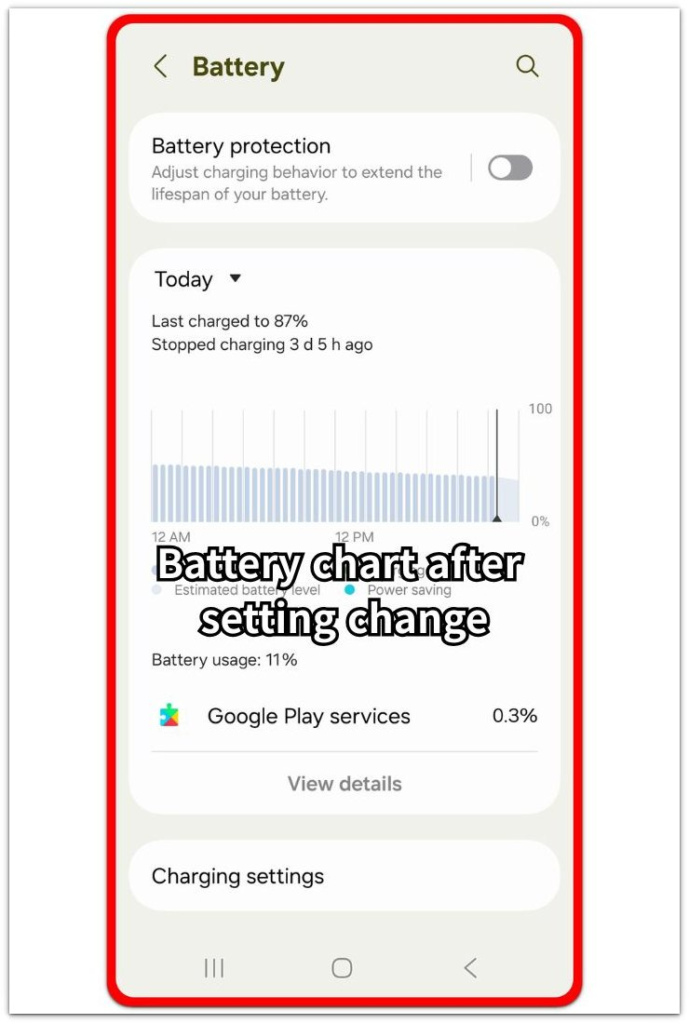
Start with the setting that changed right before the battery drain became noticeable. Keep that setting on for the first check, and do not change Battery Saver, app limits, Wi-Fi, mobile data, or background data yet.
Use the phone in the same normal routine where the faster drop first appeared. After that period, open Battery and check the battery chart, screen time, and recent activity. This first check shows whether the faster drop followed that adjustment instead of another new change.
Step 2: Repeat the Routine Without New Changes
Run the phone routine one more time before changing the setting back. Keep phone use, connection state, and power mode as close to the first check as possible.
Open Battery again after the second check and compare the new result with the earlier one. A repeated battery change during similar use carries more weight than one short reading. It also keeps the check focused on one setting instead of several different tests.
Step 3: Compare That Setting With Battery and App Activity
Now compare the changed option with Battery usage and normal app activity. Open Battery usage and look for apps, system activity, background use, or wireless activity near the same period.
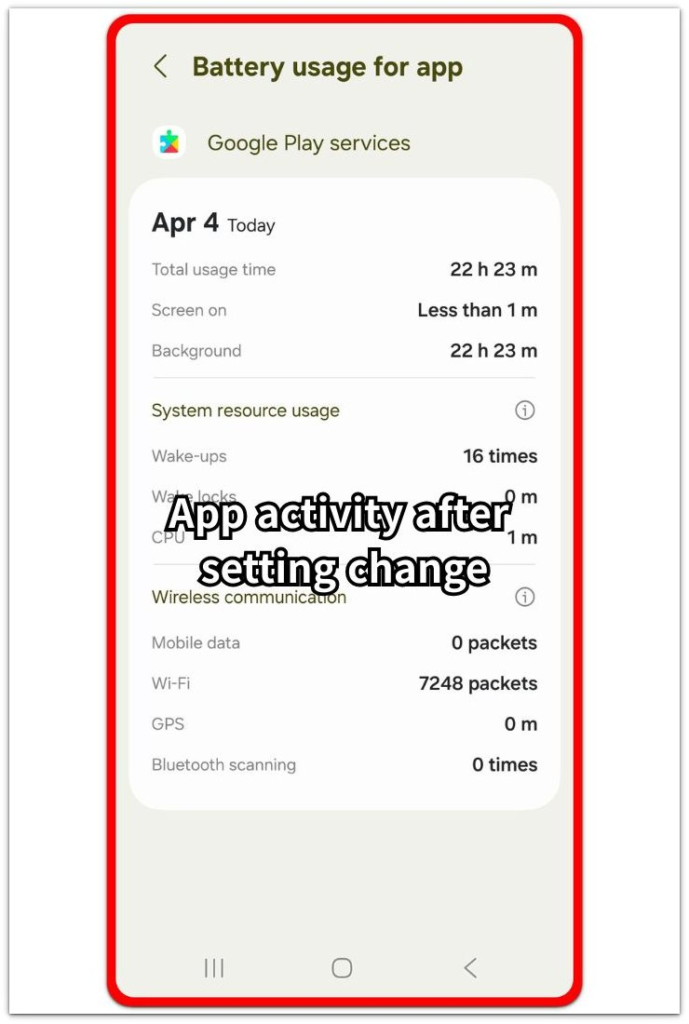
When one app or service appears near the battery loss, see whether it connects to the setting you changed. Leave the rest of the phone setup alone, adjust only that setting or the matching app limit, and check the next normal use period again.
Troubleshooting
Troubleshooting 1: Certain Apps Start Refreshing After You Reopen Them
The battery drop appears only after you reopen a few apps while the changed setting stays on. Messages, shopping apps, browsers, or social apps refresh right after that change and make the battery result look worse than the setting alone.
Open Battery after that period and check which app appears near the battery loss. Limit only the app that matches the timing, then repeat the normal routine before turning the option back.
Troubleshooting 2: Connection Changes Make the Battery Loss Look Stronger
A Wi-Fi, mobile data, Bluetooth, or location-related setting makes the battery drop harder to read when the phone reconnects, searches, or keeps checking nearby devices. This shows up after the phone moves between rooms, routers, cars, earbuds, or weak signal areas.
Run the next check in a steadier place and keep the connection state the same during the test. Compare Battery again afterward and see whether the drop follows the setting change or the unstable connection period.
Troubleshooting 3: Battery Drain Continues After You Turn the Setting Back
The battery keeps falling even after you turn the changed option back. Another app, sync task, or system activity started during the same period and stayed active after the setting test ended.
Open Battery usage and look at recent app activity before changing more settings. Pause or limit only the activity listed near the drop, then check one normal use period again.
Extra Section 1: When the First App Routine Makes the Setting Look Worse
A recent change looks like the main battery problem when the next phone routine starts right away. You change one option and open the usual apps again. Messages, browser pages, social apps, or shopping apps refresh during that same period, so the battery drop looks tied to the setting before you review the app activity.
The cleaner check starts in Battery usage. Look at the time near the drop, then compare it with the apps opened after the setting change. One app matters more when it appears close to the battery loss and also loaded new content during that routine.
The setting is still part of the test, but the fix should stay narrow. Limit the app that matches the timing or adjust the permission connected to that app, then run the next normal routine again. Do not reverse several options at once, because the next reading becomes harder to compare.
Extra Section 2: When the Connection Environment Changes the Battery Result
A connection-related setting makes the battery result harder to read when the phone keeps moving through different places. You change a Wi-Fi, Bluetooth, mobile data, or location setting, then use the phone near a router, a car, earbuds, or a weak signal area. The battery loss looks connected to the setting, but the phone is also reconnecting and checking nearby devices during that period.
A steadier test gives a clearer result. Keep the phone in one place and avoid switching between routers, cars, earbuds, or weak signal areas during the next check. Open Battery afterward and compare the result with a steadier test period, not with a day that had several connection changes.
The changed setting matters more when the battery loss returns under that steadier test. A smaller drop during that controlled period points more toward the connection environment than the setting alone. Keep the next fix narrow and avoid changing unrelated battery options before one more normal-use check.
Official Source: Google Battery Usage Settings
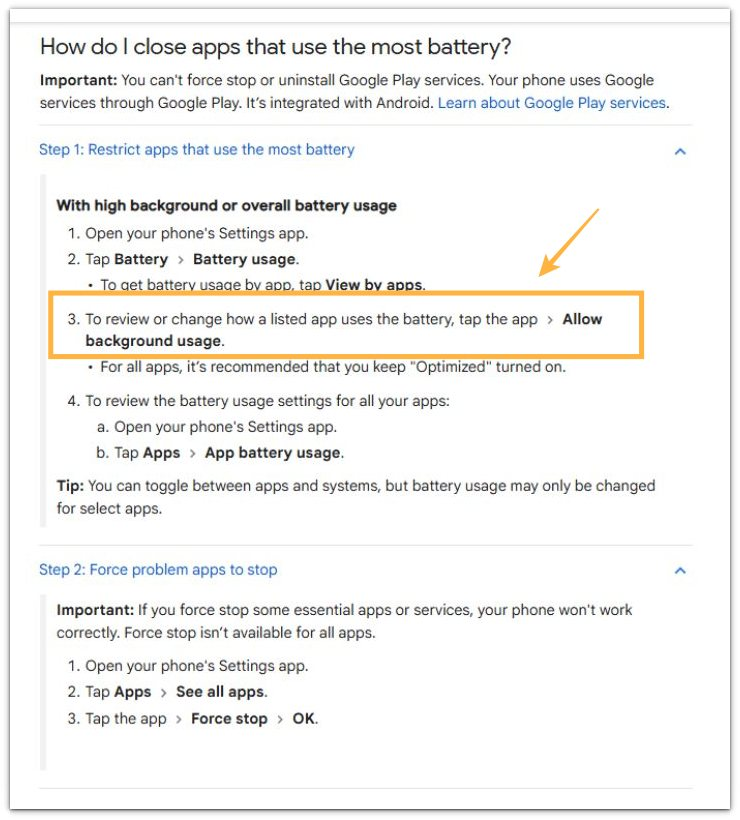
Google’s battery help page supports this check because it tells users to review a listed app’s battery use and change background usage for that app before changing unrelated settings.
Additional Tips
A battery reading right after a system update needs more time. Let the phone finish normal setup work before treating the first drop as a settings problem.
Charging, heat, and poor signal also change the reading. Run the next check after the phone cools down and the battery level has settled.
A sudden notification burst makes the result harder to read. Check again during a quieter period before tying the drop to one setting change.
Final Notes
Android battery drain after changing settings matters when the faster drop returns during a matching routine. One short drop after one setting change is too weak, but repeated battery loss near the same setting, app activity, or connection state carries more weight.
The best fix is the narrow one. Change only the setting, app limit, or permission that matches the timing, then check the next normal use period again before making wider battery changes.
Checklist
- Check the setting changed right before the battery drop.
- Compare the drop with Battery usage and recent activity.
- Repeat the test without changing anything else.
- Limit only the app, permission, or setting that matches the timing.
- Review one normal use period again before changing other battery settings.
For the full starting path, go back to the main Android battery drain guide and choose the check that matches what you saw first.