
Introduction
Android hotspot battery drain usually shows up while the phone is actively sharing mobile data. The battery drops as another device uses the connection, so the first check should focus on that active period.
Run one short Mobile Hotspot test before changing battery settings. Check the battery level before you turn it on, let the other device use data normally, then check the level again as soon as you turn it off.
Android Hotspot Battery Drain Step-by-Step Guide
Step 1: Check the Battery Level Before Hotspot Starts
Start with the battery level before hotspot use begins. Turn on Mobile Hotspot the way you normally do, then connect the device that usually shares your phone’s data.
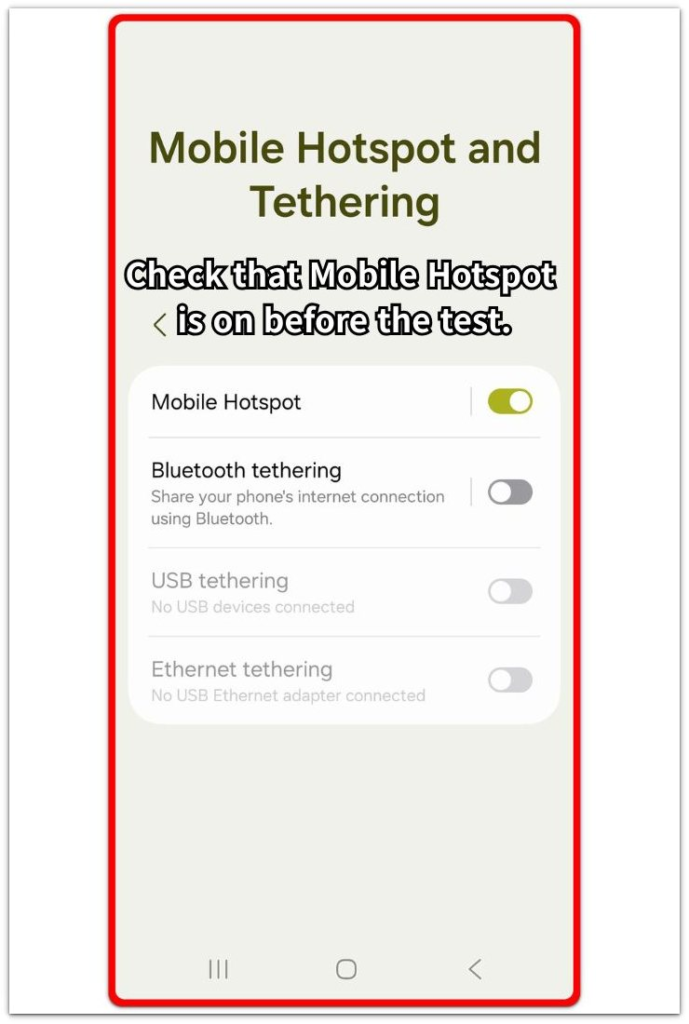
Keep this first check simple. Leave battery saver, network mode, screen brightness, and app settings as they are before the test starts. The first goal is to see what happens during one normal sharing test.
Let the connected device use data normally for a short period. When the session ends, check the battery level again before opening other apps or changing settings.
Step 2: Compare the Drop With the Hotspot Session
Check whether the battery fell while the other device was using your mobile data. A small drop from a short test is not enough by itself, but a faster drop during active use gives you the first useful comparison.
Run the next test for a similar length of time, with the usual device and normal data activity. The result is easier to compare when the test does not become heavier than your normal use.
Check whether the faster drop returns. Repeated drops while Mobile Hotspot is on matter more than one quick percentage change.
Step 3: Check Battery Usage After the Hotspot Test
After the test, open Battery and compare the drop with the time Mobile Hotspot was on. Look for battery use during that period, especially from system activity, mobile network use, or anything else that rose at the same time.
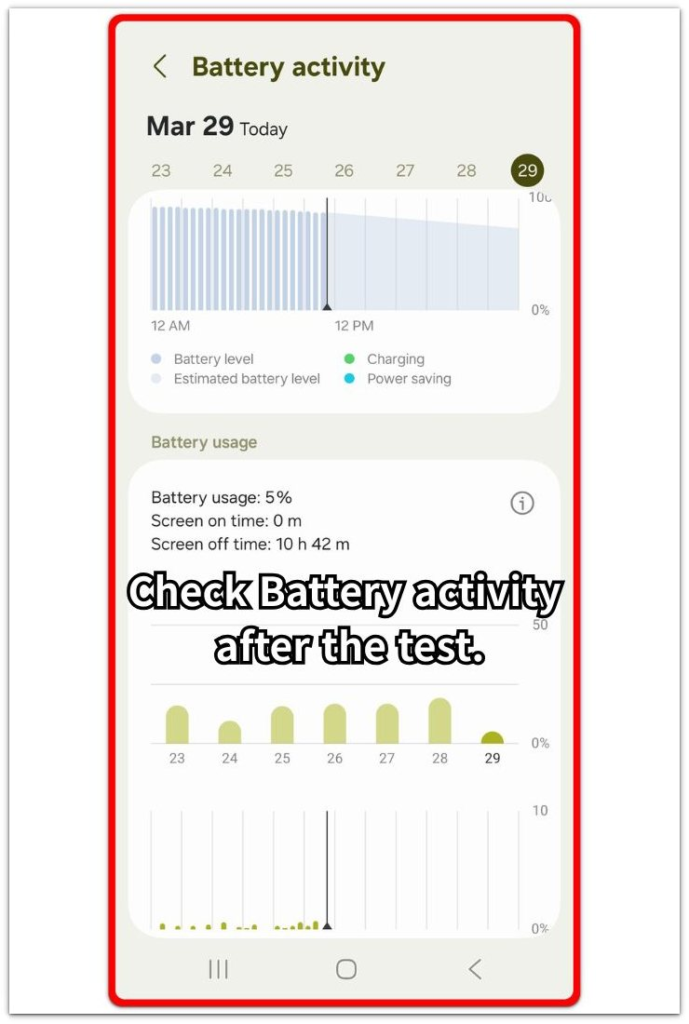
Keep other heavy activity out of this check. Streaming on the phone, gaming, camera use, or large downloads on the phone itself make the result harder to read.
A faster drop during a cleaner test points to the parts that changed while Mobile Hotspot was active: data demand, signal strength, heat, and length of use.
Troubleshooting
Troubleshooting 1: When the Battery Drops Faster Because the Signal Is Weak
A hotspot session drains faster when the phone has to hold a weak mobile signal while sharing data. Weak-signal drain often shows up in a basement, crowded building, underground space, or any room where the signal keeps moving between bars.
Check the signal during the hotspot session, not only before it starts. A connected device can still load pages or videos, but the phone uses more power to keep mobile data stable while sharing that connection.
Try one shorter hotspot session in a place with stronger signal. A slower drop in stronger coverage makes the signal the first thing to fix, not the battery.
Troubleshooting 2: When the Connected Device Uses More Data Than Expected
The phone is sharing the connection, but the other device can still run updates, cloud sync, video playback, downloads, or browser tabs. The drop can look worse even while the phone screen stays quiet, because that device is still pulling data.
Check the connected device before blaming the hotspot setting. Pause large downloads, app updates, cloud backups, and video streaming on that device, then run another short hotspot session.
When the drop gets smaller after pausing those tasks, keep the fix on the connected device first instead of changing unrelated battery settings on the phone.
Troubleshooting 3: When Heat Builds Up During Hotspot Use
Hotspot use warms the phone because mobile data, hotspot broadcasting, and power use all happen at the same time. The drain often gets worse when the phone sits under a pillow, inside a bag, near a window, or while charging during the same session.
Move the phone to an open spot and keep it off heavy charging during the next test. Use the hotspot for a similar length of time and compare the drop again.
When the phone stays cooler and loses less battery, heat was part of the problem. Keep it uncovered and avoid charging while sharing data unless you need it..
Extra Section 1: A Short Hotspot Session That Was Heavier Than It Looked
A short hotspot session can feel light at first. You turn on Mobile Hotspot, connect a laptop or tablet for a few minutes, and expect only a small battery change because the phone screen is not the main part of the session.
The connected device can make that short window heavier than expected. A browser reopens old tabs, a video preview starts, or a work app pulls fresh files as soon as the connection comes back. The phone is sharing data, but the amount of data moving through that connection can be much larger than the session length suggests.
A ten-minute hotspot session with heavy data movement can drain more battery than a longer session where the connected device only sends light messages or opens a few pages. The time looks short, but the data demand is not always small.
A short session like this needs context before blaming the phone battery. A larger drop makes more sense when the connected device was busy during that short test.
Extra Section 2: A Long Hotspot Session That Got Worse in the Wrong Spot
A long hotspot session can feel normal at the beginning. You turn on Mobile Hotspot, place the phone nearby, and let another device stay connected while you work, watch something, or keep a tablet online.
The session gets harder on the battery when the phone stays in a poor spot. A bag, a soft chair, a sunny window, or the inside of a car can trap heat while the phone keeps sharing mobile data. Signal can also shift during that time, especially when the phone sits in a corner, near a window, or inside a moving car.
The drop builds slowly across the session instead of coming from one quick moment. The phone keeps mobile data active, broadcasts the hotspot connection, and stays warm while the connected device continues using the link.
By the end, the battery loss makes more sense when you look at the whole setup, not just the hotspot timer. Mobile Hotspot stayed on for a long time, the phone sat in a poor spot, and heat or signal changes made the battery loss easier to explain.
Official Source: Google’s Android Hotspot Battery Advice
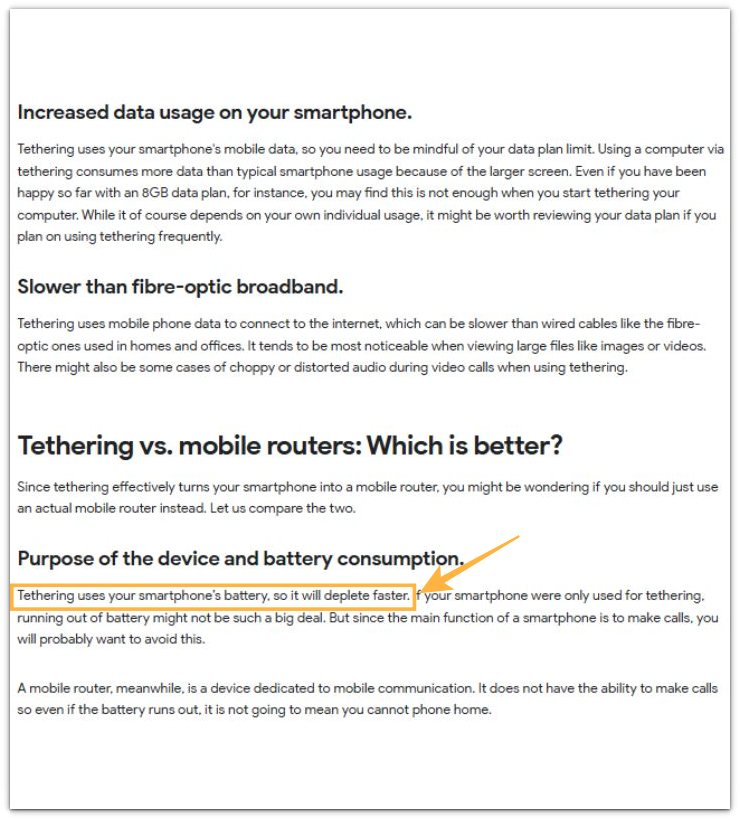
Google’s Android Help says tethering uses the phone’s battery, and turning it off after a session helps reduce unnecessary drain.
Use that point as the base for the next checks: length of use, connected device activity, signal strength, and heat.
Additional Tips
Keep Bluetooth, high screen brightness, and heavy phone use out of the first hotspot test. Those extras add their own drain and make the hotspot test harder to read.
A large app update or system update can make the result messy. Background setup uses data and battery at the same time, so test again during a normal period.
Use hotspot auto turn-off when the setting is available. A hotspot session that stays on after the connected device stops using the connection can keep wasting battery in the background.
Final Notes
Android hotspot battery drain becomes clear when the faster drop keeps returning while Mobile Hotspot is active. The cause usually sits inside that active use, so check data demand, signal strength, heat, and length of time before changing unrelated battery settings.
A clear pattern puts the focus on how the connection runs, not on the battery itself. Shorter heavy use, fewer background tasks on the other device, better signal, and turning Mobile Hotspot off afterward are the strongest fixes.
Checklist
- Check the battery level before turning on Mobile Hotspot.
- Run one normal hotspot session with the usual connected device.
- Compare the battery drop right after the session ends.
- Check whether the connected device used heavy data.
- Watch for weak signal or heat during the session.
- Turn hotspot off when sharing ends.
Use the main Android battery guide to compare hotspot drain with signal strength, screen use, and background activity.