
Introduction
Android battery drain in airplane mode becomes noticeable when the battery drops during a disconnected period. You turn on Airplane Mode, put the phone down, and expect the battery to stay almost steady while the screen is off.
Later, the percentage is lower than expected even though calls, mobile data, and other wireless connections should not affect that quiet period as long as they stay off. Start with that disconnected period and check whether the drop happened while the mode stayed on before changing settings.
Step-by-Step Guide: Android Battery Drain in Airplane Mode
Step 1: Check Whether Airplane Mode Stayed On During the Drop
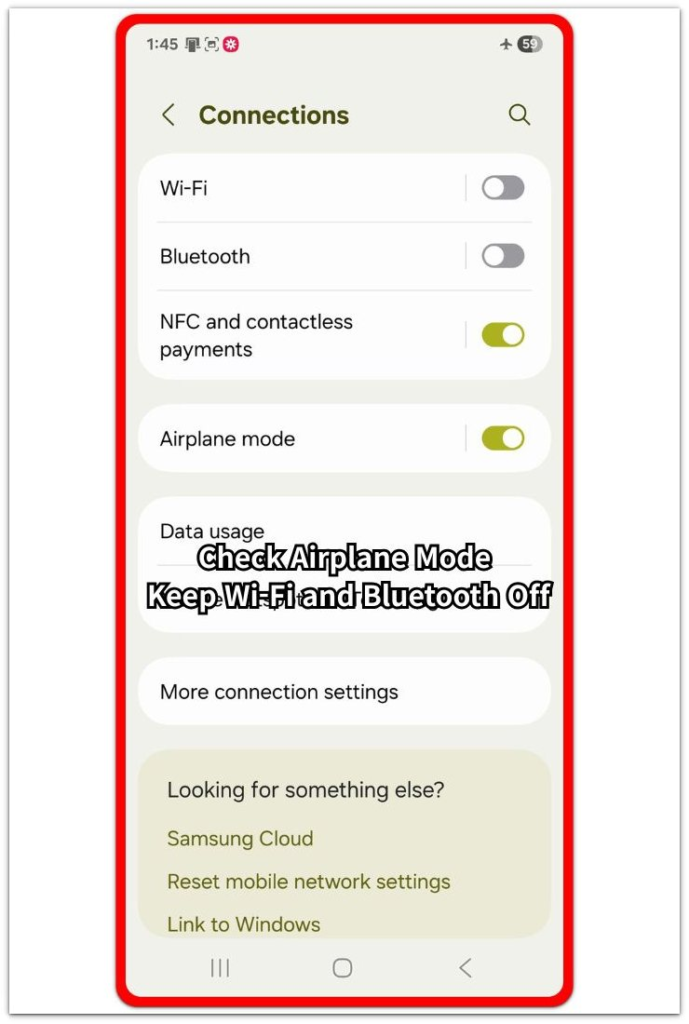
Start with one quiet period while the mode is already on. Turn it on, leave the phone alone, and keep Wi-Fi, Bluetooth, Battery Saver, app limits, and background data unchanged before this first check.
Use the phone as little as possible during this period. Keep the phone in that state so the first result shows the battery change before other settings affect the test.
After the test period, open Battery and check the battery percentage change. Compare the drop with screen time and recent activity, then repeat this setup in Step 2.
Step 2: Repeat the Quiet Period Once
Repeat the check during another quiet period with the mode still on. Use a similar time length and leave the phone in the same place so the second result is easier to compare with the first one.
Keep Wi-Fi and Bluetooth off before the second check. Some Android phones let you use those connections again after Airplane Mode is on, so the comparison only works when the connection state stays unchanged.
Check Battery again after the second period. Compare the new drop with the first Airplane Mode period. A repeated drop under the same condition gives you a reason to check Battery activity next.
Step 3: Check What Stayed Active During the Test
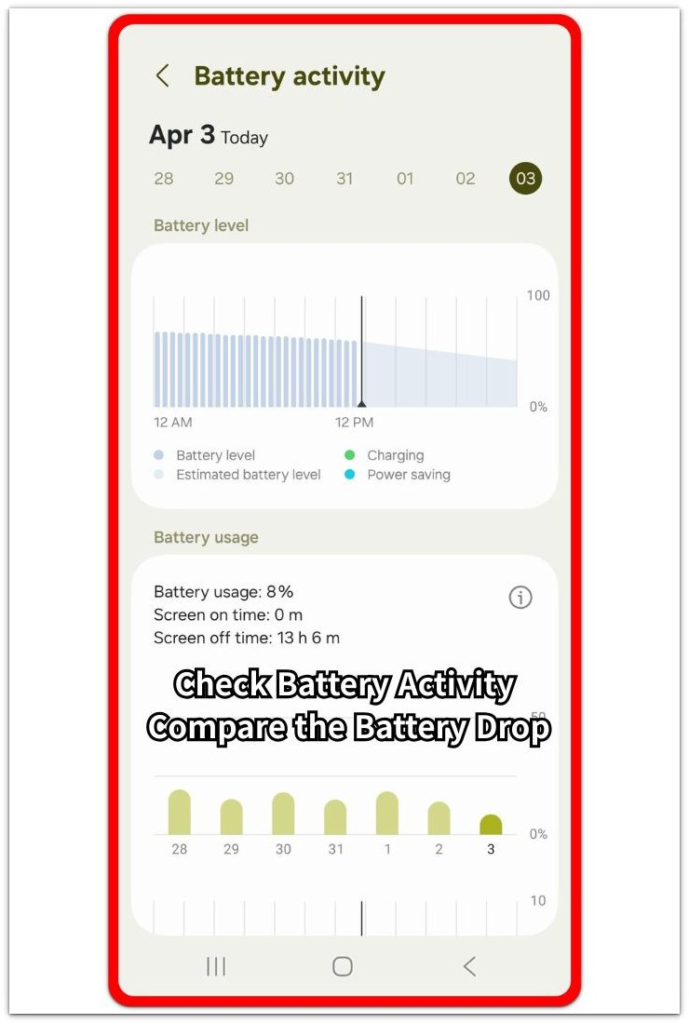
Open Battery or Battery usage after the drop appears again. Look at that time period and compare battery level, screen time, and the apps or services listed below it.
Focus on activity that lines up with the drop. A screen-off drop with little screen time points to something running during the quiet period.
Look for app refresh, sync, location requests, backups, or system activity during that period. Use the strongest activity clue to choose what to adjust before the next Airplane Mode check.
Troubleshooting
Troubleshooting 1: Wi-Fi or Bluetooth Turns Back On During Airplane Mode
Airplane Mode cuts the main wireless connections first, but some Android phones still let those connections turn back on afterward. This matters when the phone sits in that mode, but Wi-Fi reconnects to a router, Bluetooth reconnects to earbuds, or a nearby device keeps pairing in the background.
Open the Connections page before the next quiet test and check whether either connection is active while the mode is still on. Keep those connections off for one test period, then check whether the drop looks different from the earlier reading.
Troubleshooting 2: Sync or Backup Activity Keeps Running
Some battery loss during the disconnected period comes from activity that does not need mobile data at that moment. A cloud backup, app sync, photo upload queue, or account service often keeps trying again once any connection returns.
Open Battery afterward and check the apps or services listed near that time. When the same app or service appears during the quiet period, pause its sync or backup setting first and run another check before changing wider battery settings.
Troubleshooting 3: A Recent App or System Change Affects the Test
A new app update, system update, restore, or account sign-in often makes the first test look worse than a normal quiet period. Setup, app data rebuilds, or account checks can continue while the screen stays off.
Check whether the battery change started after one recent update, restore, or sign-in. Leave the phone in Airplane Mode for another similar quiet period after the setup activity settles, then compare the Battery result before blaming the mode itself.
Extra Section 1: Overnight Airplane Mode Drain With the Screen Off
A common case is a phone left on a desk overnight with the mode already on. The screen stays off, nobody uses the phone, and the user expects the battery level to look almost the same in the morning.
The problem becomes clearer when the battery percentage still falls during that quiet period. The next check should stay focused on that overnight result.
Open Battery in the morning and compare the drop with screen time and the activity listed near those hours. When screen time is low but app refresh, sync, backup, or system activity appears near the drop, that remaining activity matters more than normal phone use.
Extra Section 2: First Airplane Mode Check After Setup
A different case appears right after a system update, phone restore, or account sign-in. The user turns on Airplane Mode soon after setup and expects the phone to stay quiet, but the first result looks worse than a normal disconnected period.
That first check is too early to use as the main result. Open Battery and look for setup-related activity near the drop, such as app data rebuilds, account sync, backup queues, or system services finishing earlier changes.
Run the next check after those setup tasks calm down. Keep the mode on, leave Wi-Fi and Bluetooth off, and compare the new result with the first setup-period reading before changing unrelated battery settings.
Official Source: Airplane Mode Still Allows Wi-Fi and Bluetooth Control
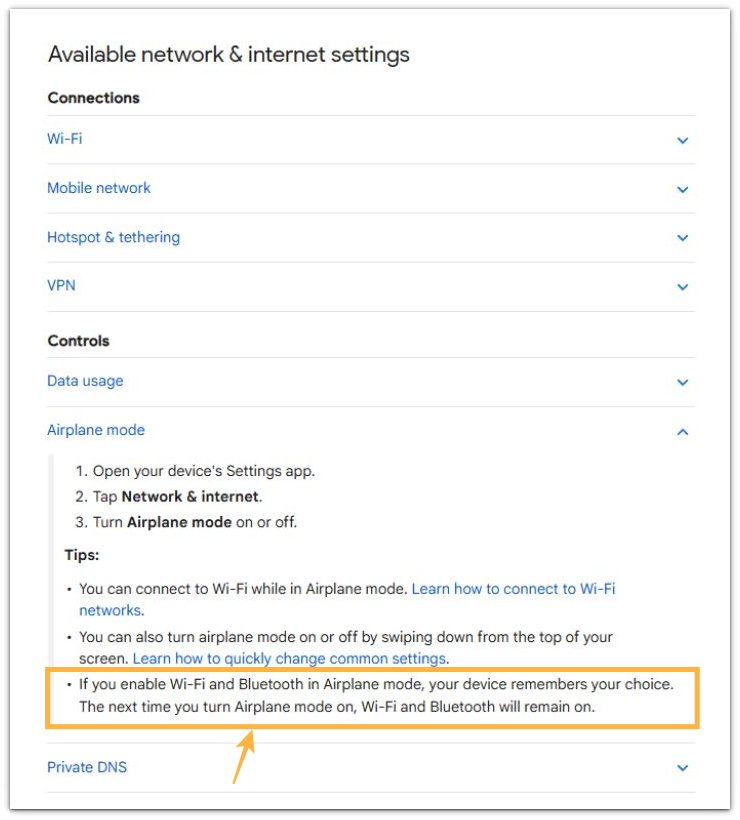
Google explains that after you turn on Airplane Mode, Wi-Fi and Bluetooth remain separate controls. This source supports the connection-state check in this guide rather than proving every Airplane Mode battery drain case.
Additional Tips
A very short test gives a weak reading. Use a longer quiet period before treating the result as a repeated drain problem.
A phone that stayed warm before the test distorts the result. Let it cool down first when the drop happened after charging, gaming, navigation, or a long video session.
A low battery level also makes small percentage changes look stronger. Check the next quiet period from a steadier battery level when the first test started near empty.
Final Notes
Android battery drain in airplane mode matters when the drop returns during a quiet screen-off period while the phone stays disconnected. One short test is too weak, but repeated loss under the same setup gives the Battery page a clearer role.
The strongest result comes from matching the drop with screen time, connection state, and recent activity. When Wi-Fi and Bluetooth stayed off and Battery still shows app refresh, sync, backup, or system activity near the loss, adjust that activity first. Random setting changes make the next Airplane Mode check harder to read.
Checklist
- Check one quiet disconnected period before changing settings.
- Keep Wi-Fi and Bluetooth off during the test.
- Compare the battery drop with screen time.
- Review Battery activity near the screen-off period.
- Separate setup activity from a normal Airplane Mode result.
- Adjust only the activity that matches the strongest battery clue.
For a broader Android battery check, the main Android battery drain guide helps before you change settings one by one.