
Introduction
Android one app suddenly draining battery becomes noticeable when Battery usage shows one app far above the rest. You did not keep that app open all day, so the number feels wrong because it does not match how briefly you used the app.
Start with the app at the top of the Battery usage list, then use the next check to see whether the same battery drop comes back around that app.
Step-by-Step Guide: Android One App Suddenly Draining Battery
Step 1: Check Whether One App Is Really Higher Than the Rest
Open Settings, then Battery, and go to Battery usage. Look at the app list before changing any setting. The first check is to see whether one app is sitting clearly above the others during the period when the battery dropped faster.
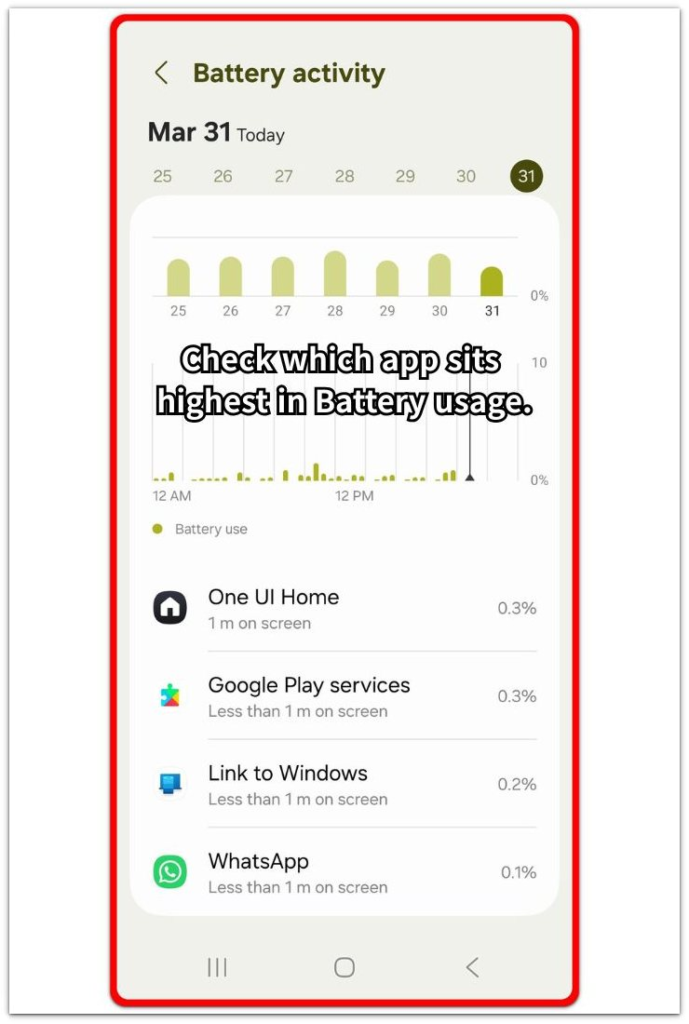
Compare that app with the rest of the list. A single high entry after one unusual day is too weak by itself, so look for that app near the top again during the next faster battery drop.
Step 2: Compare the App With Recent Use
Open the app normally and use it the way you usually do. Lock the phone for a short while, then return to Battery usage. Check whether the app’s battery number rises after that normal use.
Keep this part focused on timing. The app does not need to be open for hours to stand out, but the higher drain should line up with recent app activity, screen time, or background use. A larger drain without much recent use points to the app’s own settings next.
Step 3: Check the App Info Page Before Making Changes
Open the app’s info page from Settings, then Apps. Review its battery setting, background use, notifications, and any recent update. Start with the app’s own settings before deleting the app or changing several phone settings at once.
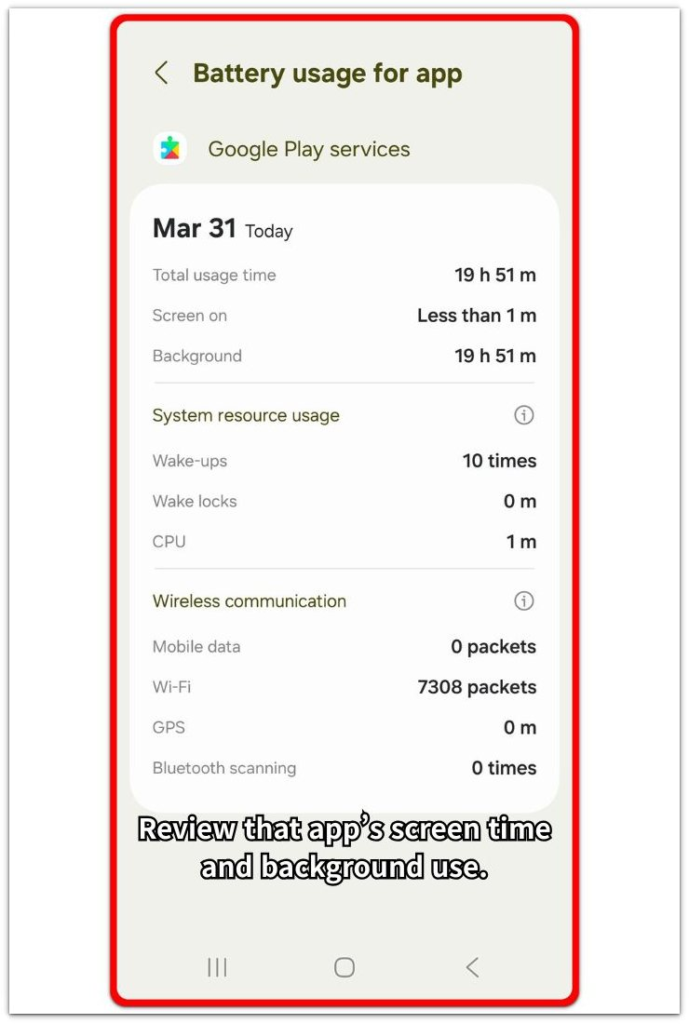
Limit background battery use first when that option is available. Then check the battery screen again after the next regular use period. Compare the result before making another change, so the next reading still points to that one app.
Troubleshooting
Troubleshooting 1: Battery Usage Stays High After Closing the App
A high Battery usage number stands out more when you only opened the app for a short time. The number keeps rising later in the day, even though the main screen time looks small.
Return to the battery screen after you lock the phone for a while. Compare its screen time with background activity. When background use looks higher than expected, limit background battery use first and check the next regular use period again.
Troubleshooting 2: Battery Drain Gets Worse After an App Update
An update sometimes changes how the app behaves in the background. It looks the same when you open it, but Battery usage shows a higher number during normal use or shortly after it closes.
Check whether the drain started near the update. Open the app info page, review its battery setting, and check for another update when the behavior still looks different. Keep deletion as the last step until that app keeps rising after another battery check.
Troubleshooting 3: Low Screen Time Still Shows High Battery Use
Low screen time does not always mean background activity stopped. Battery usage stays high when syncing, location checks, downloads, or refresh activity continues after screen use ends.
Return to Battery usage and compare screen time with background use for that one app. Limit background use first when the option is available, then use the phone normally and check whether it still stays near the top during the next battery drop.
Extra Section 1: Short Social App Use Still Leaves a High Battery Number
A social app looks confusing when it stays near the top of Battery usage after only brief use. You only opened it for a few messages, a quick scroll, or one notification, but its battery number still looks larger than expected later in the day.
This does not point to a bad app right away. That drain matters more when it returns after the same kind of short use.
Review the battery screen after another regular part of the day before changing several settings. A repeated rise carries more weight than one busy session, especially when the app keeps showing activity after the screen time looks small.
Extra Section 2: Location Access Keeps One App High After a Task
Location-based use behaves differently because one task often uses more than the screen. A delivery app, map app, ride app, or shopping app with location access keeps checking where the phone is while the task is active.
It does not have to stay open all day to appear high in Battery usage. A short order check, route lookup, pickup update, or store search leaves a larger battery number when location use continues around that task.
Review the battery screen after the next similar task and see whether that app rises again. A spike that appears only after location-based use points first to that app’s location and background settings, not a general battery problem.
Official Source: Google Battery Usage by App
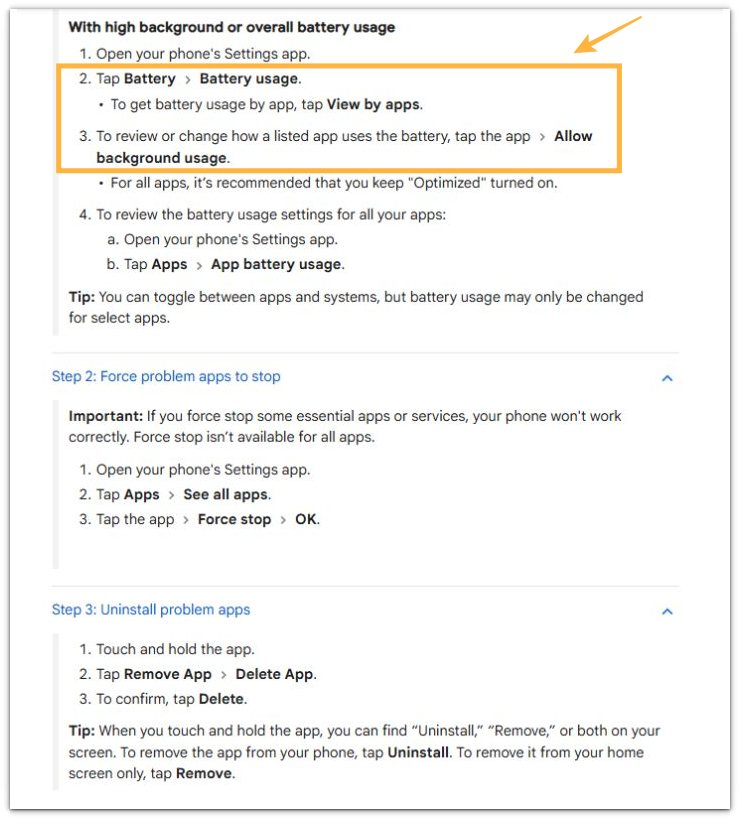
Google explains that Android users can check Battery usage by app, open a listed app, and review or change its background battery use. That matches this guide’s main check: start with the one app shown in Battery usage before deleting apps or changing several phone settings.
Additional Tips
A very short Battery usage period gives a weak clue. Check the app again after a normal part of the day, especially after you lock the phone and use it the same way.
Some apps look high because the rest of the phone used very little battery during that period. A single app near the top matters more when the battery percentage also dropped faster than usual.
Notifications also change the result for some apps. A chat, shopping, or delivery app that sends many alerts during the day often shows more activity even when you only opened it a few times.
Final Notes
Android one app suddenly draining battery is worth fixing when the same app keeps returning near the top during normal use. One high entry after an unusual day is not strong enough, but a repeated rise after similar use gives a clear place to start.
The clearest test is simple: match the app’s Battery usage with recent use, background activity, and app-specific settings. When that app keeps rising after that check, limit that app first instead of deleting the wrong app or changing several Android settings at once.
Checklist
- Check Battery usage before changing settings.
- Confirm that one app sits clearly above the rest.
- Compare the app with recent use, screen time, and background activity.
- Review the app info page before deleting the app.
- Limit background battery use for that one app first.
- Check the next normal use period before making another change.
Use the main Android battery guide first when more than one app looks active or the battery drop does not point to one clear app.