
Introduction
Android Wi-Fi battery drain becomes noticeable when the battery falls faster during normal indoor use while Wi-Fi stays connected. Mobile data is not part of the test, and the drop happens during the same home or office Wi-Fi routine.
Start with the connected indoor period itself. Check whether the faster drain appears on the same network, then compare that result with screen time and recent app activity before changing settings.
Step-by-Step Guide: Android Wi-Fi Battery Drain
Step 1: Check the Battery Drop During One Normal Indoor Session
Start with one normal indoor session on the same network. Use the phone the way you usually do at home, at work, or in another place where the connection stays steady.
Do not change network settings, battery settings, app limits, or background data before this first check. The first goal is to see the original Wi-Fi situation before other settings change the result.
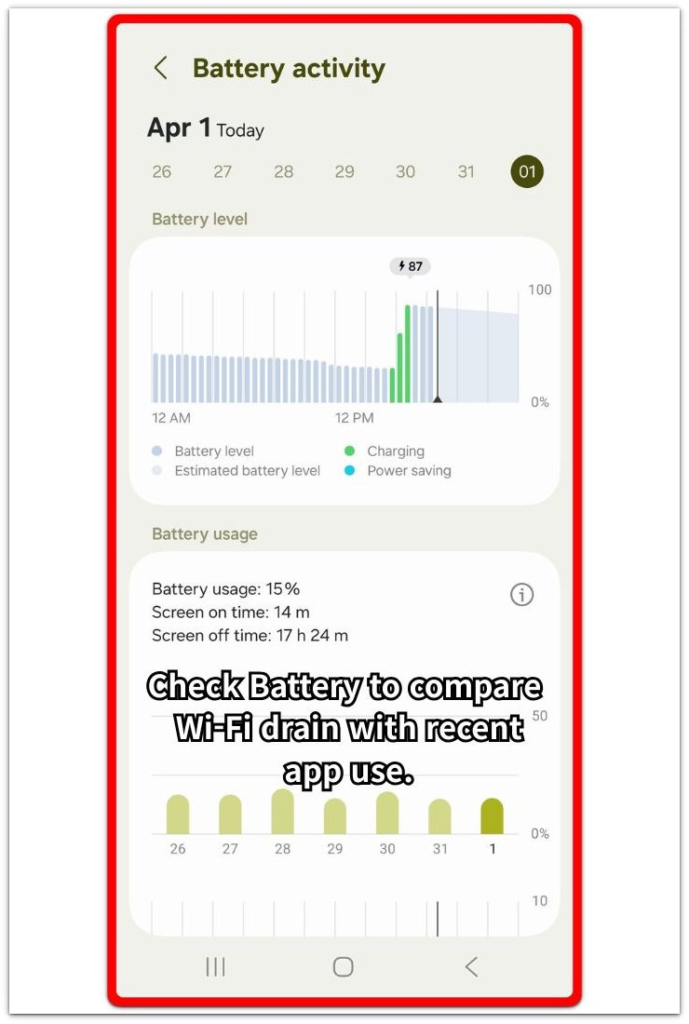
Open Battery afterward and look at the battery drop, screen time, and recent app activity together. A faster drop with light screen use gives a clearer reason to check the connection before blaming one app or the battery itself.
Step 2: Repeat the Check on the Same Wi-Fi Network
Use the phone again on the same network during a similar part of the day. Keep the test simple so the result is easier to compare. Avoid gaming, long calls, hotspot use, large downloads, or a long video session during this second check.
Open Battery again and compare the new drop with the first result. One drop is too weak by itself, but a similar drop on the same network makes the connection the next place to check.
Step 3: Check Whether the Connection Stays Steady During the Drop
Open the network screen and confirm that the phone still uses the same network during the time you are checking. Look for a weak signal, repeated reconnecting, or a network change before changing battery settings.
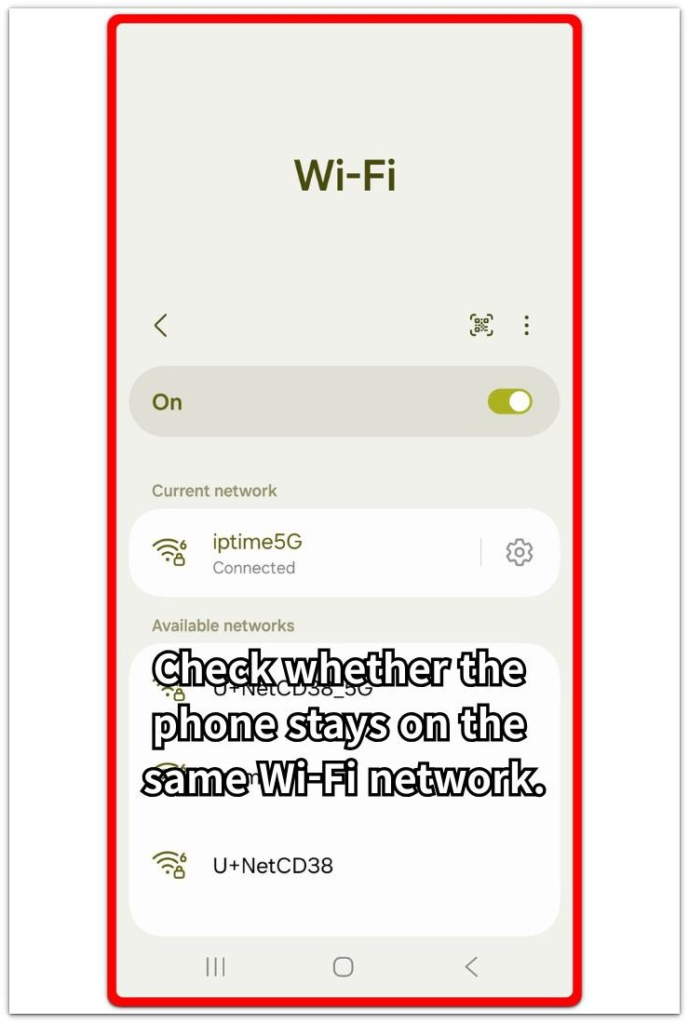
Compare that network status with the Battery result. When the faster drop returns while the phone stays on the same network, focus on the connection first. Move closer to the router during the next check, keep the phone on one network, and review recent app activity after one normal indoor session.
Troubleshooting
Troubleshooting 1: Weak Signal Makes the Battery Drop Faster
A connection stays active even when the signal is weak. This often happens in a far room, near a closed door, in a parking area, or in a place where the phone keeps holding the network with poor strength.
Check the phone closer to the router during the next normal indoor session. Compare that result with the weak spot before changing app settings. A slower drop near the router points more to the connection area than to one app.
Troubleshooting 2: Reconnecting Happens During the Drop
Some battery drops show up when the phone keeps leaving and rejoining the same network. The icon looks normal at a glance, but the connection still switches or reconnects in the background.
Open the network screen when the drop starts and check whether the phone stays on the same network. When the phone keeps jumping between saved networks, stay on one network for the next check instead of changing battery settings first. Check Battery again after one normal indoor session on a steadier connection.
Troubleshooting 3: Background App Use Makes the Drop Look Bigger
A normal indoor session looks like a connection problem when an app quietly syncs, backs up, or downloads in the background. This often happens during photo backup, app updates, cloud sync, or the first session after a long time away from Wi-Fi.
Open Battery after the drop and compare recent app activity with that session. When one app rises during the same period, limit that app’s background activity first. Check the next normal indoor session before changing router or battery settings.
Extra Section 1: The Drop Followed a Weak Signal Spot
A battery drain problem looks confusing when the phone behaves normally in one part of the house but loses battery faster in another. The phone stays connected in the bedroom, a closed room, or a far corner of the office. The signal is weaker than it looks from the icon alone, but the connection is still active. At first, it does not feel like a network problem.
The Battery screen does not always make this clear. One app stays low in the list, and screen time looks close to normal. The place matters more when the faster drop keeps returning there. Use the phone once near the router and once in the weaker room during a similar indoor session. Keep the app use simple so the location is the main difference.
A slower drop near the router points to the signal area first, not to a random app or the battery itself. Changing app limits too early hides that clue. Repeat the same kind of indoor use in a stronger signal spot. Review Battery again before making a bigger change.
Extra Section 2: The Drop Started After Background Work
A battery drop looks like a network problem when it starts soon after the phone joins a home or office connection. The connection itself looks steady, and the signal looks strong, but the phone starts doing work that was waiting for Wi-Fi.
Photos, cloud files, app updates, or account sync often wait while the phone is away from a trusted network. Once the connection is available, those tasks start in the background and the battery falls faster during what looks like a normal indoor session. The phone is online, but the heavier work is coming from the apps using that connection.
Open Battery after the drop and compare the timing with recent app activity. A backup app, photo app, cloud app, or app update entry rising during the same period gives a different clue from weak signal. Reduce or pause that background work first, then check the next normal indoor session before changing router or battery settings.
Official Source: Android Developers on Network Battery Use
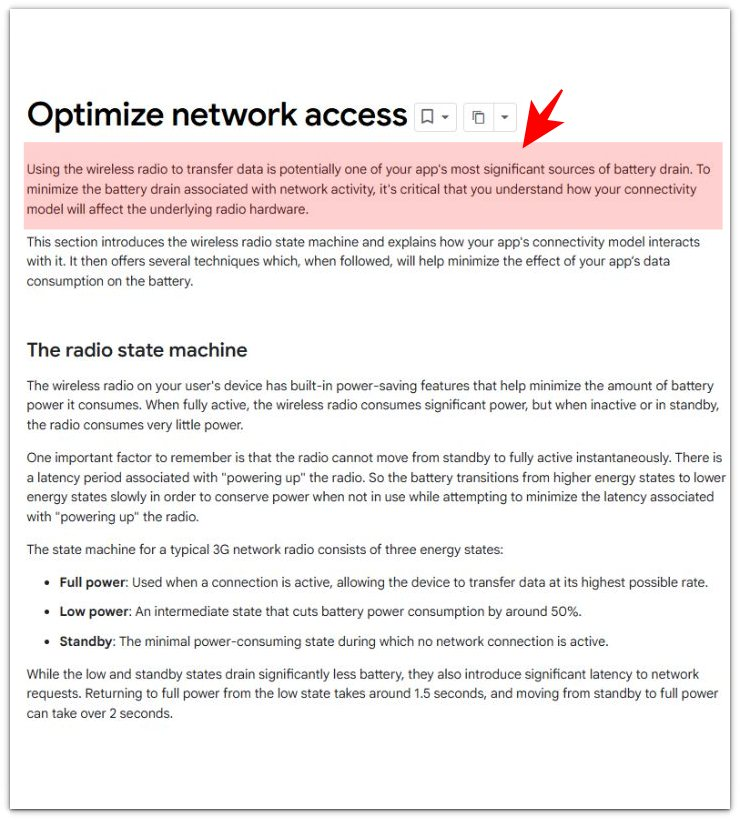
Android Developers notes that wireless data transfer is one of the major battery costs for an app. This supports checking background sync, backups, and app updates during the faster drain instead of blaming the connection alone.
Additional Tips
A very short indoor session gives a weak battery clue. Use a normal-length home or office session before treating the connection as the main reason for the drop.
Router restarts change the result for one session. Check again after the network has stayed steady for a while, especially when the first drop happened right after a router issue.
A busy shared network affects the reading too. Several devices streaming, downloading, or backing up at the same time make the phone look heavier on the battery during the same indoor routine.
Final Notes
Android Wi-Fi battery drain matters when the faster loss keeps returning during normal indoor use, especially when the phone stays on the same network and screen time does not explain it. One short session is too weak, but repeated drops on the same network give the signal area, connection behavior, or background work much stronger weight.
The final check is whether the battery drop follows the indoor Wi-Fi period itself. Compare Battery with screen time, app activity, signal strength, and background sync before changing several settings at once. A repeated loss on a steady network leaves two checks: a stronger signal spot and the apps using data during that period.
Checklist
- Check one normal indoor Wi-Fi session before changing settings.
- Compare the battery drop with screen time and recent app activity.
- Repeat the check on the same network during a similar part of the day.
- Confirm whether the phone holds the network or keeps reconnecting.
- Test a stronger signal spot before blaming one app.
- Review background sync, backups, and app updates during the drop.
- Change only the setting that matches the strongest clue.
For the full Android battery check, use the main guide to compare Wi-Fi drain with app use, signal, and other battery clues.