
Introduction
Android Auto battery drain becomes noticeable when the battery falls faster than usual while Android Auto keeps the phone linked to the car. The drop often stands out during navigation, music streaming, calls, wireless Android Auto, or a long cable-connected drive.
A short wireless trip, a long route, and a drive with calls or music usually point to different battery problems. Keep the first check tied to what was active on the road.
Step-by-Step Guide: Android Auto Battery Drain
Step 1: Check When the Battery Drop Starts During the Drive
Start with the trip where the battery drop first stood out. Keep the phone connected the same way as usual, either by cable or wireless Android Auto, and leave battery settings unchanged before the first check.
Watch the moment the battery begins falling faster. Separate the drive into clear points, such as starting the route, keeping navigation open, playing music, taking a call, or driving for a longer stretch with the phone connected.
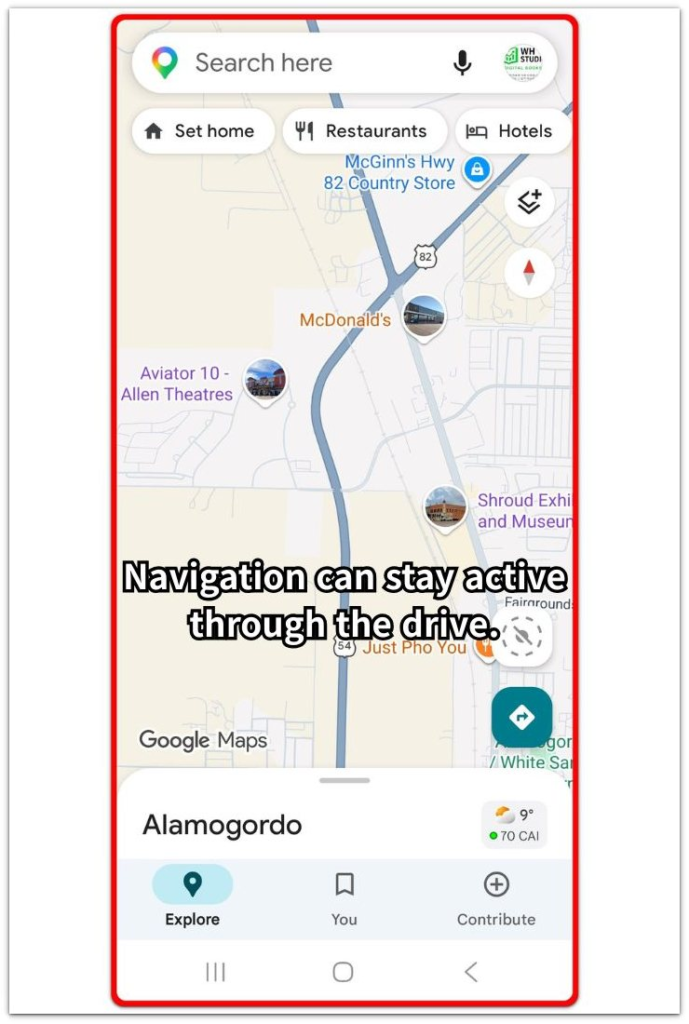
Step 2: Compare the Drop With What Was Active in Android Auto
Open Settings, then Battery after the drive. Check whether the faster drop lines up with navigation, music, calls, Maps, Android Auto, or another app used through the car screen.
The percentage alone gives a weak reading. Battery loss during a long route is different from a faster fall that starts only when wireless Android Auto, turn-by-turn navigation, or a call stays active for most of the drive.
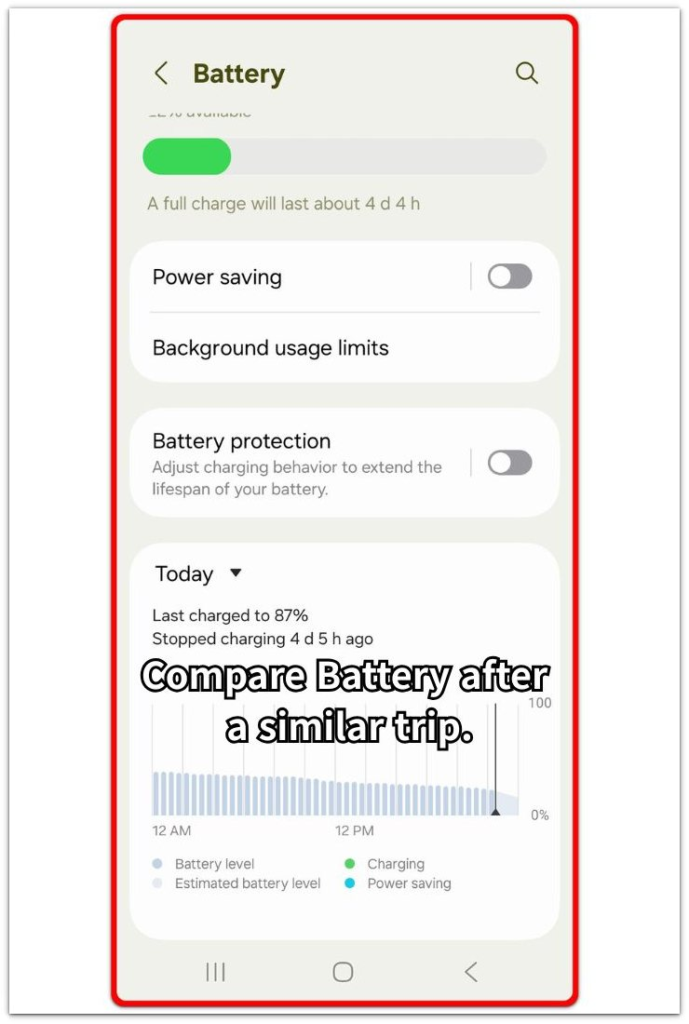
Step 3: Change One Driving Condition and Check the Next Trip
On a similar drive later, change only one condition. Use cable instead of wireless for one test, or change only the feature that matched the faster battery use.
Keep the route, drive length, and phone connection as close as possible to the first check. Compare Battery again after the trip. A smaller loss shows which condition to adjust first. When the result stays close, check another Android Auto feature that stayed active during the drive.
Troubleshooting
Troubleshooting 1: The Battery Drops More With Wireless Android Auto
The battery falls faster when the phone uses wireless Android Auto instead of a cable. The phone stays connected to the car screen, streams data, keeps Bluetooth active, and still runs navigation or music during the drive.
Use a cable on one similar route and keep the rest of the trip close to the first check. Open Battery again afterward. A smaller drop with the cable means you should adjust wireless use first.
Troubleshooting 2: Navigation Keeps Running After the Route Looks Finished
The battery keeps falling after the main route is almost over, especially when Maps or another navigation app still stays active in Android Auto. This often happens during parking, short stops, or a return drive when the route screen remains open longer than expected.
End navigation manually after the route, then check the next short drive or parked period. Compare Battery afterward and see whether Maps or Android Auto still appears near the drop.
Troubleshooting 3: Music, Calls, or Charging Makes the Drive Harder to Read
A long call, music streaming, or a weak car charger changes the battery result during Android Auto use. The phone stays linked to the car, but the charger does not keep up while the screen, audio, and route guidance run together.
Run one drive without a long call or music stream, and keep the charger and cable the same. Check Battery after the trip. When the drop slows down, check media use, call time, or charging speed before treating Android Auto as the main cause.
Extra Section 1: Wireless Android Auto Feels Worse on Short Drives
A short city trip makes the battery drop feel stronger than expected. The phone connects to the car, brings up the car screen, and keeps the wireless link active even when the actual driving time is only a few minutes.
This stands out more when the same route happens several times a day. Each start brings the wireless link back, wakes the car screen, and keeps the phone busy for a short time before it settles again.
The battery loss does not come from one long navigation session. It comes from repeated starts, quick parking stops, and the phone staying linked to the car after the trip feels finished. Treat this as a short-trip connection problem first.
Extra Section 2: Android Auto Looks Worse on a Long Navigation Drive
On a longer route, several active tasks make the battery result harder to read. Maps keeps route guidance running, music streams through the car, and the phone stays on a call or uses a weak charger during the same trip.
The Battery page shows Android Auto near the drop afterward. Android Auto is not always the only reason for the battery loss. The heavier battery use often comes from the full setup: route guidance, audio, call time, charging speed, and the car screen connection.
A long navigation trip works differently from a short wireless connection problem. Check what stayed active the longest, not only the app name that appears after the trip.
Additional Tips
A warm phone changes the result. Let the phone cool down before the next check when the battery loss happened after parking in the sun, long charging, or navigation in hot weather.
A very low battery level also makes the reading less clean. Start the next trip with enough charge so the phone is not already limiting performance or reacting to a near-empty battery.
Car chargers are not equal. A weak USB port keeps Android Auto running but still fails to hold the battery level during navigation, calls, or music streaming.
Final Notes
Android Auto battery drain becomes clearer when you match the battery loss to the part of the trip that used the phone most. A short wireless connection, a long route, a call, music streaming, and a weak charger do not create the same result.
Start with the feature that stayed active the longest. A smaller loss after one change shows which adjustment helped. When the result stays close, check navigation, media, calls, wireless use, or charger strength before changing general Android battery settings.
Checklist
- Check when the battery starts falling during the trip.
- Compare Battery after the trip with the active Android Auto feature.
- Change one driving condition on the next similar route.
- Separate short wireless use from long navigation use.
- Review media, calls, and charger strength first.
- Fix the matching part before changing general Android battery settings.
Still not sure why the battery keeps dropping? Use the main Android battery drain guide before changing more battery settings.