
Introduction
Android battery drain while gaming becomes noticeable when the fast drop shows up during play, not during the rest of the day.
The phone looks steady before the game starts. After one normal gaming session, the battery level falls more than expected, while regular use outside the game still seems normal.
Start with the gaming session where the fast drop appeared, then use that short play window as the first comparison point.
Android Battery Drain While Gaming Step-by-Step Guide
Step 1: Check Whether the Battery Drop Starts Soon After the Game Opens
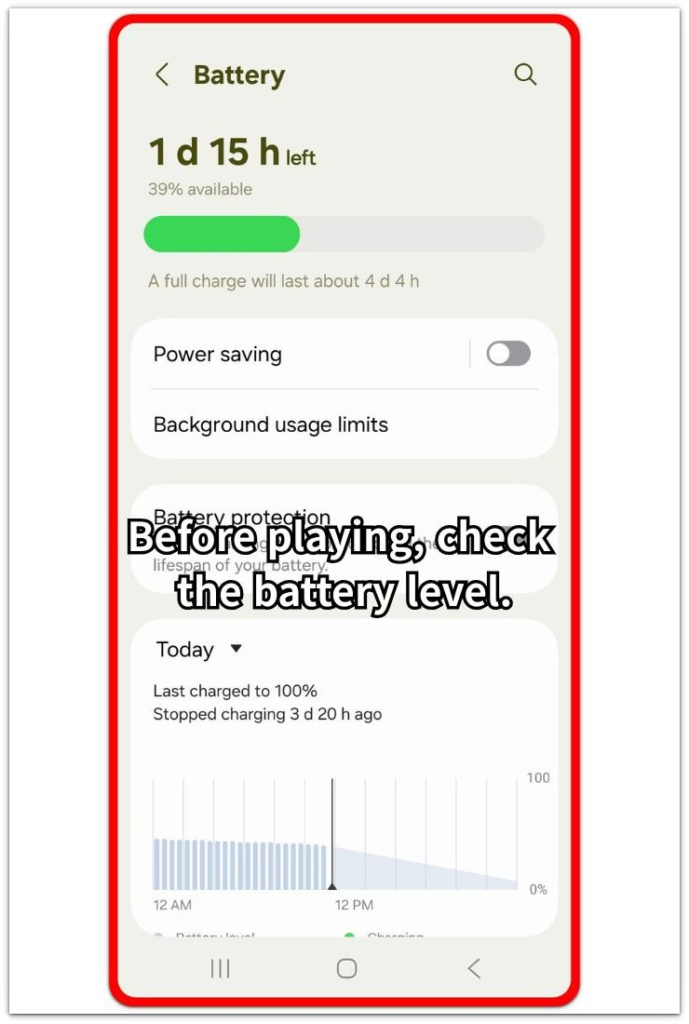
Start with one normal game session. Check the battery level before opening the game, then play the way you usually do for a short period.
After play ends, check the battery level again before opening other apps. This keeps the first check tied to the game window instead of the rest of the day.
A clear drop during that short session gives you the first point to compare in Battery usage.
Step 2: Stay With One Game Instead of Testing Several Games at Once
Use the same game for the next check. Different games can create different battery results, so switching between them makes the comparison weaker.
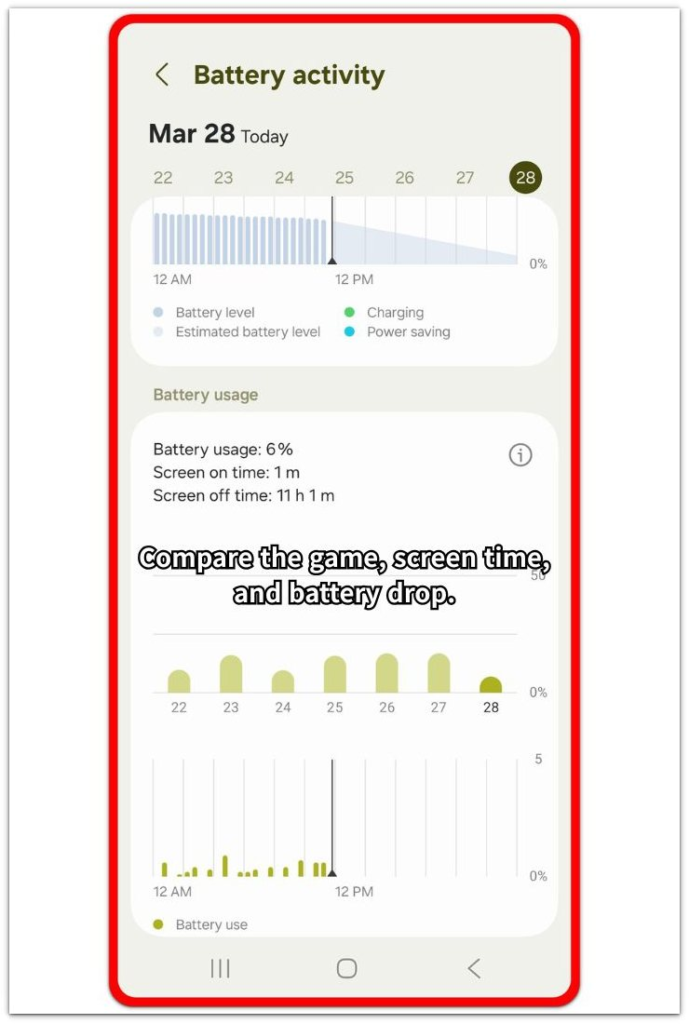
Play for a similar amount of time and keep the session close to the first test. Then open Battery usage and check whether the same game appears near the drop.
A repeated drop from the same game is easier to compare before you change battery settings.
Step 3: Check Whether Heat Appears During the Same Gaming Session
Once the game ends, check how warm the phone feels before changing anything. Focus on one game, a similar play time, and the point where the battery started falling faster.
A warm phone does not replace the Battery usage check. It only adds context when the fast drop and heat show up together during play.
If the battery falls quickly and the phone also gets warm during that session, treat heat as a supporting clue, not the only reason for the drain.
Use that result as the next clue before changing game settings.
Troubleshooting
Troubleshooting 1: The Game Does Not Appear High in Battery Usage
The battery can drop during play even when the game is not the first item in Battery usage. Open Battery usage right after the session and scan the full list, not only the top entry.
Look for related lines around the drop, such as Android System, Google Play services, or screen use. A play session can involve more than the app itself, especially when the drop happened while it was open.
Use those entries as the next comparison point. The goal is to match the battery drop with the activity around the play window, not to blame the first app on the list.
Troubleshooting 2: The Battery Drop Looks Worse Only in One Game
A heavier game can drain faster than a lighter one, so compare each title separately. Mixing a short casual round with a longer graphics-heavy session makes the result harder to read.
Start with the title that looked worst. Play it for a short, normal session, then check Battery usage right away. For the next check, keep the play time similar instead of switching titles.
A fast drop that returns with that title gives you a cleaner place to start. Adjust that game first instead of changing every game setting.
Troubleshooting 3: The Phone Gets Warm Before the Drop Looks Clear
Heat can appear before the battery number looks dramatic. It does not prove the full cause by itself, but it matters when the fast drop and warmth show up together during play.
Put the phone down for a few minutes before starting another round. Check whether the battery drop slows once the phone cools and the session has ended.
Treat heat as a supporting clue. Battery usage still needs to show what was active around the drop.
Extra Section 1: When the Game Looks Normal but the Battery Percentage Drops Too Much
A user opens a game, plays one round, and everything feels normal. The screen does not freeze, the app does not close, and no warning appears. Nothing looks broken during play.
The problem shows up when the round ends and the battery number looks lower than expected for that amount of play time. Android battery drain while gaming becomes harder to notice here because the game looked fine while the battery was falling.
Smooth gameplay does not tell the full battery story. Open Battery usage right after that round and check whether the app or a related system entry rose during that window.
Extra Section 2: When the Screen Time Looks Larger Than the Game Entry
A user finishes a game and opens Battery usage, expecting that app to explain the whole drop. It appears in the list, but the screen time also looks high around that play window.
The screen result matters here because the phone stayed awake the entire time the game was open. The app entry shows part of the activity, while screen time shows how long the display stayed active during the session.
Read both entries together before separating the issue from gaming. A high screen time entry next to the app entry still points back to that play session, even when one app does not explain the whole drop.
Official Source: Google Explains Why Phones Get Warm During Games
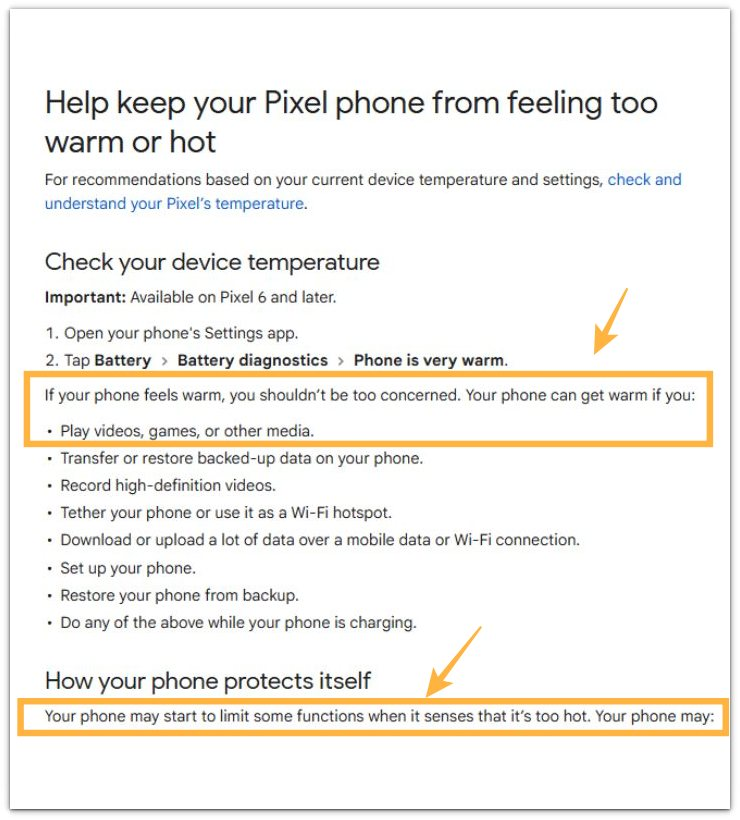
Google explains that a phone can get warm while playing games or videos. It also says the phone may limit some functions when it gets too hot.
Keep reading before blaming one app alone, because heat matters most when it appears together with the fast battery drop.
Additional Tips
Lower the game’s graphics setting before changing system-wide battery options. A lower frame rate or lighter visual setting often reduces heat during longer play without changing the whole phone setup.
Remove the phone case during a hot gaming session only when the phone already feels warmer than usual. This is not a daily fix, but it helps when heat builds up quickly during one heavy game.
Avoid charging while playing a heavy game. Charging and gaming at the same time can make heat harder to read because the battery drop, temperature, and charging behavior overlap.
Close screen recording, live streaming, or voice chat overlays before testing the game again. These features can add extra load during play and make the battery result harder to read.
Final Notes
Android battery drain while gaming is easier to read from the play window, not the whole day. A game becomes the stronger suspect when the fast drop starts during play, happens again in another short session, and appears near the game, screen, or system activity in Battery usage.
Heat makes the clue stronger, but it should not replace the battery check. A warm phone during one round only shows that the session was demanding. The issue becomes clearer when the battery drops quickly during that session and the result returns on another short test.
The right fix is to adjust the app tied to the drop first. Lower graphics, reduce frame rate, stop extra overlays, and avoid charging during heavy play. Changing every battery setting before confirming the game window only makes the problem harder to read.
Checklist
- Check the battery level before opening the game.
- Play one normal short session.
- Check the battery level right after the game ends.
- Open Battery usage and compare the game, screen, and system entries.
- Check whether the fast drop returns with that game.
- Lower game settings before changing whole-phone battery settings.
For a broader battery checklist, read the main guide before changing more settings.