
Introduction
Android battery drain while using navigation usually becomes noticeable during a normal trip, not while the phone is sitting unused.
You open the navigation app, start the route, and the battery percentage falls faster than it does during regular screen-on use. The phone still works, the map keeps updating, and the route looks normal, but the battery drop does not match the length of the trip.
Start with the trip window itself. Check the battery level before the route starts, then compare it with the level right after the route ends. That gives you a clear starting point before changing battery settings, location settings, or the navigation app.
Android Battery Drain While Using Navigation Step-by-Step Guide
Step 1: Check Whether the Battery Drop Starts After Navigation Stays On
Start with one normal trip where the map stays open long enough to notice the battery change. Check the battery level before starting the route, then leave the map running as you normally drive or walk.
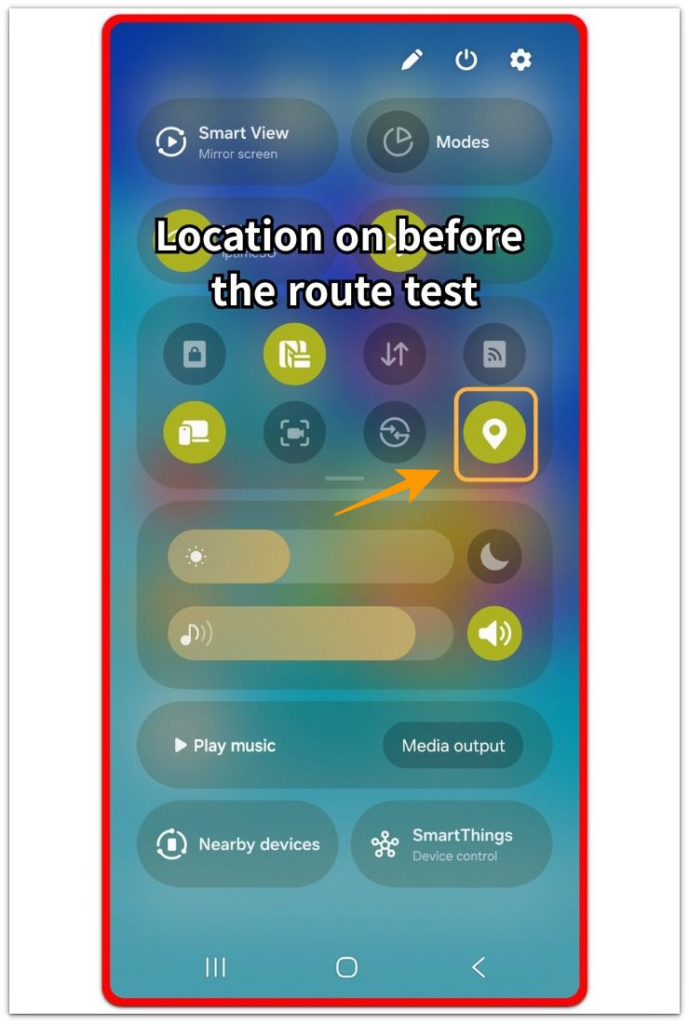
Keep the first check simple. Changing several battery settings before this test makes the result harder to connect to navigation.
When the route ends, check the battery level again before opening other apps. A larger drop during this trip gives you the first point to compare in Battery usage.
Step 2: Check Whether the Faster Drop Returns on Another Route
Use another route that feels close to the first one. It does not need to match perfectly, but the trip should be long enough for navigation to stay active and the screen to remain on for a similar amount of time.
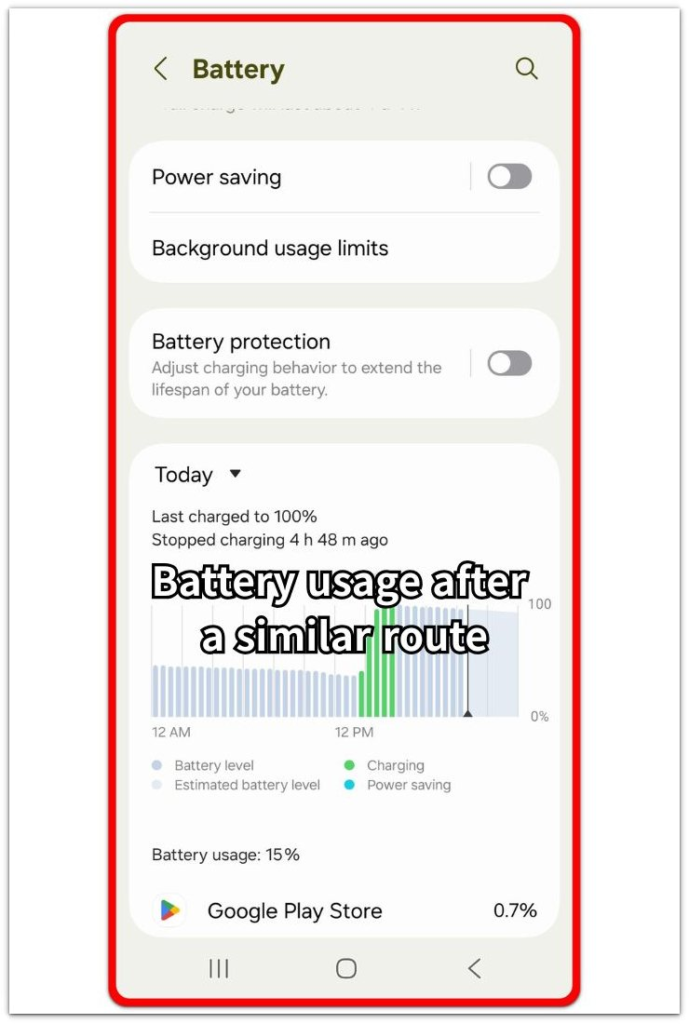
Open Battery usage after the trip and look at the navigation app, screen use, Android System, Google Play services, and location-related entries. You are not trying to blame one entry right away. You are checking whether the faster drop appears again while the route is still the phone’s main task.
A repeated drop during navigation gives you a stronger clue than one short battery change. A normal result on the second trip makes the first drop weaker evidence.
Step 3: Check Whether Navigation Is the Main Activity During the Drop
Keep the phone setup simple during the next route. Leave out extra video, music streaming, hotspot use, gaming, or heavy app switching while navigation is running.
After the trip, return to Battery usage and compare what used power during that driving or walking window. The map app, screen use, location, or system services rising during the route keeps the battery drain connected to that session.
When another heavy app takes most of the battery during the route, the problem is not navigation alone. Keep the next test focused on the route with fewer extra apps open, then compare the battery result again.
Troubleshooting
Troubleshooting 1: The Battery Drop Only Becomes Clear on Longer Trips
Short drives do not always show the navigation drain clearly. A ten-minute route can end before the screen, GPS, and mobile data have stayed active long enough to show a reliable battery change.
Use a longer normal route before judging the pattern. Check the battery before the route starts, let navigation stay open through the trip, and check the battery again when the route ends.
A faster drop after a longer active route gives you a clearer clue than a short drive does.
Troubleshooting 2: Android Battery Drain While Using Navigation Shows Up More With a Bright Screen
Navigation battery drain is not always coming from the map app alone. A bright screen during the whole route can make the battery drop look heavier, especially during daytime driving or walking.
Check the brightness level during the route and compare it with Battery usage after the trip. Screen use rising with the navigation app means the display is part of the drain, not just a side detail.
Lower the brightness for one similar route and compare the result again. A slower drop with a dimmer screen points more toward screen load during navigation.
Troubleshooting 3: The Phone Gets Hot While Navigation Is Running
Heat changes how navigation drain looks. A phone that feels warm during a route can lose battery faster even when the map, route, and signal look normal.
Check whether the heavier drop appears on trips where the phone gets noticeably warmer. Direct sunlight, charging in the car, a thick case, or heavy background apps can make the navigation session look worse than it really is.
Remove the extra heat source where possible and keep navigation as the main task. A steadier battery result after the phone stays cooler means heat was adding to the drain.
Extra Section 1: When Navigation Drain Looks Worse Because the Trip Has Many Stops
A navigation trip does not drain the same way from start to finish. A route with many stops, turns, traffic lights, and short reroutes often feels heavier than a straight drive with the map open for the same amount of time.
A twenty-minute city route can look worse than a longer road trip because the phone keeps updating the next turn, checking the route position, and reacting to small changes in movement. The navigation app still looks normal, but the trip itself gives the phone more work to repeat.
The route type matters before treating the navigation app as the only problem. Compare a stop-heavy route with a smoother route only after checking the battery before and after each trip. A faster drop on the stop-heavy route points more toward how the phone handled navigation during that trip.
Extra Section 2: When Offline Maps Still Drain Battery During Navigation
Offline maps make a navigation test feel confusing. The phone already has the route saved, so the trip looks lighter than normal mobile data navigation, but the phone still keeps the screen on, checks GPS position, and gives turn-by-turn directions.
A saved map mainly changes the data part of the trip. Screen use, location tracking, route guidance, and system services still use battery during the saved route. A battery drop during an offline route still needs a before-and-after check, not a judgment based only on mobile data.
Use offline maps as a cleaner comparison, not as proof that route guidance should barely use power. Check the battery before the route starts, compare it after the route ends, and look at Battery usage for navigation, screen, and location entries. A drop that still appears during the saved route keeps the issue tied to navigation activity, even without active map downloads.
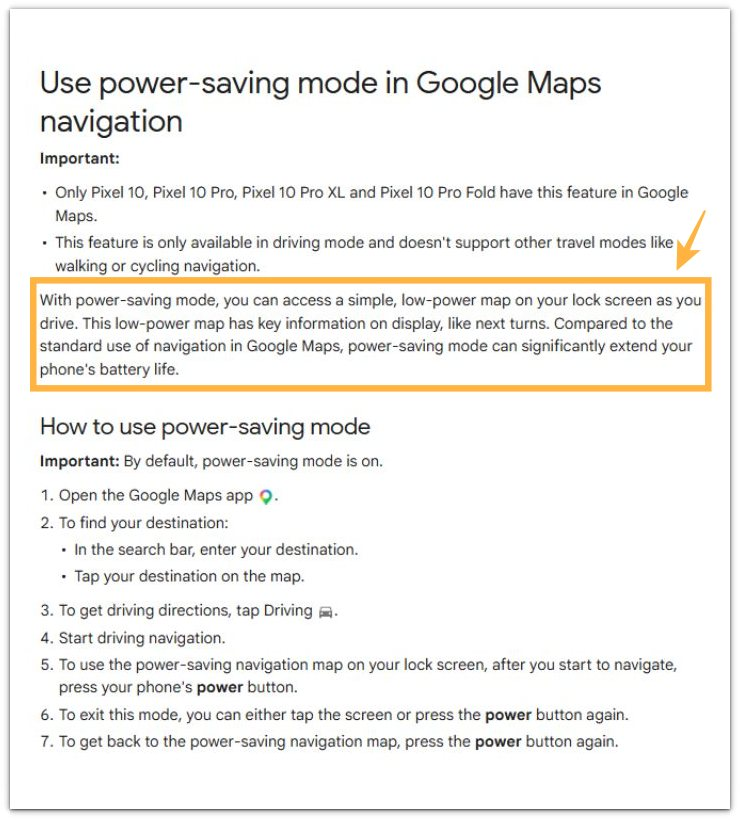
Official Source: Google Maps Power-Saving Navigation
Google explains that some Pixel phones use a simple, low-power map on the lock screen during driving navigation, which can extend battery life compared with standard Google Maps navigation.
This matters here because navigation battery drain is not only about keeping the app open. The screen, route guidance, and location work can all affect the trip-window result, so check the battery change during the route before changing unrelated settings.
Additional Tips
Avoid starting the test right after a long charging session. A warm phone makes navigation drain harder to read, especially when the route begins right after unplugging.
Keep one navigation app for the first comparison. Switching between Google Maps, Waze, and another map app too early makes the result harder to connect to one route window.
Use downloaded maps only as a comparison tool. Offline maps reduce the data side of the trip, but screen use, GPS checks, route guidance, and system activity still remain.
Final Notes
Android battery drain while using navigation becomes a real pattern when the faster drop returns during route use, not when one trip ends with a lower number.
Battery usage needs to match the route timing. Navigation, screen, location, or system services should rise during the route window before the drain points back to navigation use.
A single short route is weak evidence. Heat, screen brightness, route style, or another heavy app makes that result weaker. The cleaner answer comes from a similar route with fewer extra apps and a calmer phone.
When the faster drop keeps returning during navigation-focused trips, treat navigation use as the main battery load. When the drop disappears after brightness, heat, extra apps, or route type changes, the problem is not a broken battery. Navigation is changing how the phone uses battery during the route.
Checklist
- Check the battery level before starting navigation.
- Keep the navigation app open through the route.
- Check the battery level again when the route ends.
- Compare Battery usage with the route window.
- Check navigation, screen, location, or system services.
- Repeat the check on a similar route.
- Keep extra apps quiet during the test.
- Treat repeated route-time drops as the real clue.
For a broader battery check, use the main Android battery guide to see whether the drain comes from navigation, screen use, or background activity.