
Introduction
Android battery drain during video calls becomes noticeable when the battery drops faster while the camera call is still active, not later during normal phone use. The screen stays on, the camera keeps sending video, the microphone stays active, and the connection has to hold the call without breaks.
A fast drop during a camera call needs a narrower check than regular battery drain. The useful comparison is whether the battery falls faster while the call is active, not the total percentage lost later.
Android Battery Drain During Video Calls Step-by-Step Guide
Step 1: Check Whether the Battery Drop Starts While the Video Call Stays On
Open Settings and go to Battery before you make the call. Check the current battery level and leave the battery screen without changing battery saver, background limits, or app settings yet.
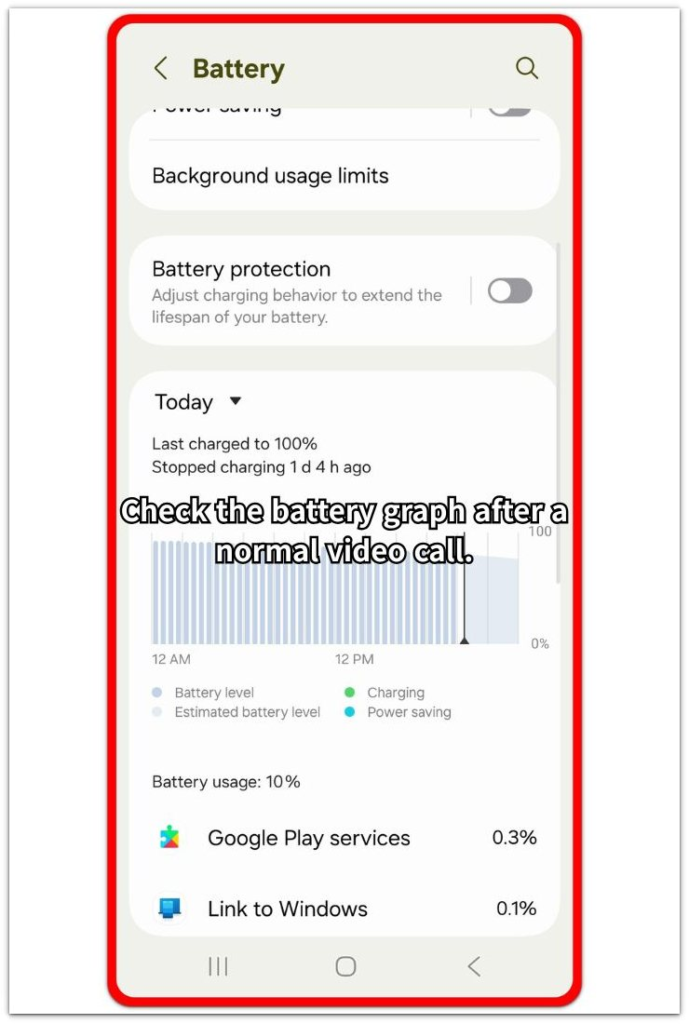
Start one video call the way you normally would. Keep the screen on, stay on camera, and let the call run long enough to see whether the battery starts falling faster than it does during normal screen use.
End the call and check Battery again right away. The first useful clue is whether the faster drop showed up during the camera call, not during a random short moment before or after it.
Step 2: Check Whether the Faster Drop Returns During a Normal Video Call
Keep the next check close to your usual call. Use one video call app, keep the screen on, and stay on camera without adding extra activity.
Keep the test close to your real use. Avoid switching apps, starting downloads, recording the screen, or testing from a place with unusually weak signal during this check.
Compare the next battery drop with the first one. A fast drop that returns during normal video calling matters more than one short percentage change from a single call.
Step 3: Check Whether the Video Call Is the Main Battery Activity
Before the next call, close other heavy apps that are not part of the test. Keep the video call app as the main active app so the result is easier to read.
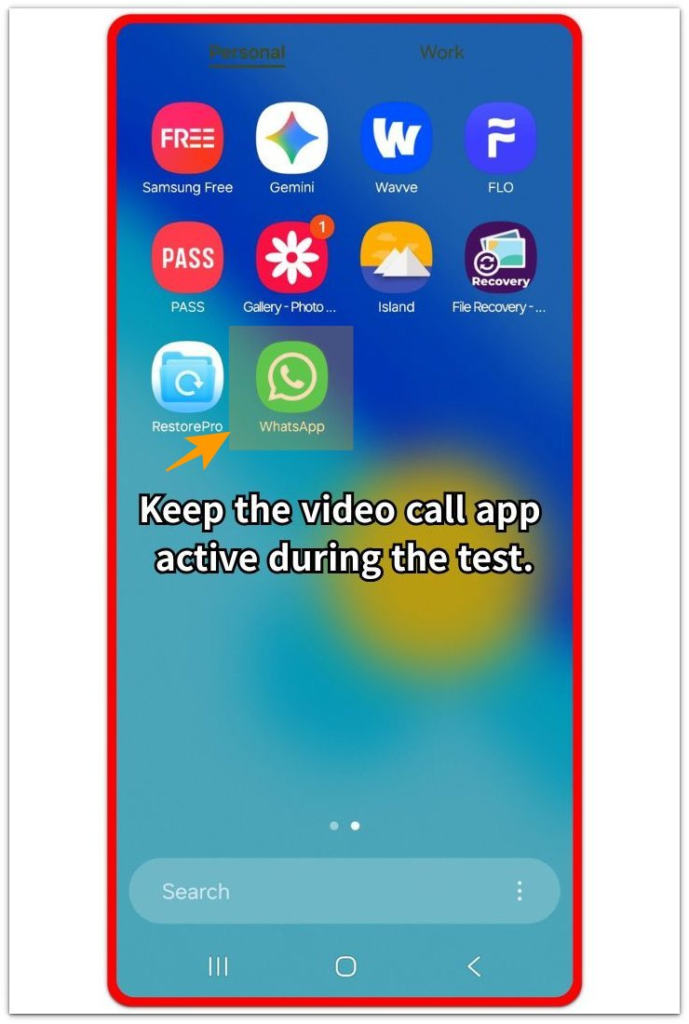
Run one more normal camera call and check whether the battery still falls too fast while the call stays active. This check helps separate video call drain from another app, download, game, or background task running at the same time.
Review the result from this cleaner test before changing more settings. A faster drop that returns during the cleaner call gives you the clue for the troubleshooting checks below. One call alone is too weak for the final answer.
Troubleshooting
Troubleshooting 1: When the Battery Drops Faster Only on Mobile Data
Video calls can drain faster when the phone uses mobile data instead of Wi-Fi. The call still looks like the same camera session, but the phone has to keep the video stream and the mobile connection stable at the same time.
Check one call on Wi-Fi and one call on mobile data, using one video call app when possible. Keep the length close enough to compare, and avoid changing camera quality, screen brightness, or other battery settings between the two checks.
A sharper drop on mobile data points more toward the connection load than the camera alone. Check the signal strength next before changing app settings.
Troubleshooting 2: When the Phone Gets Warm During the Call
A video call can become heavier once the phone gets warm. The screen stays on, the camera keeps working, and the phone continues sending and receiving live video, so heat can build during a longer session.
Place the phone on a hard surface, remove a thick case, and avoid charging during the next test. Keep the camera on and check whether the battery drops more slowly when the phone stays cooler.
Heat can matter even before the phone shows a warning. A warm phone during a camera call is enough reason to test it again in a cooler setup before blaming the battery.
Troubleshooting 3: When One Video Call App Drains Faster Than Another
One video call app can drain more battery than another during a similar camera session. Video quality, background use, and connection behavior can make the battery drop feel different even when the call length is similar.
Test another app for a similar length of time. Keep the screen on, stay on camera, and avoid using other apps during the test so the comparison stays clean.
Check the result inside the app that drains faster first. Lower the video quality if the app allows it, update the app, and review its background battery use before changing system-wide battery settings.
Extra Section 1: A Short Video Call That Drained More Than Expected
A short video call often feels too brief to explain a noticeable battery drop. You answer a quick call, keep the camera on for only a few minutes, and expect the battery to behave like normal screen use.
The call is heavier than it looks because the phone is not only keeping the display awake. The camera is sending live video, the microphone is active, the speaker or earbuds are working, and the connection has to stay steady until the call ends.
A short camera call often leaves a larger drop than a short scroll through messages or settings. The time looks similar, but the phone is handling more work during the call.
Check the result against another normal video call before changing battery settings. The clue becomes stronger when the faster drop returns during a similar camera session, not after one quick call by itself.
Extra Section 2: A Long Video Call Where the Drop Became Easier to Notice
A long video call can look normal at first. The first few minutes often look harmless, so it is easy to ignore the battery drop early in the call.
The change becomes clearer once the call keeps going. The screen stays awake, the camera keeps sending live video, and the phone continues handling the call without a break. A longer session gives that work more time to show up in the battery level.
A short test does not always explain a long call. The early part of the call can look harmless, but the full session can leave a much clearer drop by the end.
For longer calls, compare the starting level with the level right after the call ends. Checking the whole call gives a better clue than watching only the first few minutes.
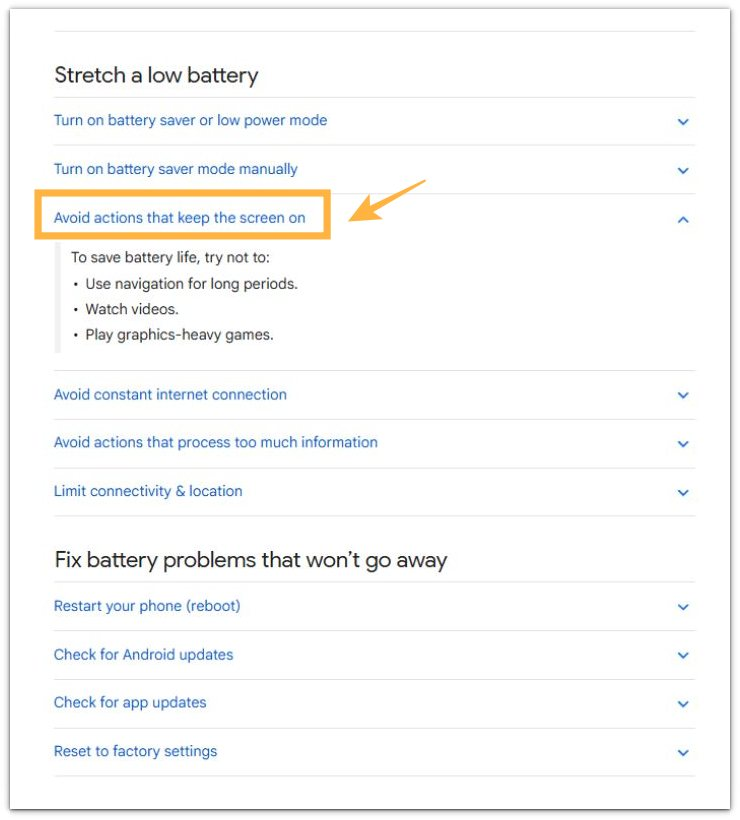
Official Source: Google Notes That Screen Settings Affect Battery Use
Google’s battery guidance points to screen settings such as brightness and screen timeout as battery-use factors. That supports checking the screen-on part of a video call instead of blaming the app right away.
Use this official clue as support, not as the full answer. A video call also uses the camera, microphone, and connection, so the next check still needs to compare what happens during the actual call.
Additional Tips
Keep the screen brightness close to your normal call setting during each check. A much brighter screen makes the drop look worse, even when the video call app is not the only reason.
Avoid judging the result while the phone is charging. Charging and video calling at the same time can hide whether the battery is actually falling faster during the call.
Keep the audio setup consistent when you compare calls. Switching between speaker, wired earbuds, and Bluetooth earbuds changes the test condition, even when the call app stays the same.
Use a call length that is close to your real use. A two-minute test does not show the same battery behavior as a normal video call that runs much longer.
Final Notes
Android battery drain during video calls becomes clearer through repeated drops during real camera calls, not one quick percentage change. A video call is heavier than normal screen use because the screen, camera, microphone, audio, and connection stay active together.
When the faster drop returns during normal camera calls, the call itself is the strongest clue. Check the call condition, connection type, heat, and app behavior before app deletion, battery replacement, or broad system changes.
The clearest answer comes from a clean comparison. A faster drop during the active camera call, followed by the same result in another normal call, points to video call load as the main cause. Adjust the call setup before changing unrelated settings.
Checklist
- Check the battery level before the video call starts.
- Compare the battery level right after the call ends.
- Run one more normal call before making the final judgment.
- Keep brightness, audio setup, and call length close to normal use.
- Treat repeated fast drops during real video calls as the strongest clue.
For battery drain that happens outside video calls, use the main Android battery drain guide next.