
Introduction
Android 5G battery drain becomes noticeable when the battery drops faster on days when the phone stays connected to 5G longer than usual. You use the phone normally outside, but the battery ends the day lower after a longer mobile-data stretch.
The difference stands out more when the same apps are open, but the phone spends more time away from Wi-Fi. Start by checking where the faster drop begins after the phone has stayed on the mobile network for a while. Keep the first check tied to network use.
Step-by-Step Guide: Android 5G Battery Drain
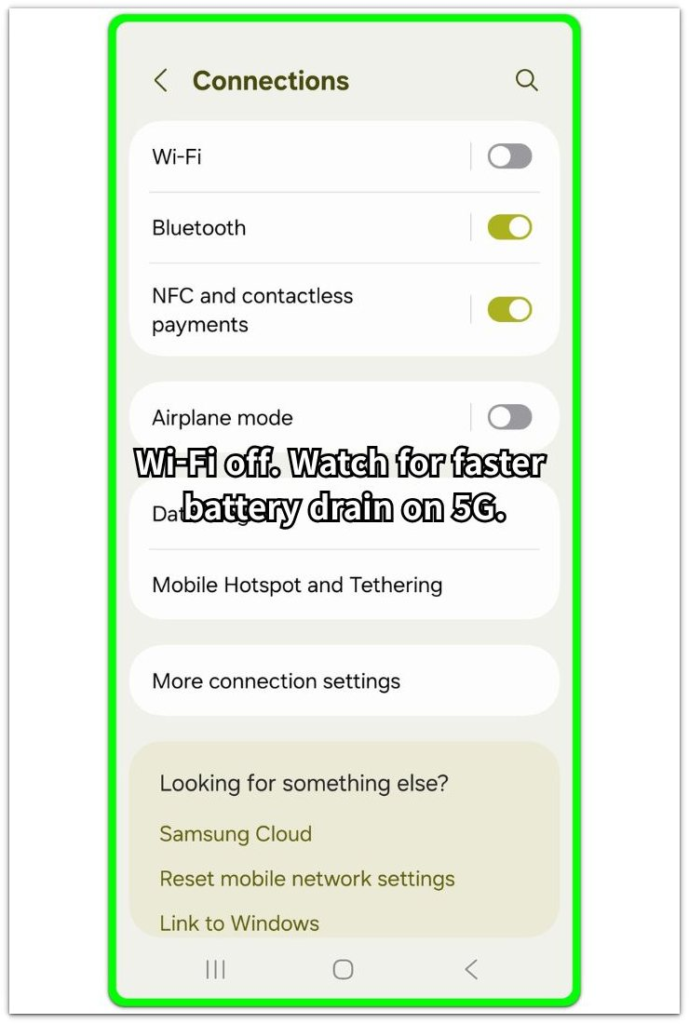
Step 1: Check the First Drop After 5G Use
Start with a normal day when the phone spends more time on mobile data. Keep mobile data on, use the phone as usual, and do not change Battery Saver, app limits, or network settings before the first check.
Look at when the faster battery drop begins. Focus on the stretch where the phone stays connected to 5G long enough for the battery loss to stand out.
Step 2: Repeat the Check on Another 5G-Heavy Day
Run the check again on another day with a similar routine. Keep the main conditions close, such as commuting, walking outside, using maps, checking messages, or staying away from Wi-Fi for a similar length of time.
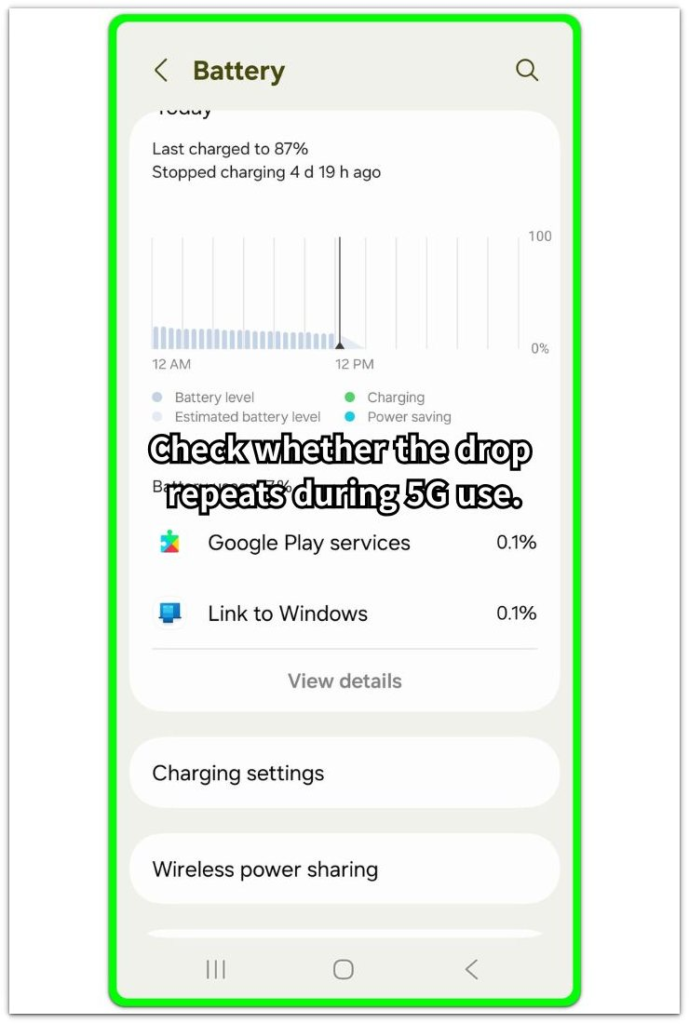
Open Settings, then Battery after that period. Compare the change with the first day and check whether the faster drain returns while the phone spends a long stretch on 5G. Match the drop to that mobile-data period before limiting apps.
Step 3: Check Whether the Drop Stays Heavy
Open Battery and look at the time when the percentage fell faster. Compare that part of the chart with the period when the phone was mostly away from Wi-Fi and connected to 5G.
A drop that keeps showing up during that 5G period matters more than one quick battery dip, even when the apps look normal. Focus the next fix on 5G use first.
Troubleshooting
Troubleshooting 1: The Battery Falls Faster in One Area
The battery drain becomes stronger in one place, such as a train station, office area, basement entrance, parking lot, or a street where the signal changes often. The phone still shows 5G, but the connection does not stay steady during that time.
Check the next similar period in a different place with steadier signal. Keep the phone use close to the first check, then open Battery again afterward. A better reading in the steadier area points to the 5G connection condition before the app list.
Troubleshooting 2: 5G Looks Worse During Navigation or Streaming
Navigation, music streaming, video, or hotspot use makes the 5G check less clean. Those tasks use power on their own and make the 5G result look heavier than it is.
Run one cleaner check with the 5G connection active but less extra activity. Keep screen use and route close, then compare Battery again. A lighter reading during the cleaner check means the heavy task was part of the drain, not only the connection.
Troubleshooting 3: The Phone Gets Warm During Longer Use
A warm phone loses power faster during a 5G-heavy period. This usually stands out when the phone has been in a pocket, near sunlight, charging in the car, or running maps for a longer stretch.
Let the phone cool down before the next check, then use it during a similar 5G period without charging or heat exposure. Check Battery afterward and compare the change. A cooler test with a smaller drop points to heat as part of the problem.
Extra Section 1: Battery Looks Worse During a Normal Outdoor Day
A normal outdoor day makes the battery feel worse even when phone use does not look heavy. The phone moves between streets, stores, stations, and short stops, while Wi-Fi no longer carries most of the connection time.
This matters more when the day includes small checks instead of one heavy app session. Messages, browser checks, short map views, and notifications look ordinary one by one, but the phone keeps using mobile data between those moments.
The longer 5G stretch is the part to notice. Treat this as a network-use day first, not as proof that one regular app suddenly became the main battery problem.
Extra Section 2: The App List Does Not Show the Whole 5G Problem
The Battery page looks confusing after a 5G-heavy day. Regular apps appear in the list, but none of them clearly explains why the battery ended lower.
That happens because the app list shows which apps ran, not every connection condition behind them. The same messages, map checks, and browser visits cost more power when they happen across weaker signal areas or longer mobile data periods.
A normal-looking list still fits this problem when the battery falls faster during longer mobile-data use. Read the app list together with the 5G use, the signal areas you moved through, and the heat around the phone.
Official Source: Google Links Adaptive Connectivity to Battery Saving
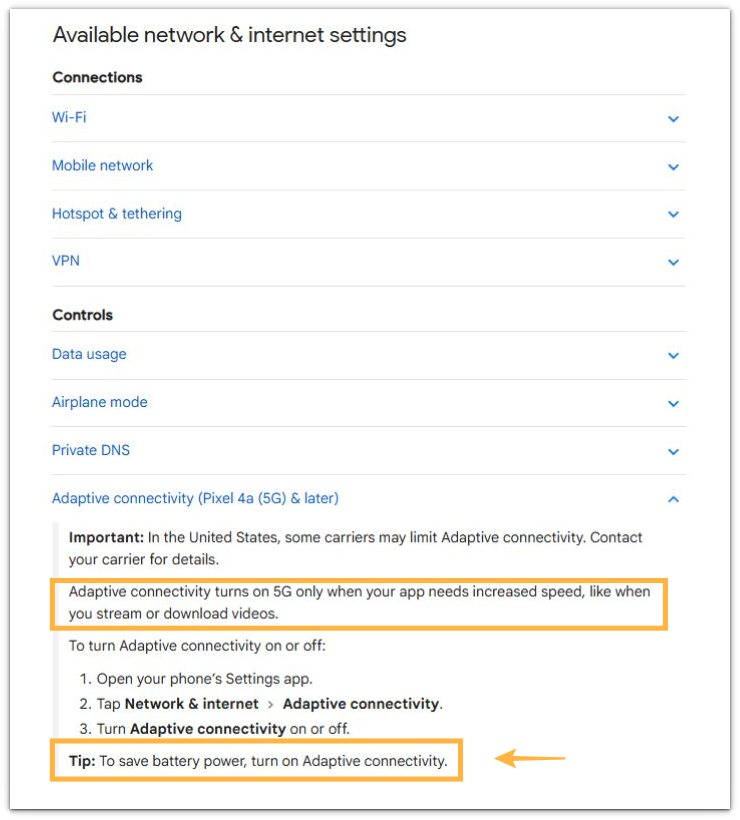
Google says Adaptive Connectivity turns on 5G only when an app needs more speed, such as streaming or downloading video, and that turning it on helps save battery power. This supports checking whether 5G stayed active longer than needed when the faster battery drop appears during mobile data use.
Additional Tips
Carrier coverage changes the result. One phone stays steadier in an area where another phone loses power faster. A recent system update can also affect the first reading, so give the phone one normal day to settle.
A thick case, direct sunlight, or a warm pocket makes a long mobile data period harder on the battery. Let the phone cool before reading the next result, especially after navigation, charging, or a long outdoor stretch.
Final Notes
Android 5G battery drain is clear when the battery falls faster on days with longer mobile data use. A normal app list does not rule out the connection side when the phone keeps ending lower after longer mobile-data use.
The final check should follow the condition that changed. For this problem, the stronger cause is the longer 5G stretch, the signal area, navigation or streaming, or the heat around the phone.
A clear match between the Battery page and 5G use is enough to choose the next fix. Start with the signal, heat, or mobile data period, then adjust apps only when the app list shows a separate reason.
Checklist
- Check the first faster drop during longer 5G use.
- Compare it with another similar mobile-data day.
- Review Battery with the connection situation, not only the app list.
- Separate area, navigation, streaming, heat, and carrier coverage before changing apps.
- Check the network condition first when the battery keeps ending lower on 5G-heavy days.
For a wider battery check, use the main Android battery drain guide.