
Introduction
Android battery draining during calls starts with a fast drop that appears while a call is actually in progress.
You start a call and talk for a short while. The phone still looks normal, but the battery level falls faster than it did before the call. The important clue is timing. The drop shows up during the call window, not during regular standby or long after the call ends.
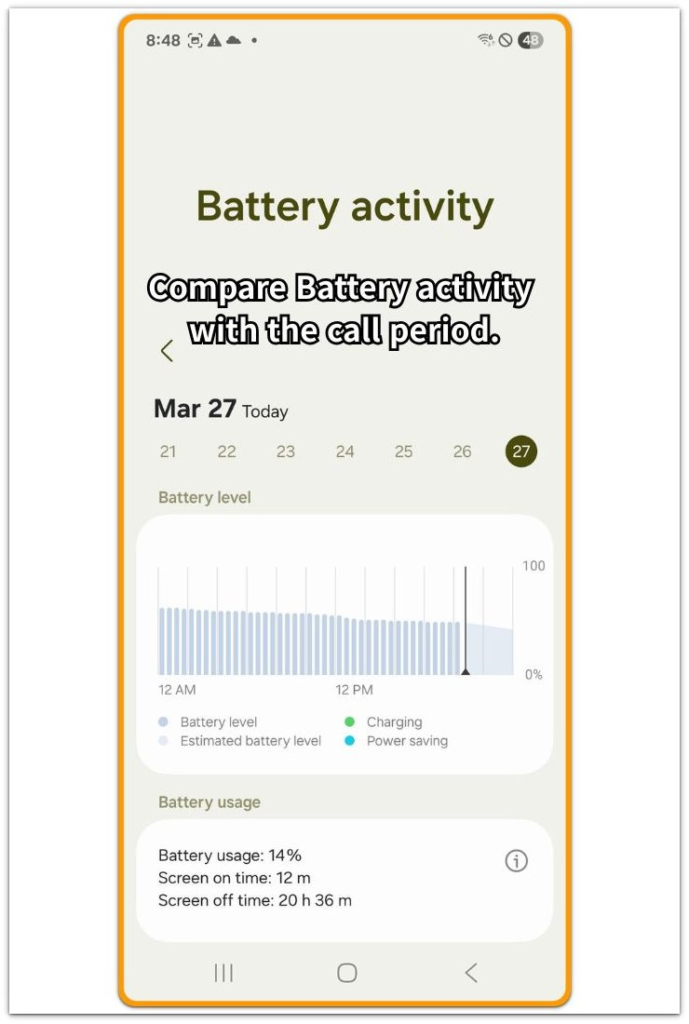
Before changing settings, confirm whether the battery loss follows the call itself. Check the battery level before the call, note how long the call lasts, then compare the level again when the call ends.
Step-by-Step Guide
Step 1: Check Whether the Fast Drop Starts Only When the Call Begins
Check whether Android battery draining during calls begins only after the call starts. Make one short call the way you normally would. Check the battery level before the call, then check it again right after the call ends.
Also note how long the call lasted. A five-minute call and a thirty-minute call need separate comparisons. This first check keeps the focus on timing, so the fast drop should appear during the call itself, not before the call or long after it ends.
Step 2: Check Whether the Phone Gets Warmer During the Call
Make another normal call and hold the phone the same way you usually do. During the call, notice whether the phone becomes warmer than it was before the call started. Focus on a clear change you can feel in your hand.
Run this check while the phone is not charging. Charging adds heat and makes the call comparison harder to trust. After the call ends, check the battery level again and compare the drop with the call length and the warmth you noticed during the call.
Compare a warmer call separately from a cooler call, especially when the battery falls during the same period.
Step 3: Repeat the Check With a Similar Call Setup
Make one more call with the same basic setup. Keep the call length, place, and phone use as similar as possible. Stay in one spot during the call, and keep the screen use close to the earlier call so the comparison does not mix in extra activity.
Check the battery level before the call and again when the call ends. Compare this result with the earlier call that drained faster. A similar setup gives you a cleaner call comparison before changing call, network, or battery settings.
Troubleshooting Android Battery Draining During Calls
Troubleshooting 1: The Battery Drop Changes From One Call to Another
Battery loss during a call is harder to read when one call drains fast and the next call looks normal. Those two calls need to be checked apart because they did not happen under the same condition.
Look at what changed between the calls. A longer call, weaker signal, speakerphone use, video call, Bluetooth audio, mobile data, or a warmer phone can all make the call window heavier.
Use one cleaner comparison. Make another regular voice call from the same place, keep the screen use low, and avoid charging during the call. Then compare the battery level before and after that call again.
Troubleshooting 2: The Phone Gets Warm Only During Some Calls
Heat during a call matters more when it appears together with faster battery loss. A phone that warms up during one call but stays cool during another one needs its own check.
Check whether the warmer call happened with poor signal, speakerphone, Bluetooth, mobile data, or a long call time. Those conditions make the phone work harder during that same stretch.
Run the next call in a simpler setup. Stay in one place, use a normal voice call, keep the screen off when possible, and check whether the phone still warms up while the battery falls faster.
Troubleshooting 3: The Battery Keeps Dropping After the Call Ends
A fast drop after the call ends needs a separate check from the call itself. The call may have started the drain, but the later battery loss belongs in a follow-up check.
After the call ends, leave the phone locked for a short period and check whether the battery keeps falling. Then open Battery usage and look for call-related activity, mobile network activity, or another app that stayed active after the call.
The strongest clue still comes from the call window itself. A drop that continues long after the call ends belongs in a follow-up check, not the main call test.
Extra Section 1: When the Drop Was Clear Only During the Call Window
Before the call, the battery looked steady. The phone had been sitting for a while, and the level barely moved during that quiet period.
Once the call started, the drop became easier to see. After a short voice call, the battery was lower than expected, even though the phone did nothing else during that same stretch.
The next check stayed focused on that exact period. Before another normal call, the user noted the starting battery level, and the call length stayed close to the earlier one. As soon as the call ended, the new battery level gave a cleaner point of comparison.
Now the timing was easier to separate. The faster loss happened during the active call, not during the quiet time before it or a later standby period. That timing matters more than one battery number by itself.
Extra Section 2: When the First Call Made the Drop Look Worse
The first call looked suspicious because the battery fell quickly during the call. At first glance, it seemed like the call itself was the only thing causing the drop.
That call was not a clean comparison, though. The user had used the phone right before the call, the screen stayed on for part of the conversation, and the battery level was already moving before the call started.
A second call gave a clearer view. The phone rested for a short while first, the user noted the starting battery level, and the next call stayed close to the same length without extra screen use.
With the cleaner call, the drop looked smaller. The first call still mattered, but it did not carry the whole answer. A cleaner call window helps separate real call drain from a busy period that only included a call.
Official Source: Samsung Explains Why Weak Signal Can Increase Battery Use
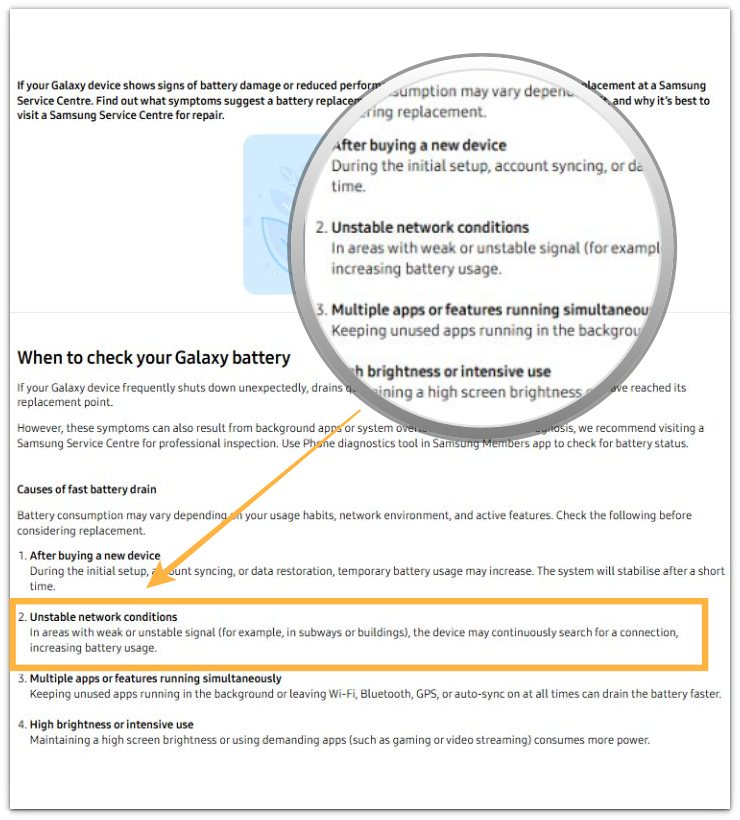
Samsung explains that unstable network conditions can increase battery usage because a Galaxy device may keep searching for a connection in weak or unstable signal areas.
This matters during a call check because signal conditions can affect that same period and make the battery loss look like a phone call problem.
Additional Tips
Test call battery drain while the phone is not charging. Charging adds heat, and that makes the test harder to read.
Use a normal voice call for the first comparison. A video call adds camera, screen, audio, and network load, so it belongs in a separate check.
Keep the phone in one place during the comparison. Moving between weak and strong signal areas can change the battery drop during the same call.
Check the call type before comparing results. A regular voice call, speakerphone call, Bluetooth call, and video call do not create the same battery load.
Final Notes
Android battery draining during calls becomes a real concern when the fast loss stays inside the active call period. The strongest sign is repetition: the battery falls faster during normal voice calls, the call length matches the timing, and other phone activity stays low.
A single fast drop can be misleading when the call starts after heavy phone use, charging, weak signal, or extra screen activity. Those conditions make one call look worse than the next call.
The final check is repetition under a cleaner setup. When the same kind of battery drop returns during similar voice calls, focus on the call period first. When the drop continues long after the call ends, handle it as a separate follow-up issue instead of mixing it with the main call test.
Checklist
- Check the battery level before the call starts.
- Note how long the call lasts.
- Check the battery level again as soon as the call ends.
- Compare the drop with the call timing.
- Check whether the phone becomes warmer during the call.
- Repeat the test with a similar voice call setup.
- Keep charging, video calls, and extra screen use out of the first comparison.
- Check whether the drop continues after the call ends.
- Treat post-call battery loss as a separate follow-up issue.
For a wider check, use the main guide to compare call drain with screen-off, network, app, and background activity.