
Introduction
Android mobile data battery drain becomes noticeable when the battery starts dropping faster during normal use on cellular. The change stands out outside the house because you use the phone the same way, but the battery percentage falls faster once cellular stays on.
The drop does not always point to one app right away. Screen time often looks normal during the first Battery check. Start by separating the mobile data period from your usual indoor use, then check whether the faster drop keeps returning while cellular data is active.
Step-by-Step Guide: Android Mobile Data Battery Drain
Step 1: Find the First Faster Drop on Mobile Data
Start with one normal period when you use the phone on mobile data. Do not change battery settings, app limits, location settings, or background data before this first check.
Use the phone the way you normally do outside the house. Keep cellular data on during that session, then check whether the battery starts falling faster than it did during your usual indoor use.
Focus only on when the battery starts falling faster. Compare that change during cellular use before focusing on one app.
Step 2: Repeat the Check in a Similar Cellular Situation
Use the phone on cellular data again in a similar place or during a similar part of the day. See whether the faster drain returns while the phone stays on cellular.
Keep the second check simple. Do not add long video recording, heavy gaming, hotspot use, or a long download during the test. Those activities make the battery result harder to read.
When the faster drain returns during another mobile data session, focus on that session before blaming one short app session.
Step 3: Compare the Drop With What You Actually Did
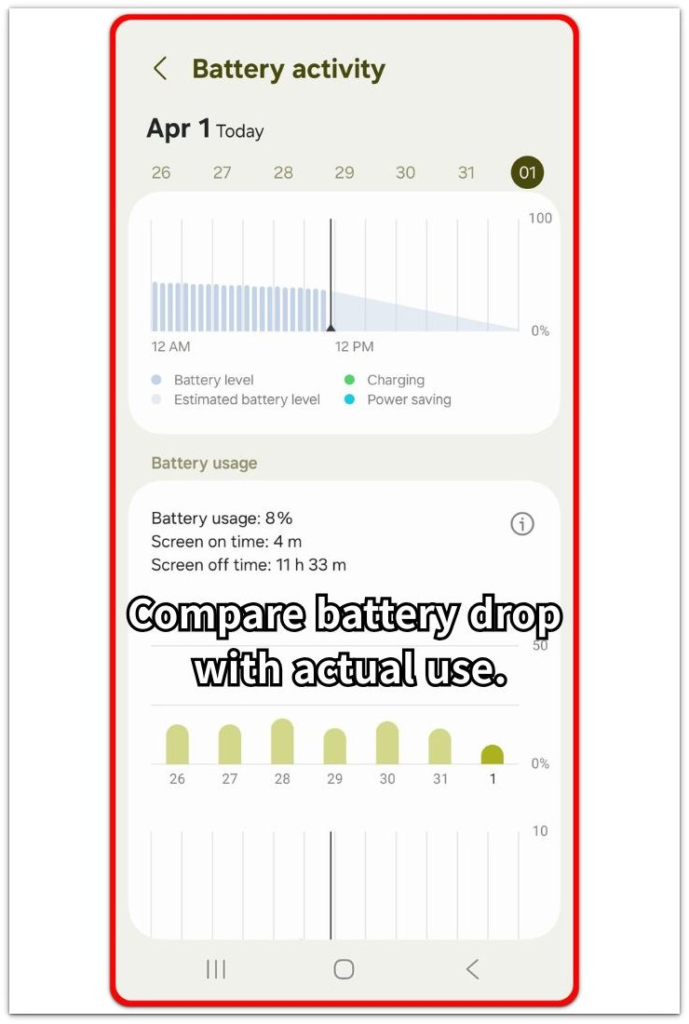
Open Battery and review the activity from the time cellular data was active. Compare the drop with screen time, recent app use, and how long the phone stayed on cellular.
A faster drop matters more when the battery falls during light use. A heavy screen session or long video use gives a weaker clue because those activities already use more power.
Keep the next test focused on cellular use before changing app settings. That makes it easier to see whether the drain follows cellular use or a separate app activity.
Troubleshooting
Troubleshooting 1: Weak Signal Makes Mobile Data Drain Worse
Mobile data uses more battery when the phone stays in a weak signal area. The drop often shows up outside the house, inside a building, in a parking area, or during a commute where the signal keeps changing.
Check the battery drop again in a place with steadier signal. Compare that result with the weaker-signal area before changing app settings. A drop that becomes worse only in poor coverage points more to the cellular connection than to the app at the top of Battery.
Troubleshooting 2: The Drop Gets Worse When Location Stays Active
Battery drain often feels stronger when mobile data and location stay active at the same time. This happens during maps, delivery apps, ride apps, weather apps, or any app that keeps updating your position while using cellular.
Open Battery after that kind of session and compare the drop with the app activity from that period. When the drain lines up with mobile data and location use together, reduce that app’s location access or close the session before treating cellular use as the only cause.
Troubleshooting 3: The Drop Gets Worse During Commutes or Outdoor Movement
A faster drop often shows up when the phone keeps moving between different cellular conditions. This is common during commuting, outdoor walking, elevator rides, basement use, large buildings, or areas where the signal moves between strong and weak.
Check Battery after that cellular period and compare it with a steadier cellular area. Keep the next test focused on one outside use period, not on several settings at once. This helps separate a mobile data drop from a normal screen or app session.
Extra Section 1: Normal Outdoor Mobile Data Use Still Drains the Battery
A normal outdoor mobile data session often looks heavier than expected when the phone is not doing anything extreme. You might check messages, open a few web pages, search for something quickly, or use a shopping app for a short time. The battery still drops faster than it does during a quieter part of normal use.
That kind of drop makes the top Battery app look suspicious, but one short outdoor session gives only a weak clue. Keep the next check simple. Use cellular data in a similar place again without adding video, gaming, hotspot use, or a large download.
A repeated battery loss during light cellular use matters more than one busy app entry from a single outing. It shows that the battery change follows the mobile data period, not just one app you happened to open.
Extra Section 2: Location Apps Make the Mobile Data Drop Easier to Spot
Mobile data battery drain looks stronger when a location-based app keeps updating while the phone stays on cellular. This often happens with maps, delivery apps, ride apps, weather apps, or store apps that check nearby places. The app does not have to stay open all day for the battery drop to stand out.
Check the whole session around that app instead of looking at mobile data alone. Open Battery after using the app and compare the drop with the activity from that period. Then reduce location access for that app or close the session when you finish using it.
A cleaner second check helps separate the cause. Use cellular data again without keeping that location app active, then compare the next Battery result. A smaller drop after reducing location use points more to the mobile data and location combination than to cellular use by itself.
Official Source: Android Tracks Battery Use by Phone Components
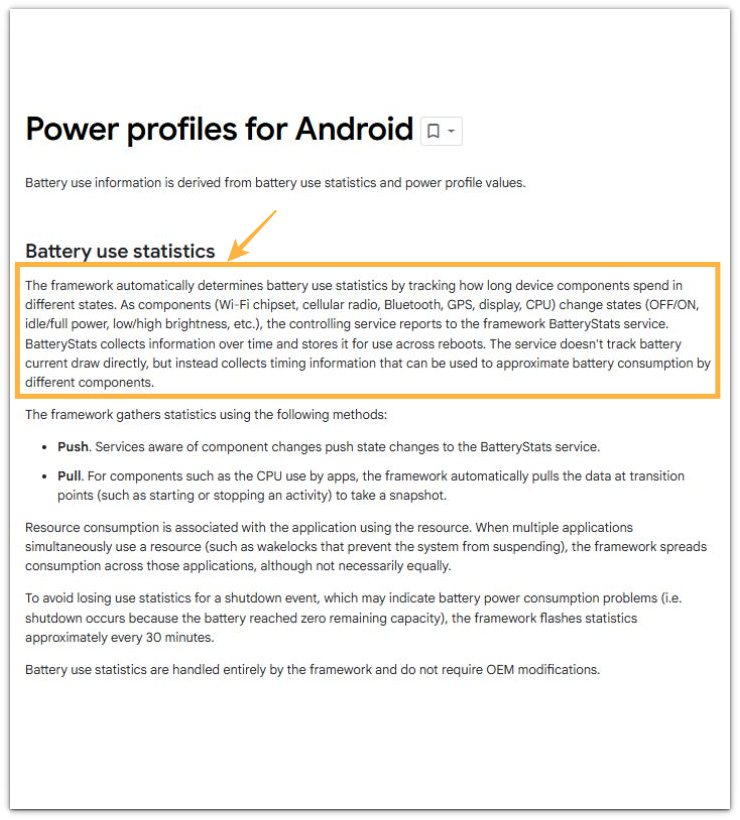
Google’s Android documentation explains that battery use statistics are based on how long phone components stay in different states, including the cellular radio, GPS, display, Bluetooth, and CPU. For a cleaner check, review a mobile data battery drop together with nearby activity such as location use, screen time, and cellular use, not only one app name.
Additional Tips
A short cellular session gives a weak result when the battery percentage only moves by a small amount. Use a longer normal period before treating mobile data as the main cause.
Hot weather also changes the result. Outdoor cellular use often comes with a brighter screen, warmer pockets, or direct sunlight, so check heat separately before changing several phone settings.
A large app update or cloud sync on cellular makes the battery result harder to read. Wait until that activity finishes, then check another normal session with lighter activity.
Final Notes
Android mobile data battery drain matters when the faster drop repeats during normal cellular use, especially when screen time and app use look lighter than the battery loss. One short outdoor session is too weak, but the clue gets stronger when the same battery loss returns during similar cellular sessions.
The main check is whether the drain follows the cellular period itself. Review Battery after mobile data use and compare the drop with screen time, app activity, location use, and signal conditions. Then change only the setting that matches the strongest clue.
When the same kind of drop keeps returning on mobile data, start with the cellular connection before you focus on one app.
Checklist
- Check one normal mobile data period before changing settings.
- Compare the battery drop with screen time and app activity.
- Repeat the check in a similar cellular situation.
- Separate mobile data use from location-heavy app sessions.
- Check weak signal, heat, and heavy background activity separately.
- Change only the setting that matches the strongest Battery clue.
For a wider battery check, read the main Android battery drain guide before changing more settings.