
Introduction
Android battery draining after closing apps becomes noticeable when the battery keeps falling after you clear the recent apps screen. You swipe the apps away, set the phone down, and later see a lower percentage than expected.
No game, video, or app screen is visible during that period. Start with the time right after closing the apps and check whether the drop continues while the phone stays unused.
Step-by-Step Guide: Android Battery Draining After Closing Apps
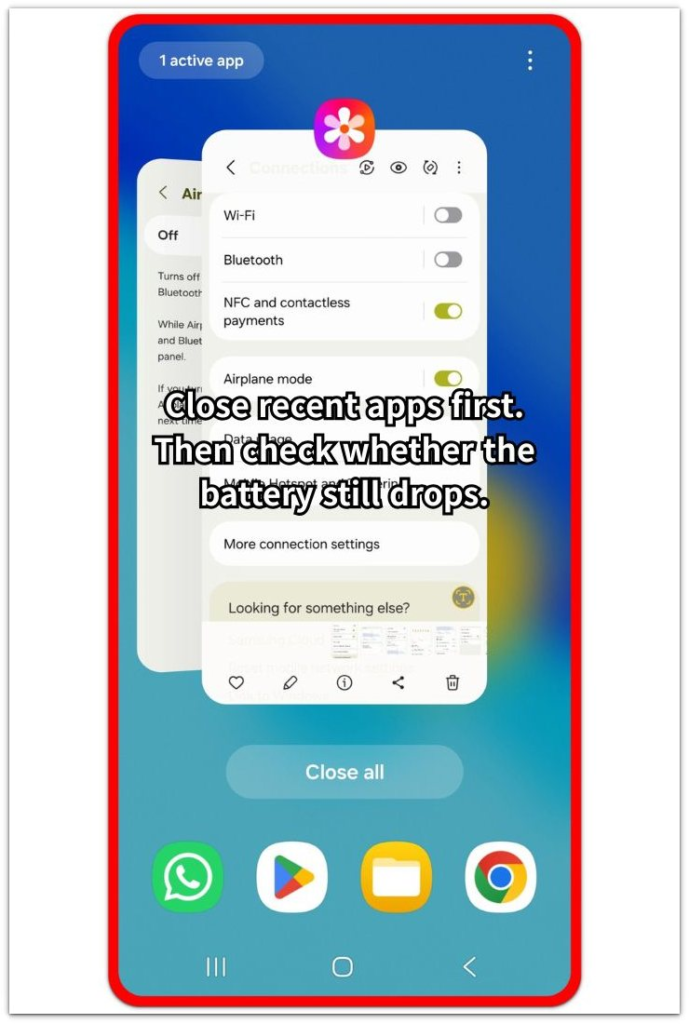
Step 1: Check the Drop Right After Closing Recent Apps
Start with the moment right after you clear the recent apps screen. Swipe away the visible apps or use Close all, then set the phone down without changing Battery Saver, background data, app limits, or Wi-Fi settings.
Leave the phone unused for a short period. This first result shows the battery drop after you clear the visible apps, before another setting changes the result.
Open Battery afterward and compare the battery change with screen time and recent activity. A drop during this unused period gives you the starting point for the next check.
Step 2: Repeat the Check Under the Same Phone Use
Run this check one more time during a similar part of the day. Close the recent apps again, leave the phone unused for about the same length of time, and avoid opening messages, browser tabs, videos, or games during the test.
Keep the setup simple so the second result is easy to compare with the first one. A similar drop after this closed-app routine is stronger than one random battery change.
Compare both readings before changing any app or battery setting.
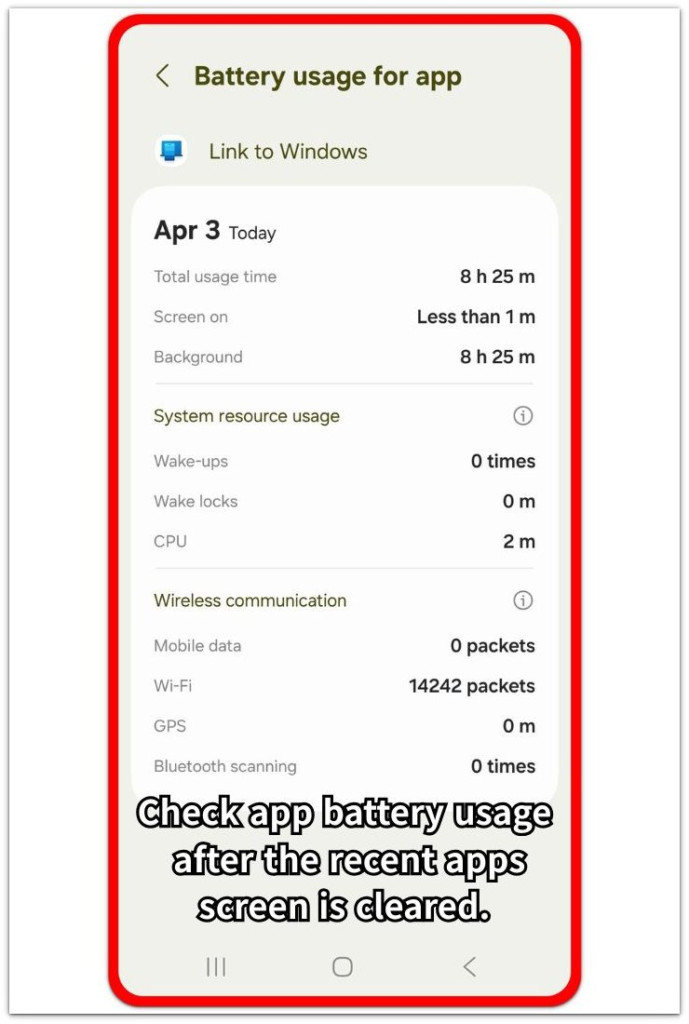
Step 3: Check Battery Usage for Background Activity
Open Battery and look at the apps listed near the time the percentage kept dropping. The recent apps screen alone is not enough, because an app screen can disappear while the app or service still shows battery activity.
Check Screen on, background use, and any listed app activity around that period. When one app or service keeps appearing after you clear the recent apps screen, limit that app first. Run the unused-phone check again afterward.
Troubleshooting
Troubleshooting 1: One App Keeps Refreshing After Recent Apps Are Closed
Some apps keep checking for new content once their screens disappear from recent apps. Messaging, cloud, shopping, delivery, and social apps often behave this way when notifications, uploads, or account updates are still active.
Open Battery after the drop and see which name appears near that unused period. A repeated name matters more than one short entry. Limit background use for that app first, then run the closed-app test again.
Troubleshooting 2: Sync or Backup Activity Continues After Closing Apps
A closed app screen does not always stop a pending sync, upload, or backup task. Photos, files, messages, or account data often keep updating after you put the phone down.
Review Battery and the matching sync or backup setting before changing wider battery settings. Pause that task first, then repeat the closed-app test during another unused period.
Troubleshooting 3: Reopening Too Many Screens Makes the Check Unclear
The next battery reading looks less clear when several screens reopen, reload, and reconnect right after each test. This loop usually happens when you close everything, open that app group again, and repeat the routine several times.
Leave the recent apps screen cleared after one test instead of reopening everything right away. Compare the next unused-phone period with the earlier drop, then change only the setting that matches the strongest Battery result.
Extra Section 1: When Closing Apps Does Not Stop Background Activity
A closed recent apps screen does not always mean every app has stopped working. A user clears all visible apps, puts the phone down, and still sees the battery drop during the next unused period.
Nothing looks open on the screen, so the drop feels unrelated to anything active. That is especially true when no game, video, or browser is still visible. The Battery page tells a different story.
A messaging app keeps checking for new messages, a cloud app continues a photo or file task, or a shopping and delivery app refreshes order updates after its screen disappears. The recent apps screen only shows what is no longer visible. The stronger clue is the app or service that still appears in Battery after you leave the phone unused.
Extra Section 2: When Reopening Apps Makes the Battery Check Less Clear
Some users close every app because the battery already feels unstable. They open messages, browser tabs, shopping pages, or video screens again and check whether the phone drains again.
That routine makes the result harder to read. Each reopened app reloads content, reconnects to the network, and refreshes its screen. The next battery drop no longer shows only what happened after closing apps.
A cleaner check comes from leaving the phone alone after one closed-app test. Keep the next unused period separate from another round of reopening and closing. The result is easier to compare when the phone stays quiet instead of going through another app cycle.
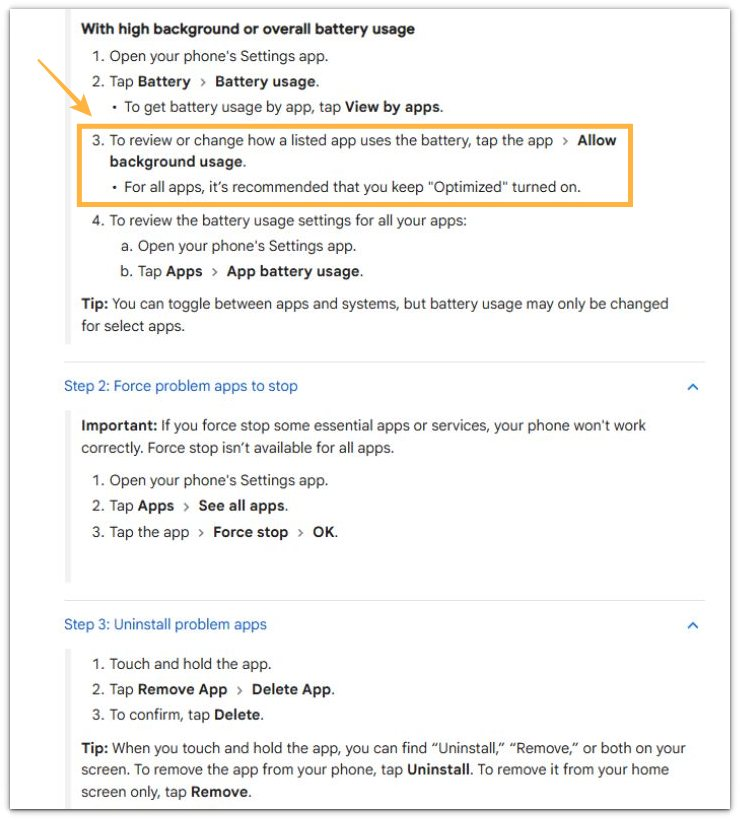
Official Source: Google Explains App Battery Usage and Background Limits
Google explains that Android lets users review battery usage by app and change background battery use for listed apps. This source does not say that closing recent apps always saves battery. It supports checking Battery and background usage. Battery usage is a stronger clue than the recent apps screen alone.
Additional Tips
A short battery drop right after closing apps is a weak clue. Use a longer unused period before treating the drain as a repeated closed-app problem.
Battery Saver changes the comparison. Keep the same power mode between checks so the result does not look better only because the phone used a stricter battery setting.
A warm phone also changes the reading. Let the phone cool down first when the drain happened after gaming, navigation, charging, or a long video session.
Final Notes
Android battery draining after closing apps matters when the battery keeps falling during repeated unused periods after you clear recent apps. One quick drop is too weak by itself, but the clue gets stronger when Battery activity returns the next time the phone sits unused.
The recent apps screen only shows what was open recently. The usage list carries more weight because it shows which apps or services stayed active around the drop. Start with the listed app or service that matches the unused period, limit only that background activity, and check the result again before changing wider battery settings.
Checklist
- Check the battery drop after closing recent apps.
- Repeat the unused-phone check once.
- Compare the drop with screen time and Battery activity.
- Review apps listed near the unused period.
- Limit only the background activity that matches the drop.
- Keep Battery Saver and phone use consistent between checks.
- Run one more test before changing wider settings.
For a full Android battery check, start from the main battery drain guide and narrow the cause from there.