
Introduction
Android battery drain after full charge feels frustrating when the phone reaches 100%, but the first few percent disappear soon after unplugging. The problem is not the full charge itself. The useful check starts after the charger comes out.
Start with the move from 100% to the next few percent. Check whether it happens while the screen stays off, during light use, or during the first normal use after charging. That first stretch shows whether the early drop belongs to normal post-charge use or needs closer checking.
Android Battery Drain After Full Charge Step-by-Step Guide
Step 1: Check When the Battery Starts Dropping After the Phone Reaches 100%
Charge the phone to 100%, then unplug it the way you normally do. Keep Battery Saver, background limits, brightness, and app settings unchanged before the first check.
Open Settings, then Battery, and look at the time around the full charge. Check whether the first drop starts right after the charger comes out or only after the phone has been used for a while.
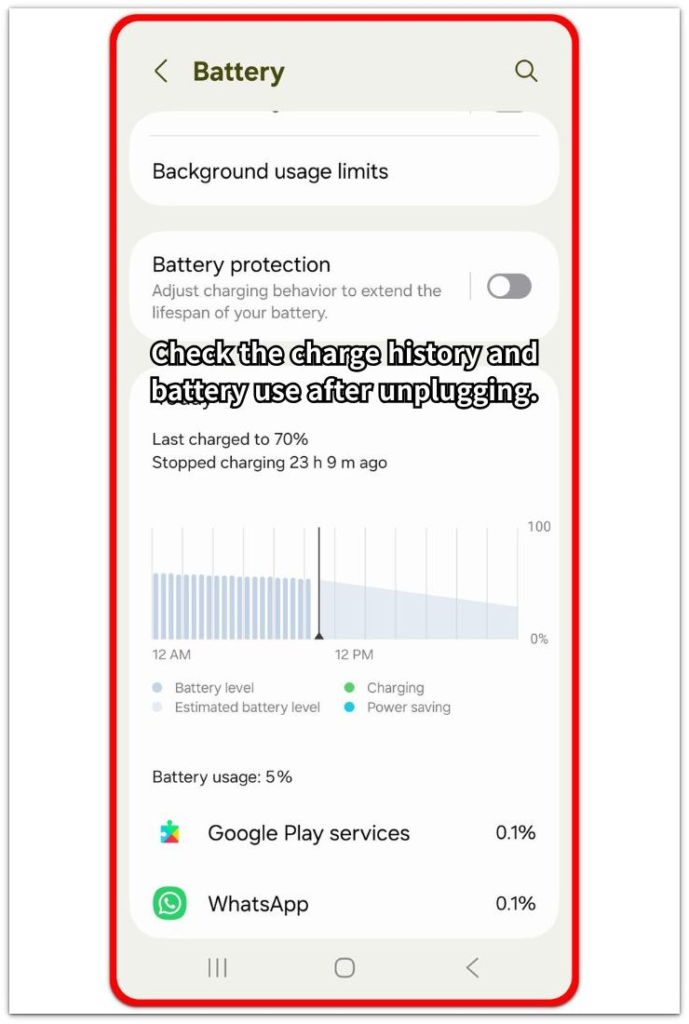
A quick drop from 100% to the next few percent matters most when it appears before normal use begins. A slower drop after regular use is a weaker clue because the phone has already started doing ordinary work.
Step 2: Keep the First Check Close to Normal Use After Full Charge
Use the phone the way you normally would after charging. Keep the check simple, such as leaving the phone locked for a short stretch or using it lightly without changing several settings at once.
Opening several demanding apps just to force a result makes the drop harder to read. The phone is no longer in a normal post-charge condition once the test becomes heavier than your usual use.
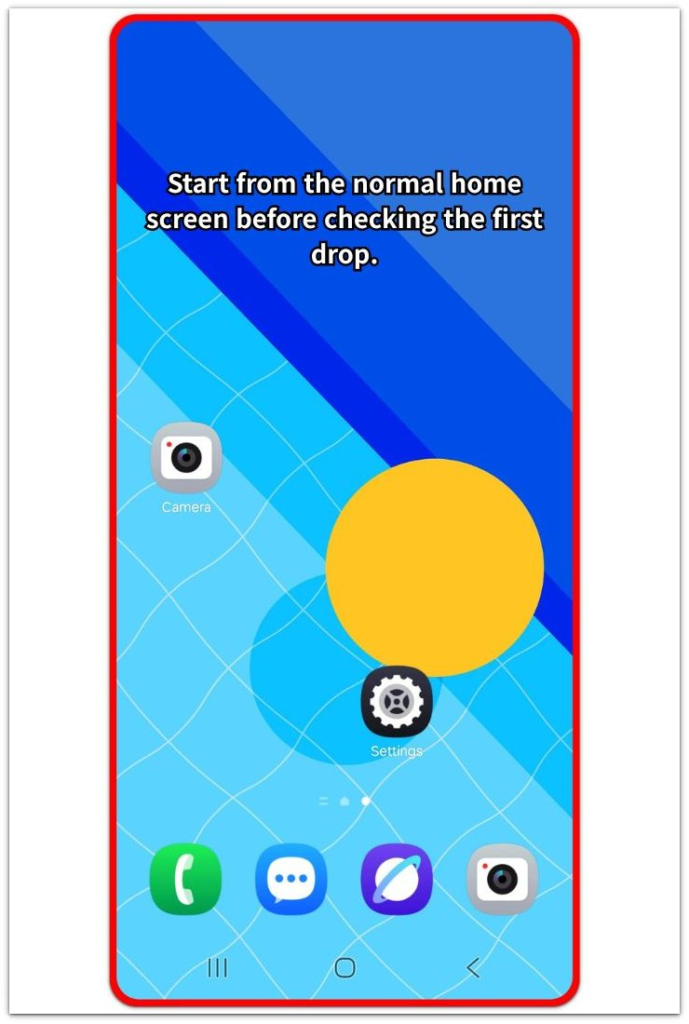
Check the battery level again after the short stretch. Compare the new level with what happened right after unplugging. A drop that keeps moving quickly during ordinary use carries more weight than one small drop from 100% alone.
Step 3: Compare the First Drop With Battery Usage Before Changing Settings
Go back to Settings, then Battery. Look at the usage shown near the time after the full charge. Focus on whether the drop lines up with screen use, screen-off time, or a clear item in Battery.
The 100% number alone is not the whole problem. The useful clue is what the phone was doing during the first drop after charging.
A repeated early drop after another full charge is stronger than one quick dip from 100%. Start with the item that matches that time before changing several battery settings.
Troubleshooting
Troubleshooting 1: Fast 100% Drop That Slows Down
A fast move from 100% to the next few percent does not always mean the whole battery is draining fast. The first dip matters less when the battery slows down after that early movement.
Keep the next check focused on the stretch after the first few percent. Use the phone normally and see whether the battery keeps falling quickly or settles into a slower pace.
A drop that slows down after the first dip carries less weight. The part to watch is whether the battery keeps moving quickly once normal use begins.
Troubleshooting 2: Android Battery Drain After Full Charge While the Screen Is Off
A full charge looks short when the phone starts losing battery while it is locked. This is different from losing power during normal screen use because the phone should be doing less work during a quiet screen-off stretch.
After unplugging at 100%, lock the screen and leave the phone alone for a short period. Check Battery afterward and compare the drop with screen-off time during that stretch.
A screen-off drop after full charge matters more when it returns during another quiet check. Look for a Battery item that lines up with that time before changing several settings.
Troubleshooting 3: Battery Usage With No Clear Single Reason
Battery Usage does not always point to one obvious item after a full charge. The early drop can be spread across screen use, screen-off time, signal, or several small entries instead of one large cause.
Check the time period around the first drop, not only the largest item on the list. Compare screen use, screen-off time, and any entry that appears near that moment.
A repeated early drop with no clear single reason needs another full-charge check. The useful clue is whether the same kind of drop returns after charging, not whether one entry explains everything right away.
Extra Section 1: First Normal Use Makes the Drop Look Worse
The phone often looks stable right after a full charge, then starts dropping faster once normal use begins. The first few minutes are easier to misread when they include screen use, app opening, messages, maps, camera use, or a brighter screen than usual.
Keep that first use close to a normal routine. Open the apps you would normally open, avoid adding a heavy test, and check whether the drop belongs to that active stretch rather than the full charge itself.
This does not point to the charger by itself. The clearer clue comes from comparing that first active stretch with a quieter period later.
Extra Section 2: Battery Drops Before the First Use After Charging
The phone sometimes loses battery before the first real use begins. You unplug it at 100%, leave it locked on a desk, and return a little later to find the battery already below full.
This situation is different from the first active stretch after charging. The screen was not the main part of the check, so the useful comparison is the locked period between unplugging and the first use. Check Battery for that time instead of judging the drop from the percentage alone.
A drop during that quiet stretch deserves a separate check on another full charge. Leave the phone locked again, keep the timing similar, and compare the result before changing apps, brightness, or battery settings.
Official Source: Google Battery Guidance After Full Charge
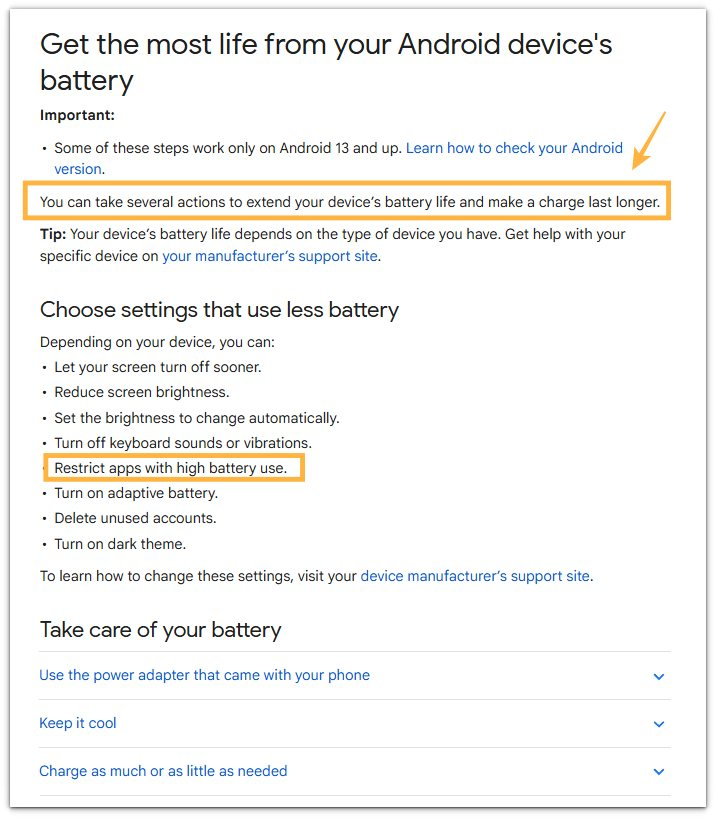
Google’s battery guidance supports this check because it explains how to make a charge last longer and limit apps that use too much battery.
Use this source as support for the post-charge battery check, not as a separate charging-speed or battery-health diagnosis.
Additional Tips
Check the first drop after the phone has cooled down from charging. Heat right after charging can make the early battery movement harder to read.
Software updates, app restores, and account syncs can also affect the first stretch after unplugging. Run the check again after those tasks finish.
Poor signal can change the result right after a full charge. When the phone leaves Wi-Fi and struggles on mobile data, the check is also testing signal drain, not only post-charge battery drain.
Final Notes
Android battery drain after full charge should be judged by what happens after unplugging, not by the 100% number alone. A small first dip is not the real issue when the battery settles into normal use afterward.
The stronger warning sign is a fast drop that keeps returning after a full charge under similar conditions. Check the first stretch, compare it with Battery Usage, and change only the setting or app that matches that time.
Checklist
- Check the battery level right after unplugging.
- Watch what happens during the first short stretch.
- Separate screen-on use from locked screen time.
- Open Battery before changing any settings.
- Repeat the check after another full charge.
Use this main Android battery drain guide when the drop keeps showing up outside the first stretch after charging.