
Introduction
Android Bluetooth battery drain becomes easier to check when the battery drops during a normal Bluetooth connection, not after random phone use later in the day. The useful starting point is the connection itself, such as earbuds, a car system, a smartwatch, or another paired device that stays active for a while.
Before changing any settings, check whether the drop lines up with the time the device stayed connected. Start with one normal connection session, compare the battery level before and after it, and keep the next check tied to that result.
Android Bluetooth Battery Drain Step-by-Step Guide
Step 1: Check Whether the Battery Drop Starts During a Normal Bluetooth Connection
Check the battery level before you turn Bluetooth on or connect a device. Do not change battery saver, app limits, or network settings yet.
Turn Bluetooth on the way you normally do. Connect the device you usually use, such as earbuds, a car system, a smartwatch, or another accessory.
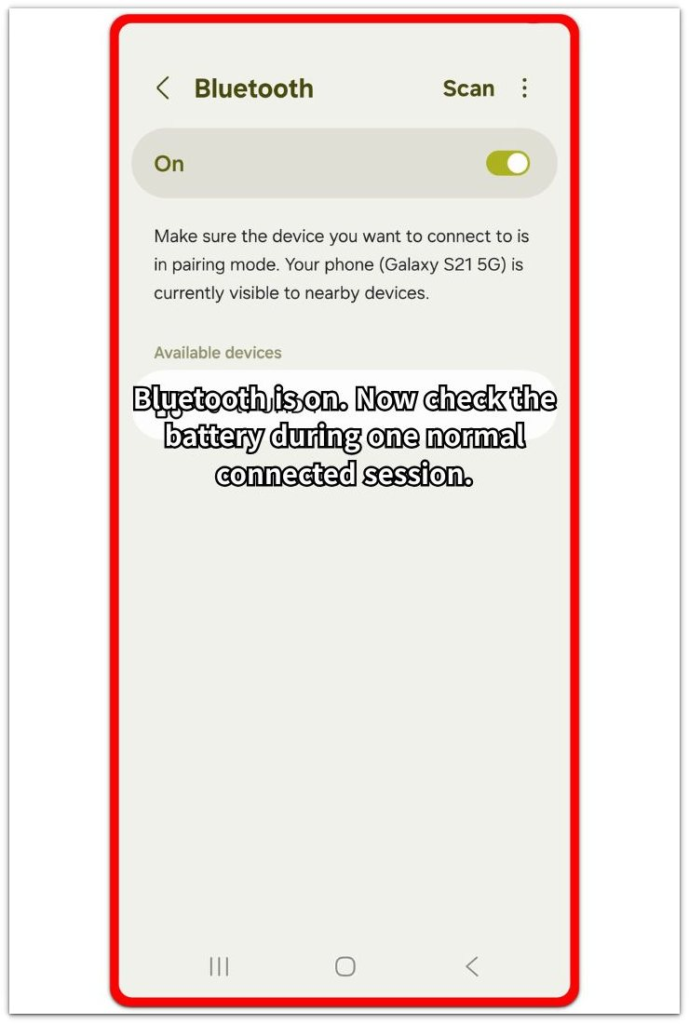
Use the phone normally for a short, ordinary session. Keep the check close to real use, not a long stress test. Watch whether the battery starts falling faster while the device stays connected.
Check the battery level again after the session ends. Write down the starting level, ending level, and the device that stayed connected.
Step 2: Check Whether the Faster Drop Repeats With the Same Kind of Bluetooth Use
Run one more session in the same kind of situation. Use the same device, similar length, and similar screen use so the comparison stays fair.
Avoid testing during an unusually long drive, a weak signal area, or a heavy app session. Those changes make the result harder to compare.
Compare the second result with the first one. A repeated drop during similar Bluetooth use matters more than one short battery change.
Step 3: Check Whether Bluetooth Is the Main Change During the Faster Battery Drop
Open Bluetooth and look at what stayed connected during the faster drop. Check whether the phone used only one Bluetooth device or kept several accessories active at the same time.
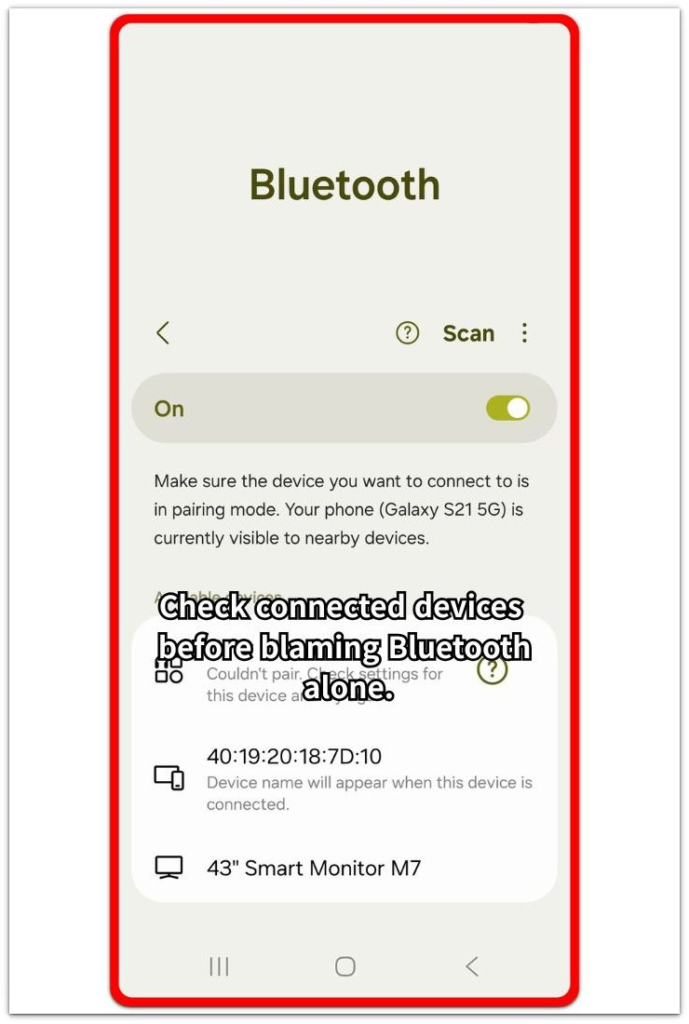
Disconnect extra paired devices for the next check. Keep only the device you actually need, then use the phone in the same kind of session again.
Check the battery level after that simpler session. A slower drop after removing extra Bluetooth connections gives Bluetooth load more weight. When the drop stays close to the earlier result, check the app list, signal condition, or Battery screen next.
Troubleshooting
Troubleshooting 1: When the Drop Happens Only With One Bluetooth Device
Sometimes the battery drop appears during Bluetooth use, but only one device keeps showing up in the check. Earbuds, a car system, or a smartwatch behave differently during the session, even when Bluetooth itself uses the same setting.
Use the device that caused the faster drop again, then test another Bluetooth device during a similar session. Keep the screen use, call time, music time, and signal condition as close as possible.
A faster drop with only one device points more toward that connection than Bluetooth as a whole. Check that device’s app, firmware, connection mode, or battery-related settings before turning off Bluetooth for everything.
Troubleshooting 2: When Several Bluetooth Devices Stay Connected at Once
Several connected devices make the battery result harder to read. A phone often stays linked to earbuds, a watch, a car system, and nearby accessories without making each connection obvious during normal use.
Open the connected device list before the next session. Disconnect anything you are not using, then keep only the device needed for the test.
Compare the next battery drop with the earlier result. A cleaner result after removing extra devices is easier to trust than a test with every accessory still connected.
Troubleshooting 3: When Android Bluetooth Battery Drain Looks Like an App Problem
An app often uses most of the power during a Bluetooth session. Music apps, call apps, fitness apps, navigation apps, and car apps often run during the same Bluetooth connection.
Open Battery after the drop and check the app list for the same time period. Look for the app that was active while Bluetooth stayed connected, not just the Bluetooth setting itself.
A heavy app entry changes the next move. Limit or test that app first, then run another Bluetooth session before treating Bluetooth as the main cause.
Extra Section 1: When Earbuds Make Bluetooth Drain Look Worse
Earbuds make the battery drop look stronger because the connection is rarely the only thing running. A normal session often includes music, a call, noise control, touch controls, and the earbuds’ companion app at the same time.
During a long walk with wireless earbuds, the battery dropped faster than usual. Bluetooth stayed active the whole time, but the music app also kept streaming and the earbuds app stayed connected for controls and battery status. The drop looked like a Bluetooth-only problem until the full audio session showed what else was running.
A better check starts with what ran during the earbud session. Check Battery for the music, call, or earbuds app that was active during the drop. Use the next normal earbud session to see whether that kind of battery drop returns. This keeps the check tied to real connected use instead of blaming the switch by itself.
Extra Section 2: When a Car Connection Keeps Bluetooth Drain Going
A car connection makes the battery drop harder to read because Bluetooth is only one part of the drive. Calls, music, maps, and Android Auto often stay tied to the same car session, so the battery drop does not always come from the connection alone.
During a short drive, the battery drop looks larger than simple Bluetooth use alone would explain. The phone connects to the car, music starts, and the route stays open while the screen or voice guidance keeps working. By the time the drive ends, the session has used more than a Bluetooth link.
Check what happens after the drive ends. Open the connected device list and confirm that the car connection has ended. Then check Battery for music, maps, Android Auto, or a car app that was active during the drive. This keeps the check focused on the full car session instead of treating the Bluetooth button as the only cause.
Official Source: Why Bluetooth Sessions Need More Than One Check
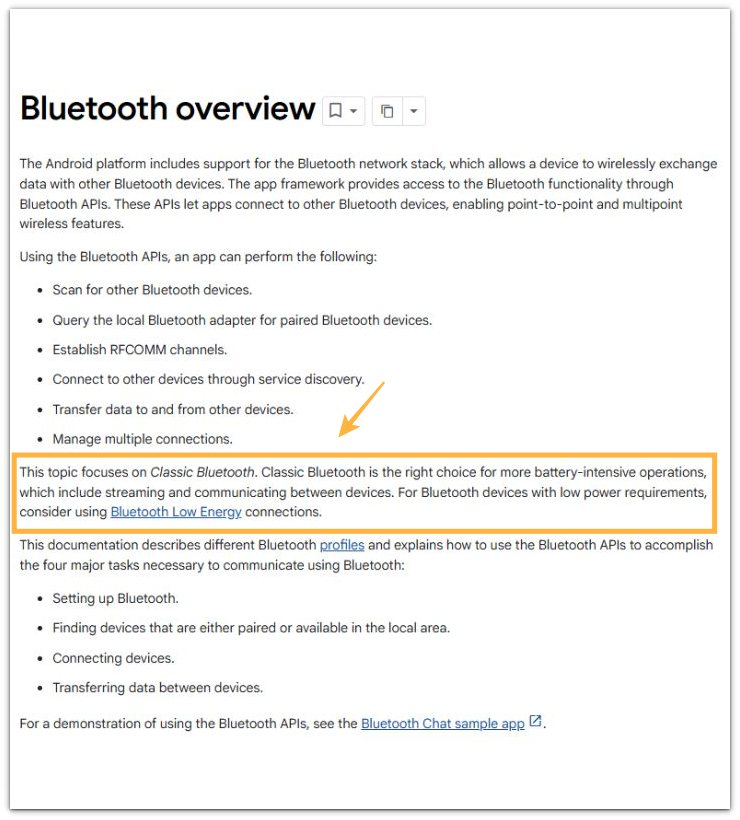
Google explains that Bluetooth connections support tasks such as audio streaming and communication between devices. That fits this check because earbuds, car audio, calls, and music sessions use more than the Bluetooth switch alone.
Use that clue to keep the next check tied to the actual session. Look at what stayed connected, what streamed, and which app stayed active during the same time.
Additional Tips
Keep the test away from charging time. Bluetooth use while charging hides the real battery drop because the battery level may stay almost unchanged while the phone still uses extra power.
Check Bluetooth codec or audio quality settings only after the basic session check. Higher-quality wireless audio can use more power, but changing that setting too early makes the first result harder to compare.
Only pay attention to saved Bluetooth devices that reconnect by themselves. A device that stays saved but never connects during the test does not explain the battery drop.
Final Notes
Android Bluetooth battery drain is clearer when the check follows the connected session, not the switch alone. The stronger clue is a faster drop that repeats during similar Bluetooth use, especially when earbuds, car audio, calls, or music stayed active during that drop.
One short drop is too weak for a final call. Once the faster drop repeats, fix the connected device, the app used during that session, or the connection setup before turning Bluetooth off for everything.
Checklist
- Check the battery level before the Bluetooth session starts.
- Compare the drop after one normal connected session.
- Check whether the faster drop repeats with similar Bluetooth use.
- Review the app list when music, calls, maps, or car audio ran during the drop.
- Fix the device, app, or connection setup before turning Bluetooth off completely.
When the Bluetooth result still feels unclear, check the main Android battery drain guide next and compare it with app, signal, and background activity clues.