
Introduction
Android battery health affects charging, runtime, heat, sudden shutdowns, and daily phone use. When the power system starts aging, the phone often shows small signs before a clear failure appears.
The warning is harder to read because it does not appear in the same place on every Android phone. Some phones show a built-in condition page, Samsung devices use Samsung Members diagnostics, and other models only reveal the problem through shorter runtime or unstable charging.
A battery reading still needs context. A low number, a sudden drop, a missing option, or a strange change after an update does not automatically mean the battery needs replacement.
This guide brings the main checks together in one place. Compare visible symptoms, diagnostic results, sudden changes, update behavior, and repair history before making a service decision.
Step-by-Step Guide: Android Battery Health
Step 1: Check Visible Symptoms And Battery Status First
Start with the signs the phone shows during normal use. The condition becomes easier to judge when you compare a health reading with real symptoms instead of looking at one number alone.
A low result matters more when the phone drains faster than before, shuts down early, gets hotter during normal use, or charges in an unstable way. When the phone still feels normal, check the reading again before treating it as a replacement issue.
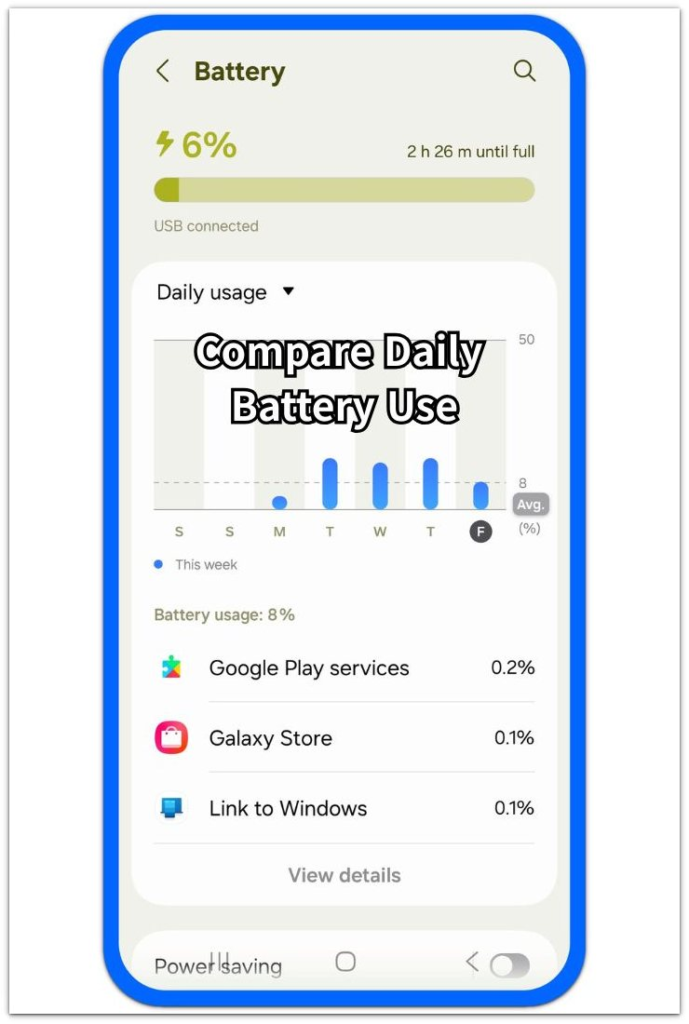
Samsung phones need a separate check inside Samsung Members. The diagnostics result helps show whether the battery condition looks poor, but it still needs to match daily use before you decide what to do next.
Faster drain, early shutdowns, heat, and unstable charging are the first signs to compare with the reading.
Samsung Members shows whether the battery status looks weak before you compare it with daily use and repair history.
A weak health result needs a real-use check when the phone still charges, opens apps, and runs normally.
Step 2: Compare Strange Readings With Real Use
Check the reading again after normal phone use. An unusual status matters more when it matches faster drain, shorter runtime, unstable charging, heat, or early shutdowns.
A sudden drop needs a separate check. Review recent updates, heavy use, heat, and charging behavior before treating it as a hardware problem.
If the information stops changing, return to the same place later and compare it with daily behavior. Stalled information needs real symptoms before you act on it.
Compare the unusual status with runtime, charging, heat, and shutdown behavior before trusting it.
After a sudden drop, check recent updates, heavy use, heat, and charging patterns before judging hardware failure.
When the health information stops changing, compare the stalled status with daily behavior before relying on it.
Step 3: Check Update, Replacement, And Missing Option Issues
Look at what changed before the battery information started looking wrong. A system update, recent repair, or missing status menu changes how you should read the result.
Once an update finishes, check the result again through normal use. When the lower number stays with faster drain, extra heat, or early shutdowns, treat it as more than a display issue.
After a replacement, focus on charging, runtime, and daily stability. When the old result still appears or the option is missing, use daily behavior and service records before making another repair decision.
After a replacement, check charging, runtime, and daily stability before you trust an old-looking result.
Without a status option, use visible symptoms and service history instead of judging from one screen.
After an update, check faster drain, extra heat, and early shutdowns before you trust the lower number.
Troubleshooting
Troubleshooting 1: Weak Reading but Normal Phone Use
A low battery reading looks serious even when the phone charges normally, opens apps without delay, and stays on during regular use. Daily behavior has not shown the same weakness yet.
Use the phone normally and check the battery page again later. If runtime, charging, heat, and shutdown behavior stay stable, treat the reading as a condition check instead of jumping straight to replacement.
Troubleshooting 2: Sudden Drop After an Update
After a system update, android battery health looks worse immediately for some users. That change feels like hardware failure, but the timing still needs a real-use check.
Recheck the battery page after normal use and compare it with drain, heat, charging speed, and early shutdowns. When the lower status stays with real symptoms, the issue deserves a service check. Stable daily use means you should keep checking the same page longer before making a repair decision.
Troubleshooting 3: Weak Battery Status in Samsung Members
Samsung Members shows a weak or poor battery status, but the meaning still depends on how the phone behaves during daily use. A diagnostic warning matters more when it matches shorter runtime, unstable charging, heat, or sudden shutdowns.
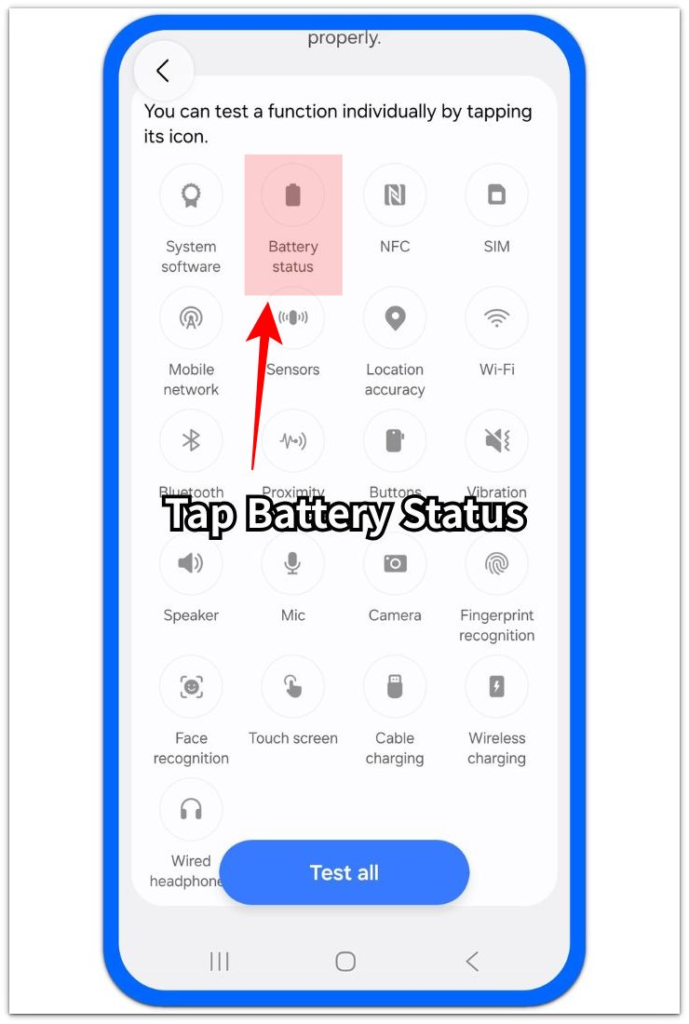
Compare the Samsung Members status with the main Battery screen and recent repair history. When the weak status repeats and daily symptoms appear together, use it as stronger evidence before a service check.
Real Case: Low Result After an Update
A phone showed a weaker battery status after a system update, but daily behavior did not change much. It still charged at the usual speed, lasted about the same, and did not shut down early.
The timing looked suspicious because the change appeared right after the update. Still, the phone itself did not show real symptoms. Instead of replacing the battery right away, the owner used the phone normally for another day.
The follow-up check focused on real use. Runtime stayed close to normal, charging stayed steady, and heat did not increase during regular use. Another check made sense, but immediate replacement did not.
A weak status matters more when it stays with faster drain, extra heat, or shutdowns before the battery reaches a low level. Then the battery screen and daily symptoms match.
Official Source: Samsung Battery Replacement Guidance
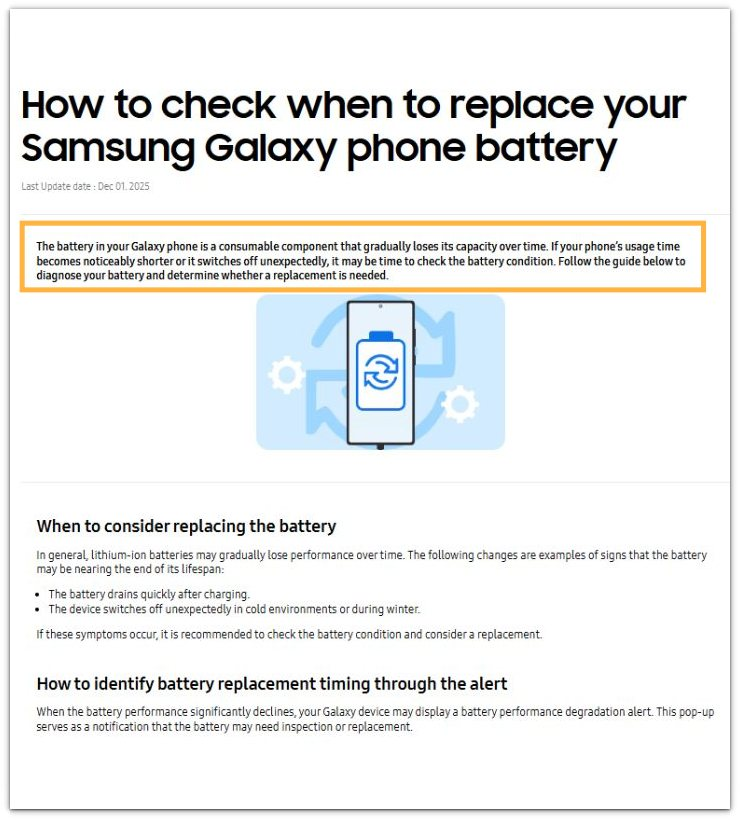
Samsung explains that Galaxy phone batteries gradually lose capacity over time, and a replacement check becomes important when usage time becomes noticeably shorter or the phone shuts off unexpectedly.
Additional Tips
Check the phone again after it cools down from gaming, charging, navigation, or hotspot use. Heat from a heavy session makes a low reading look more serious than the same result during normal use.
Use the same charger and cable during the first comparison, then review repair records when the phone already had a replacement. Changing accessories too early mixes charging speed problems with the health check, and an old-looking screen matters less when the new part charges steadily, lasts normally, and stays stable.
Move to a service check sooner when shorter runtime appears with early shutdowns, swelling, unusual heat, or unstable charging. Those symptoms carry more weight than a single low number.
Final Notes
Android battery health needs a real-use decision, not a one-screen reaction. A low reading, sudden drop, missing option, or weak diagnostic result becomes important only when it matches daily symptoms.
The strongest signs are shorter runtime, unstable charging, extra heat, and early shutdowns. When those signs appear together with a repeated weak result, the issue moves past a number on the screen. It becomes a service decision.
Checklist
- Check the battery reading on the same screen again.
- Compare the reading with runtime, heat, charging, and shutdown behavior.
- Review recent updates before judging a sudden lower result.
- Use Samsung Members only as a support check on Samsung phones.
- Check repair history when the result looks old after replacement.
- Use a service check when a weak result repeats with real symptoms.
Android Battery Problems
This main guide also connects to related checks for Android system battery drain, fast battery drop, slow charging, and phone heat.