
Introduction
Samsung Members Battery status can feel confusing when the check result looks low, but the phone still lasts normally after a full charge. The result makes the battery look worse than it feels during normal daily use.
The main check is whether the Battery status screen matches the phone’s normal battery behavior. A low-looking status result needs a closer check before it becomes a battery replacement decision.
Samsung Members Battery Status Step-by-Step Guide
Step 1: Run the Battery Status Check Again From the Same Screen
Open Samsung Members, then go to Phone diagnostics. Tap Battery status and run the check again from the same Samsung Members screen where the first result looked low.
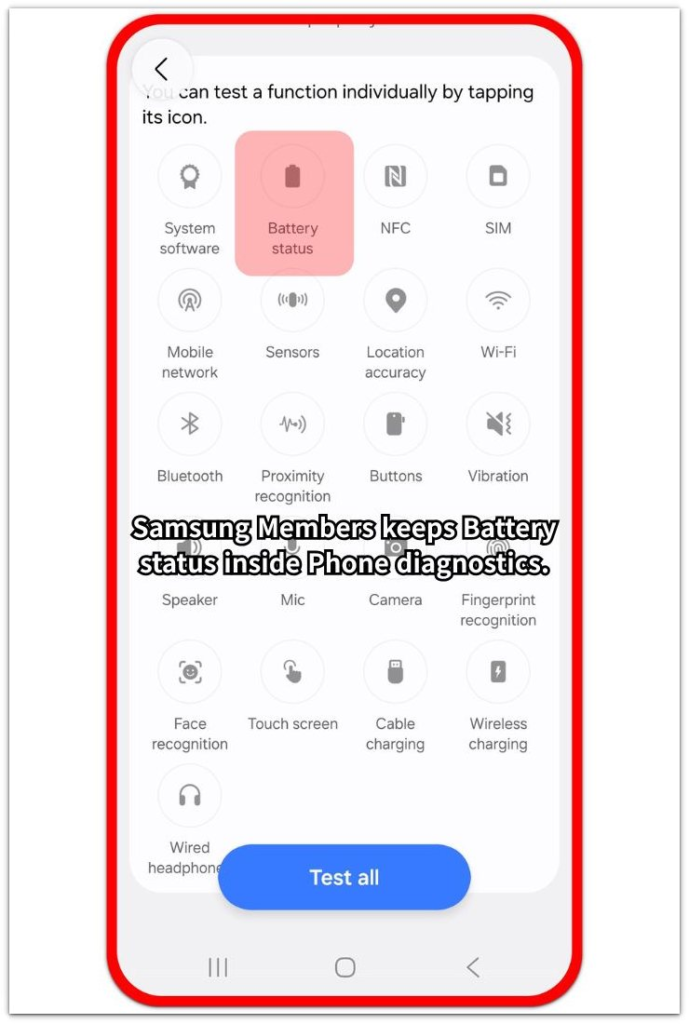
Skip third-party battery apps for the first recheck. Start from the same diagnostic screen so the second result comes from the same place as the first one.
A repeated low-looking result is stronger than a result that only appeared once. A cleaner second check gives you a better starting point before you change settings or think about battery replacement.
Step 2: Compare the Result With Normal Battery Use After a Full Charge
Charge the phone normally, then use it the way you usually do for a few hours. Keep the phone as it is during this comparison, without restarting it, installing another battery app, or changing battery settings.
Watch whether the phone drains faster than usual during normal screen use and standby time. Compare the battery level with the way the phone usually lasts after a full charge.
The result is weaker when the phone still lasts about the same as before. Use real battery drain as the second clue before making a replacement decision.
Step 3: Run One More Battery Status Check After Normal Use
After the phone has gone through one normal charge and a regular use period, open Samsung Members again. Go back to Phone diagnostics, then Battery status, and run the check one more time.
Keep the test simple. Use the same charger, avoid changing several settings, and run the next check away from heavy gaming, long video calls, or overheating.
A low result matters most when it repeats after normal charging and the phone also drains faster in daily use. Normal daily battery life points to more checking, not immediate battery replacement.
Troubleshooting
Troubleshooting 1: Samsung Members Battery Status Result Looks Different Later
A Samsung Members result can look different when you run the battery check again later. The first result looks low, but a later check looks less serious after the phone has gone through more normal charging and use.
Open the app again and check Battery status from the same Phone diagnostics screen. Compare the new result with the first one instead of mixing it with a third-party battery app.
A result that changes between checks is a weaker clue than a result that keeps showing the same problem. Track the next status result beside normal battery use before treating the issue as bigger than daily use shows.
Troubleshooting 2: The Result Looks Low After Heavy Use
A Battery status result can look more worrying after the phone has just been under heavy load. Long gaming, video calls, navigation, or heat can make the timing of the check harder to read.
Let the phone cool down and return to normal use before running the Battery status check again. Keep the next test away from a hot phone, a long charging session, or a heavy app session.
The next result is more useful when it comes from a normal phone state. A low result right after heat or heavy use is weaker than a result that repeats during ordinary use.
Troubleshooting 3: The Status Result Does Not Match Daily Use
The Battery status screen can look worse than the way the phone actually works during the day. The diagnostic result looks low, but the phone still gets through a normal charge cycle without a clear drop in daily use.
Use daily battery life as the comparison point. Check whether the phone reaches the usual part of the day before needing another charge, and note whether standby time or screen use has changed.
The mismatch becomes clearer when the same low-looking status appears while daily battery life also gets shorter. Without that change in normal use, the status result is still a check result, not the whole battery story.
Extra Section 1: When the Battery Status Looks Low but Daily Use Still Feels Normal
A low Battery status result can look serious at first, especially when the phone was just checked inside Samsung Members. One user sees the result and starts thinking about battery replacement, but the phone still gets through the same part of the day after a full charge.
The stronger clue comes from normal use after that result. Messages, browsing, short videos, and standby time do not make the battery fall faster than usual. When the phone still lasts the way it normally does, treat the check as a reason to recheck, not as a replacement decision by itself.
Extra Section 2: When the Low Status Result Starts Matching Real Battery Drain
A weak Battery status result becomes more important when the phone also starts lasting less after a full charge. It is no longer just a number on the diagnostic screen. It now lines up with a shorter day of normal use.
One user sees the same weak status again, then notices the phone needs charging earlier than it used to. Standby time feels shorter, and ordinary screen use takes more battery than before. When the status result and daily battery life both point in the same direction, service inspection or battery replacement becomes a more reasonable next step.
Official Source: Samsung Explains Battery Status Results
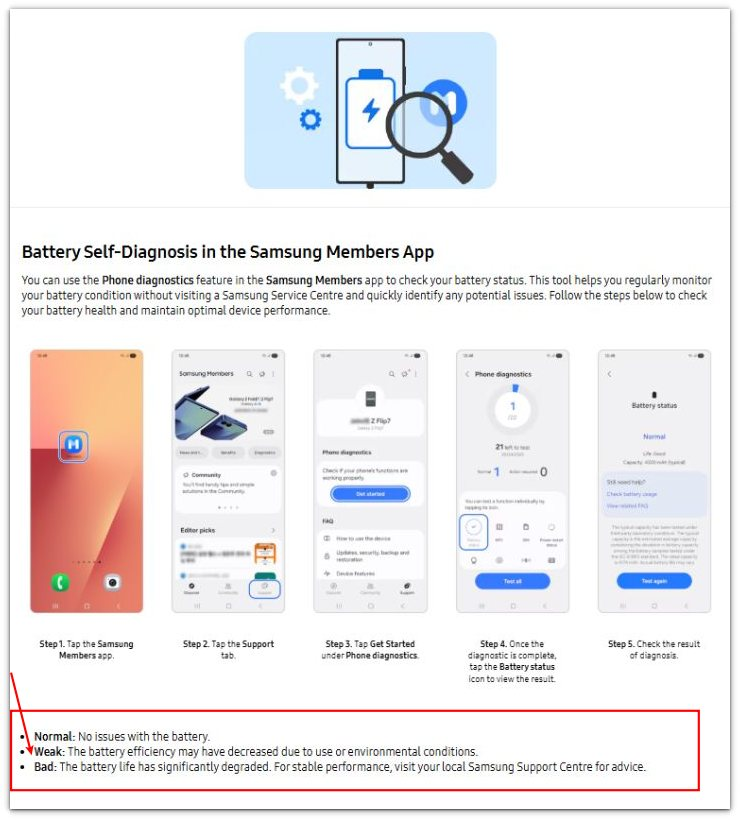
Samsung explains that Battery status can show Normal, Weak, or Bad. Weak means battery efficiency has decreased due to use or environmental conditions. That supports checking the result against real battery drain before treating it as a final replacement decision.
Additional Tips
Check the result after the phone has cooled down from charging or heavy use. A hot phone makes the timing of the Battery status check harder to trust.
Avoid comparing a Samsung Members result with a random battery health percentage from another app. Keep the first decision tied to the built-in diagnostic result and real battery life.
A new phone setup, software update, or large app restore can make one result look less stable. Run the status check again after the phone returns to normal use.
Final Notes
Samsung Members Battery status is useful, but it should not replace real battery behavior. A Weak result matters when it repeats and the phone also starts draining faster after a full charge.
When the phone still lasts normally, use the check as a reason to recheck. When the same weak result appears again and daily battery life is clearly shorter, treat it as a serious battery health clue and consider a service inspection.
Checklist
- Run Battery status again from the same Samsung Members screen.
- Compare the result with normal battery life after a full charge.
- Check whether the same weak result appears again after normal use.
- Avoid checking right after heat, heavy use, updates, or app restores.
- Treat the result seriously when it repeats and daily battery life also gets shorter.
Check the main battery health guide above before treating a Weak reading as a replacement sign.