
Introduction
Android battery health symptoms become easier to notice when the phone starts lasting less, charging unevenly, shutting down suddenly, or getting hotter than usual. A weak Battery status reading also matters when it no longer matches normal daily use.
The first step is to check how the phone behaves in real use. One warning sign alone does not prove failure, so the steps below compare runtime, shutdowns, heat, and the status result before deciding what the problem means.
Step-by-Step Guide: Android Battery Health Symptoms
Step 1: Check The Main Health Screen First
Open the Battery health or diagnostics screen available on your Android phone. Look for a weak result, poor status, or any message that points to poor condition.
Use this screen as the starting point. The goal is not to judge the issue from one number, but to see whether the phone already shows a clear warning.
Step 2: Use Samsung Members Only When Battery Health Is Missing
On Samsung phones that do not show a separate Battery health menu, open Samsung Members → Support → Phone diagnostics → Battery status.
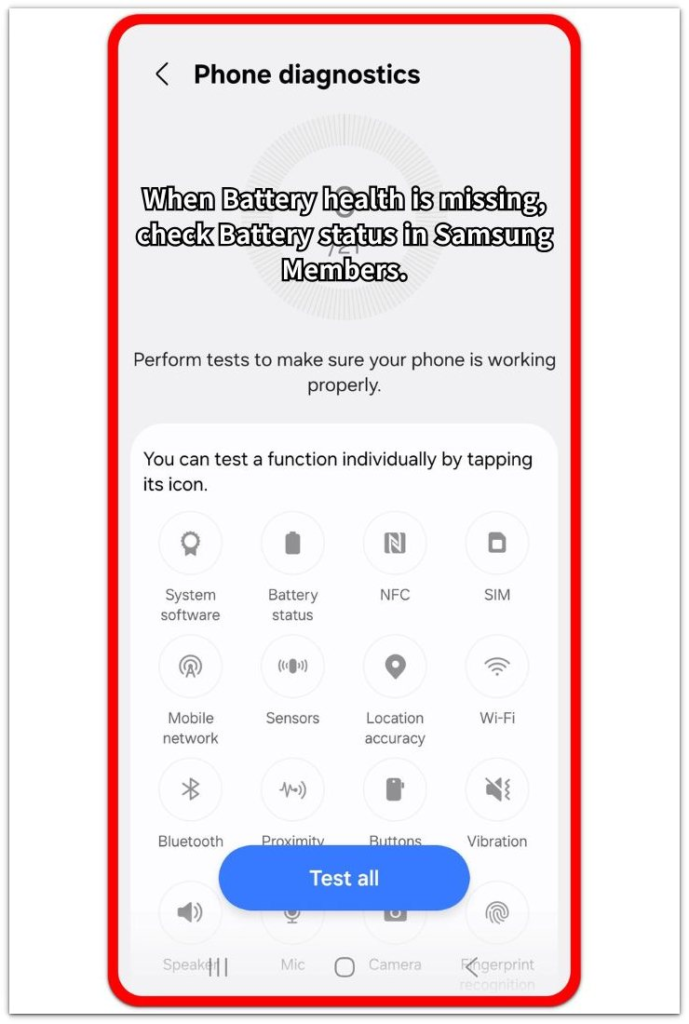
Use this as a backup check, not as the full answer. This check helps you compare symptoms, but it still needs to match real use before you treat it as a serious warning.
Step 3: Compare The Result With Real Symptoms
After checking the status screen, compare it with daily use. Watch for shorter runtime, uneven charging, sudden shutdowns, unusual heat, or a weak result that keeps returning across repeated checks.
A screen reading that matches real symptoms is easier to judge. Without those symptoms, keep the warning sign for a later recheck instead of treating it as final proof.
Troubleshooting
Troubleshooting 1: Runtime Gets Shorter But Charging Still Looks Normal
The first clear symptom is often shorter runtime, even when the charge still reaches 100%. The number looks normal after charging, but the phone drops faster during the same daily routine.
Check screen-on time, standby drain, and the apps used that day. When the drop keeps happening with the same routine, treat it as a real symptom instead of judging the issue from the percentage alone.
Troubleshooting 2: Charging Becomes Uneven Or Stops Before Full
Charging trouble matters when the phone charges slowly, pauses often, or stops before reaching a full charge. This problem does not always come from the cell itself, so separate the cable, adapter, heat, and charging port first.
Use a known good charger and let the device cool down before checking again. When uneven charging continues with different accessories and normal temperature, the pattern becomes a stronger symptom.
Troubleshooting 3: Android Battery Health Symptoms Include Shutdowns Or Heat
A worn battery is easier to suspect when the phone shuts down suddenly, restarts under load, or gets unusually hot during basic use. These signs matter more when they return without gaming, navigation, hotspot use, or fast charging.
Compare the shutdown or heat with what was running at that moment. When the same problem appears during light use and matches a weak battery status, the condition needs closer review.
Extra Section 1: When Battery Symptoms Matter More Than One Status Result
A weak status result matters more when it appears with real daily-use changes. The signs become stronger when shorter runtime, uneven charging, sudden shutdowns, or unusual heat keep returning under normal use.
One symptom by itself is still weak. A faster drop after gaming, navigation, hotspot use, or poor signal does not prove battery wear. The symptom becomes more useful when the same problem appears during a regular routine and does not depend on one heavy app or one charging setup.
Use the status result as a comparison point, not the only answer. When the same weak reading stays on the screen and the phone also shows the same real-use problems, the battery condition needs closer review.
Extra Section 2: When The Battery Is Not The Main Problem
The problem is weaker when the change only appears during one heavy condition. Fast drain after gaming, navigation, hotspot use, video calls, or poor signal often points to high power demand instead of battery wear.
Charging trouble also needs a separate check before blaming the battery. A loose cable, weak adapter, dirty port, thick case, or heat around the phone makes charging look uneven even when it is not the main cause.
Recent updates and new apps also change the comparison. When the issue starts right after an update or one app install, check usage patterns, background activity, and accessories first. The issue becomes stronger only when the same problem continues after you separate those outside causes.
Official Source: Samsung Battery Replacement Symptoms
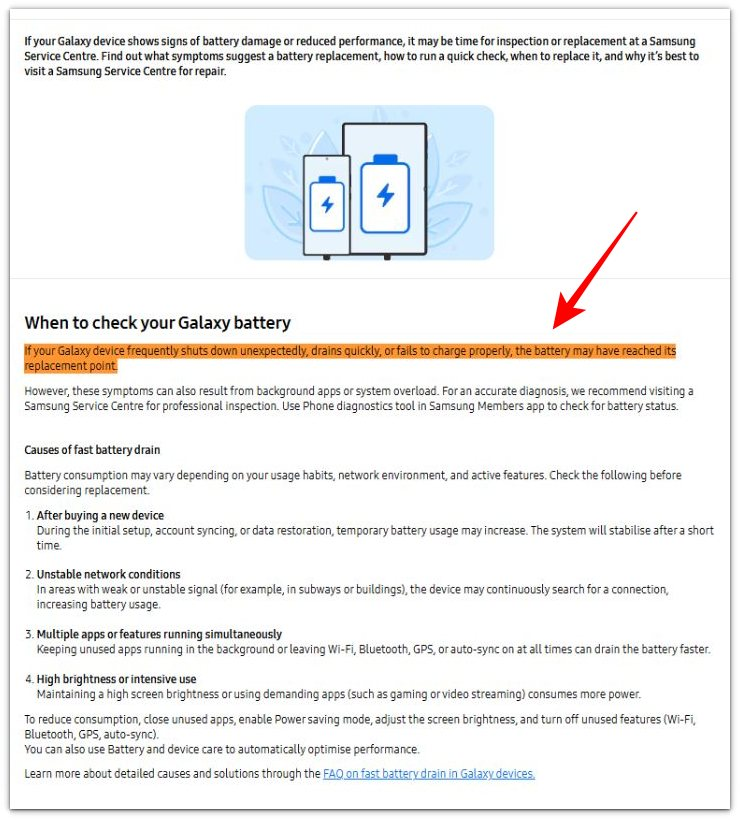
Samsung lists frequent sudden shutdowns, fast battery drain, or charging failure as signs that the battery has reached replacement condition. This supports the symptom check above, but the better decision comes from comparing those signs with normal daily use before choosing repair or replacement.
Additional Tips
A new battery or recently reset phone needs a few normal charge cycles before the status reading becomes a useful comparison.
Cold weather or very low battery level makes shutdown symptoms look worse, so compare the phone again at normal temperature and a higher charge level.
A swollen back cover, lifted screen, unusual smell, or unknown repair history needs closer service review before trusting the status alone.
Final Notes
Android battery health symptoms are strongest when the same weak status reading appears with repeated daily-use problems.
Shorter runtime, uneven charging, sudden shutdowns, and unusual heat matter most when they return under normal use and stay after you separate outside causes. The battery condition then needs service or replacement review instead of another simple settings check.
Checklist
- Check the Battery health or Battery status screen first.
- Use Samsung Members only when the phone has no Battery health menu.
- Compare the status with runtime, charging, shutdowns, and heat.
- Separate heavy apps, poor signal, charger issues, and recent updates first.
- Recheck after normal use and normal temperature.
- Review service or replacement when weak status matches repeated real-use problems.
Use this guide to compare the signs that show up before a full failure, including fast drain, early shutdowns, uneven charging, and a weak Battery status.