
Introduction
Android battery health dropped after update becomes noticeable when the health looks lower after the phone finishes a software update. The screen still opens normally, but the number or status no longer matches what you saw before the update.
The change feels confusing because it appears after the update, not after a clear battery problem during use. Start by checking whether the lower result stays the same across more than one normal check.
Step-by-Step Guide: Android Battery Health Dropped After Update
Step 1: Check The Lower Result First
Open the same screen you checked after the update. Look at the number or status that appears lower than before, and keep that screen as the starting point.
Keep the phone unchanged until this first check is clear. Leave charging settings, restart state, protection settings, and software update status as they are. This helps you confirm what the phone is showing now before another change affects the result.
Step 2: Use The Phone Normally Before Checking Again
Use the phone normally before opening the same screen again. Keep the use simple, such as regular app use, one normal charging session, and the same screen you opened first.
Open that screen again after normal use. When the lower result still appears, check it again in Samsung Members before judging the battery from Settings alone. This keeps the next step focused on a clearer status.
Step 3: Use Battery Status As The Main Check
On Samsung Galaxy phones, open Samsung Members and go to Support → Phone diagnostics → Battery status. Use this screen when the Settings page looks different after the update or does not give enough detail.
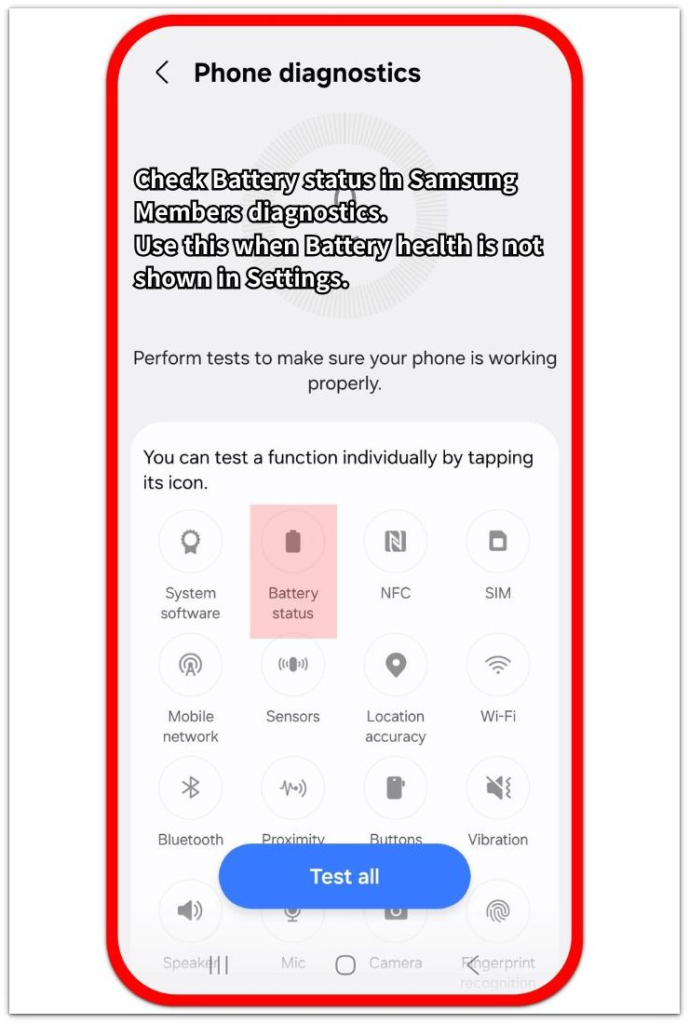
Read the Battery status on that screen and use it as the main check for the current condition. Keep the check focused on Battery status, not the full diagnostics list or general Battery usage page.
Troubleshooting
Troubleshooting 1: Android Battery Health Dropped After Update Right Away
The health looks lower right after a software update when the phone has not refreshed its condition check yet. The screen opens normally, but the first result is too early to judge.
Restart the phone once after the update finishes, then open the same screen again. When the lower result remains, use Samsung Members diagnostics as the clearer place to check the current condition.
Troubleshooting 2: Settings Shows A Lower Result But Diagnostics Looks Normal
Settings and Samsung Members show the condition in different formats. After an update, the Settings layout looks different while diagnostics still looks normal.
Open Samsung Members → Support → Phone diagnostics → Battery status and read that result again. When it looks normal, treat Settings as a changed layout and watch real symptoms before judging the battery.
Troubleshooting 3: The Diagnostics Result Shows Weak Or Poor
A weak or poor result needs a different path from a changed Settings layout. The check should move from screen wording to real battery behavior.
Look for faster drain, heat, charging problems, or sudden shutdowns during normal use. When those symptoms appear with a weak result, use the maker’s service or repair path.
Extra Section 1: Why The First Lower Result Looks Worse
The lower result feels more serious because it appears right after the software change. The phone was not showing clear battery trouble during normal use before that, so the screen becomes the first thing that seems wrong.
This is different from a battery that slowly gets weaker over time. The timing makes the update look like the cause, even when the phone has not shown faster drain, heat, charging trouble, or sudden shutdowns yet.
Use the first lower result as the starting reading after the update. The real check is whether that same lower result stays after normal use, not only what the screen showed right after the update finished.
Extra Section 2: Why A Normal Battery Status Changes The Judgment
A lower Settings result does not carry the same weight when Battery status still looks normal. The Settings screen shows one view of the battery condition, but the diagnostics result gives a clearer check on whether the phone is warning about the battery.
This changes the next decision. A normal status moves the check away from the screen change itself and toward real use. Faster drain, heat, charging trouble, or sudden shutdowns matter more than the lower Settings result alone.
Keep watching the phone during normal use after the diagnostics check. When the phone runs normally and Battery status stays normal, the lower Settings result is weaker evidence of battery trouble.
Official Source: Pixel Battery Health Status Is Based On Remaining Capacity
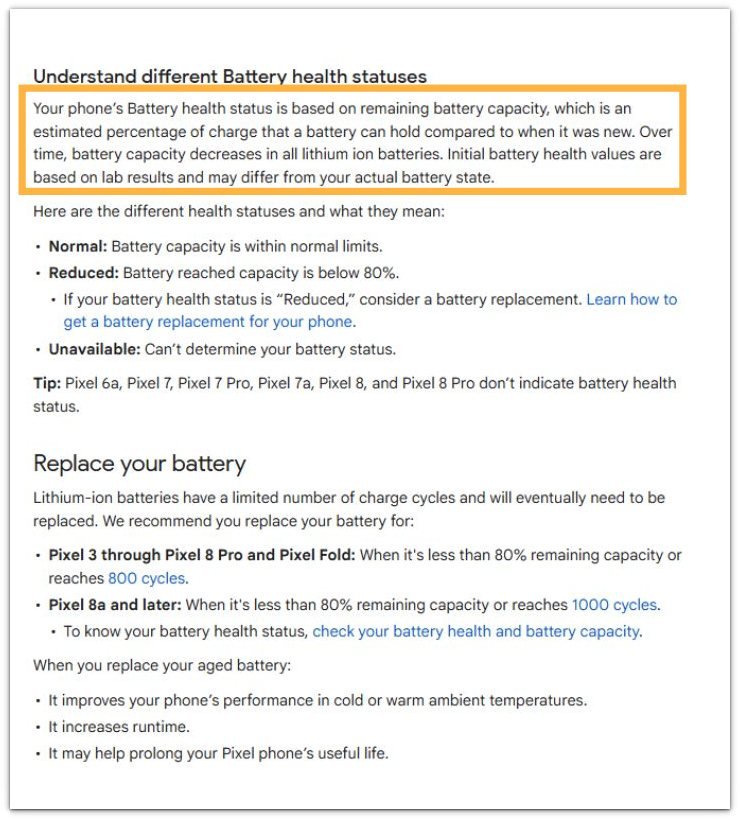
Google explains that Pixel Battery health status is based on remaining battery capacity, and that initial health values depend on lab results and the phone’s actual battery state. This supports checking again before judging the battery from one lower screen alone.
Additional Tips
Use the phone normally for a while, then check the same battery screen again. A result that appears only once right after an update is weaker than one that stays the same after regular use.
Keep charging behavior separate from battery health status. A cable, charger, or dirty charging port changes how the phone charges, but it does not prove that the health is accurate.
Watch the phone outside the settings screen. Faster drain, heat, charging trouble, and sudden shutdowns matter more than one lower result with no real-use symptoms.
Final Notes
One lower screen alone is not enough to judge Android battery health dropped after update.
Use the first lower result as the starting point, then compare it after normal use and check Battery status in diagnostics. When Battery status looks normal and the phone runs normally, the lower Settings result is not strong proof of battery damage.
When Battery status shows weak or poor and real symptoms appear during normal use, the issue is no longer just an update-screen change. Service or battery replacement becomes the right next path.
Checklist
- Check the lower result on the same screen first.
- Use the phone normally before judging.
- Compare again after regular use.
- Check Battery status in Samsung Members diagnostics.
- Separate charging problems from battery health status.
- Use service or replacement only when weak status appears with real symptoms.
Read the guide above first if you want to check the battery itself before blaming the update.