
Introduction
Android battery information stops updating becomes noticeable when the phone keeps showing the same battery health result after normal use. You check the screen again later, but the number or status still looks the same.
The phone feels weaker during daily use, yet the battery health reading does not move with that change. This creates a gap between what you feel from the phone and what the battery screen shows. Start by checking whether the result stays unchanged across more than one normal check.
Step-by-Step Guide: Android Battery Information Stops Updating
Step 1: Record The Current Reading First
Open the Battery information screen and note the current result before changing any settings. Use the screen you already checked, because this first value becomes the baseline for comparison.
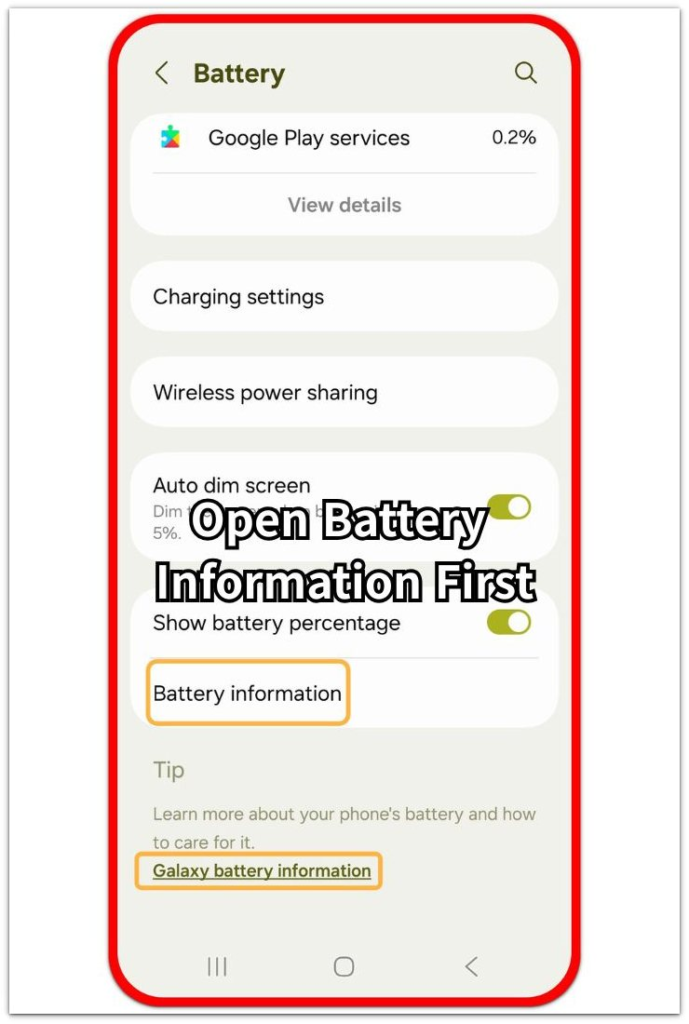
Keep the phone as it is before this first check. Keep apps, charging settings, software update status, and restart state unchanged until you record the first value. A clean starting point makes it easier to see whether the information stays stuck or only changes slowly.
Step 2: Use The Phone Normally Before Looking Again
Use the phone normally for a while before opening that screen again. Keep the use simple, such as browsing, messages, short calls, or light app use.
Look at the result after normal use. This shows whether the reading changes after regular activity instead of staying frozen from the first look.
Step 3: Compare The Later Reading With The First One
Compare the later reading with the first value you recorded. A change in the number, status, or result means the screen is updating, even when the change looks small.
When repeated normal checks keep returning one unchanged result while the phone feels weaker, the problem is bigger than one slow screen refresh. Use the phone’s diagnostic app or manufacturer support path before treating the number as reliable.
Troubleshooting
Troubleshooting 1: Android Battery Information Stops Updating After A Software Update
The battery screen looks frozen after a software update when the phone has not refreshed the health result yet. The page opens normally, but the number or status stays the same across the first few checks.
Restart the phone once after the update finishes, then use it normally before opening Battery information again. Keep the check focused on the health result, not the full usage graph or app drain list.
A result that changes after restart and normal use means the screen only refreshed slowly after the update. When the result stays unchanged across repeated checks, use the manufacturer’s diagnostic path before treating that number as reliable.
Troubleshooting 2: Battery Reading Stays The Same After Charging
A full charge does not always change the health result right away. The percentage moves during charging, but the health label is not a live meter.
Charge the phone normally, unplug it, and use it through a regular session before checking the health page again. Compare the later reading with the first value you recorded instead of comparing it with the charge percentage.
A moving percentage with an unchanged health label shows that those two readings update differently. Use the diagnostic app after the health result stays unchanged through several normal charge-and-use cycles.
Troubleshooting 3: Diagnostic App Shows A Different Battery Result
The Settings screen and a diagnostic app often show different levels of detail. Settings shows one simple health label, while the diagnostic app gives condition, capacity, or service status more clearly.
Open the manufacturer’s diagnostic app, such as Samsung Members on Galaxy phones, and check the battery status there. Compare that result with the Settings screen as a separate reading, not as the same measurement.
A diagnostic warning should carry more weight than a simple Settings label. Follow the diagnostic result first before relying on the unchanged Settings number.
Extra Section 1: Why The Battery Percentage Changes But The Health Result Does Not
You charge the phone, use it for messages and browsing, then check Battery information again. The percentage has moved, but the reading remains in place.
That does not always mean the screen failed. The percentage follows the current charge level, while the health reading does not have to change after every short use session. A short session can move the charge level without changing that longer-term reading.
The problem becomes clearer when the value stays unchanged across several normal checks. The percentage only shows daily charge movement, not whether Battery information has refreshed the condition reading.
Extra Section 2: Why A Normal-Looking Battery Screen Needs A Second Check
You open Battery information and the page looks normal. There is no warning, no error message, and the same status appears in the usual place.
That normal layout makes the reading look more certain than it is. The page opens correctly even when the displayed status has not refreshed. It only becomes useful when the same reading matches repeated checks and real phone behavior.
This matters when the phone feels weaker but the status keeps returning. Treat the screen as one clue, not the final answer. Compare it with repeated use and a separate diagnostic check before trusting the unchanged number.
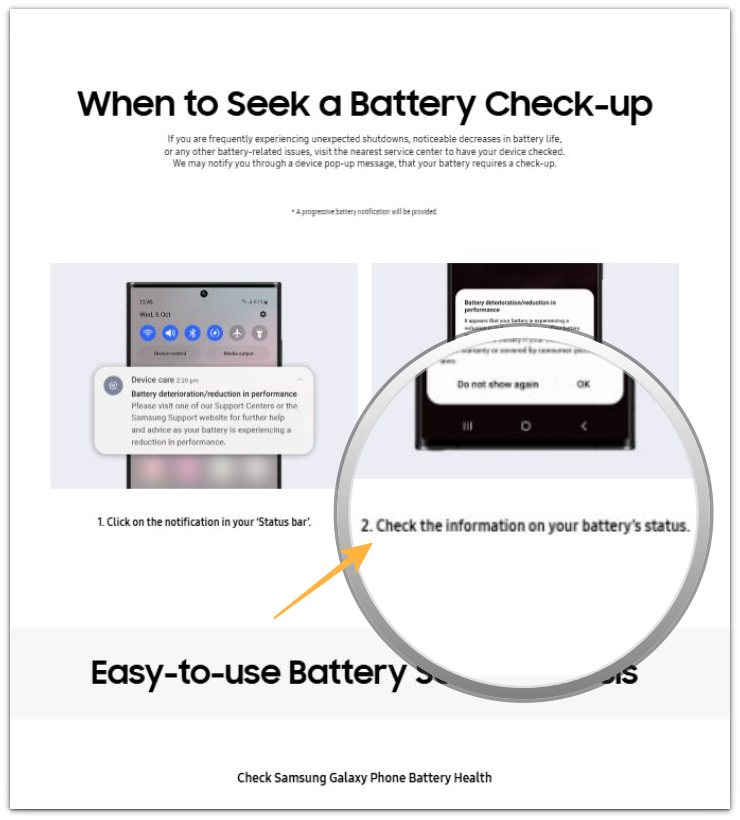
Official Source: Samsung Battery Check-up Notice
Samsung says frequent unexpected shutdowns, noticeable decreases in battery life, or other battery-related issues are signs that you should request a phone check-up. This supports using Samsung’s check-up or support path when the Settings reading stays unchanged.
Additional Tips
Check the reading again after you use the phone for a normal day, not right after one short session. A longer pattern gives the health screen more time to refresh.
Use the same screen path each time you compare the result. Switching between Settings, Battery usage, and a diagnostic page too early makes the result harder to judge.
Keep a note of the first value, later value, and date checked. A simple record shows whether the result never moves or only changes slowly.
Final Notes
Android battery information stops updating is a reliability problem when the same result keeps returning after repeated normal checks.
The strongest check is the comparison pattern. One unchanged result is not enough, but the same reading across normal use, charging, restart, and diagnostics needs a separate battery check.
When the phone feels weaker and the displayed result never changes, the Settings screen should not be the final judge. The diagnostic result or manufacturer support path becomes the better next step.
Checklist
- Record the first Battery information result before changing settings.
- Use the phone normally before checking the screen again.
- Compare the later result with the first value.
- Check again after charging and regular use.
- Use the manufacturer’s diagnostic app when the same result keeps returning.
- Follow the diagnostic result before trusting an unchanged Settings number.
Read the guide above first if you want to check the battery itself before judging one unchanged screen.