
Introduction
Android battery health after replacement becomes confusing after the repair, when the health result still looks low, old, or unchanged.
The phone charges and turns on normally, but the screen does not match the repair. The key is whether the low or unchanged result stays the same after the repair, not whether it appears once right after the replacement.
Step-by-Step Guide: Android Battery Health After Replacement
Step 1: Check The Current Battery Health Result First
Open the same health screen you checked after the replacement. Look at the number, status, or message that still looks low, old, or unchanged.
Keep this screen as the first reference before changing settings or restarting again. The first check should confirm what the phone is showing now, not what you expected after the change.
Step 2: Check Battery Status In Samsung Members
Open Samsung Members → Support → Phone diagnostics → Battery status. Use this screen to check whether the phone shows a clear status outside the regular Settings page.
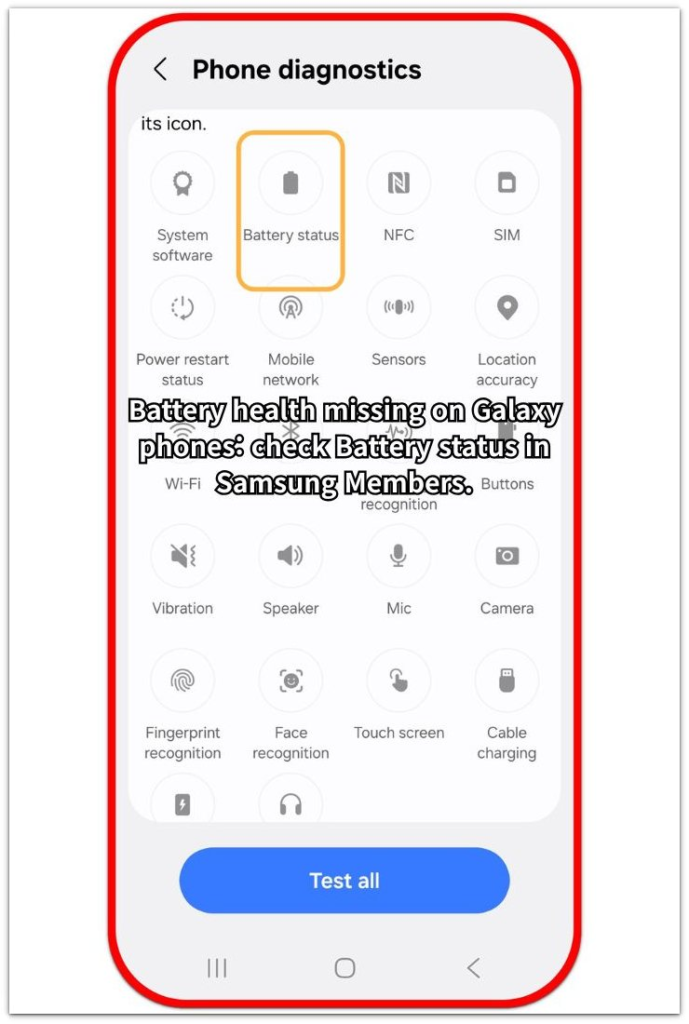
When Battery status shows a normal result, use that result as the clearer check and continue with the replacement record. When the diagnostic result also looks weak or unclear, check the replacement record before judging from Settings alone.
Step 3: Check The Replacement Record And Normal Use
Check the replacement record from the repair shop, service center, or battery order. Confirm that the repair shop actually replaced the battery and tested the phone after the repair.
Use the phone normally for a short period after that check. Charge it once, unplug it, and watch whether the screen changes after regular use. When the same wrong result stays across the health screen, diagnostics, and normal use, return to the repair source with those results.
Troubleshooting
Troubleshooting 1: Android Battery Health After Replacement Still Shows The Old Result
The health screen keeps the same result when the displayed status has not refreshed yet. The repair shop already finished the replacement, but the screen still shows the old number or condition.
Restart the phone once, then open the same health screen again after normal use. Check the result again after one regular charge and use session, not immediately after the restart.
When the old result stays the same after that cycle, use Samsung Members or the repair record as the stronger check instead of relying on the old screen alone.
Troubleshooting 2: Battery Status Looks Normal But The Health Screen Looks Wrong
Samsung Members Battery status and the regular settings screen show different types of results. The diagnostics result gives a clearer condition check when the regular health screen still looks old or delayed.
Compare the diagnostic result with charging behavior instead of repeating the regular health screen. When Battery status looks normal and the phone charges normally, treat the regular health screen as delayed unless real symptoms appear.
Troubleshooting 3: Battery Health Still Looks Wrong With Fast Drain Or Heat
A wrong-looking health result matters more when it appears with fast drain, heat, shutdowns, or unstable charging. The screen alone is weaker evidence than the same result with daily use problems.
Check whether the phone gets hot, drops quickly, or shuts down during normal use after the replacement. When those symptoms continue with a weak diagnostic result, contact the repair shop or service center with the health screen, diagnostic result, and replacement record.
Extra Section 1: Why Health Results Lag After Replacement
A battery replacement changes the physical part, but the health screen refreshes later. The phone needs to read the new condition and update the result shown on the regular page.
This delay makes the screen look wrong even after the repair shop completes the work. The old number, weak status, or unchanged result stays visible because the page still shows older information.
Treat the health result as one clue after replacement, not the final answer. Compare it with Samsung Members Battery status, the repair record, and how the phone behaves after one regular charge session.
Extra Section 2: When Repair Records Matter More
The repair record matters when the health result stays unclear after service. The screen shows an old or delayed reading, but the record shows whether the repair shop changed the battery, when the work happened, and who handled the repair.
That record also helps separate a display issue from a repair issue. Normal charging and a normal diagnostic status support that the repair shop completed the work. Fast drain, heat, shutdowns, or a weak diagnostic result give the service center a clearer reason to recheck the work.
Keep the screen result, Samsung Members result, and repair record together when you ask for a recheck. That gives the repair shop or service center more useful information than saying only that the number still looks wrong.
Official Source: Battery Health Status Is An Estimate
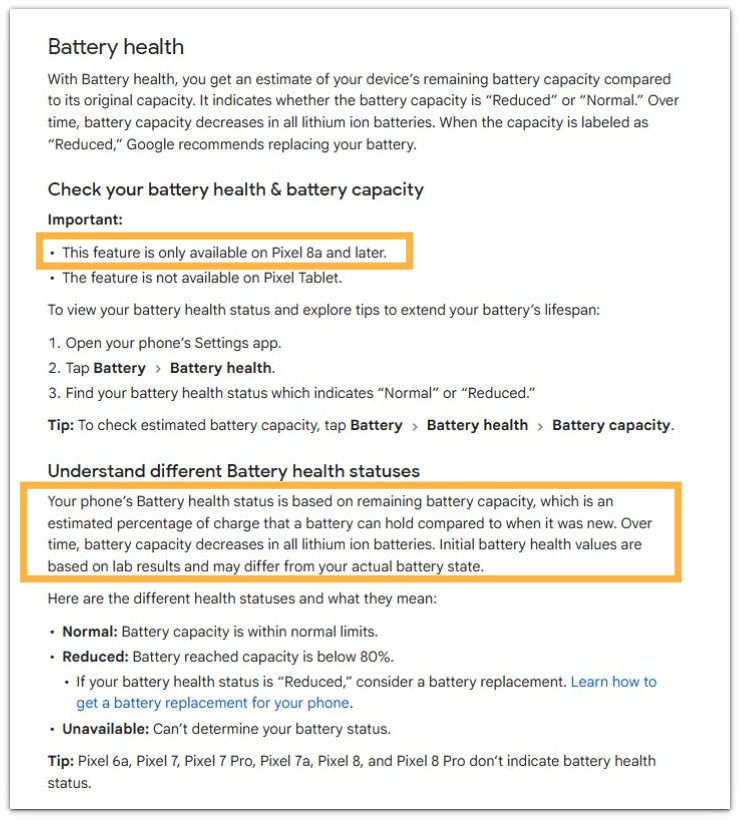
Google Help explains that Battery health uses estimated remaining capacity, so do not treat it as the only proof of the phone’s actual condition. This supports checking diagnostics, repair records, and real-world behavior together after replacement.
Additional Tips
Keep the first health result only as a reference, because the phone refreshes the regular page later after replacement.
Use Samsung Members Battery status together with the repair receipt or service record until the phone shows stable charging and normal daily use.
Final Notes
Android battery health after replacement needs more than one screen for judgment. A low or unchanged result matters most when it matches diagnostics, the repair record, and real battery symptoms.
When the phone charges normally, Samsung Members shows a normal status, and the repair record confirms the work, the old health result is more likely a delayed display than proof of a failed replacement. Fast drain, heat, shutdowns, or unstable charging after replacement need a recheck from the repair source.
Checklist
- Check the current health result first.
- Compare the result with Samsung Members Battery status.
- Keep the repair receipt or service record.
- Watch fast drain, heat, shutdowns, and unstable charging after replacement.
- Treat an old health result as delayed only when the phone works normally.
- Return to the repair source when weak results match real symptoms.
Read the guide above first if you need to check where Battery health appears, then compare the replacement result after that.