
Introduction
You open the Battery settings expecting to check health, but the option is not there. The screen looks complete at first because the percentage, usage graph, and app list still appear normally.
Android battery health not showing becomes clearer when the phone shows information, but not the health result you were looking for. A missing option does not mean it has failed right away.
Start by checking whether your Android phone supports that screen before you judge the battery itself.
Step-by-Step Guide: Android Battery Health Not Showing
Step 1: Check Whether Your Phone Has A Battery Health Screen
Look only at the menu names shown on your own screen. If your screen shows usage details but no Health entry, do not assume the phone is showing an error yet.
A different Android model or an online screenshot should not be the standard for your phone. Some Android phones show usage details without showing a separate Health option.
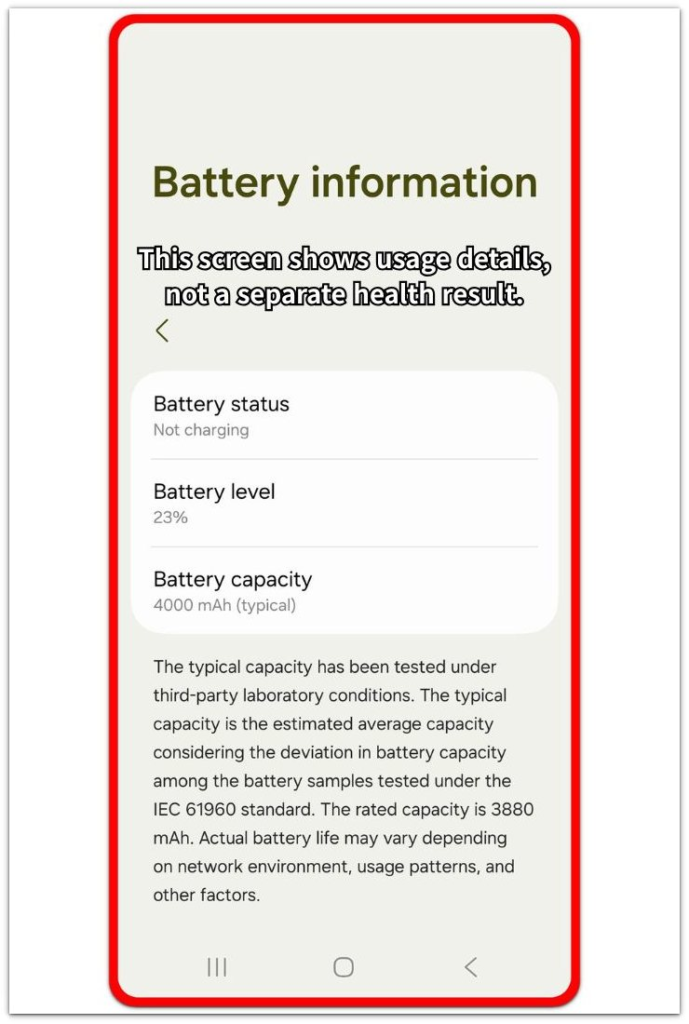
After you confirm whether that screen exists on your model, the missing option is easier to judge. If it does not appear there, keep the check focused on whether your phone supports that screen.
Step 2: Compare The Missing Option With The Phone Model
Check the exact model name in Settings → About phone before you compare the screen. Phones from the same brand can still show different menus by model and software version.
Some phones show usage details, charging details, and app drain without giving you a Battery Health result. That alone does not mean the battery is bad.
After you know the model name, compare that model with the maker’s help page or diagnostics app. This keeps the check focused on support, not on another phone’s screenshot.
Step 3: Check The Software Version Before You Blame The Battery
Open the Software update screen and check whether the phone is already up to date. The Android version or the manufacturer’s settings layout often determines whether the Battery Health option appears.
A missing option alone is not a reason to reset the phone or replace the battery. First, confirm the phone model, Android version, and screen layout together.
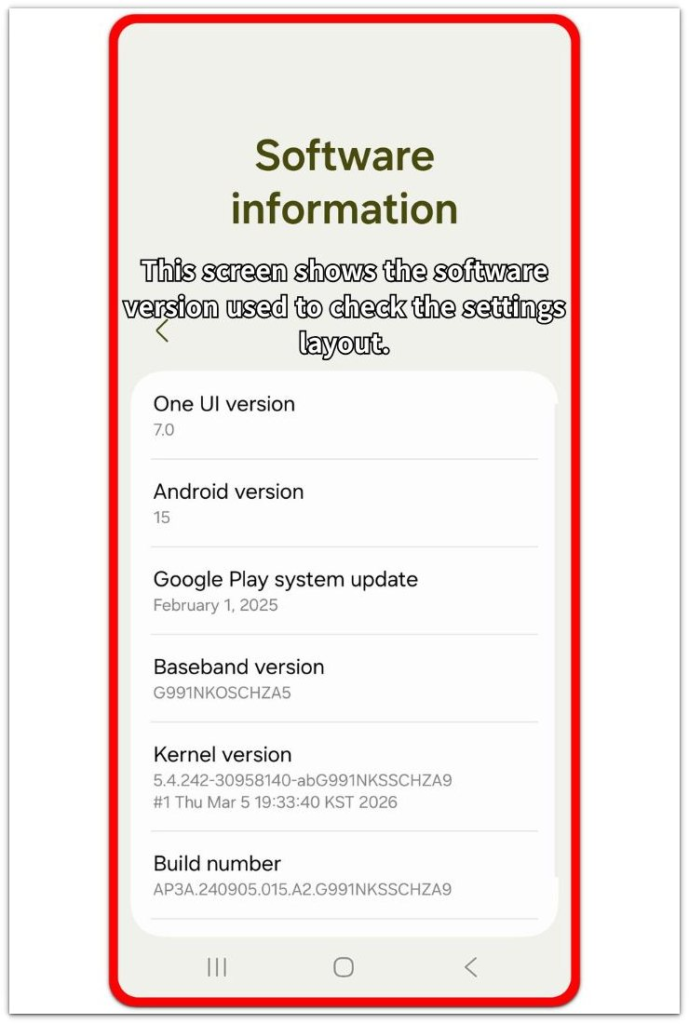
That check shows whether the option is truly missing or simply not supported on that phone.
Troubleshooting
Troubleshooting 1: Android Battery Health Not Showing On Samsung Phones
Samsung phones often show battery usage inside Settings without a separate Battery Health result on the same screen. The page still looks normal because it shows usage history, charging details, and app drain.
Open Samsung Members instead and go to Support → Phone diagnostics → Battery status. When the screen in Settings does not show the result, that diagnostic path gives a clearer place to check the condition without treating the missing menu as a failure.
Troubleshooting 2: Battery Health Missing After A Software Update
The option looks missing after an update because the screen layout has changed. The same phone still shows usage, but the new settings layout moves, renames, or leaves out the health result.
Check Settings → Software update first, then return to the screen and compare the layout again. When the menu stays missing after the update check, the problem is more likely the phone’s software layout than the battery.
Troubleshooting 3: Battery Health Shows On A Similar Android Model But Not Yours
A similar Android phone shows a health screen while yours only shows usage details. That difference usually comes from the exact model, Android version, or manufacturer settings design.
Check your own model name and software version before comparing it with another Pixel, Samsung, Motorola, or other Android phone. A missing Battery Health result on your device does not prove battery damage when that exact model does not support the screen.
Extra Section 1: Why Battery Health Looks Missing Even When Battery Usage Appears
You open the Battery screen and it does not look broken. The percentage is there, the usage graph loads, and the app list still shows which apps used power.
None of those items are the Battery Health result. They explain recent use, not the condition.
The screen looks complete, but the result is still missing. Check whether your phone model supports Battery Health before treating the missing option as a problem.
Extra Section 2: Why Another Android Screenshot Can Mislead The Check
You find a screenshot online where Battery Health appears in a clear place. The phone in that image still runs Android, but its screen does not have to match yours.
A Pixel screenshot, a Samsung screenshot, and another Android brand’s screenshot set different expectations. The menu name, location, and support range change by model and software version.
Use the screenshot only as a reference, not as proof that your phone is missing a required feature. Your own model and its supported settings should be the standard.
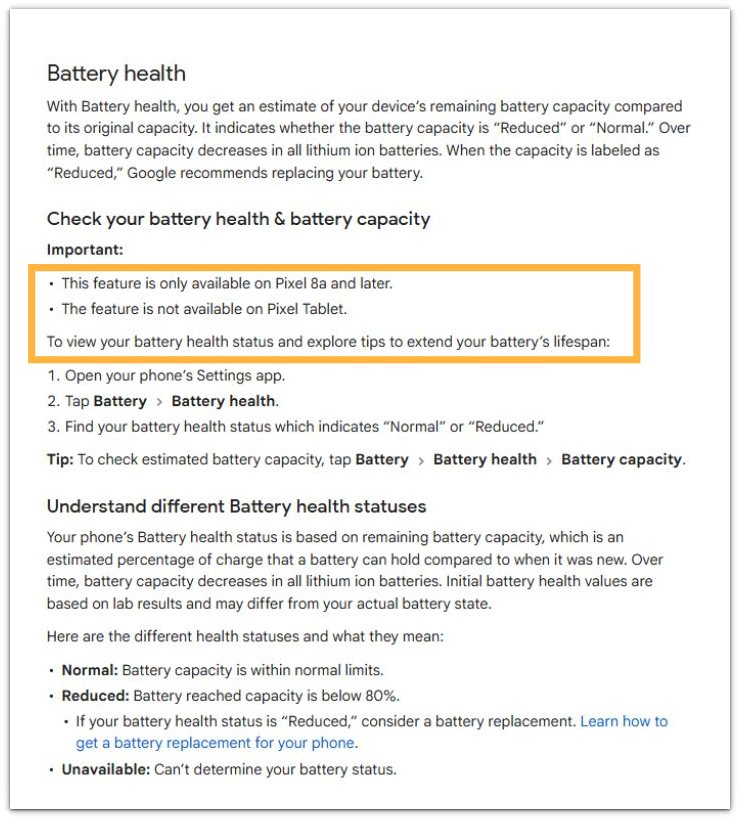
Official Source: Pixel Battery Health Support
Google Pixel Help says Battery Health is available only on Pixel 8a and later. On older Pixel models, a missing Battery Health option can be a model support issue, not immediate proof of damage.
Additional Tips
Use a diagnostics app only when the screen does not give a health result, and check the phone again after a full charge cycle if the percentage drops faster than usual.
Keep the charger, cable, and charging port in mind when the condition looks unclear, because a charging setup problem can look like a health issue.
Battery replacement only makes sense after you check model support, software layout, and diagnostics.
Final Notes
Android battery health not showing is usually a support or settings layout issue before it is a battery failure sign.
The right order is simple: check the model, confirm the software version, then use the maker’s diagnostic path. When your phone does not support a separate Battery Health screen, the option will not appear.
A real battery problem needs more than a missing menu. Fast drain, shutdowns, swelling, charging failure, or a poor diagnostic result gives a stronger reason to inspect it.
Checklist
- Check your exact phone model first.
- Compare your own screen, not another phone’s screenshot.
- Check the software version before blaming the battery.
- Use the maker’s diagnostics app when the screen does not show Battery Health.
- Look for real symptoms beyond the missing menu.
- Consider replacement only after you check support, layout, and diagnostics.
The guide above helps check whether the battery itself looks wrong before you focus on the missing health option.