
Introduction
Android battery overheating becomes noticeable when the phone gets hot faster than normal during everyday use. It often happens during charging, weak signal, navigation, video calls, hotspot sharing, or gaming.
A warm phone is not always the problem. What matters is how quickly the temperature rises, what was running at the time, and whether the same pattern returns.
This guide separates the most common causes into 4 main checks with related problem guides below each one. Start with the most recent change, then compare each condition one by one.
Step-by-Step Guide: Android Battery Overheating
Step 1: Check What You Were Doing Right Before the Phone Got Hot
Start with what changed right before the phone began getting hot. Check whether the problem started after a system update, an app update, a restart, or a new app session.
Use the phone normally for a short test and watch when the temperature begins to rise. If the pattern starts soon after the update or restart, keep the check focused on that recent change before moving to charging, signal, or app use.
Open Settings → Battery and look at the recent usage list. Check whether one app, system process, or background activity appears near the time the phone became hot. This first check helps show whether the problem started from a recent software change or daily use.
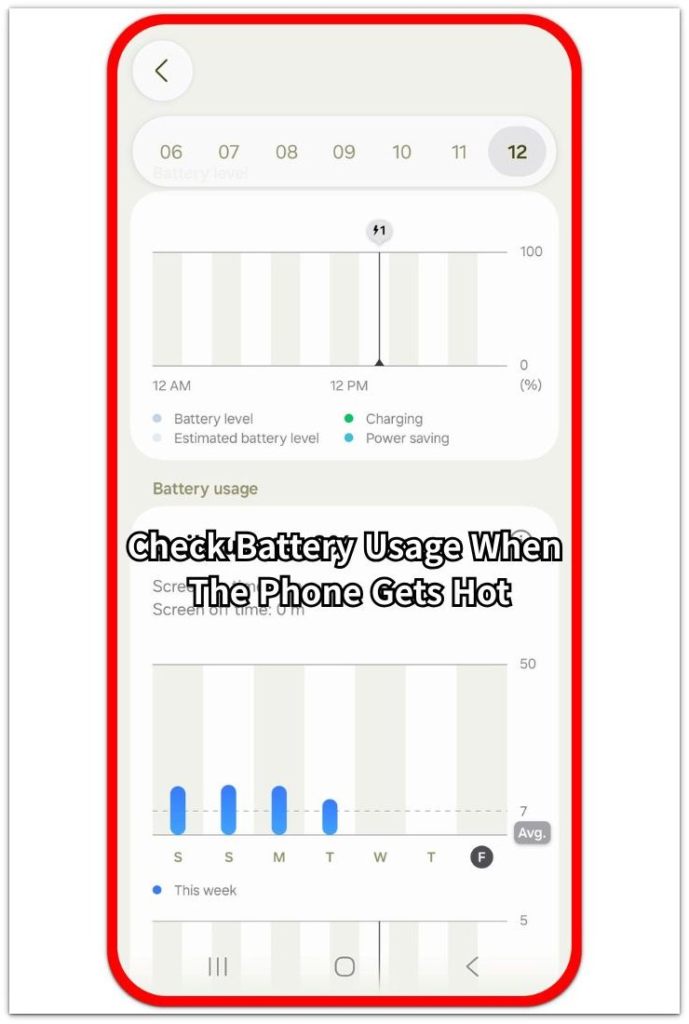
Recent Update Heat
Heat starts soon after a system update or app update, even during normal use.
The phone feels normal right after restarting, but heat returns once normal use begins.
Step 2: Compare Charging And Signal Conditions
Check whether the phone gets hot faster while it is charging or using mobile data in a weak signal area. These two conditions raise the temperature even when the same apps look normal.
Unplug the charger for a short test and keep the same screen open. A cooler result without the charger means you should check the charging setup before changing app settings.
Move to a stronger signal area and use the phone the same way again. Slower temperature buildup with better reception shows that the connection condition matters more than the app itself.
Charging And Signal Problems
The temperature rises faster when the charger stays connected during normal use.
The phone works harder when it stays connected in a weak signal area.
Step 3: Check Hotspot And Video Call Use
Check whether the phone gets hot faster when hotspot sharing or a video call is active. These sessions keep the network, screen, audio, camera, and background activity running at the same time.
Turn off hotspot sharing or end the video call for a short comparison. Keep the phone in the same place and use it lightly for a few minutes. A steadier result after the session stops shows that the active connection was adding the load.
Repeat the session only after the phone cools down. Watch whether the problem begins early or only after longer use. This keeps the check focused on hotspot or video call activity instead of blaming every app.
Hotspot And Video Call Problems
The phone works harder when it shares mobile data with another device for a long session.
The screen, camera, audio, and network stay active together during a video call.
Step 4: Check Navigation And Gaming Use
Check whether the phone gets hot faster during long screen-on use. Navigation and gaming keep the display, processor, network, location, and graphics activity running for a long time.
End the route or close the game, then use the phone lightly in the same place for a few minutes. Slower temperature buildup after that activity ends shows that the long active session was adding the load.
Try the activity again after cooling down. Watch whether the problem begins early or builds up over time. This separates long active use from a general app problem.
Navigation And Gaming Problems
Long routes keep the screen, GPS, and mobile data active for the whole trip.
Games push the processor and graphics harder than normal daily apps.
Troubleshooting
Troubleshooting 1: One App Makes The Phone Warm Up Fast
The phone gets hot only when one specific app stays open. Other daily use feels stable, but the temperature rises again when that app runs for a few minutes.
Close the app fully and use the phone lightly on another screen for a short comparison. Cooler behavior outside that app shows you should check the app first, so review its battery use, update status, and background activity before changing system-wide settings.
Troubleshooting 2: Heat Comes Back After The Phone Looks Normal
The phone cools down after a restart or a short break, but the same pattern returns once normal use begins again. The restart likely paused the activity instead of removing the cause.
Use the phone in the same order as before and watch which action brings the temperature back first. When the trigger repeats, the matching guide is the better next step instead of treating the whole phone as the problem.
Troubleshooting 3: No Clear App Shows In Battery Usage
The phone gets hot, but the Battery screen does not show one obvious app at the top. The usage list looks normal, and the problem appears across different screens.
Check the condition around the phone instead of only the app list. Run the same light use in a cooler place and keep charging off during the comparison. Different results show that the setup was adding to the problem.
Real Case: When The Heat Pattern Feels Random
The phone feels normal in the morning, but later it gets hot after simple use. A short scroll, a few messages, or time in a pocket is enough for the temperature to rise faster than expected.
No single app looks like the clear cause. The phone gets warmer while charging, inside a car, near a window, or in a place with poor reception. Battery percentage also drops faster, even when the screen shows no heavy task.
Android battery overheating does not always come from one app. Deleting one app right away misses the real pattern when the phone gets hot during charging, poor reception, or long screen-on use. Check when the phone started getting hot and what was happening around it before changing deeper settings.
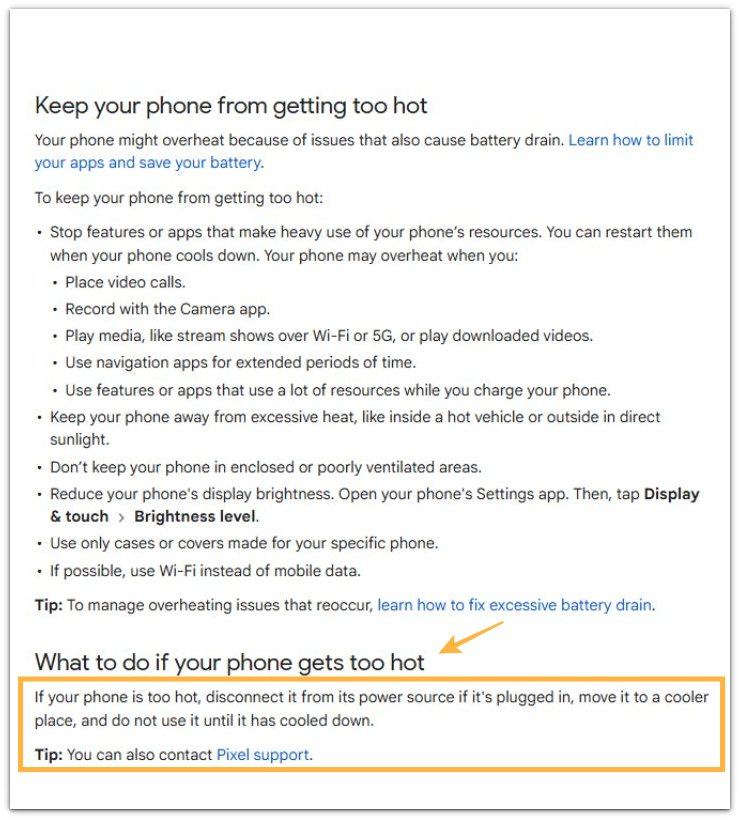
Official Source: Google Says Phones Can Get Too Hot During Heavy Use
Google explains that phones overheat during video calls, navigation, media use, charging with heavy apps, direct sunlight, or poor ventilation. It also recommends unplugging the phone, moving it to a cooler place, and not using it until it cools down.
Additional Tips
Remove the case for a few minutes and check whether the phone feels different. A thick case traps warmth during charging, gaming, video calls, or navigation, so the same use feels worse with the case on.
Keep the phone away from direct sunlight, car dashboards, blankets, and tight pockets during a test. These outside conditions make the phone warm up faster even when the app itself is not the main cause.
When the phone feels too hot to hold comfortably, stop the active session and let it cool in a shaded place before testing again. That gives the next check a cleaner result.
Final Notes
Android battery overheating needs a condition-by-condition check, not a random app cleanup. The real cause usually shows up when the same pattern repeats during charging, weak signal, hotspot sharing, video calls, navigation, or gaming.
Start with the most recent change, then compare one condition at a time. Once the pattern is clear, follow the matching guide instead of changing every battery setting at once.
Checklist
- Check what changed before blaming one app.
- Compare charging and signal conditions separately.
- Test hotspot and video calls as active connection sessions.
- Check navigation and gaming after long screen-on use.
- Use the matching guide when the same pattern repeats.
- Let the phone cool before running the next comparison.
Android Battery Problems
For system drain, fast draining, or battery health problems, check the main Android battery guide below.