
Introduction
Android phone gets hot after update becomes noticeable when the phone warms up much faster than before. The heat starts during normal use, shortly after unlocking the screen, opening apps, charging briefly, or leaving the phone active for a short time.
The update has already finished, but the phone now reaches a warm or hot state too quickly during the same routine. Start with the first moment the heat appears, then compare whether the heat slows down after the phone has time to settle.
Step-by-Step Guide: Android Phone Gets Hot After Update
Step 1: Check When The Heat Starts Again
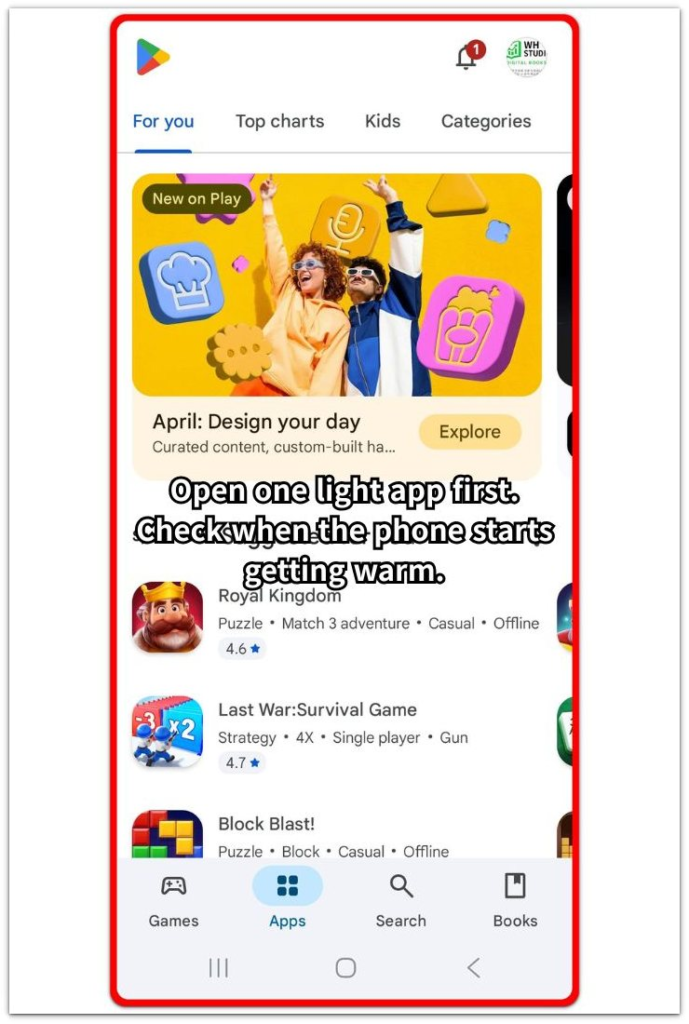
Open one normal app screen after the update and use the phone lightly for a short time. Do not start with games, video recording, maps, or several apps at once.
Watch when the phone first starts feeling warm. A simple app screen makes the first check easier to compare than heavy use because the phone is not already under a strong load.
Step 2: Check What Was Active Around That Time
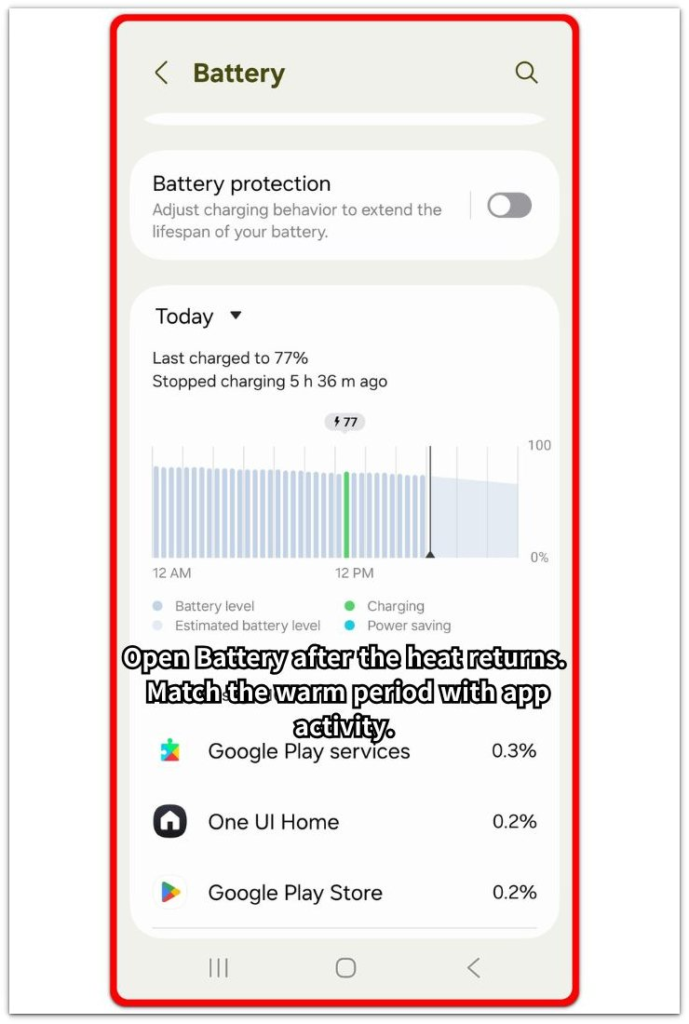
After the heat comes back, open Settings → Battery and check what was active around that time. Use this screen only to see which apps or services were active during the warm period.
Use the battery percentage first, then match it with the app list, screen use, or background service shown near that time.
Step 3: Let The Phone Settle And Compare The Next Light Use
Leave the phone idle for a while after the first check, then use the same light app again. Keep the screen brightness, app, and use time close to the first test.
A slower return after the phone settles is a better result. Heat that returns just as fast during the same light use needs one more check after another idle period.
Troubleshooting
Troubleshooting 1: Heat Stays The Same After Changing Apps
The phone starts warming during one simple app, so you try another light app to compare it. The heat returns at nearly the same speed even though the app screen has changed.
This result points away from one heavy app and back toward update-related activity still running in the background. Keep the test light, leave the phone idle again, and compare one more normal session before blaming gaming, navigation, or video calls.
Troubleshooting 2: Android Phone Gets Hot After Update While Sitting Idle
The phone feels warm on a desk after the update, even though the screen has been off for a while. This is different because the heat is not coming from visible use.
Open Battery and look for activity during the screen-off period. Screen-off activity points to something still working after the update. Leave the phone idle again, then compare whether the warmth slows down once syncing, app updates, or background work settles.
Troubleshooting 3: Heat Drops Once And Returns Later
The phone cools down after the first check, but the heat comes back later during another normal session. The first cool-down makes the problem look solved, but the next one shows that the update-related activity is still worth checking.
Compare the later period with the earlier one. A shorter or weaker warm-up is usually part of the phone settling after the update. Heat that returns with the same strength during normal use matters more after another idle period.
Extra Section 1: The Phone Warms Up Right After Unlocking
After an update, the first warm-up feels strange because it happens before the phone is doing anything heavy. You unlock the phone, check a message, open the browser, or move between a few normal screens, and the back of the phone starts feeling warmer than it did before the update.
This does not look like a gaming or navigation heat problem. The timing matters more here. The heat appears during a light routine that used to feel normal.
When Battery does not show one obvious heavy app, compare the next light session instead of blaming the first app on the screen. A slower result later shows the phone is settling. The same fast warm-up carries more weight.
Extra Section 2: Charging And Setup Make The Warm-Up Feel Stronger
After an update, the phone feels hotter when charging starts before the phone has finished settling. You plug in the phone, check settings, open a few apps, and let app updates or account sync run in the background at the same time.
This heat feels different from the first light-use warm-up. The phone is not only showing a normal screen. It is also taking power, refreshing apps, syncing data, or finishing update-related work in the background.
Before blaming the charger alone, separate the charging test. Let the phone sit idle off the charger first, then charge it later with the screen mostly off. A cooler result during that separate charge points to the overlap, not a single charging problem.
Official Source: Running Apps Can Make The Phone Heat Up
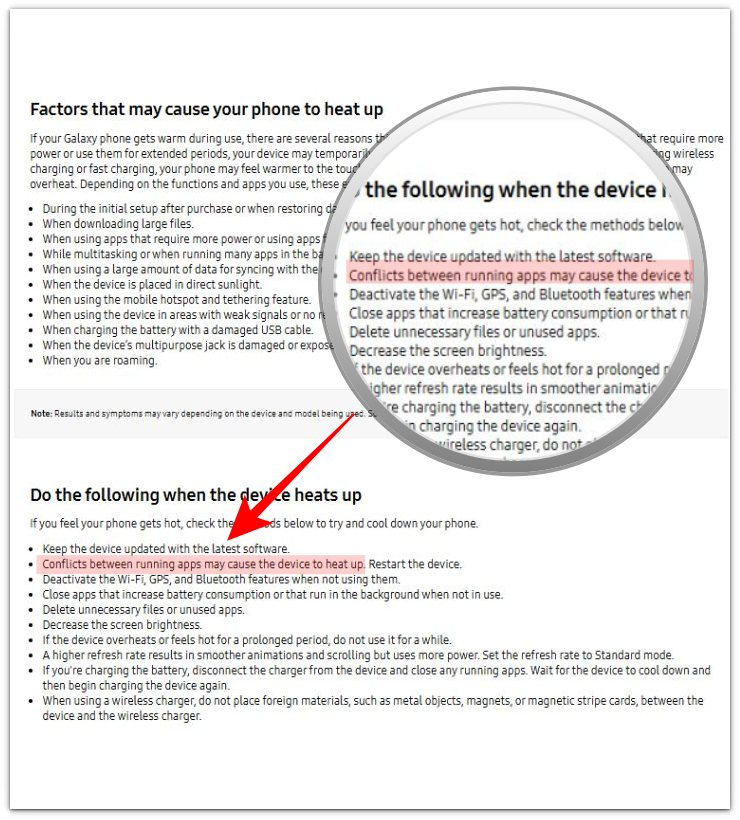
Samsung explains that running apps or app conflicts can make a device heat up. This supports checking app or service activity near the warm period after an update.
Additional Tips
A thick case traps heat around the back of the phone after an update. Remove the case next time the phone feels warmer than usual.
Direct sunlight also changes the result quickly. A phone left near a window, dashboard, or warm desk looks like it heats up faster even when the app activity has not changed much.
A long setup session also changes the result. Right after the update, repeated settings checks, app openings, and screen use keep the phone active longer, so the heat feels stronger.
Final Notes
Android phone gets hot after update needs timing, not a random app deletion. The strongest result comes from matching the first period with Battery activity, then repeating one light-use check after the phone has time to settle.
Fast heat during normal use carries more weight when it returns with similar app activity, screen-off activity, or charging and setup overlap. A slower result later points toward update settling. Repeated fast warm-ups after separate checks point to an app, service, or setup activity worth checking next.
Checklist
- Check when the heat first appears after the update.
- Use one light app before testing heavy use.
- Open Battery and match the warm period with app or service activity.
- Repeat the same light-use check after the phone sits idle.
- Compare repeated fast warm-ups with slower warm-ups after the phone settles.
For broader heat and battery checks, use the main Android overheating guide.