
Introduction
Android phone overheating during gaming becomes noticeable when the phone gets hot soon after a game starts. The heat builds too quickly, even when it has not been open for long.
Start with the first few minutes of play. Check when the heat starts, what else was open, and whether the same game gets hot just as quickly again.
Step-by-Step Guide: Android Phone Overheating During Gaming
Step 1: Check How Fast The Heat Starts During The First Game
Open the game you normally play and start one short session. Do not charge the phone, change settings, or clear apps before this first check.
Play for a few minutes and pay attention to when the back of the phone starts feeling warm. This first check should show whether the heat begins early in normal play, not after a long gaming stretch.
Step 2: Keep The Conditions Close For One More Check
Go back and play the same kind of short session again. Keep the screen brightness, game mode, and play time close to the first check so the second result is easier to compare.
Stay with one normal mode instead of changing several settings at once. This keeps the second check focused on the heat, not on a new game setup.
Step 3: Check What Was Active When The Heat Started Early
After the heat starts early, review what stayed active around the game. A fast heat buildup before the match or level has been running for long needs more than a simple long-session explanation.
Use the Battery screen and recent app activity as the next check. Look at the game, screen brightness, background apps, and any game booster setting that stayed active while the phone warmed up.
Troubleshooting
Troubleshooting 1: Android Phone Overheating During Gaming Still Happens With Low Graphics
The phone still gets hot quickly even after you lower the game graphics or frame rate. This feels more serious because the game is no longer running at its heaviest setting, but the heat still starts early.
Close it, let the phone cool down, and open it again with the lower graphics setting still on. Keep the first few minutes light and avoid recording, streaming, or voice chat during this check. A fast result under a lighter setting points more toward background activity, game booster behavior, or poor heat release than normal high graphics load.
Troubleshooting 2: The Phone Gets Hot Only In One Game
One game makes the phone hot quickly, but other games or normal apps do not create the same result. That load, settings, ads, online connection, or background service becomes the first place to check.
Check the settings first. Lower the frame rate, turn off extra visual effects, and close any in-game overlay or recording feature before testing again. A cooler second session shows that the problem is tied more to that game than to normal phone use.
Troubleshooting 3: The Phone Gets Hot Faster After A Short Break
The phone cools down after the first session, but the next session gets hot much faster. A short break often leaves heat trapped around the phone before the next round starts.
Leave the phone on a hard surface with the screen off for a while before playing again. Remove the case during the next check and keep the phone away from blankets, pillows, or direct sunlight. A slower return after a longer break shows that trapped heat was part of the gaming problem, not just the game itself.
Extra Section 1: The Phone Gets Warm In The Game Lobby
The phone starts getting warm before a match or level is fully running. The heat begins while the game is still opening, loading, signing in, or sitting in the lobby.
That feels confusing because the heavy part has not really started yet. The first place to check is the early activity, not only the graphics setting.
A login screen, server connection, ad load, resource download, or game booster startup adds work before actual play begins. Close extra overlays, wait until the download or login process finishes, then start one short match and compare the heat again.
Extra Section 2: Heat Builds Around The Case And Grip
The settings look normal, but the phone still feels hot in the hand. It is not only coming from the screen or the game load. It also builds when the case stays on, you hold the phone tightly, or the back of the phone cannot release heat well.
This often happens during a long round on a bed, couch, or sunny spot near a window. A soft surface or thick case keeps heat close to the phone, so the next few minutes feel hotter than the setting alone explains.
Remove the case for one short check and place the phone on a hard surface between rounds. Keep the same screen brightness, then compare whether it returns more slowly. A slower return means heat release was part of the gaming problem.
Official Source: Game Heat Affects Performance
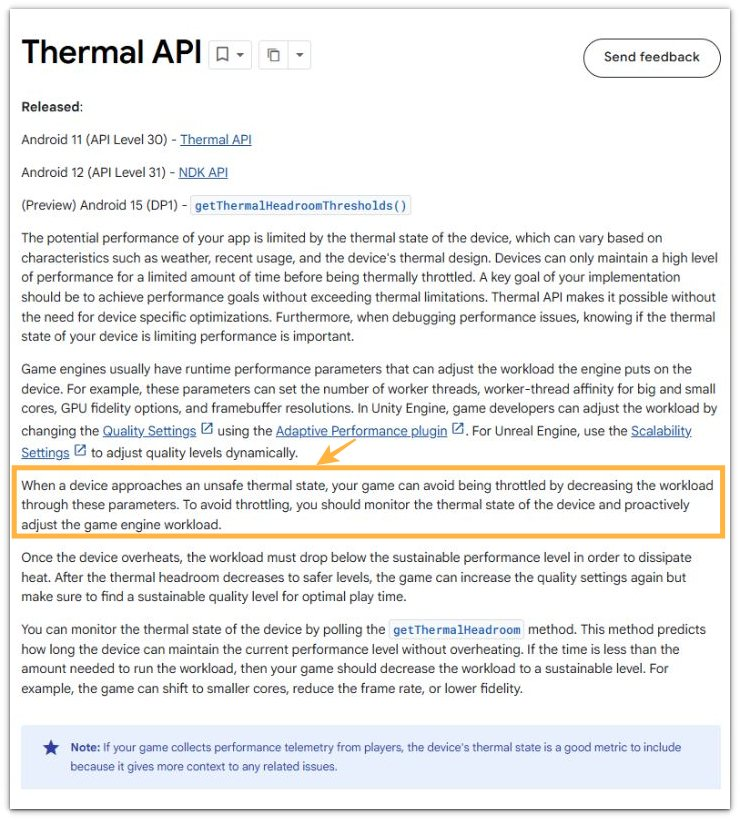
Android Developers explains that games should reduce workload, frame rate, or visual quality when a device gets too hot. This supports the point that gaming heat is not only a battery problem. Game load, phone temperature, and performance limits should be checked together.
Additional Tips
Heavy features outside the game add heat without looking like part of it. Close screen recording, voice chat, livestreaming, and floating overlays before comparing another short session.
Online games also feel hotter during an unstable connection. Test the same game once on a steadier Wi-Fi connection or in a better signal area before treating the phone as the main problem.
A high refresh rate setting makes a session feel warmer even when the graphics look normal. Use the same game mode with a lower refresh rate once, then compare how quickly it returns.
Final Notes
Android phone overheating during gaming needs a focused check, not a random battery guess. The timing matters first, then the game load, background activity, graphics setting, and heat release around the phone.
Fast heat in the first few minutes points to a heavier load than the phone handles comfortably in that setup. A cooler result after lowering the load or improving heat release gives the strongest answer.
Checklist
- Check how fast the phone gets hot after the game starts.
- Keep the same game, brightness, and play time for the second check.
- Review background apps, overlays, and game booster settings.
- Lower graphics or refresh rate once and compare again.
- Remove the case or improve heat release during one short test.
- Use repeated fast heat during normal play as the result that carries the most weight.
Use the main Android battery overheating guide if the phone also gets hot outside games.