
Introduction
Android app storage problems become frustrating when the phone keeps losing space even though no large file appears in the Downloads folder. Music, streaming, social media, browsers, and messages each keep files in different places, so the cause does not always look like a normal download.
Downloaded songs, streaming cache, social previews, browser files, and old message media often stay inside the app that created them. Android shows the number rising, while the file manager still looks clean.
Start with the app that grew first. Offline downloads, streaming cache, social previews, browser data, and old message media each need a different cleanup path.
Step-by-Step Guide: Android App Storage Problems
Step 1: Check Saved Music and Offline Downloads First
Open Settings, then Apps, and sort the list by storage size. Look for music, video, podcast, reading, map, or travel apps that became larger than expected. Saved songs, playlists, episodes, maps, and reading files often stay inside their original app.
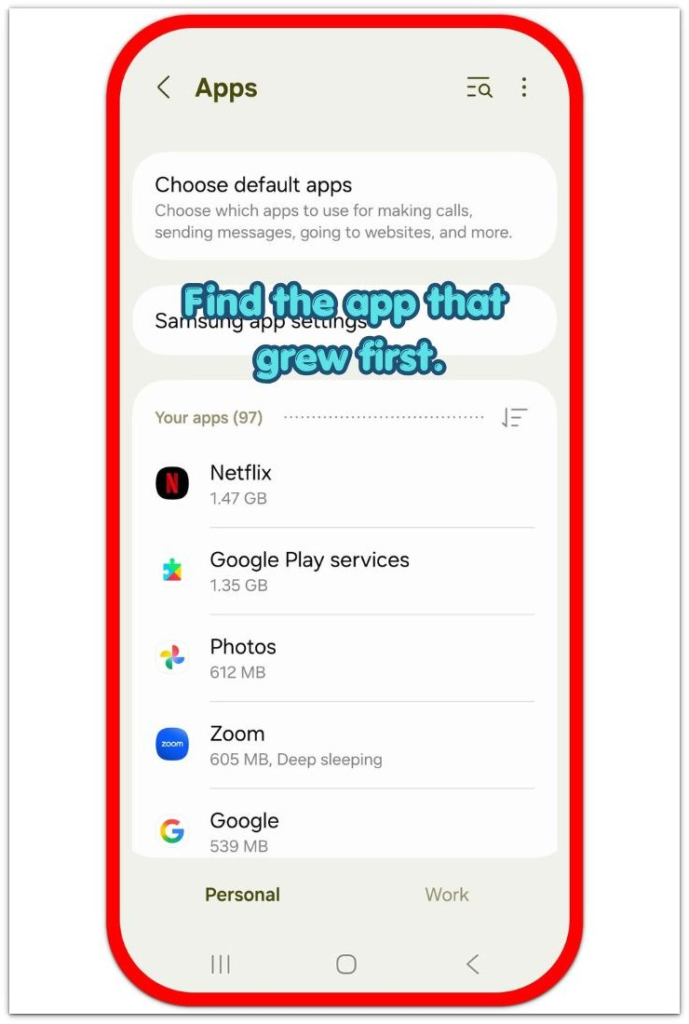
Open the largest suspicious app and check its Storage screen before deleting anything. An empty Downloads folder does not rule out offline content, especially when saved files belong to music, maps, podcasts, or reading.
Next, open that app and check areas named Downloads, Offline, Saved, Library, Playlists, Episodes, Maps, or Available offline. Remove only the saved items you no longer need, then return to Android Storage and check whether the size drops.
Saved Music and Offline Downloads
Saved songs and playlists often stay inside the music app, even when the Downloads folder looks clean.
Offline videos, maps, podcasts, and reading files often stay inside the app that saved them.
Step 2: Check Streaming and Social Media Storage Growth
Open Settings, then Apps, and choose the streaming or social media app that keeps getting larger. Check its Storage screen and compare App size, Cache, Data, and Total size before clearing anything. Growth often appears after videos, previews, reels, shorts, stories, or image-heavy feeds.
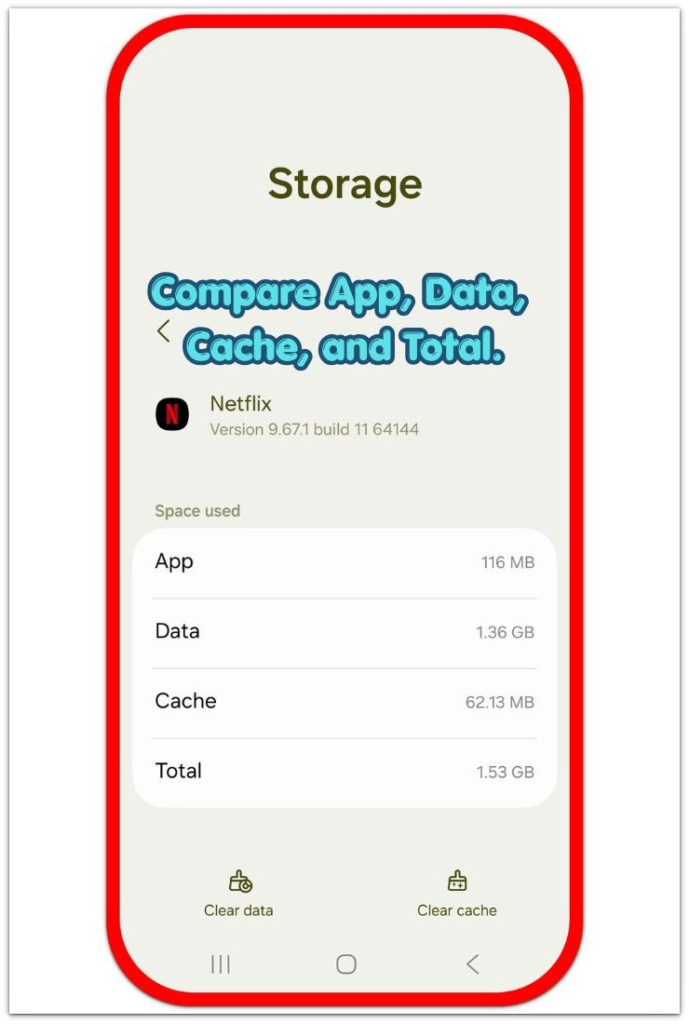
Streaming services usually add temporary playback files during normal viewing. Social media often grows from cached videos, profile images, previews, and media opened inside the feed. Compare the number before and after one short session.
Clear cache first when the increase follows normal watching or scrolling. Use the service again for a short period, then return to Android Storage. A lower number after clearing cache points to temporary files. Fast growth after another short session points to cache rebuilding during normal use.
Streaming and Social Media Storage
Videos, previews, and short clips build temporary cache during normal watching.
Cached videos, profile images, previews, and feed media often remain inside the app after scrolling.
Step 3: Check Browser Data and Message Media
Open Settings, then Apps, and check Chrome or the browser you use most. Then check your message app. Browser storage often grows from cached pages, site data, files opened through the browser, and media previews. Message apps usually grow from old photos, videos, voice clips, and files kept inside conversations.
Check the Storage screen for both before deleting random files. An empty Downloads folder still leaves browser data to check, and a clean Gallery still leaves message media inside conversations. The storage number matters more than whether one large file appears in the file manager.
When the browser number keeps rising after normal browsing, clear its cache first. For messages, open large or old conversations and remove media you no longer need. Return to Android Storage after cleanup and check whether the browser or message storage number drops.
Browser Data and Message Media
Cached pages, site data, previews, and files opened in the browser keep the storage number rising.
Old photos, videos, voice clips, and files often stay inside conversations even when the Gallery looks clean.
Step 4: Check Cache That Comes Back After Cleanup
Open Settings, then Apps, and return to the app that became smaller after clearing cache. Use it again briefly, then check Android Storage once more. Some apps rebuild cache quickly because they load videos, images, pages, previews, maps, or account information again during normal use.
A small increase after normal use does not mean the cleanup failed. Fast growth after light use matters more than a small amount of returning cache.
Clear cache again only when the number becomes unusually large. Keep Clear data as the last choice because it resets sign-ins, settings, saved content, or local app information. For repeated growth, use the related cache guide before resetting the app.
Returning Cache After Cleanup
Temporary cache rebuilds after normal use when the same app keeps loading videos, images, pages, previews, or saved content.
Troubleshooting: Android App Storage Problems
Troubleshooting 1: Clear Cache Does Not Change the Total Size Much
Clear cache does not always lower the full app size because some storage belongs to Data, saved content, account files, or local app information. The Cache number drops, but the Total size still looks almost the same.
Check Cache and Data separately before clearing the app again. When Data is much larger than Cache, go back into the app and remove saved content, offline items, or old media first.
Troubleshooting 2: The Downloads Folder Looks Clean but Storage Still Drops
Saved content often remains inside the app even after the Downloads folder looks empty. Remove music, maps, podcasts, videos, and reading files from the app’s own offline or saved section.
Go back to Step 1 and check whether that app has a saved, offline, downloads, or library section. Start there before deleting unrelated files.
Troubleshooting 3: One Large App Does Not Show a Clear Cause
One large app often holds several kinds of data. Streaming and social media usually point to cache from watching or scrolling, while browsers and messages often point to site data, previews, old photos, videos, or files inside conversations.
Use Step 2 for streaming or social media growth. Use Step 3 when the large number comes from Chrome, another browser, or a message app.
Official Source: Google Explains App Cache and App Data
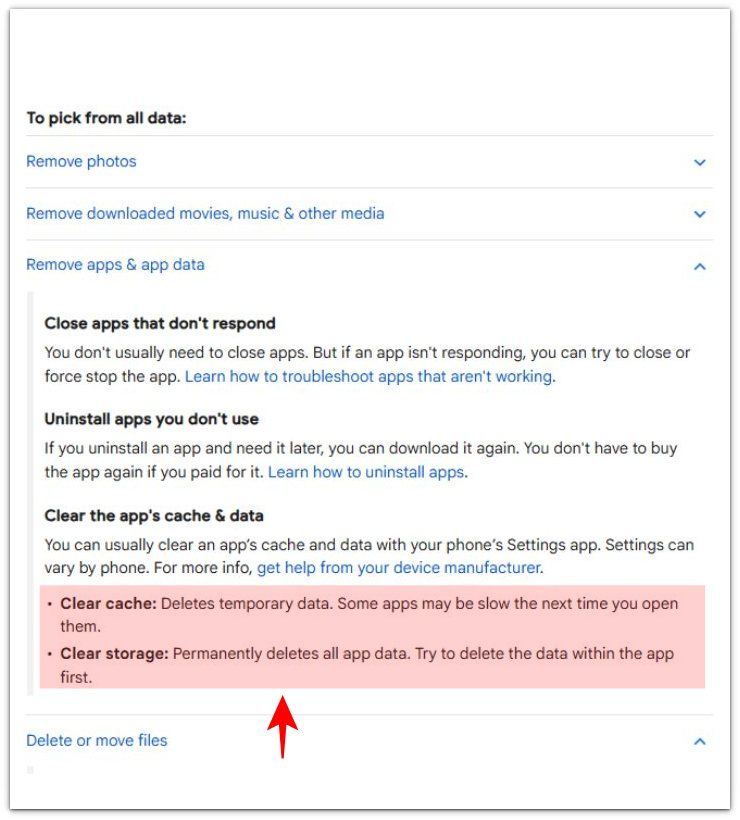
Google explains that Clear cache deletes temporary data, while Clear storage permanently deletes app data. Use that difference before choosing between cache cleanup and a full app reset.
Additional Tips
Large apps need different cleanup paths. Offline content needs an in-app check, streaming and social media usually start with cache, and browsers or messages need a closer look at saved site data or old media.
The safest order is to compare the app size first, clean the part that matches the cause, and check Android Storage again after normal use. That keeps the cleanup focused instead of turning it into random file deletion.
Final Notes
Android app storage problems are easier to fix when you start with the app that grew, not with random folders. A clean Downloads folder only tells you that the missing space is not sitting there as a simple downloaded file.
The stronger clue is the app’s own Storage screen. Saved music, offline downloads, streaming cache, social media previews, browser data, and message media all point to different cleanup paths.
When one app grows, fix that app first. Clear cache only for temporary growth. Remove saved content inside the app for offline files. Use Clear storage only after checking what the app will reset.
Checklist
- Check the growing app before deleting random files.
- Sort apps by storage size and start with the app that grew.
- Check saved music, offline downloads, maps, podcasts, and reading files inside the app.
- Compare App size, Cache, Data, and Total before clearing anything.
- Clear cache first when streaming, social media, or browser storage grows after normal use.
- Remove old message media inside conversations when the message app looks large.
- Check whether the cache rebuilds after one short normal session.
- Use Clear storage only after checking which sign-ins, settings, saved content, or local app information it resets.
Related Main Guide
Android Storage Problems looks beyond app storage and checks the rest of the phone’s space. Use it when the missing space seems tied to system storage, hidden downloads, media categories, backups, or numbers that do not match the file manager.