
Introduction
Android app cache keeps coming back becomes frustrating when the storage number drops after clearing cache, but the same app starts filling storage again after normal use.
Check the storage drop and the return of cache on that app’s Storage screen. This keeps the check focused on one app instead of the full phone storage bar.
Start with the app that grows again after each cleanup. The next step checks its storage screen first and separates cache from the rest of the app size.
Step-by-Step Guide: Android App Cache Keeps Coming Back
Step 1: Check Whether the Same App Rebuilds Cache
Open Settings, then Apps, and choose the app you cleared most recently. Go to its Storage screen and check the cache number before using the app again.
Use the app normally for a short while. Open the same app, load the pages or content you usually use, and avoid clearing cache for other apps during this check.
Go back to that Storage screen and check whether the cache has returned. This first check shows whether the app is rebuilding temporary files during normal use.
Step 2: Separate Cache From App Data
Stay on the same app Storage screen and look at App, Data, Cache, and Total separately. Do not judge the app only from the total size.
Cache is temporary space the app rebuilds during use. Data is different because it includes settings, saved files, login details, downloads, or offline content.
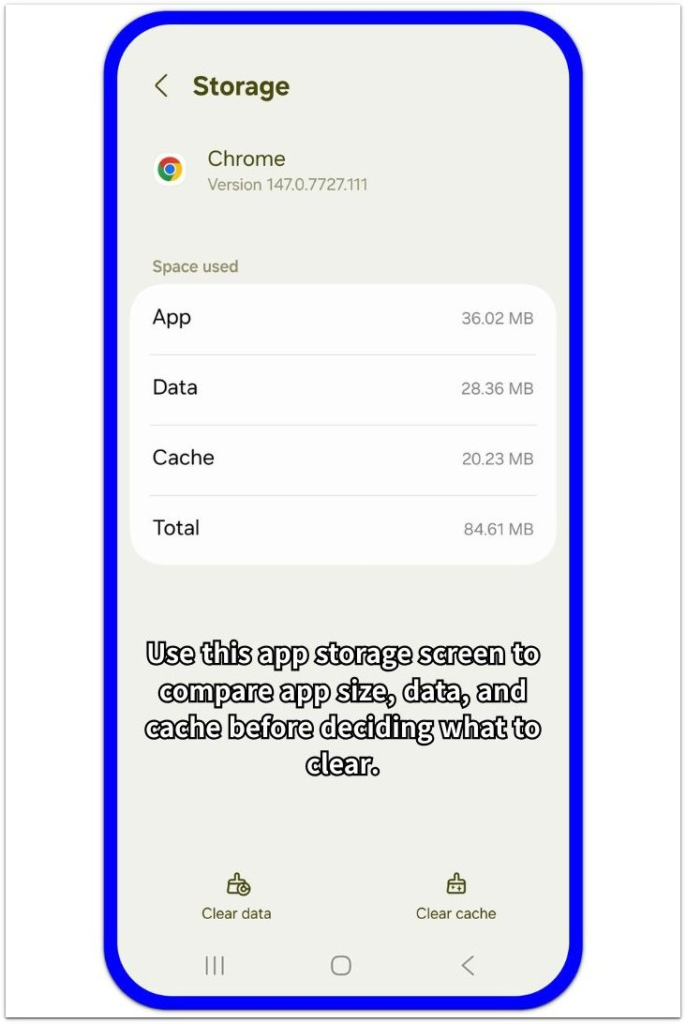
Use this screen before deciding what to clear. Cache returning after normal use is different from app data staying large.
Step 3: Decide Whether Clearing Cache Is Enough
Clear cache only when the cache number is large enough to matter. A small cache returning after normal app use does not need repeated cleanup.
Use the app again and check that Storage screen later. The important part is whether that app keeps rebuilding enough cache to make storage tight again.
When the cache keeps returning quickly and storage becomes tight, focus on that app first. Do not delete unrelated files or clear app data before you understand what the app is storing.
Troubleshooting
Troubleshooting 1: Cache Returns Right After Opening the App
Some apps rebuild cache as soon as they open because they load images, pages, previews, or account content again. The cache number returning right away does not mean the Clear cache button failed.
Open the app storage screen again and compare the cache number with the earlier check. Keep the check on one app so the result does not get mixed with other app storage changes.
A small cache that returns right after opening the app is usually part of normal app loading. Stop repeating the cleanup when the number stays small and storage does not become tight again.
Troubleshooting 2: App Data Stays Large After Cache Is Cleared
Clearing cache only removes temporary files. App data stays separate and often holds saved settings, downloads, login details, offline files, or saved content inside the app.
Go back to the app storage screen and compare Data with Cache. A large Data number means the storage problem is not coming from cache alone.
Avoid tapping Clear data just because cache returned. Clear data resets the app more deeply, so use it only when you already understand what the app stores and what you are ready to lose.
Troubleshooting 3: Android App Cache Keeps Coming Back After Every Cleanup
One app becomes the main clue when temporary files return after each normal session. This matters more when the phone is already low on storage and the app keeps filling storage again.
Use the app normally, then return to its storage screen later. Compare the new cache number with the number you saw right after clearing it.
Focus on that app first when the cache keeps growing enough to make storage feel tight again. Avoid deleting unrelated files until the app storage screen shows whether Cache or Data is the bigger part.
Extra Section 1: Cache Returns Because the App Reloads Content
A user clears cache from one app, then opens it again to check whether the cleanup worked. The app loads the home screen, account page, images, thumbnails, or recent content.
Back on the app Storage screen, the cache number is no longer zero, but the size is still small. That first return matters less than whether the number keeps growing after normal use.
The app needed temporary space again during normal use. The better check is the size of the returning cache, not the fact that it came back.
A small cache that returns after opening the app is usually part of regular app loading, especially when the phone has enough free space.
Extra Section 2: Cache Becomes a Problem When the Same App Keeps Filling Storage Again
A user clears cache from one app and sees the storage number drop. After a normal session, the same app fills a large amount of storage again, and the phone starts feeling tight on space.
This is different from a small cache returning after the app opens. The stronger clue is repeated growth from the same app after normal use, especially when the Cache number becomes large enough to affect available storage.
Keep the check focused on that app. Look for downloaded media, offline files, saved previews, or settings inside the app that store content for faster loading.
The next cleanup should come from what the app actually stores, not from deleting random files across the phone.
Official Source: Google Says Clear Cache Removes Temporary Data
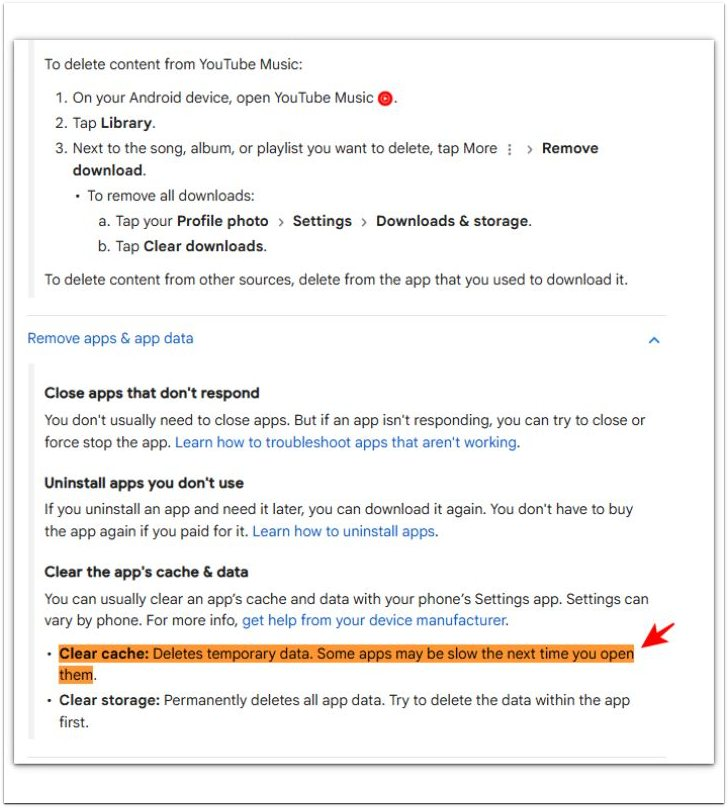
Google explains that Clear cache deletes temporary data, while Clear storage deletes all app data. The same help page also says some apps load more slowly the next time they open after cache is cleared.
This fits the article because cache and app data are not the same. Check Cache and Data separately before using Clear storage.
Additional Tips
Apps with feeds, maps, shopping pages, videos, or music often rebuild temporary files faster than simple tools. Check those apps first when cache keeps filling the app storage again.
Downloaded content inside the app needs a separate check. Removing cache is not the same as removing offline videos, saved music, maps, or files stored by the app.
Final Notes
Android app cache keeps coming back is not a reason to keep clearing cache every day. Cache is temporary data, and many apps rebuild it during normal use.
The real decision comes from size and repetition. A small cache returning after opening the app is normal. A large cache returning from the same app and filling storage again needs a closer cleanup inside that app.
Start with Cache and Data on the app storage screen. Remove downloaded or saved content inside the app before deleting unrelated files across the phone.
Checklist
- Check the same app Storage screen after clearing cache.
- Compare Cache and Data before clearing anything deeper.
- Use the app normally, then check whether the same app rebuilds a large cache.
- Look inside the app for downloaded media, offline files, saved previews, or stored content.
- Remove saved content inside the app before deleting unrelated phone files.
For the full Android app storage check, read the main guide above first.