
Introduction
Android downloaded music storage becomes confusing when the file manager shows no large audio file, but the music app still takes up more space than expected. Saved songs, albums, and playlists often stay inside the music app’s own offline library instead of appearing as normal music files.
YouTube Music is a common example, but the same check also applies to other music apps that save songs for offline listening. A clean file list does not rule out the music app because offline music stays tied to the app that saved it.
Step-by-Step Guide: Android Downloaded Music Storage
Step 1: Check the Music App Storage First
Open Settings, then Apps, and choose the app that holds offline songs, such as YouTube Music, Spotify, Amazon Music, or another music player. Open Storage and check the app’s total size before you delete anything.
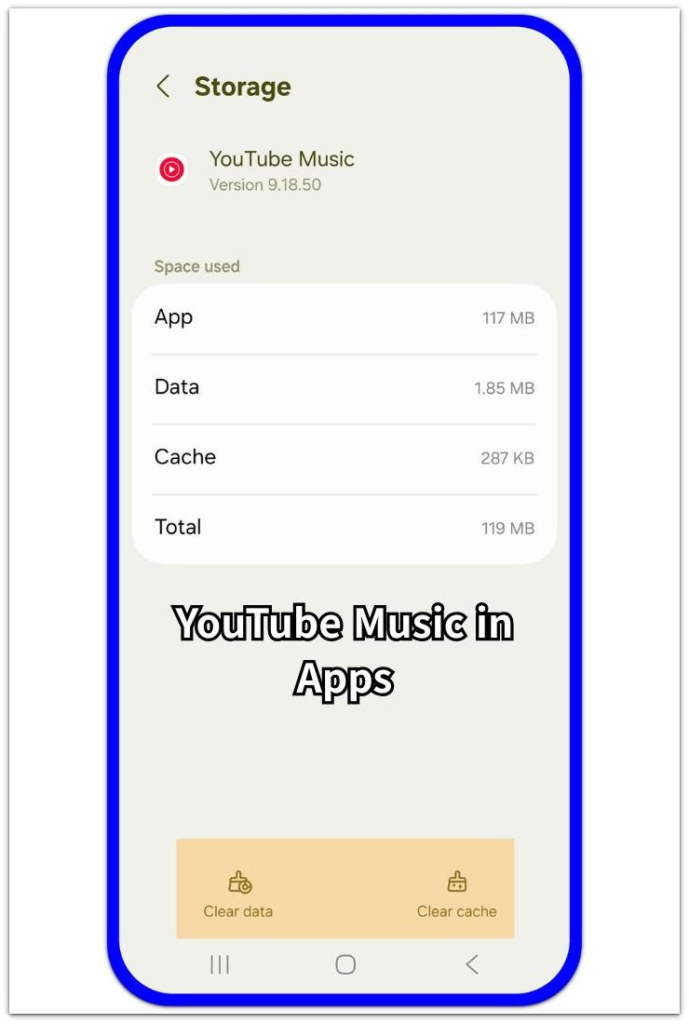
Use this number as the starting point because it shows whether offline music is taking space inside the app before you look through folders again.
Step 2: Open the App’s Downloaded Music Area
Open the music app and go to its Downloads, Offline, Library, Saved, or Downloads & storage section. YouTube Music uses Downloads & storage, while other music apps use different names for downloaded songs and playlists.
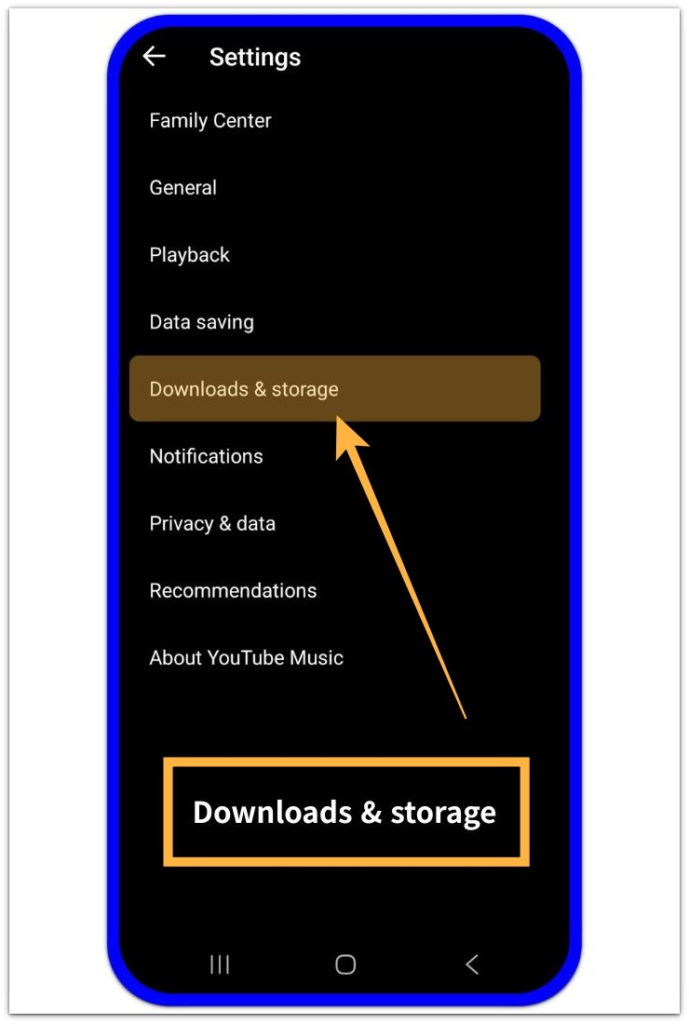
Look for downloaded songs, saved albums, offline playlists, or smart downloads that still play without mobile data or Wi-Fi. These items matter more than a clean Downloads folder because the app keeps them inside its own library.
After checking the download list, return to Android Storage and compare the app size with the saved music you found.
Step 3: Remove Music From Inside the App
Remove the saved songs, albums, or playlists from inside the music app. Uninstalling the app comes last because it means setting the app up again.
After removing the downloaded music, close the app and return to Settings → Apps → the music app → Storage. Check whether the total size is lower than before.
A clear drop points to saved music in the app’s offline library. A small change means another saved item or automatic download setting still needs attention.
Troubleshooting
Troubleshooting 1: Downloaded Songs Return After You Open the App Again
Music apps bring songs or playlists back after you open the app again, especially when smart downloads, automatic downloads, or offline mixtape settings stay on. The app size drops once, then rises again after a short listening session.
Open the music app’s Downloads, Saved, or Downloads & storage section and look for an automatic download setting. Turn that setting off first, then remove the saved songs or playlists again.
Run the same short listening test once more before removing anything else, so you are comparing the app after the automatic setting has changed.
Troubleshooting 2: The Music App Still Looks Large After You Remove Songs
Removing one playlist or album does not always clear every offline item. Some playback files, album data, recent music, or another offline playlist can remain under the same app storage number.
Go back into the music app and check every saved music area, not only the first Downloads screen. Look for saved albums, downloaded playlists, liked songs saved on the phone, or smart download sections.
Compare App, Data, Cache, and Total size again after that check. A large Data number usually points to saved or cached music still sitting inside the app.
Troubleshooting 3: You Keep Finding Folders but No Real Songs
The file manager shows small folders, artwork, or app-related files without showing the actual downloaded songs. Nothing looks large enough to explain the app size, so the cleanup feels unfinished.
A folder name alone is not enough reason to clean it when Android Storage still points to the music app. Check the app’s own saved music section instead, then remove songs, albums, or playlists from there.
Folder cleanup is useful only when Android Storage points to a normal audio file or a separate folder. For saved music inside a music app, the app’s own download section is the safer place to clean.
Extra Section 1: YouTube Music Kept Saved Albums Inside the App
A user checked the regular file manager first because no separate music file seemed easy to find. The Downloads folder looked clean, and the Music folder did not show any large audio file. Still, Android Storage showed YouTube Music taking more space than expected.
The app size explained the storage better than the file list. Inside YouTube Music, several albums still stayed in the offline listening list. They played without Wi-Fi, but they did not appear as normal audio files in the file manager.
After the user removed the saved albums inside YouTube Music, the app size became smaller in Android Storage. The missing space did not come from a loose music file. The music stayed with the app because YouTube Music saved it through its own offline feature.
Extra Section 2: Smart Downloads Rebuilt Music After Cleanup
A user removed several saved playlists inside the music app and saw the app size drop in Android Storage. The cleanup looked finished at first because the offline list became shorter and the storage number was lower than before.
After another short listening session, the same music app started taking more space again. The change came from a smart download setting that filled the offline library again based on recent listening. The cleanup did not last because the app kept adding new offline music on its own.
Turning off smart downloads first made the second cleanup more stable. The user removed the saved music again, then checked Android Storage after another short listening period. The app stayed closer to the lower number because the automatic offline setting was no longer rebuilding the library.
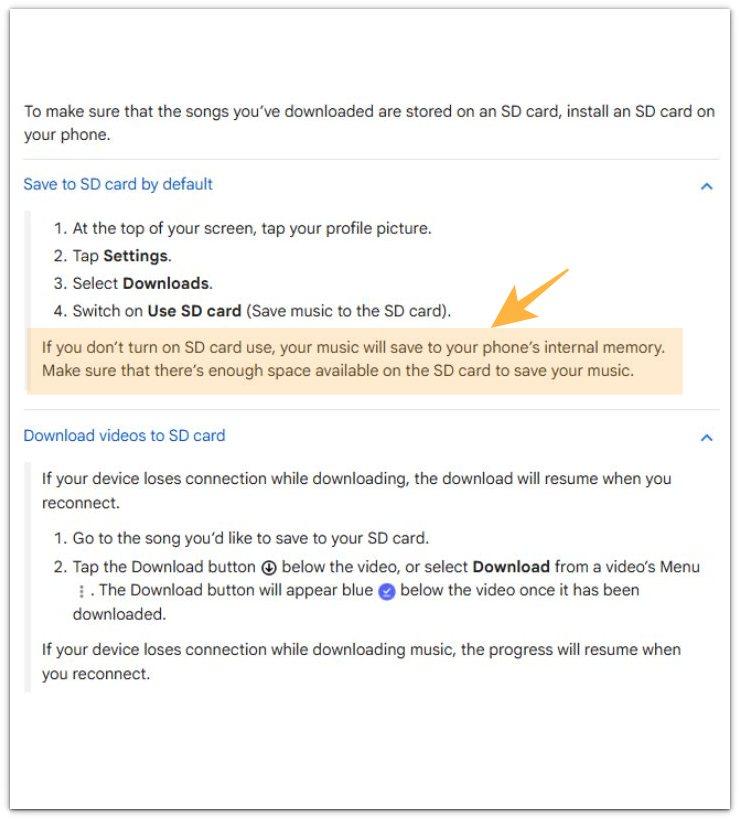
Official Source: YouTube Music Downloads Can Use Internal Storage
YouTube Help explains that music saves to the phone’s internal memory when the user does not turn on SD card use.
This supports the check used here. Downloaded music can stay inside the music app’s storage instead of appearing as a normal file in the file manager.
Additional Tips
Music app storage is easier to read after a normal listening session than after a large offline download day. Saving several albums, long playlists, or long downloaded audio at once can make one app grow faster than usual.
Streaming quality and download quality also affect storage. Higher-quality saved music uses more space, so one small playlist can still take up more room than expected.
Low free space also changes the urgency. A few saved songs are not serious when the phone still has room, but the same saved library matters more when Android keeps warning about storage.
Final Notes
When Android downloaded music storage stays high and the file manager looks clean, check the music app first. The strongest sign is a large app size that drops after you remove offline songs, albums, or playlists.
A normal audio file is not the main target when Android Storage keeps pointing back to the music app. Remove saved music from the app’s offline library, and turn off automatic downloads when the storage returns.
Once the app size drops and stays lower after normal listening, the cause is clear. Android tied the space to offline music inside the app, not to a missing file hidden somewhere else on the phone.
Checklist
- Check the music app’s storage size before looking through other folders.
- Compare App, Data, Cache, and Total size in Android Storage.
- Open the app’s Downloads, Offline, Saved, or Library section.
- Remove offline songs, albums, or playlists from the app.
- Turn off smart downloads when saved music returns after cleanup.
- Check Android Storage again after a normal listening session.
- Keep the music app as the main cause when its size drops and stays lower.
For a wider app-by-app check, use the main Android app storage guide before removing other files.