
Introduction
Android messages app taking up storage becomes confusing when the Storage screen shows Messages taking more space than expected. The chat list can still look normal because old media does not always stand out from the main conversation screen.
Older threads can hold photos, videos, voice messages, stickers, and shared files inside the app. These items stay tied to the conversations, even when the thread itself looks short.
Start from the threads that had media attached. The next step opens those conversations and checks the saved media inside them.
Step-by-Step Guide: Android Messages App Taking Up Storage
Step 1: Check Which Messages App Is Using Storage
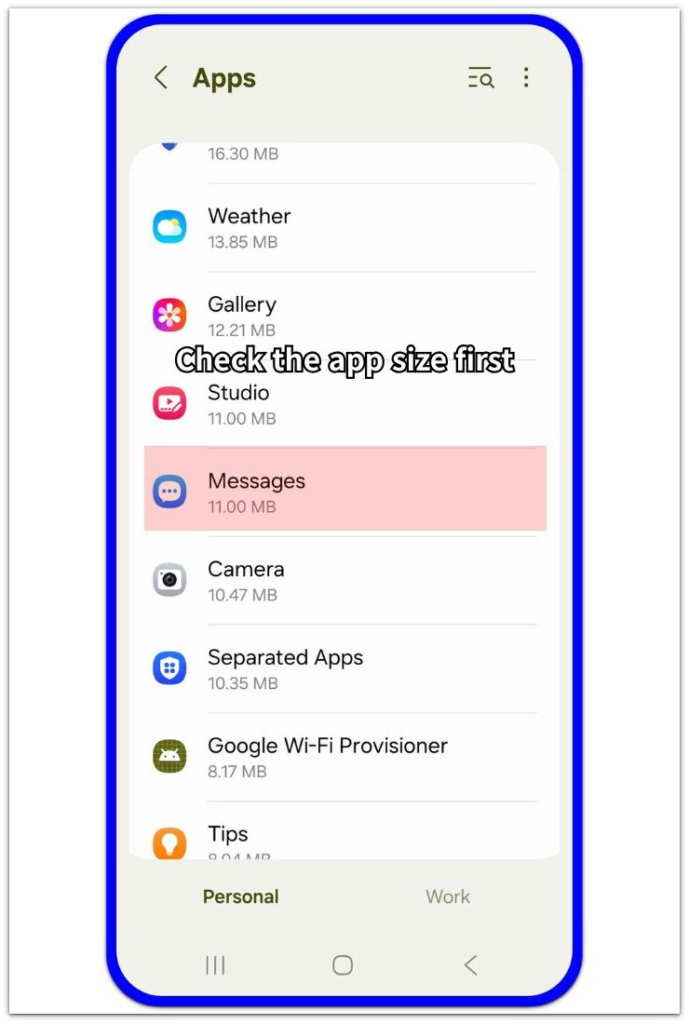
Open Settings, then Apps. Look for Messages or the chat service that appears large in the list.
Tap its name and check the storage number shown on the details page. Keep this first check focused on the app size, not the full phone storage bar.
A large Messages entry gives you the starting point for the next check. The chat list alone does not show how much media and file data the app still holds.
Step 2: Check Media and Files Inside the App
Open Messages and choose a conversation that had photos, videos, voice messages, stickers, or shared files. Start with one thread that used media often.
Tap the contact name or the three-dot menu in that thread, then look for media, files, shared items, or details. Check what remains saved inside the conversation, not only the latest messages.
A conversation can look short in the chat list while older attachments remain in its details area. Use this screen before moving to older conversations.
Step 3: Find Old Media That No Longer Needs to Stay
Open older conversations that had media attached. Look through the photos, videos, voice messages, stickers, and shared files still kept there.
Focus on items that no longer need to stay with the conversation. Remove only the message media or files you clearly no longer need.
Return to Settings, then Apps, and open the same Messages details page again. Check whether the storage number changed before clearing unrelated photos, downloads, or other data.
Troubleshooting
Troubleshooting 1: App Size Still Looks Large After Removing Media
The Messages storage number does not always drop right away after you remove old media from a few threads. Android often needs time to refresh the storage count on the settings page.
Go back to Settings, then Apps, and open the same Messages details page again later. Check the number on the app page instead of relying only on the main storage bar.
Use that same details page for the next check before removing more conversations or clearing unrelated files. Keep the recheck tied to the Messages app page.
Troubleshooting 2: Empty-Looking Chats Still Hold Attachments
A conversation looks almost empty when the latest messages are short, but older attachments still remain inside the thread details. The main chat screen does not always show every saved photo, video, voice message, sticker, or shared file at once.
Open the thread again and check the contact name, three-dot menu, details, media, or shared items area. Look through the saved items inside that conversation before treating the storage number as unexplained.
Stay inside the conversation details until those items are clear. Jumping somewhere else too early moves the cleanup away from the message media.
Troubleshooting 3: One Old Thread Holds Most of the Saved Media
One old group chat or long conversation often makes Messages look larger than the rest of the chat list suggests. This happens when the thread collected photos, short videos, voice messages, stickers, or shared files over time.
Open the largest or oldest media-heavy thread first. Check the saved items inside that conversation and remove only the files that no longer need to stay there.
Return to the Messages details page in Settings after checking that thread. Use the same page for the follow-up check, then move to another old thread only when the number still looks high.
Extra Section 1: When One Old Conversation Makes Messages Look Too Large
One old group chat can be easy to ignore because it no longer sits near the top of the chat list. The conversation still keeps the photos, short videos, voice messages, stickers, and shared files that built up while it was active.
A family chat, school group, work chat, or old friend thread can hold more media than several newer conversations combined. Messages then looks too large in storage, even though the chat list itself does not look busy.
Start with that kind of old thread before deleting random files from the phone. Clearing saved media from the conversation that actually grew heavy gives you a cleaner check than removing unrelated photos or downloads.
Extra Section 2: When Removed Messages Still Leave Media Behind
A conversation can look clean after you remove old messages from the main screen. The history looks lighter, but the media area can still hold old photos, videos, voice messages, stickers, or shared files from earlier chats.
This is easy to miss because the main conversation no longer looks busy. You open the thread, see only a short message history, and expect the storage number to be lower already.
Open the media or shared items area before clearing random files from the phone. When the leftover space comes from message media, keep the cleanup inside that conversation instead of moving to unrelated photos or downloads.
Official Source: Delete Stored Content From the App That Holds It
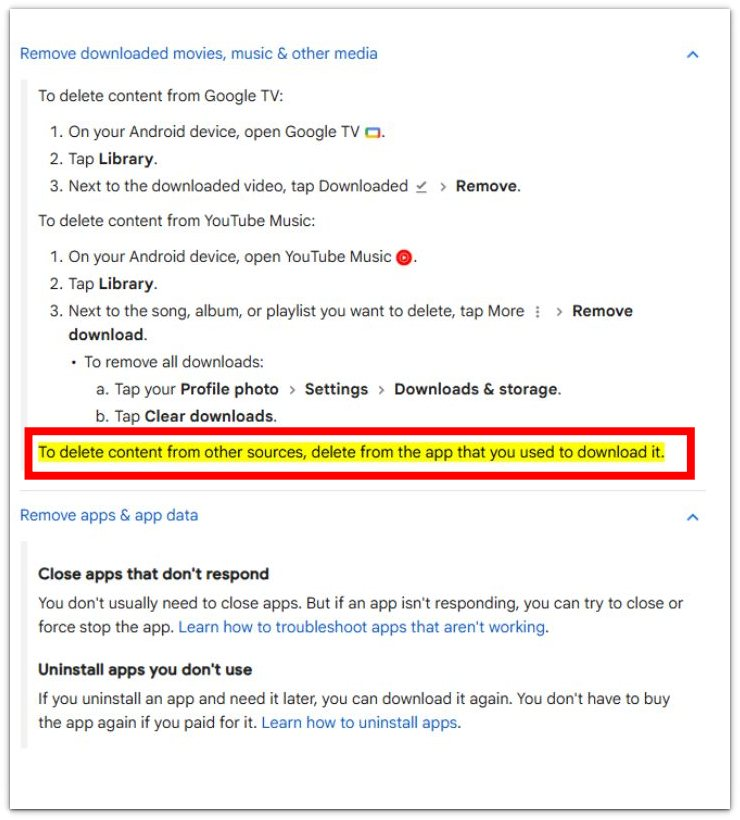
Google explains that you should delete content from the app you used to download it. This supports checking Messages itself when old media still takes up space inside the app.
Additional Tips
Archived messages can still leave the app looking large when the media stays tied to the conversation. Check archived or hidden threads before treating the storage number as unexplained.
Media sent through group chats is worth checking first because one active group can collect many files quickly. A quiet one-to-one chat usually matters less unless it had large videos or repeated file sharing.
Clear app data only when you already understand what it will remove. That step can wipe message data or reset the app in a way that is much harder to undo than removing saved media from a thread.
Final Notes
Check android messages app taking up storage inside the message threads before you delete random phone files. The main storage number only shows that Messages is large. It does not show which thread or saved media caused the space to build up.
The strongest fix is to open the media-heavy conversations, remove only the saved items you no longer need, and check the same Messages storage number again. When the number drops after that, stored message media caused the issue, not the rest of the phone storage.
Checklist
- Check which Messages entry is using storage.
- Open media-heavy conversations first.
- Look for saved photos, videos, voice messages, stickers, and shared files.
- Remove only the saved items you no longer need.
- Check the same Messages storage number again before deleting unrelated files.
The main guide covers other app storage problems when Messages is not the only app taking up space.