
Introduction
Social media apps taking up storage on android becomes noticeable when the app size rises after a short feed check. You open a feed app, watch a few reels or stories, check comments, and close the app without saving any file.
The number still rises in Android Storage, even though Downloads and Photos do not show anything new. Start from the app’s own Storage screen and see whether it grows again after normal feed use.
Step-by-Step Guide: Social Media Apps Taking Up Storage on Android
Step 1: Check the App Size Before Clearing Anything
Open Settings, then Apps, and choose the social media app that keeps growing. Open Storage and look at App, Data, Cache, and Total before clearing cache or deleting files.
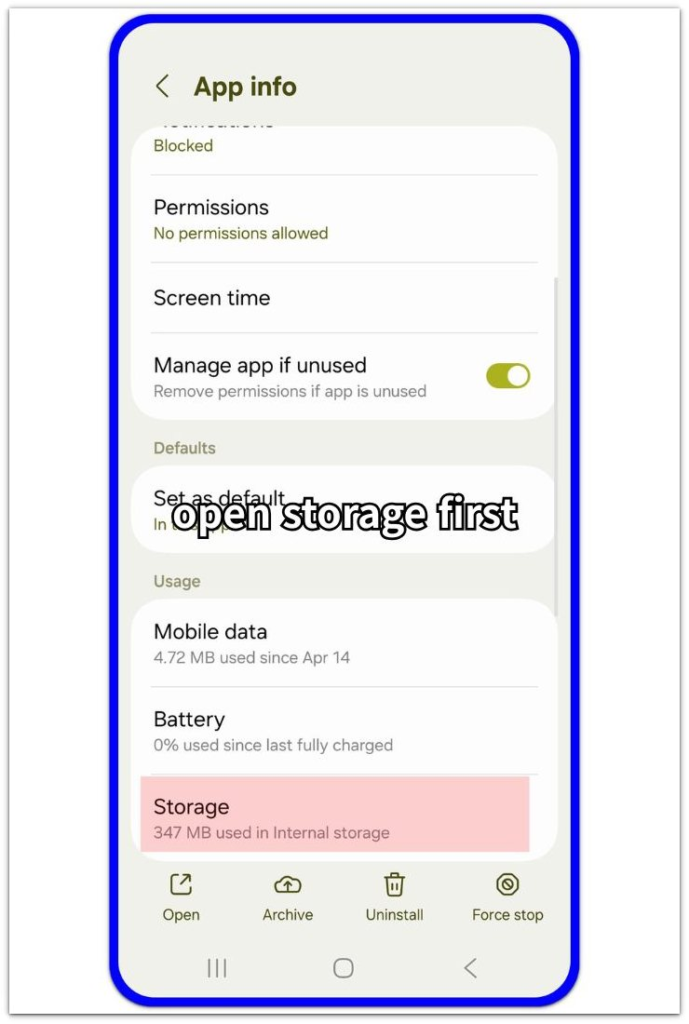
Write down the current size or take a screenshot so you have a clean starting point. This gives you the first number before normal feed use changes the app size again.
Step 2: Use the App the Same Way You Normally Do
Open the same app and use it in a normal way for one short session. Scroll the feed, open a few reels or stories, check comments, and look at messages only if that is part of your usual use.
Close the app without clearing cache during this check. Then go back to the same Storage screen and compare the new size with the number from Step 1.
A larger number after ordinary feed use shows that normal activity is adding to the app. Stay focused on that one before removing unrelated photos, downloads, or other apps.
Step 3: Compare Cache, Data, and Saved Content
Stay on the app’s Storage screen and compare Cache, Data, and Total separately. Cache usually points to temporary feed files, while Data often includes account information, messages, drafts, saved preferences, and content the app keeps inside its own storage area.
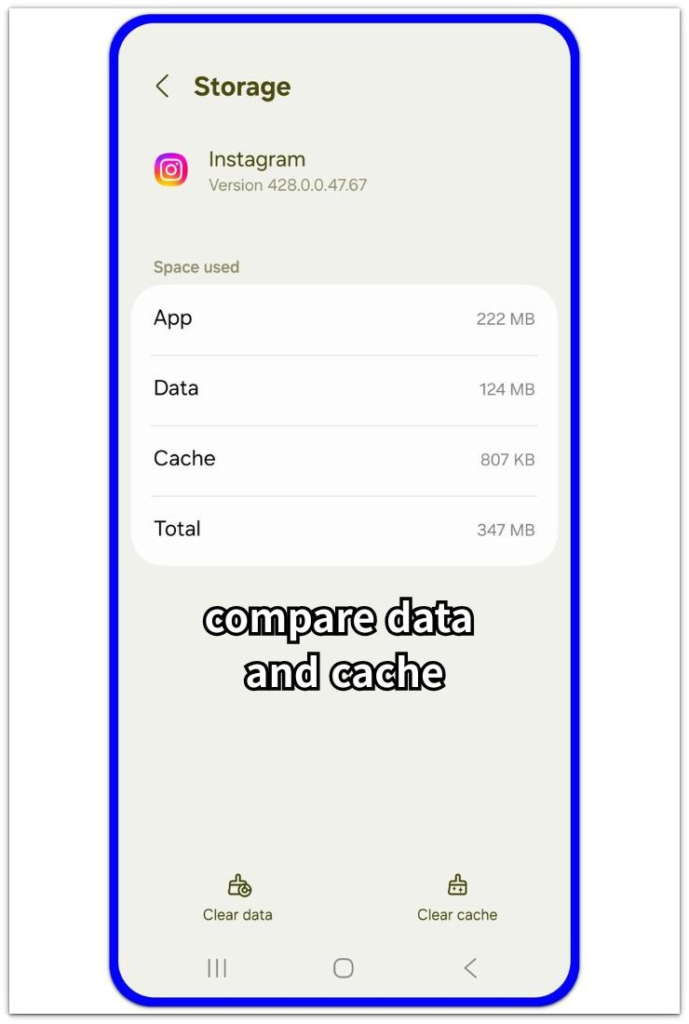
Clear cache first when the cache number is the part that grew. Leave app data alone unless you already understand that clearing it removes sign-ins, saved settings, or in-app content.
Open the app again after clearing cache and check the same Storage screen once more. A smaller size after clearing cache points to temporary feed storage. A large Data number moves the next check inside the app’s own downloads, saved media, drafts, or message storage.
Troubleshooting
Troubleshooting 1: Cache Returns After One Normal Feed Check
Social media apps often rebuild cache after the feed loads again. The important check is whether the return stays small or jumps back close to the earlier size.
Go back to the same app Storage screen after one normal feed session. Compare the new Cache number with the number you saw right after clearing cache.
A small return comes from normal feed loading. A large jump after one short session points to fast temporary file rebuilding, so clean up that app before deleting unrelated phone files.
Troubleshooting 2: Data Stays Large Even When Cache Looks Small
A small Cache number does not finish the storage check. Social media apps often keep account information, messages, drafts, saved preferences, and in-app content under Data.
Open the app itself and check its storage, downloads, saved media, drafts, or message settings. Remove saved content from inside the app before clearing app data from Android Settings.
Clearing app data from Android Settings removes sign-ins and local app settings. Save that step for the point where the app’s own storage controls do not explain the large Data number.
Troubleshooting 3: Saved Media Does Not Appear In Downloads Or Photos
Some saved videos, drafts, message files, or offline items stay inside the social media app instead of appearing in Downloads or Photos. Android Storage still counts that space under the app.
Open the app’s own settings and look for saved items, downloads, drafts, media, or message storage. Remove the items there first so the cleanup happens where the app actually keeps them.
Return to Android Storage after the in-app cleanup and check the same app size again. A smaller Data or Total number means saved content inside the app took that space, not a random file elsewhere on the phone.
Extra Section 1: A Short Feed Session Raises Cache
A short social media session can raise the app size even when the user does not save anything. The app loads feed images, reels, stories, comments, profile pictures, and previews while the session looks casual. Android still counts those temporary files under the app because the app used them to show the feed quickly.
The app size can rise while Downloads and Photos stay unchanged. Use the Cache number on that Storage screen as the main clue. Clear cache first, open the feed again for one short session, and see whether the return stays small or quickly moves close to the earlier size.
Extra Section 2: Hidden In-App Content Keeps Data Large
A social media app can still take up a lot of storage when cache looks small. This usually happens when the app keeps drafts, saved videos, message attachments, offline items, or downloaded content inside its own storage area. Those items do not always appear as normal files in Downloads or Photos, but Android still counts them under the app.
A large Data number is the main clue here. Open the social media app itself and look for storage, downloads, drafts, saved media, or message settings before clearing app data from Android Settings. Removing those stored items there keeps the cleanup focused and avoids wiping sign-ins or saved settings too early.
Official Source: Google Explains Cache And App Storage
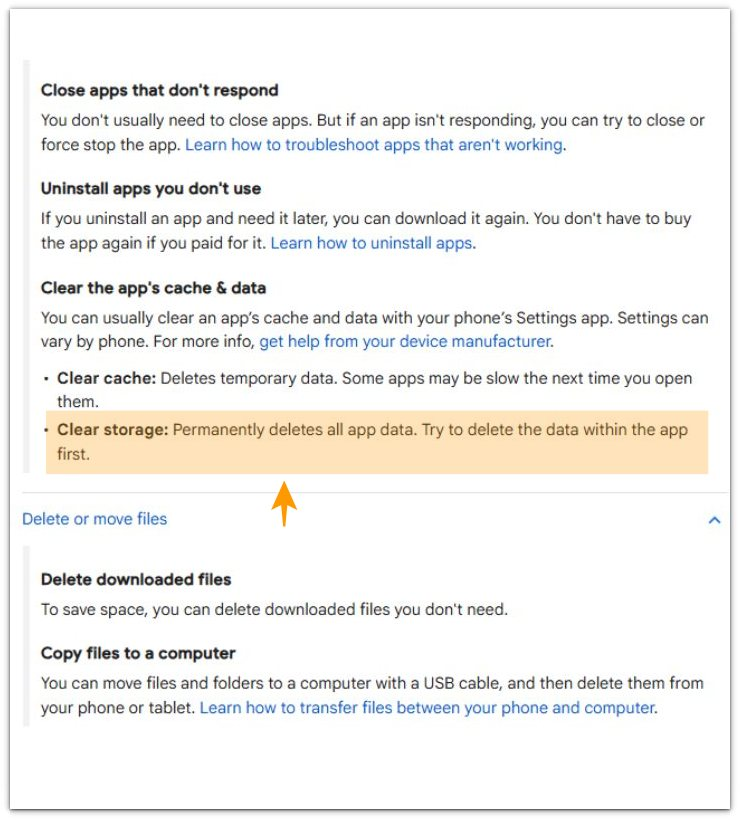
Google Android Help explains that clearing cache deletes temporary data, while clearing storage permanently deletes all app data. It also tells users to try deleting data inside the app first, which supports checking saved media, drafts, downloads, and message storage inside the social app before clearing app storage from Android Settings.
Additional Tips
Social media storage is easier to read after one normal session than after heavy browsing. A long session with many reels, stories, live videos, or profile previews can make the app size jump faster than usual.
Low storage also changes the urgency of the check. When the phone still has enough free space, a small cache return is not a serious warning. A repeated large return from the same app matters more.
App updates sometimes change storage behavior for a short time. After an update, check the same app again after normal use before treating the new size as a permanent problem.
Final Notes
Social media apps taking up storage on android need the app’s own Storage screen first, not Downloads, Photos, or the full phone storage bar alone. Cache growth points to temporary feed files, while a large Data number usually leads to saved content, drafts, messages, or other app-held items.
Clear cache first when the cache number explains the increase. When Data stays large, move inside the social media app and remove saved items there before clearing app storage from Android Settings. This keeps the cleanup focused on the app that is actually taking space.
Checklist
- Check the social media app’s own Storage screen first.
- Compare App, Data, Cache, and Total separately.
- Use the app for one short normal session, then check the same Storage screen again.
- Clear cache first when Cache explains the increase.
- Check saved media, drafts, downloads, and message storage inside the app when Data stays large.
- Clear app storage from Android Settings only after the app’s own storage controls do not explain the large size.
Use this guide to separate feed cache from hidden app data before clearing social media storage.