
Introduction
Android streaming apps taking up storage becomes noticeable when the app size grows after normal watching, even though you only streamed content inside the app. You watch videos, previews, or short clips, then close the app, but Android Storage still shows the streaming app taking more space than before.
Start with the app’s own Storage screen. First compare the app size, Cache, and Total size before and after one normal streaming session.
Step-by-Step Guide: Android Streaming Apps Taking Up Storage
Step 1: Check the Streaming App Size First
Open Settings, then Apps, and choose the streaming app that keeps growing. Open Storage and look at the total size before you clear anything. Use this first number as your starting point because a clean Downloads folder matters less when the app itself keeps growing.
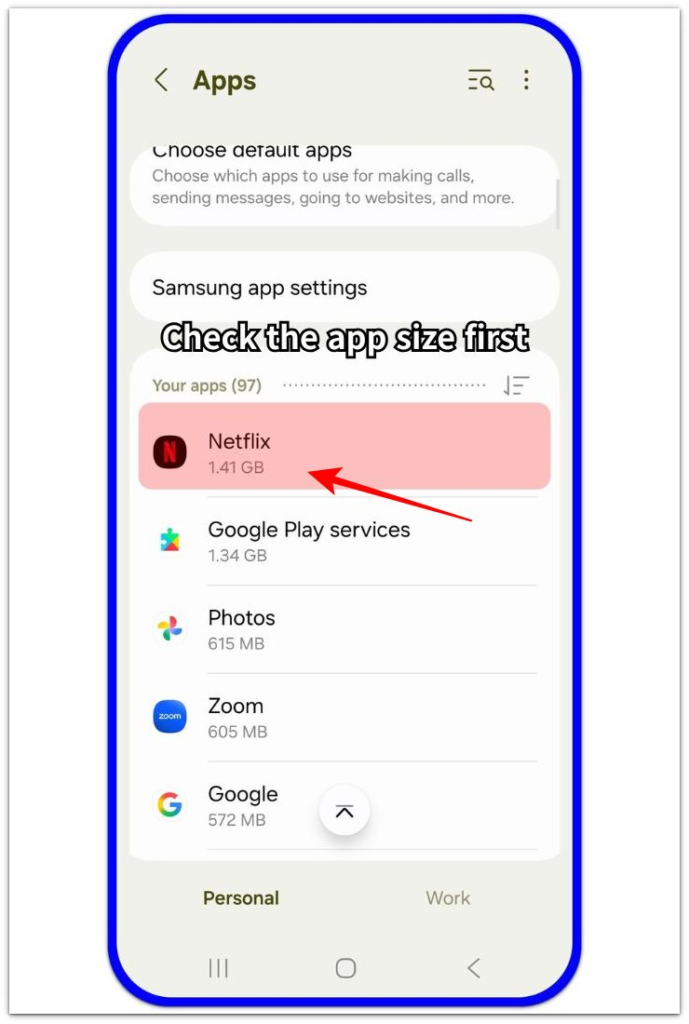
Netflix appears near the top of the Android Apps list with its storage size visible next to the app name.
Step 2: Compare the Size After One Normal Streaming Session
Open the app again and use it the way you normally do. Watch a few videos, previews, short clips, or continue a regular viewing session inside the app. Then close it and return to Settings → Apps → that app → Storage.
Compare the new size with the number you checked in Step 1. A larger number after normal watching points to the app’s own storage use, not to a loose file somewhere else on the phone.
Step 3: Clear Cache and Check the App Size Again
On the same app Storage screen, use Clear cache first. Do not choose Clear data unless you are ready to reset the app’s saved settings, sign-in state, or local app information.
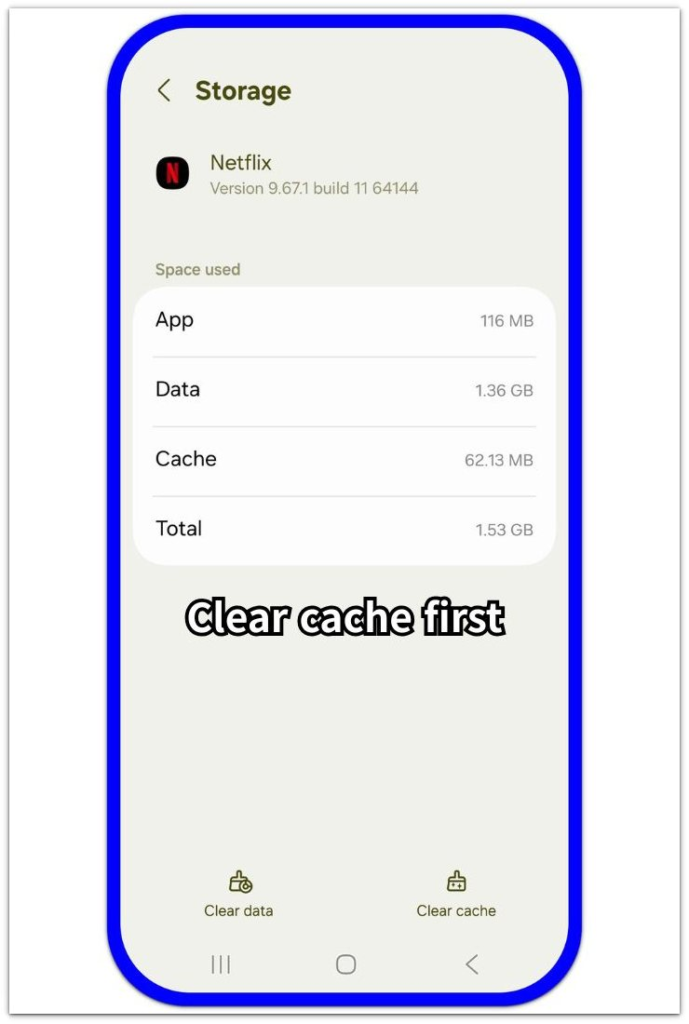
Netflix Storage shows App, Data, Cache, and Total size, with Clear cache available at the bottom.
After clearing cache, check the app size again, then open the streaming app once more for a short viewing test. Check the Storage screen again to see whether cache starts building again.
Troubleshooting
Troubleshooting 1: The App Size Drops but Grows Again Later
The app becomes smaller right after Clear cache, then grows again after another watching session. That result does not mean the first check failed. It shows that normal streaming is rebuilding app storage.
Go back to that app’s Storage screen after one normal session and compare the new number with the size after clearing cache. Keep the check there instead of moving into random file cleanup.
A number that keeps rising after viewing belongs to the app’s own storage. Clear cache only when the app becomes unusually large, instead of treating it like a separate file problem.
Troubleshooting 2: Clear Cache Does Not Reduce the App Size Enough
Clear cache does not remove every part of a streaming app’s storage. The app still keeps account settings, watch activity, app data, or local information under its total size.
Check the Storage screen again and compare Cache with Data or Total size. A small cache number with a large total size means the remaining space is not only cache.
Use Clear data only when you are ready to reset the app, sign in again, and set up the app from the beginning. Clear cache should stay as the first storage check.
Troubleshooting 3: Random File Cleanup Does Not Change the Streaming App Size
Random file cleanup will not help much when Android Storage keeps pointing to the same app. That number is separate from many files you see in other places.
Open Android Storage again and check whether that app still appears near the top. Then open its Storage screen and compare Total size with Cache and Data.
A large number on that screen means the fix should stay inside the app first. Remove unrelated files only after Android Storage shows another large category or another large app.
Extra Section 1: Streaming Previews Built Cache During Normal Browsing
A user opened a streaming app without downloading any shows or movies. The Downloads folder stayed clean, and there were no saved videos inside the app, so the missing space did not look connected to offline content.
The app size still grew after a normal browsing session. The main activity was watching previews, scrolling through short clips, and opening a few video pages without saving anything for offline use.
Android Storage made the change easier to see. The streaming app itself became larger, and clearing cache lowered the number without removing photos, documents, or downloaded files. The space was not a saved video. The app created temporary data while the user browsed normally.
Extra Section 2: App Data Stayed Large After the User Cleared Cache
A user cleared cache on a streaming app and expected the app size to drop much more. The Cache number became smaller, but the Total size still looked high on the app Storage screen.
The remaining space was not from downloaded movies or a normal file in the Downloads folder. The app was still keeping account details, sign-in state, watch activity, and local settings under Data.
So the next check stayed on the app Storage screen. Instead of deleting random files, the user compared Cache and Data there. The user left Clear data alone because it would reset the app and require signing in again.
Official Source: Android Apps Can Keep Their Own Storage
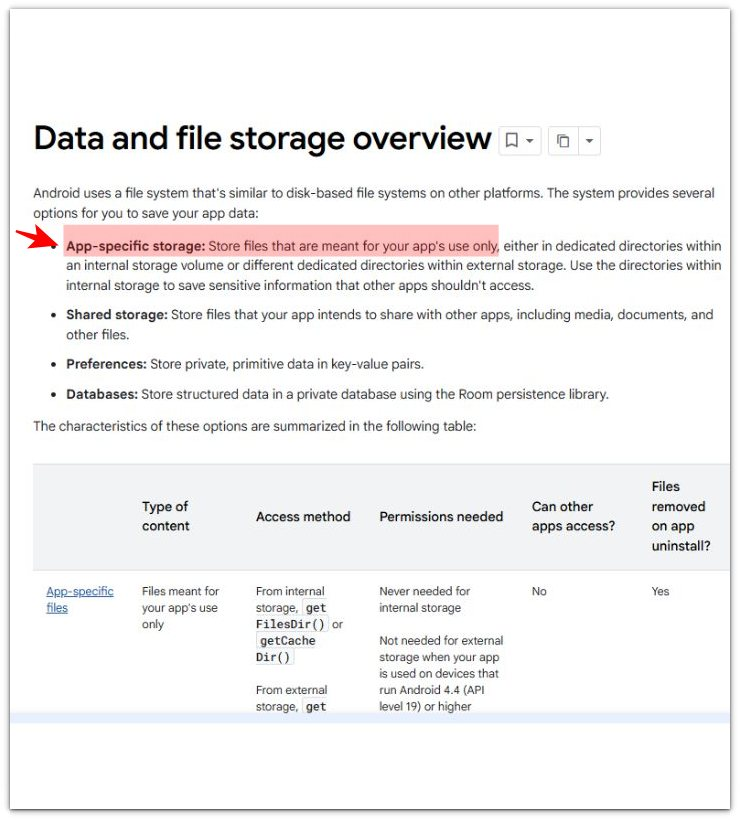
Android Developers explains that apps can use app-specific storage for files meant only for that app, and cached files also belong to that app’s storage area.
That supports the check in this article. A streaming app can take up space inside its own app storage, even when the Downloads folder does not show a separate movie or video file.
Additional Tips
App storage is easier to read after a normal viewing session than after a full day of heavy watching. A long movie night, several previews, or repeated autoplay clips often make the app grow faster than usual.
Low free space also changes the urgency. A small cache increase is not a big issue on a phone with plenty of room, but it matters more when Android keeps warning about storage.
App updates also change the number for a short time. Check the streaming app again after normal use before treating one sudden size change as a permanent storage problem.
Final Notes
Android streaming apps taking up storage need a check from the app’s own Storage screen before random file cleanup. When the streaming app grows after normal watching and Clear cache lowers the number, the storage increase comes from app storage behavior.
Repeated growth after previews, short clips, or regular viewing points back to that app. Keep the fix focused on Cache, Data, and Total size. Random file cleanup is the wrong place to start when Android Storage keeps pointing to one streaming app.
Checklist
- Check the streaming app’s Storage screen before deleting random files.
- Compare App size, Cache, and Total size before and after normal watching.
- Clear cache first when the streaming app grows after previews or short clips.
- Check Data separately when Clear cache does not lower Total size enough.
- Leave Clear data as the last choice because it resets the app.
- Use random file cleanup only when Android Storage points to another large app or category.
For a wider Android app storage check, use the main guide after this specific streaming app check.