
Introduction
Chrome taking up storage on android becomes confusing when the Chrome app size keeps growing, but you cannot find one large file to delete. Downloads look clean, Photos show nothing new, and the phone storage bar still points back to Chrome.
Start from the Chrome app size, not the full file list. Use the Chrome Storage screen so the check stays focused on Chrome instead of random phone files.
Step-by-Step Guide: Chrome Taking Up Storage on Android
Step 1: Check Chrome Size in Android Storage
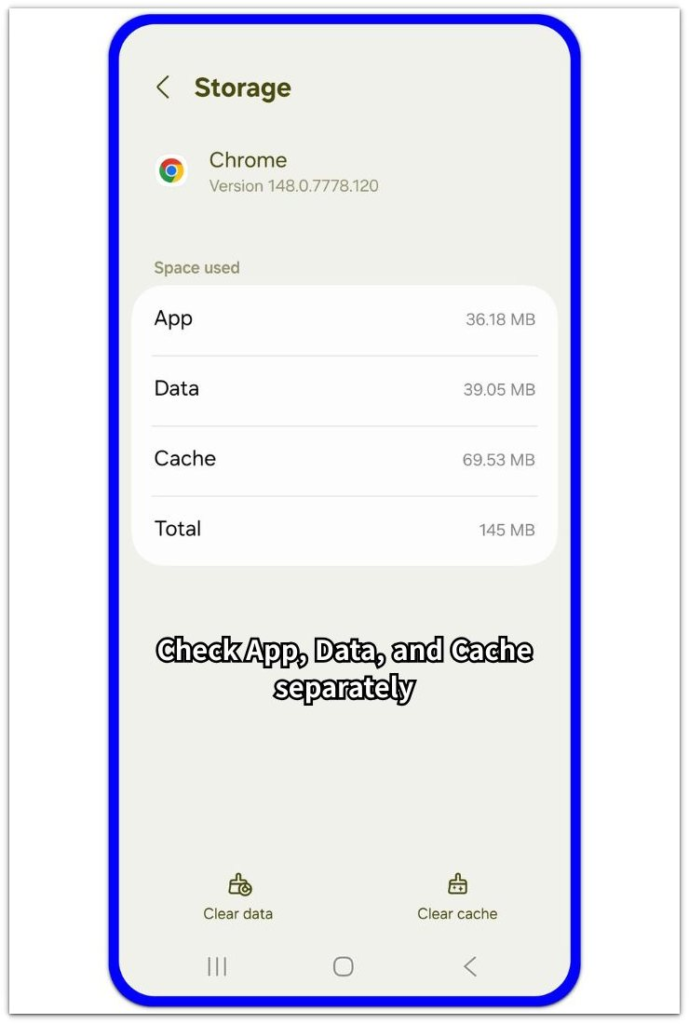
Open Settings, then Apps, and choose Chrome. Go to Storage before opening Chrome or clearing anything, then look at App, Data, Cache, and Total separately.
Write down the Cache and Data numbers first. This gives you a clear starting point before testing whether Chrome rebuilds cache after normal browsing.
Step 2: Compare Cache With Site Data
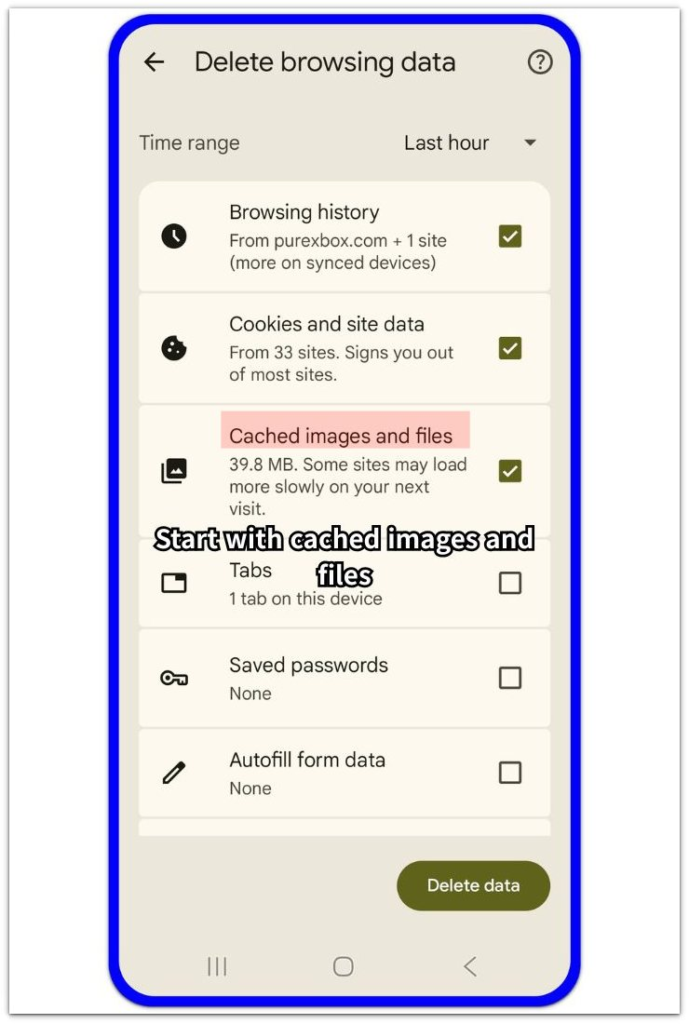
Open Chrome, tap the three-dot menu, then go to Settings, Privacy and security, and Clear browsing data. Look at Cached images and files first because this is the safest browser item to check before touching sign-ins, saved site settings, or other browsing data.
Keep Cookies and site data separate during this check because they affect sign-ins and saved website settings.
Step 3: Clear Cached Images and Files First
Start with cached images and files only. Do not select passwords, autofill data, or unrelated browsing items for the first cleanup.
Clear that item, then reopen Chrome and use the browser normally for a short time. Visit the same kinds of pages you usually open, such as news pages, shopping pages, forums, or video-heavy websites.
Go back to Android Settings, then Apps, Chrome, and Storage. Compare the new Cache and Data numbers with the first check.
A small return after browsing is normal. A large return from the same type of browsing shows that Chrome is rebuilding browser cache again, not that your Downloads or Photos are taking the space.
Troubleshooting
Troubleshooting 1: Cache Comes Back Right After Clearing
Browser cache often returns after normal browsing because websites reload images, scripts, and page files again. The important part is how much returns, not the fact that the number appears again.
Check the same app screen after one short browsing session. A small return is expected, but a large return after the same browsing habit means the browser is rebuilding cache quickly.
Keep this check inside Chrome. Deleting unrelated apps, photos, or downloads will not stop Chrome from rebuilding temporary files.
Troubleshooting 2: Chrome Taking Up Storage on Android After Cache Is Cleared
Data staying large after cache drops points to browser data beyond cached images and files. Cookies, site data, saved permissions, and website settings sit under a different part of Chrome storage.
Open Clear browsing data again and check the selected items before clearing anything deeper. Keep Cookies and site data separate from Cached images and files so website sign-ins and saved settings are not removed by mistake.
Clear only the item you understand first. Leave passwords, autofill data, and saved site settings alone unless you already want the browser to remove them.
Troubleshooting 3: Storage Grows Again After Visiting the Same Websites
Chrome storage growing again after the same websites gives you a better test than checking the whole phone storage bar. Start with the sites you opened right before the storage number went up.
Use a smaller group of websites for one short test, then check Android Storage again. Heavy news pages, shopping pages, forums, and video pages often rebuild more browser data than simple pages.
A repeated increase after those sites points back to Chrome browsing data. Keep the cleanup inside the browser before deleting personal files from the phone.
Extra Section 1: Chrome Cache Grows After Heavy Browsing
A user clears Chrome cache in the morning and checks Android Storage again. The Chrome size looks smaller at first, so the cleanup seems to work. Later, the user spends time on image-heavy news pages, shopping pages, forums, and video pages.
Chrome Storage has grown again even though no new downloads were saved. This does not point to Photos, Downloads, or random app files. Those pages loaded images, scripts, previews, and page files again, so Chrome rebuilt part of its cache during normal browsing.
Extra Section 2: Chrome Data Stays Large After Cache Is Cleared
A user clears cached images and files, then checks Chrome in Android Storage again. The Cache number drops, but Chrome still takes up more space than expected. Nothing new appears in Downloads, and the phone storage bar still points back to Chrome.
Chrome also keeps browser data that is not the same as cached images and files. Cookies, site data, saved permissions, and website settings can stay inside the app after a cache cleanup. Before clearing more data, check the selected browsing items because the wrong choice can sign the user out of websites or reset saved site behavior.
Official Source: Chrome Site Data Can Stay on the Device
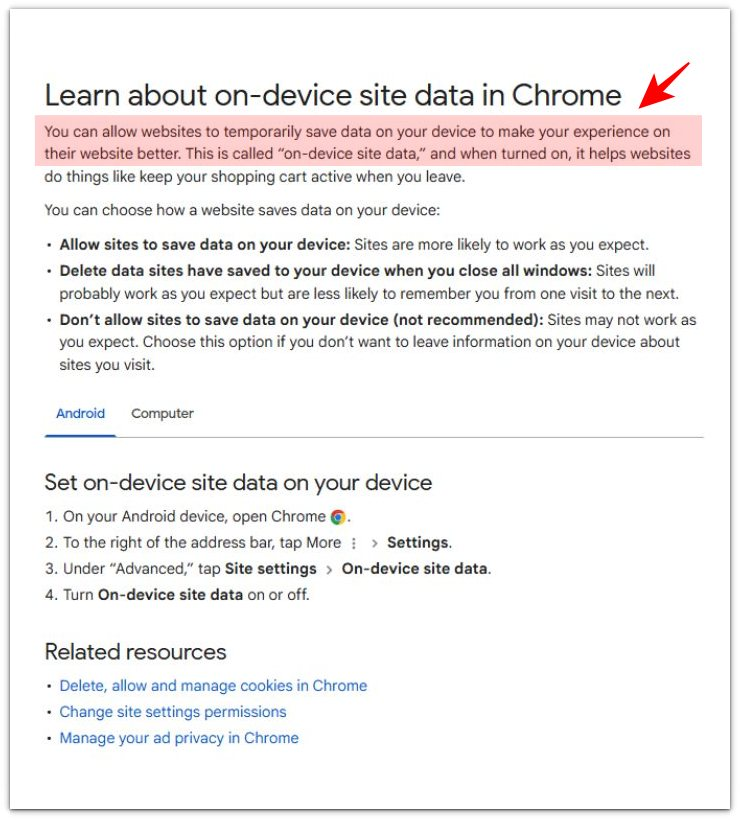
Google explains that websites can temporarily save data on your device in Chrome to keep parts of a website working, such as a shopping cart. This shows why Chrome storage is not only about cached images and files.
Additional Tips
Incognito browsing leaves existing Chrome storage in the normal browser profile. Treat it as a separate browsing session, not as a cleanup tool.
Pages with many ads, previews, product images, or embedded videos usually rebuild more temporary browser files than simple text pages. A small cache return after those pages is expected.
Chrome sync needs a separate check. Saved bookmarks, passwords, and account sync are separate from cached images and files, so clearing them just to reduce the cache number is the wrong move.
Final Notes
Chrome taking up storage on android should be checked from Chrome Storage first. A growing Chrome number does not automatically mean Downloads, Photos, or another app is hiding a large file.
Cache that drops after clearing and grows again after browsing points to temporary browser files rebuilding. Data that stays large after the cache drops points more toward site data, cookies, saved permissions, or website settings.
The right fix is to separate Cache from Data before clearing more items. Clear cached images and files first, compare the app storage number again, and only review deeper browsing data when the Chrome number stays high.
Checklist
- Check Chrome Storage before deleting phone files.
- Compare Cache and Data separately.
- Clear cached images and files before touching deeper browsing data.
- Use Chrome normally, then check whether Cache returns after browsing.
- Review cookies, site data, permissions, and website settings only when Data stays large.
- Leave Downloads, Photos, and unrelated apps alone unless they show their own storage problem.
Chrome still taking space after a cache cleanup usually needs the broader app storage check in this main guide.