
Introduction
Android offline downloads taking up storage feels strange when the Downloads folder looks clean, but storage keeps shrinking after you save videos, playlists, episodes, or reading files for offline use.
Those files often stay inside the app that saved them, so they do not always appear as one obvious file in the Downloads folder. Start by checking which app is holding the offline content before deleting more personal files.
Step-by-Step Guide: Android Offline Downloads Taking Up Storage
Step 1: Check App Storage Before Checking Files Again
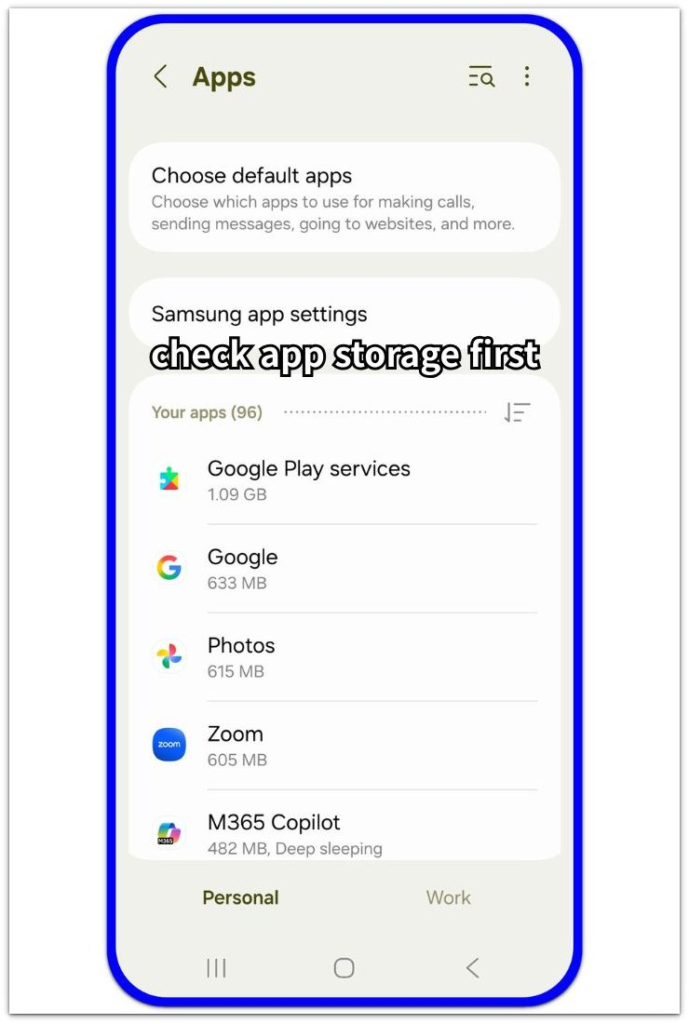
Open Settings, then Apps, and sort the app list by storage size. Look for apps that became larger than expected, especially video, music, podcast, reading, map, travel, or streaming apps.
When the Downloads folder already looks clean, open the largest suspicious app and check how much space it uses before you change anything. That large app size matters more than the empty folder.
Step 2: Open the App and Find Saved Offline Items
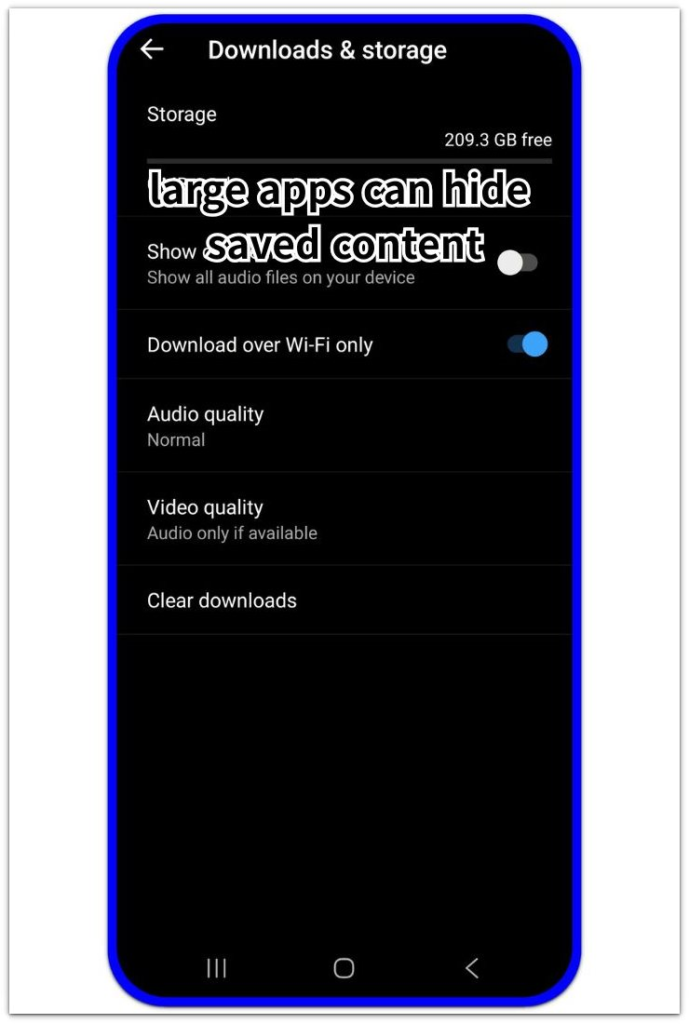
Open the app that looks larger than expected. Check sections named Offline, Saved, Library, Playlist, Episodes, Reading list, Maps, or Available offline.
Focus on content the app kept for offline use. Songs, podcast episodes, offline maps, reading files, and travel content often stay inside the app instead of appearing as normal files.
Remove only the offline content you recognize first. Leave cache and app data alone until you see whether saved content explains the storage size.
Step 3: Compare App Size After Removing Saved Content
Go back to Settings, then Apps, and open the same app’s Storage screen again. Compare the new app size with the number you checked before removing saved content. A clear drop points back to that app, not to files sitting in the Downloads folder.
A small drop or no change means another large app may still be holding offline content, so check the next large app instead of deleting random personal files.
Troubleshooting
Troubleshooting 1: Saved Items Return After Automatic Downloads Stay On
Some apps save offline content again because automatic downloads stay active. Streaming, podcast, music, map, and reading apps often have settings such as smart downloads, offline playlists, saved episodes, or offline map updates.
Open the app that grew again and check its offline settings, not just the saved item list. Turn off the automatic offline option that keeps adding content back.
Remove the items again and use the app normally for a short period. When the size stays lower after normal use, that automatic download setting was the main thing to fix.
Troubleshooting 2: One Large App Still Holds Saved Library Items
Saved content can stay in a library or account section even when the main offline list looks clean. Reading, travel, map, podcast, and streaming apps often keep saved items outside the first saved-content page.
Open the app’s Library, Saved, Offline, or Account area and check whether older items still remain in that section. Look for saved places, offline areas, old synced files, saved reading items, or library items that do not appear in Android’s Downloads folder.
Remove only the items you recognize, then return to Android app storage. A lower app size shows that the extra space was still inside that app, not in the phone’s Downloads folder.
Troubleshooting 3: Cache Drops but Saved Content Still Takes Space
Clearing cache can make the app look smaller for a moment, but it does not remove files you chose to keep offline. Episodes, playlists, maps, reading files, and videos stay until you delete them from the app itself.
Open the app’s saved or offline section before clearing cache again. Delete the items you no longer need, then check Android app storage one more time.
A lower number after that check gives a cleaner answer than repeating the cache clear step.
Extra Section 1: A Video App Kept Offline Movies Outside the Downloads Folder
A user checked the Downloads folder first because the storage problem looked like a normal file issue. The folder looked clean, so deleting photos, screenshots, or documents seemed like the next move. Android Storage showed a different result: one video app was much larger than the others.
Inside that app, the saved movies and episodes still appeared in its own offline section. Removing those old offline videos lowered the app size without touching personal files. The phone’s Downloads folder was empty, but the video app still held its own offline content.
Extra Section 2: Offline Maps Kept Travel Data Inside the App
The storage problem looked confusing because the Downloads folder was already clean. The user saw no large download, no media folder, and no visible file that explained the storage number.
Android Storage pointed to one map app instead. The user had saved offline map areas before a trip and forgot about them after coming home. Those areas did not look like photos, videos, or regular downloads, but they still stayed inside the map app.
Removing the old city maps lowered the app size without touching personal files. The Downloads folder was clean, but the travel data stayed inside the map app until the user removed those offline areas.
Official Source: Delete Offline Content Inside the App That Saved It
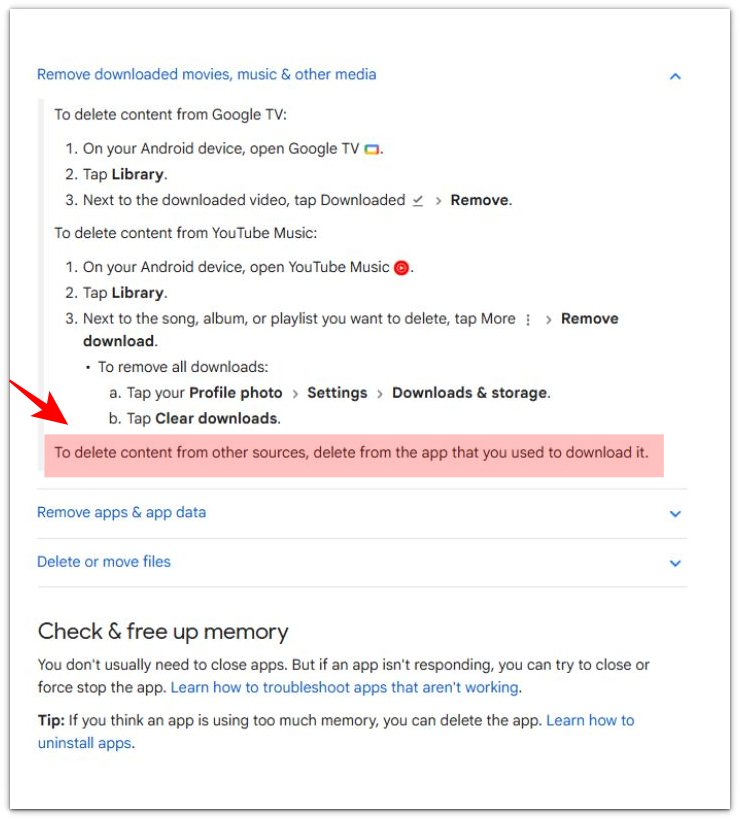
Google explains that you should delete content from other sources through the app that saved it. This supports the main check in this guide: missing storage can stay inside the app, not in the Android Downloads folder.
For the full storage check, keep the focus on the app that still holds saved videos, playlists, maps, episodes, or offline items.
Additional Tips
Storage checks are easier to read after one normal day than after a heavy download day. A long trip, a new playlist, several podcast episodes, or a large offline map update can make one app grow faster than usual.
Low free space also changes the urgency. A small saved item is not a serious problem when the phone still has room, but the same item matters more when Android keeps warning about storage.
App updates can also change the number for a short time. After an update, check the same app again after normal use before treating the new size as a storage problem.
Final Notes
Android offline downloads taking up storage usually points to one app that still holds saved videos, playlists, maps, episodes, or reading files. A clean Downloads folder only proves that the missing space is not sitting in the normal file folder.
The strongest clue is a large app size that drops after you remove the offline items from that app. When that number falls, the storage problem belongs to the app’s offline content, not random photos, screenshots, or unrelated files.
The right fix is to clean the app that created the offline content first. Deleting random files wastes time and risks removing personal files while the real storage stays inside the app.
Checklist
- Check Android app storage before deleting random files.
- Compare the large app size with the normal Downloads folder.
- Open the app that holds offline videos, playlists, maps, episodes, or reading files.
- Remove saved offline items inside the app first.
- Turn off automatic downloads when the same content returns.
- Check Android app storage again after normal use.
- Treat the app’s offline content as the cause when the app size drops.
Still getting storage warnings after clearing offline files? Use the main Android storage guide to find what is still taking space.