
Introduction
Set alarm on android looks simple.
However, it is one of the most failure-prone features on modern Android devices.
In practice, many failures do not come from the alarm time itself.
Instead, they occur when Android deprioritizes background execution and silently blocks delivery.
On the latest Android versions, Alarm, Timer, and Stopwatch exist inside the same Clock app.
However, Android treats them differently at the system level.
As a result, when they are used interchangeably, alarms can appear correctly configured and still fail.
The real control point is not the alarm screen itself.
Instead, Android controls alarm reliability through permissions, battery rules, and Do Not Disturb exceptions.
This guide reflects real failure patterns observed on Samsung Galaxy devices running the latest Android version.
Menu labels may vary by model.
However, Android applies the same scheduling logic across updates.
For this reason, set alarm on android stays reliable only when system rules are respected.
Step-by-Step Guide
Step 1: Use the System Clock App Only
Set alarm on android should always start with the built-in system Clock app.
This choice directly affects how Android schedules and protects alarm jobs.
In contrast, third-party alarm apps behave differently.
As a result, Android exposes them more aggressively to battery restrictions and background limits.
Judgment point:
If the alarm was created outside the system Clock app, Android has more reasons to deprioritize it.
This difference is not visible on the alarm screen.
Nevertheless, it directly impacts delivery reliability.
Step 2: Create or Edit the Alarm Correctly
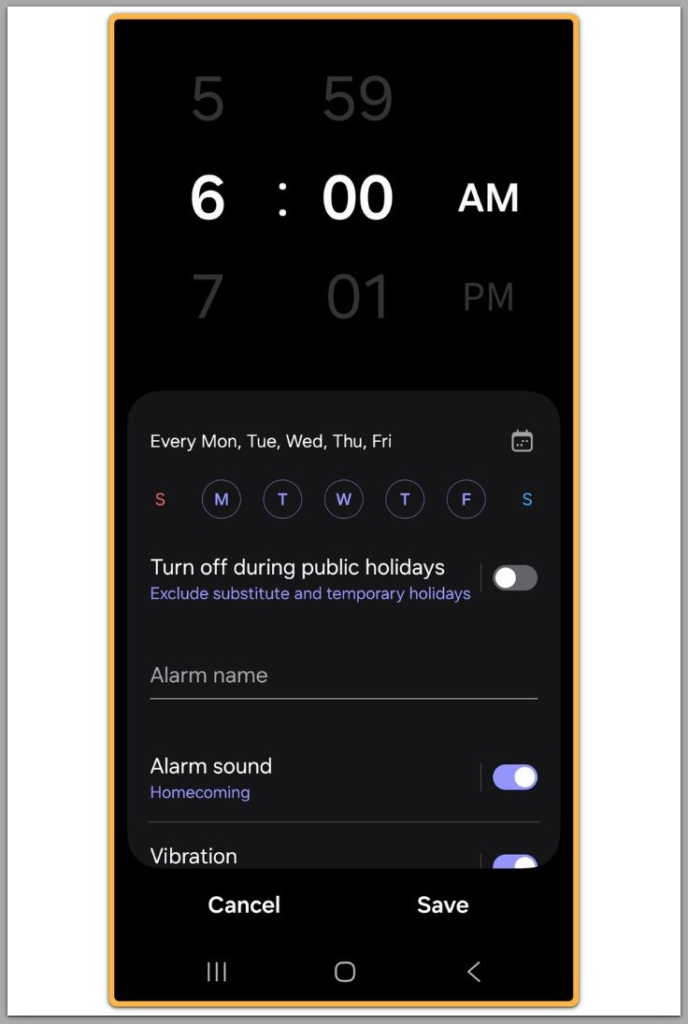
Open Clock → Alarm → tap the plus (+) button.
Then set the exact time and confirm AM or PM.
Finally, save the alarm and confirm the toggle is ON.
At this stage, set alarm on android is technically complete.
However, if the alarm fails later, the cause almost always sits outside this screen.
For this reason, changing sound modes, volume, or Do Not Disturb after this step directly affects delivery.
Many users assume saving the alarm is the final step.
In reality, it is only the starting point.
This is why many users believe they set alarm on android correctly, yet still experience silent failures later.
Step 3: Configure Alarm Sound and Alarm Volume
Many “alarm didn’t ring” cases are sound failures, not scheduling failures.
First, open the alarm → Alarm sound → select a clear, non-fading tone.
In particular, avoid tones with slow fade-in behavior.
Then verify alarm volume:
Settings → Sounds and vibration → Volume → Alarm
Judgment point:
If the alarm is not clearly audible during a test, the setup is unreliable.
Even when scheduling works correctly, silent alarms are functionally identical to failures.
Step 4: Set Alarm on Android Using Repeat Days and Labels
Repeat days protect against routine mistakes.
As a result, they reduce clutter and prevent accidental disabling.
Set weekdays if that matches your schedule.
At the same time, avoid stacking multiple one-time alarms.
Labels matter.
Otherwise, when alarms look similar, people disable the wrong one under pressure.
This step improves reliability by reducing human error, not by changing Android behavior.
Step 5: Use Timer for Short Tasks Only
Timer exists for short, temporary tasks such as cooking or workouts.
By design, it triggers once and clears itself automatically.
Using alarms for temporary tasks creates clutter.
Therefore, clutter increases the chance of disabling or ignoring critical alarms.
Choosing Timer instead of Alarm is a reliability decision, not a convenience choice.
Step 6: Use Stopwatch for Measurement Only
Stopwatch measures elapsed time.
It does not schedule future alerts.
Running Stopwatch in the background does not guarantee notifications.
Instead, Android treats it as an active session, not a scheduled interrupt.
If a guaranteed alert is required, Stopwatch is the wrong tool.
Troubleshooting
If set alarm on android does not ring, follow this order.
Skipping steps weakens diagnosis.
Check Battery Restrictions for Clock App
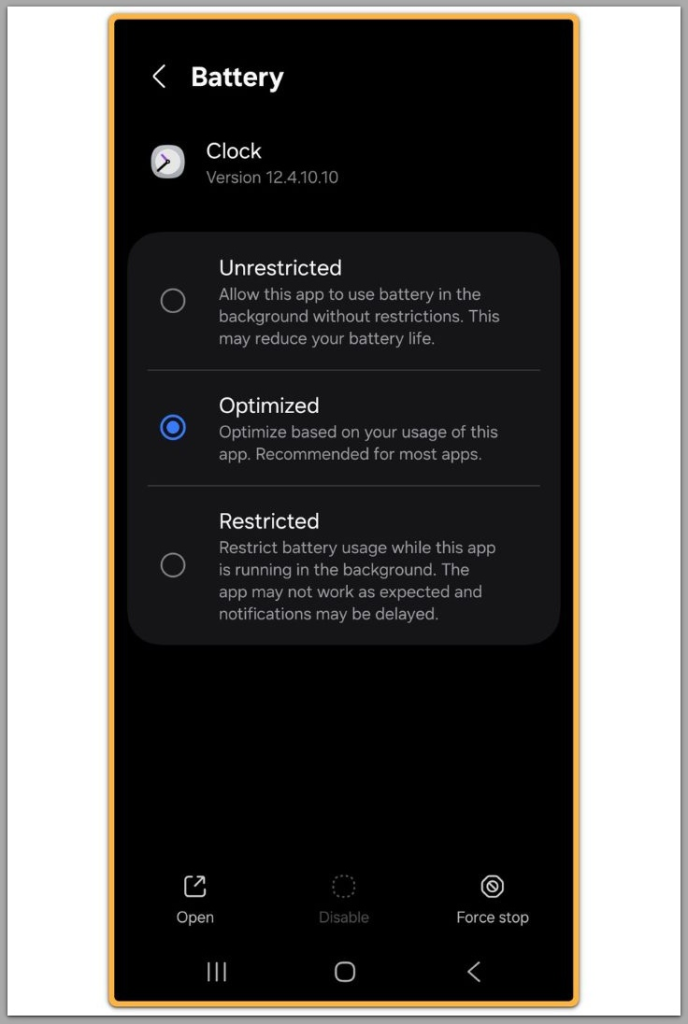
Android can delay or suppress alarms when it restricts background activity.
Go to:
Settings → Apps → Clock → Battery
Set battery usage to Unrestricted or Allow background usage.
Otherwise, do not leave it on Restricted or Optimized.
Judgment point:
If Clock is restricted, Android is explicitly allowed to delay alarm delivery.
This is not a bug.
It is intended system behavior.
Check Do Not Disturb Alarm Exceptions
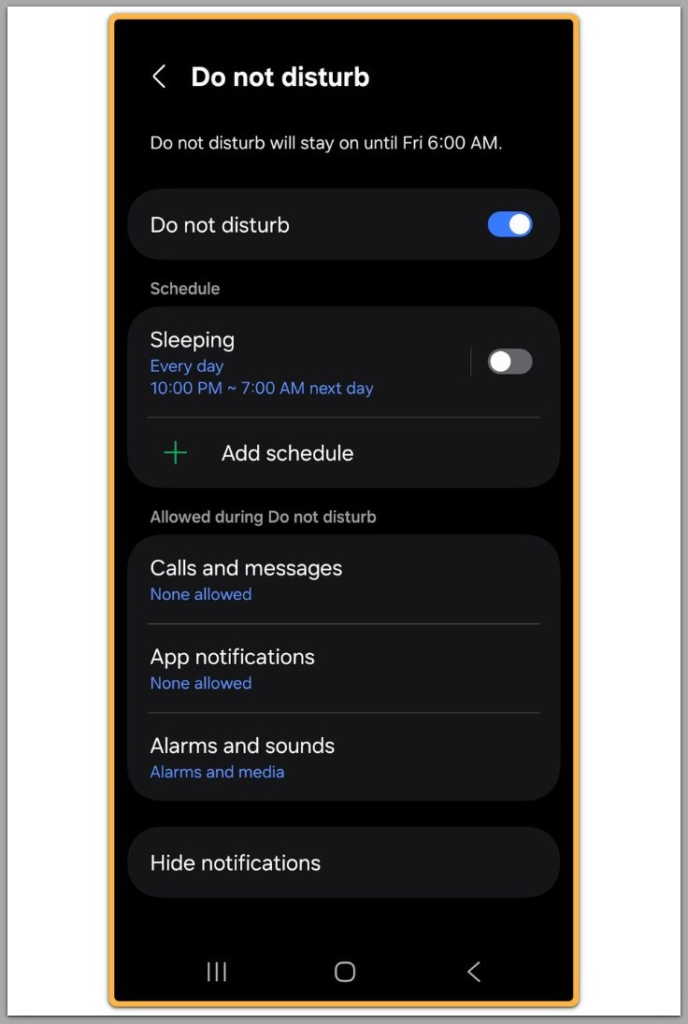
Do Not Disturb can silence alarms depending on exception rules.
Go to:
Settings → Notifications → Do Not Disturb → Exceptions
Confirm that Alarms are allowed.
Otherwise, do not assume alarms always bypass Do Not Disturb by default.
Judgment point:
If alarms are not explicitly allowed, the alarm can trigger without sound.
This often appears as a “missed alarm” even though scheduling succeeded.
Confirm Device Power State
Alarms require the device to be powered on.
If the phone is turned off or the battery is fully drained, alarms will not trigger.
Therefore, Android does not queue alarms for powered-off states.
This is a hard system limitation.
No setting can override it.
Restart After Verifying All Settings
Restart the device once.
This clears scheduler-level issues that do not appear in visible settings.
However, if alarms fail after a clean restart, firmware or system corruption becomes more likely.
At that point, the issue is no longer reliably user-fixable.
Continuing to tweak settings will not change the outcome.
Additional Tips
System-Level Reliability Tips
Keep the system Clock app updated through system updates.
Additionally, avoid task killers and aggressive battery saver apps.
Test critical alarms after changing system modes.
Use distinct tones for different alarm purposes.
Finally, confirm time zone changes after travel.
These steps reduce edge-case failures.
However, they do not override Android’s system rules.
Final Notes
Set alarm on android works reliably only when Android’s system rules allow it.
In most cases, failures come from battery control, notification silencing, or mode changes.
Alarm, Timer, and Stopwatch are not interchangeable tools.
As a result, using the wrong one creates silent failure conditions.
A reliable alarm setup is a system-level configuration, not a single tap.
Checklist
System Clock app used
Alarm sound selected and tested
Alarm volume confirmed
Clock battery usage set to Unrestricted
Do Not Disturb allows alarms
Correct tool used (Alarm vs Timer vs Stopwatch)
If any item fails, reliability is not guaranteed.
Extra Section 1
Many users overload alarms because alarms feel universal.
However, that assumption creates reliability problems.
Alarms interrupt at fixed times.
Timers handle short tasks.
Stopwatches measure duration.
As a result, crowded alarm lists increase accidental disabling.
A clean alarm list is a reliability strategy, not a preference.
Extra Section 2
Menu paths vary by device model and One UI version.
Although labels move, Android logic remains the same.
Users often believe updates changed behavior.
In most cases, Android applied the same rules under a different menu.
Understanding this logic keeps set alarm on android reliable even as menus change.