
Introduction
An Android software update becomes frustrating when the button is hard to find, the download stops halfway, or the phone restarts before you feel ready. Many beginners tap the update button first, then notice low battery, weak Wi-Fi, or full storage only after the process fails.
The problem feels worse when the phone says no update is available, the progress bar stays frozen, or the same install message returns after a restart. Older Android phones add more confusion because model support, carrier rollout, and region timing affect what appears on the screen.
This guide explains the Android software update checks in a simple order. Use it when you want to find the update screen, install the system version safely, and fix the common problems that stop the process.
Step-by-Step Guide: Android Software Update
Step 1: Prepare Battery, Storage, And Wi-Fi
Check battery, storage, and Wi-Fi before opening the update screen. A low battery, weak connection, or nearly full storage often stops the download before installation starts.
Charge the phone above 50 percent or keep it connected during a large install. Free up space by removing unused apps, old downloads, large videos, or backed-up photos before checking again.
Use a stable Wi-Fi network for major system files. Turn off VPN during the check when the download page keeps failing, loading slowly, or stopping before the file finishes.
Step 2: Open Software Update And Check The Version
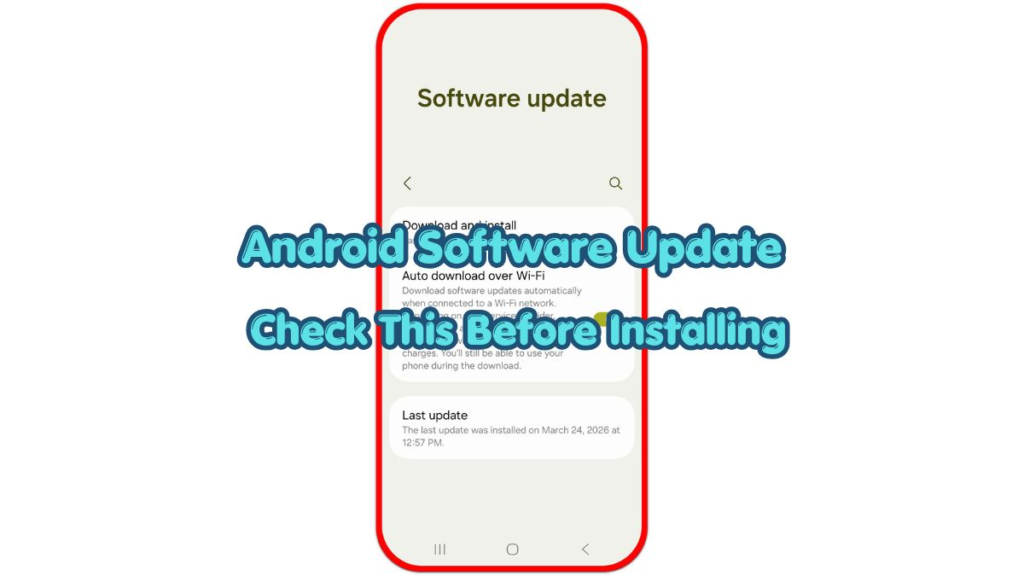
Open the Settings app and look for Software update, System update, or System. On many Android phones, the path is Settings > System > System update. On Samsung phones, look for Settings > Software update > Download and install.
Tap Check for update, Download and install, or the closest matching button. Wait until the phone finishes searching before leaving the screen, because some devices take longer to contact the update server.
Read the version name, security patch date, and file size before downloading. A small security patch is normal when the phone does not receive a full Android version upgrade.
Step 3: Download, Install, And Confirm The Result
Start the download on Wi-Fi and leave enough time for the file to finish. Keep the charger connected when the battery is low or the file size looks large.
Tap Install now, Restart now, or Restart and install when the prompt appears. Let the phone restart and return to the lock screen before pressing side buttons or opening apps.
After the restart, open Settings > About phone > Android version or Software information. Check the Android version, build number, or security patch date to confirm that the install finished correctly.
Troubleshooting
Troubleshooting 1: Android Software Update Not Showing
A missing system version usually points to model support, carrier rollout, region timing, or manufacturer limits. Check the phone model and current version before treating the menu as broken.
Some phones keep receiving security patches after major Android version upgrades stop. The update screen also shows no new version when the phone already has the latest supported release.
Troubleshooting 2: Download Gets Stuck Or Fails
Restart the phone, reconnect to Wi-Fi, and turn off VPN before trying again. Cancel the download and start again when the progress number stays unchanged for a long time.
Free storage before repeating the check. System files need extra temporary room while the phone downloads, prepares, and installs the package.
Troubleshooting 3: Installation Fails After Restart
Check battery level, free space, date and time, and the current software version. Remove one large unused app or video, restart the phone, then run the check again.
Repeated failure after storage and network checks points to a damaged download, unsupported model, or firmware problem. Use the phone maker’s support page or service center when the same error returns.
Extra Section 1: Update Apps After The System Change
App updates matter after a system version changes because older app builds often crash, freeze, or drain battery after a major install. Open the Play Store, tap your profile icon, and open Manage apps and device.
Refresh important apps first, especially banking, messaging, browser, maps, and security apps. If one app keeps failing, open its App Info page, clear the Play Store cache, restart the phone, and try the app install again.
Extra Section 2: When An Older Android Phone Stops Getting Updates
An older phone eventually stops receiving major Android versions. The exact limit depends on the brand, model, carrier, and release year, so the same update screen looks different across devices.
When the phone no longer receives system versions, keep apps current, remove risky apps, avoid unknown APK files, and check the security patch date. A replacement makes more sense when banking apps stop working, security patches stay old, or daily apps no longer support the device.
Additional Tips
Large system files need more room than the visible update size suggests. The phone needs space for downloading, preparing, restarting, and cleaning temporary files, so deleting one small item rarely fixes a full storage warning.
A warm phone often slows down after a major install. Let the device cool on a desk before judging speed, battery drain, or app behavior.
App issues after a system change often come from old app versions. Open the Play Store after the phone restarts and refresh important apps before checking performance again.
Final Notes
An Android software update works best after battery, storage, and Wi-Fi are ready, while a missing version often comes from rollout timing, carrier support, or model limits.
When the same install error keeps returning, stop repeating the download and choose the next device or service decision.
Checklist
- Battery stays above 50 percent, or the charger remains plugged in.
- Wi-Fi stays stable, and VPN stays off.
- Internal storage has extra free space beyond the file size.
- Important photos, contacts, and files have a backup.
- The device has enough time to restart without interruption.
- About phone shows the new version, build number, or security patch date after installation.