
Introduction
How to manage notifications on Android matters when too many apps send sounds, banners, lock screen previews, reminders, promotions, and background updates throughout the day. The phone still works, but each new alert pulls attention away from what you are doing.
Notification noise usually starts after installing new apps, signing in to shopping apps, allowing browser alerts, or leaving every notification category turned on. One app sends useful order updates and unwanted promotions from the same notification menu.
A cleaner setup keeps important information visible while removing noise from apps that rarely need attention. The Android notification settings page helps you separate important apps from noisy apps before you review each one.
Step-by-Step Guide: How to Manage Notifications on Android
Step 1: Open Notification Settings
Open Settings and tap Notifications. On some Android phones, open Apps first, then choose Notifications from the settings area.
Check the recent list if your phone shows it. Android lists recently active apps on many phones, which helps you find the noisy one without searching through every installed app.
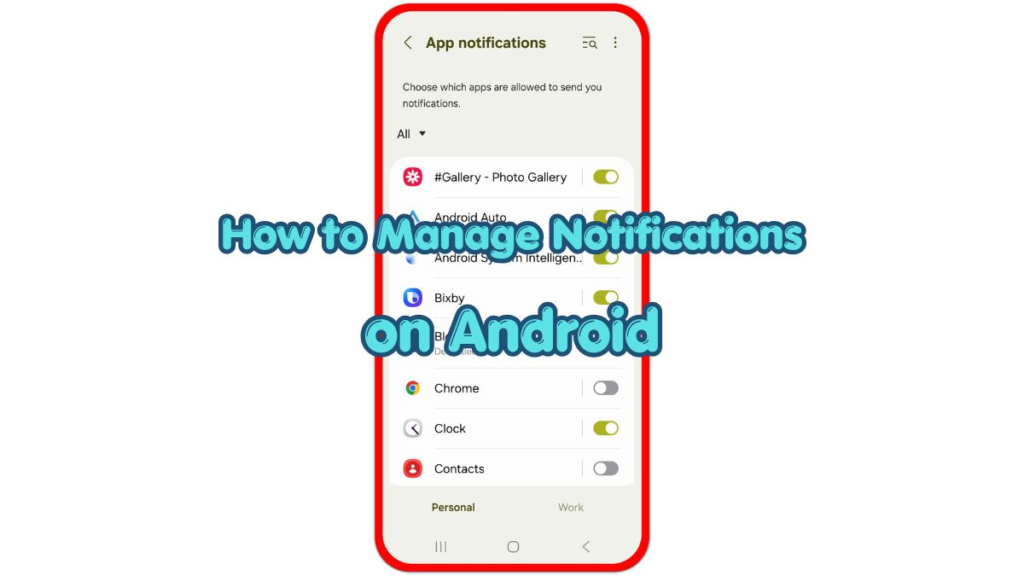
Open App notifications or a similar menu name. This page shows what reaches the notification shade and lock screen. Leave important apps alone at first, then focus on alerts you rarely open.
Step 2: Turn Off Noisy App Alerts
Choose an app that sends unwanted alerts. Turn off its notification switch when it has no reason to interrupt you.
Use this for sale notices, game reminders, news pushes, social suggestions, delivery promotions, or updates you never read. After you turn off the switch, it stops sending normal alerts to the notification shade and lock screen.
Keep access on for calls, texts, banking, delivery tracking, calendars, school, or work. Those usually need a more careful setup instead of one full shutdown.
Step 3: Change Sound, Vibration, And Lock Screen Options
Some apps still need to reach you, but they do not need sound or vibration every time. Open notification options and change loud categories to Silent when Android offers that choice.
Silent items stay visible without noise or vibration. Use this setting for email, shopping updates, social apps, cloud uploads, app updates, and other items that are useful later but not urgent.
Open Lock screen notifications if the lock screen shows private texts, codes, or app previews. Hide sensitive content or remove lock screen alerts that show personal information. This keeps the lock screen cleaner and protects private details when the phone sits on a desk or table.
Step 4: Adjust Categories Inside Important Apps
Open an important app from the notification list and check its categories. Many split alerts into separate groups, such as direct chats, reminders, promotions, downloads, comments, calls, updates, or recommendations.
Turn off the categories you no longer want and keep the ones that matter. For example, a delivery app needs order updates but not marketing alerts. A chat app needs direct chats but not every group reaction, mention, or recommendation.
Category control gives better results than turning the whole app off. It keeps useful information working while removing the parts that create most of the noise.
Troubleshooting
Troubleshooting 1: Alerts Still Appear After Turning Them Off
Open Settings, then Notifications, and check the same app again. Some have more than one category, so one switch leaves another alert type active.
Open App info for the noisy one and review its full menu. Turn off the exact category that keeps appearing. If the alert came from a browser website, open the browser’s site settings and remove permission for that website.
Restart the phone after changing several settings. A restart clears old items from the shade and gives you a cleaner test.
Troubleshooting 2: Sound Or Vibration Still Interrupts You
Open Sound and vibration from Settings. Notification sound, vibration intensity, and system sound settings affect how alerts feel even after settings change.
Lower notification volume or turn off vibration for alerts when interruptions still feel too strong. Then return to the page and set non-urgent categories to Silent.
Check scheduled sound settings, bedtime settings, or focus settings when you need a quiet period for sleep, meetings, work, or study. Allow only the people and apps that truly need to reach you during that time.
Troubleshooting 3: One App Keeps Sending Unwanted Alerts
Open the app itself and check its own notification, marketing, or update settings. Some keep extra controls separate from Android Settings.
Turn off promotional alerts, recommendations, reminders, or email-style updates inside the app when those options exist. Then return to Android Settings and check the same categories.
Uninstall the app if it keeps sending unwanted ads or repeated alerts after every setting change. A noisy one that ignores your choices creates more distraction than value.
Extra Section 1: When You Still Need Some Alerts From The Same App
Some send both useful and annoying alerts. Turning off the entire app blocks everything, so category control works better.
For example, a shopping app sends delivery updates, order changes, sale notices, and product suggestions. Keep delivery and order updates on, then turn off sale and suggestion categories. A messaging app needs direct chats but not every group reaction, mention, or recommendation.
This setup keeps the phone useful without making every app silent. It also prevents missed items during the day.
Extra Section 2: When Browser Alerts Keep Coming Back
Random website alerts usually come from browser permission, not from a normal Android app. They often appear after tapping Allow on a website pop-up.
Open the browser that shows the alert, then check site settings or notification settings inside that browser. Remove permission from websites that send ads, news pushes, pop-ups, or reminders you never requested.
Return to Android notification settings and check the browser itself. Keep the browser active if you need normal downloads or private tabs, but remove the websites that create the noise.
Additional Tips
Review notification settings after installing new apps. Many ask for alert permission during setup, and those alerts turn into noise after a few days.
Keep urgent apps loud and move low-priority categories to Silent. Keep promotions and reminders separate so important alerts stand out more clearly.
Check both Android Settings and the app’s own menu when one app keeps interrupting you. Some keep system alerts and marketing alerts in separate menus.
Final Notes
How to manage notifications on Android works best when you separate important alerts from background noise. Turn off apps that never need attention, then use Silent mode and categories for apps that still matter.
Lock screen settings help protect private information, while scheduled quiet settings reduce interruptions during rest or work. A few careful changes make the notification shade easier to read and the phone less distracting.
Checklist
- Open Settings and go to Notifications.
- Check the recent list for noisy apps.
- Turn off alerts from apps you no longer need.
- Set non-urgent categories to Silent.
- Hide sensitive content from the lock screen.
- Adjust categories inside important apps.