
Introduction
Bedtime mode android is not just a display filter.
It functions as a system-level behavior change that reduces stimulation before sleep.
Many users think it only turns the screen gray.
That assumption causes most bedtime routines to fail before they even begin.
On recent Android versions, Digital Wellbeing controls this feature entirely.
When Digital Wellbeing is inactive, restricted, or misconfigured, the mode can appear enabled while applying no real changes.
This guide explains how the feature behaves on current Samsung Galaxy devices, how to configure it correctly, and where it breaks down in real use.
Menus and labels may vary slightly by model and region, but the control logic stays consistent.
If this feature feels ineffective, the cause is almost always configuration.
When setup is correct, the system behaves predictably, and other explanations rarely apply.
Step-by-Step Guide
Step 1: Open Digital Wellbeing From System Settings
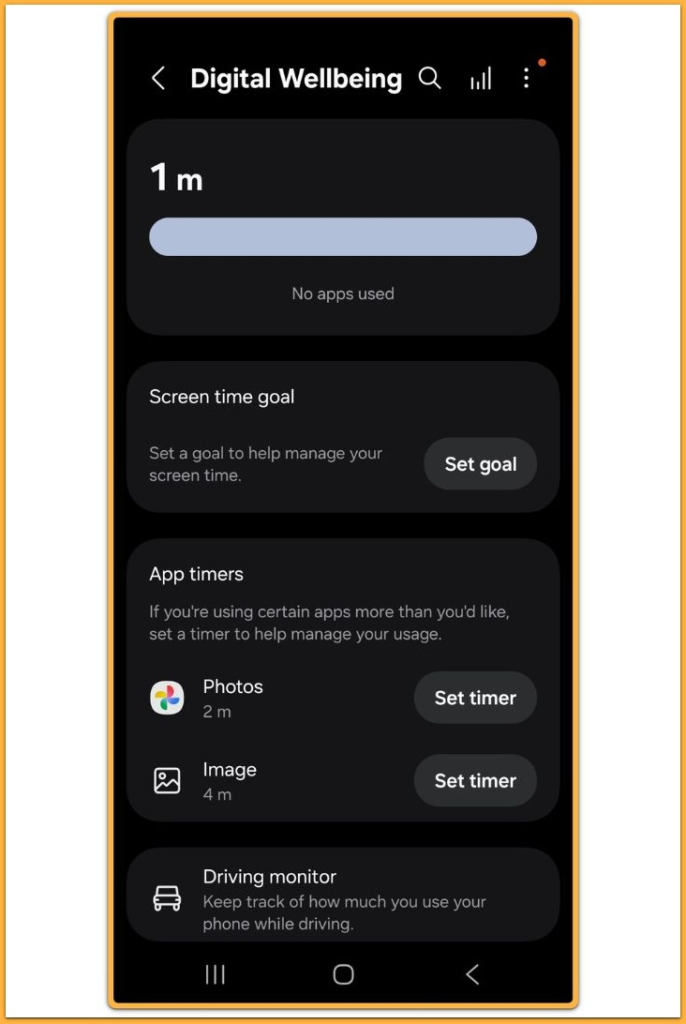
Open Settings on the device.
Scroll down and tap Digital Wellbeing and parental controls.
This screen is the only place where bedtime mode android can be verified properly.
If this menu is never opened, the feature remains unconfigured regardless of toggle state.
Quick Settings toggles only affect appearance.
They do not confirm schedules, permissions, or background execution.
If Digital Wellbeing fails to open or shows a blank screen, the feature is already non-functional.
In this state, no further steps will succeed, and continuing configuration has no effect.
Step 2: Confirm Bedtime Mode Exists Inside Digital Wellbeing
Locate Bedtime mode inside Digital Wellbeing.
If it does not appear here, the feature cannot run.
On Samsung Galaxy devices, absence at this level has only three confirmed causes.
The Digital Wellbeing service is disabled.
The Android build restricts or removes the feature.
A work profile or device policy blocks it.
This condition is a hard stop.
If this entry is missing, bedtime mode android cannot activate through shortcuts, schedules, or automation of any kind.
Step 3: Set A Fixed Schedule Instead Of Manual Control
Tap Schedule and set a fixed bedtime and wake-up time.
Avoid manual activation when consistency matters.
Scheduled background events are what make behavior changes reliable.
Without fixed timing, activation depends on user action and becomes inconsistent by design.
If work hours vary daily, manual activation can still help.
In that case, treat the feature as assistance rather than enforcement, and expect weaker results.
Step 4: Enable Grayscale And Dim Wallpaper Together
Turn on Grayscale.
Enable Dim wallpaper immediately after.
These options work as a pair.
Grayscale reduces color stimulation, while wallpaper dimming removes contrast-driven attention.
When only Grayscale is active, bright wallpapers still stimulate the brain.
With both enabled, visual engagement drops immediately.
If color remains after setup, Grayscale was enabled outside Digital Wellbeing.
That setup does not apply system-level control and should be considered incomplete.
Step 5: Link Do Not Disturb Directly To Bedtime Mode
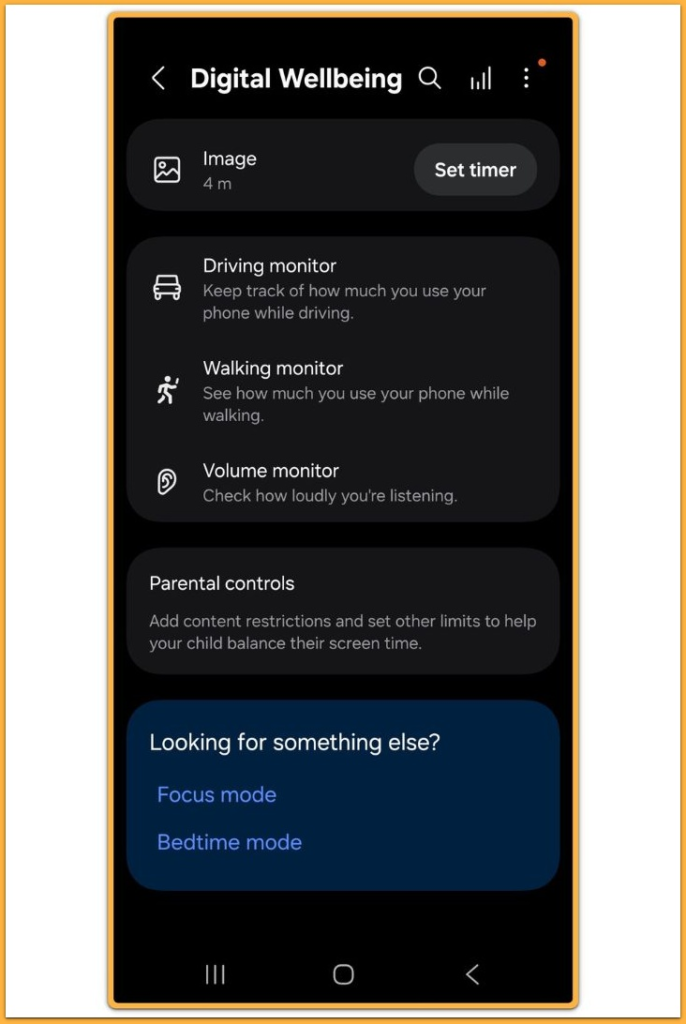
Enable Do Not Disturb during Bedtime Mode.
This step determines whether bedtime mode android changes behavior or only appearance.
Without Do Not Disturb, notifications continue to interrupt attention even when the screen looks restricted.
On Samsung Galaxy devices, confirm that the Bedtime schedule controls Do Not Disturb directly.
If a separate Do Not Disturb schedule exists under system notification settings, it silently overrides Bedtime Mode.
If notifications appear at night, this linkage is broken.
Until this is resolved, no other setting will compensate.
Step 6: Allow Alarms And Emergency Exceptions Explicitly
Open exception settings.
Confirm that alarms remain allowed.
Blocked alarms indicate configuration failure, not system bugs.
Missed alarms always point to setup errors at this stage.
Add emergency contacts only if required.
Leave all other app exceptions disabled to preserve behavioral reduction.
Step 7: Verify Digital Wellbeing Usage Access
Return to the main Digital Wellbeing screen.
Confirm that Usage access is enabled.
Without this permission, bedtime mode android may appear active while applying no restrictions.
This state looks normal on the surface but performs nothing in practice.
After enabling permissions, restart the device.
On Samsung Galaxy phones, background services often activate fully only after reboot.
Troubleshooting
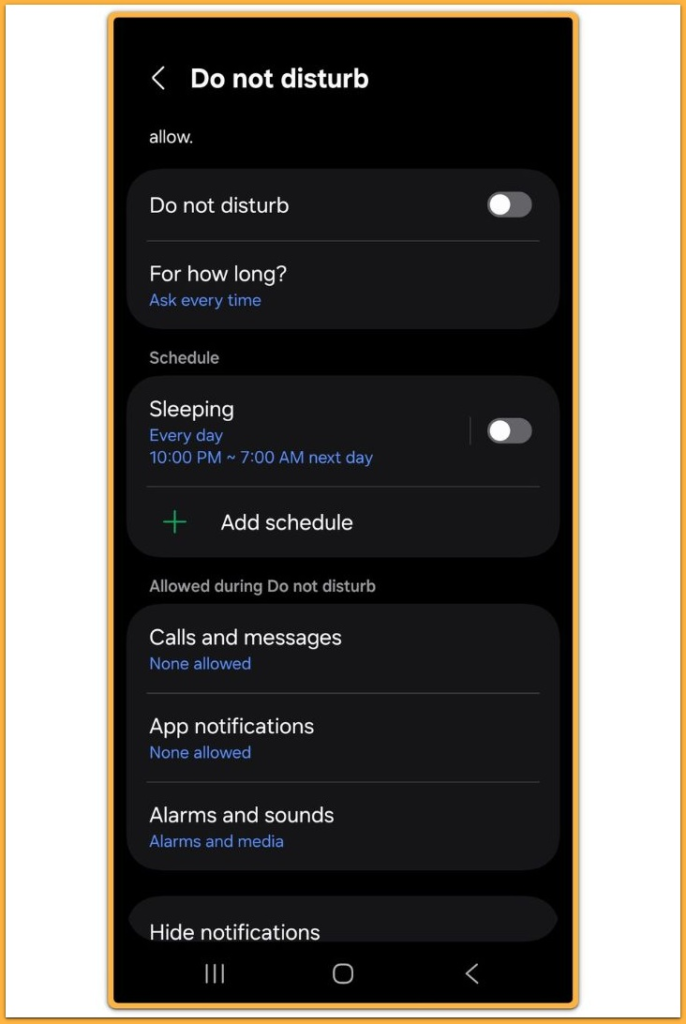
If bedtime mode android activates but notifications still appear, check Do Not Disturb control first.
A separate Do Not Disturb schedule overrides Bedtime Mode every time.
If the screen remains colorful, Grayscale was enabled outside Digital Wellbeing.
Quick toggles never complete configuration.
If the schedule never triggers, review battery restrictions.
Background limits prevent scheduled events from firing reliably.
If all checks pass and behavior still fails, the firmware enforces limitations.
At that point, further adjustments through settings are no longer effective, and the issue cannot be resolved manually.
Additional Tips
This feature works best with consistent charging habits.
Charging within arm’s reach increases late-night interaction.
Placing the phone out of reach reduces unconscious usage.
No system feature can override physical access.
Daytime app timers improve nighttime effectiveness.
Lower stimulation earlier in the day stabilizes results at night.
This feature does not replace medical treatment.
Sleep disorders require professional evaluation.
Final Notes
Bedtime mode android works only when every component aligns correctly.
Partial setup creates a false sense of control and leads to disappointment.
When configured properly, it reduces stimulation without forcing sleep.
Behavior still determines outcomes.
Checklist
☐ Digital Wellbeing enabled
☐ Bedtime schedule set
☐ Grayscale and wallpaper dimming active
☐ Do Not Disturb linked to Bedtime Mode
☐ Alarms explicitly allowed
☐ Usage access verified
If even one item is missing, results become inconsistent.
One failure condition is enough to break the system.
Extra Section 1
Many users expect bedtime mode android to fix sleep immediately.
This assumption usually causes disappointment early.
At its core, the feature targets stimulation, not sleep itself.
System controls reduce triggers, while habits remain unchanged.
Scrolling short videos or replying to messages in bed keeps mental activity high even under grayscale.
In these cases, the system remains active, but user behavior overrides its effect.
Design limits make this outcome predictable.
Software cannot cancel caffeine intake, irregular schedules, or bright surroundings.
A realistic expectation changes how the feature performs.
The mode lowers friction.
Sleep quality still depends on consistent choices.
Extra Section 2
Manufacturers do not expose Digital Wellbeing in the same way.
This difference comes from manufacturer policy.
Samsung Galaxy devices display full options directly.
Other brands often group them under wellness or balance sections.
When bedtime mode android behaves differently across devices, the concept remains stable.
Only the execution layer changes.
Functional signs matter more than labels.
Scheduled grayscale, muted notifications, and restricted apps confirm correct operation.
When these signals fail to appear, the control path is blocked.
This outcome reflects interface design, not a system error.