
Introduction
Recover Deleted Photos Google Photos is a situation many Android users eventually face, even when nothing obvious goes wrong.
Photos often disappear during storage cleanup, phone changes, or routine maintenance that felt safe at the time.
The reaction is almost always the same.
It feels permanent, especially when users never stored those photos anywhere else.
Timing matters more than effort here.
Google Photos does not remove files instantly, but recovery remains available only within a limited retention window.
Once that period ends, Google Photos itself can no longer recover the files.
This guide shows how recovery works in real conditions, when it still makes sense to try, and when users should stop immediately.
This guide uses the latest Android version and current Samsung Galaxy devices as its reference.
Menu names and behavior can differ slightly depending on the model and One UI version.
Step-by-Step Guide
Step 1: Recover Deleted Photos Google Photos Using the Correct Account
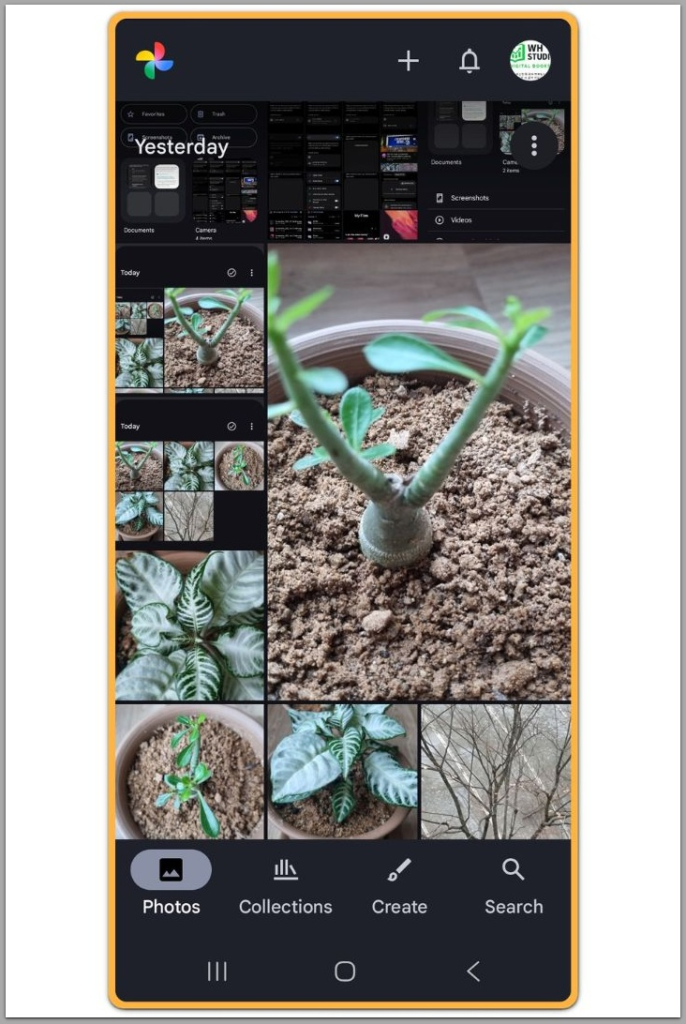
Open the Google Photos app on your Android phone.
Before doing anything else, check the Google account shown in the top-right corner.
This step determines the final result.
If the account does not match the one used at the time of deletion, the photos will not appear.
Account mismatch causes more failures than any other factor.
The detail looks small, but it completely blocks recovery inside Google Photos.
If the correct account is not active, stop and switch accounts first.
Continuing without confirmation guarantees failure.
Step 2: Go to the Trash Folder
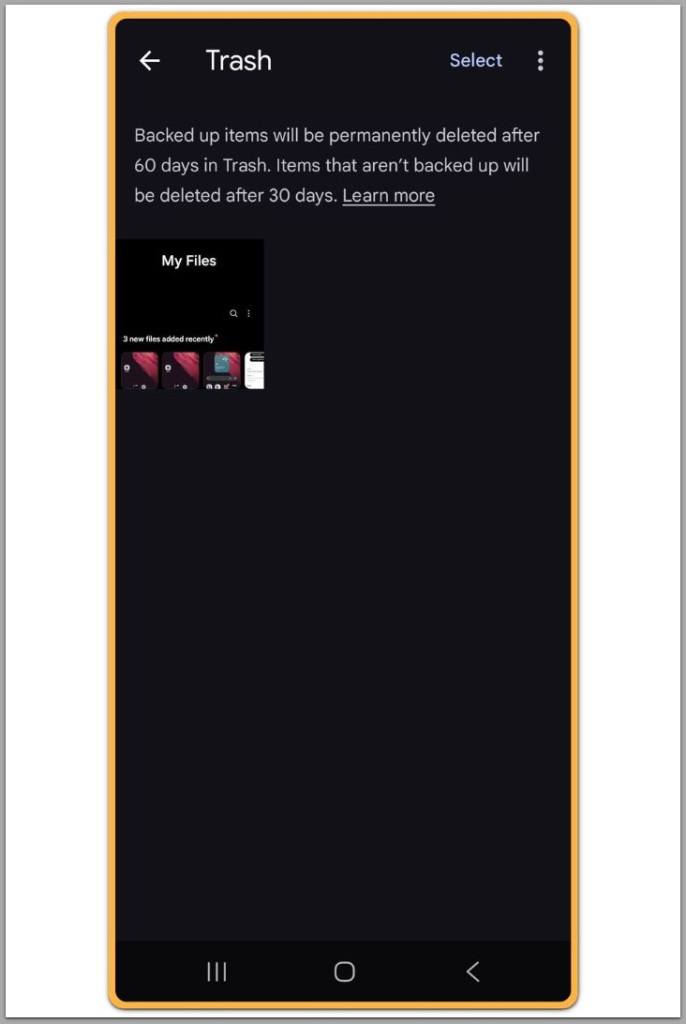
Tap the Library tab at the bottom of the screen.
Open the Trash folder.
Google Photos keeps deleted photos here only for a limited time.
In many cases, files remain recoverable for around 60 days.
If the Trash folder is empty, the situation is already serious.
Google Photos does not extend the retention period.
At this point, Recover Deleted Photos Google Photos may no longer work through the app.
The system behaves as designed, not because of a sync error or temporary delay.
Step 3: Select the Photos You Want to Restore
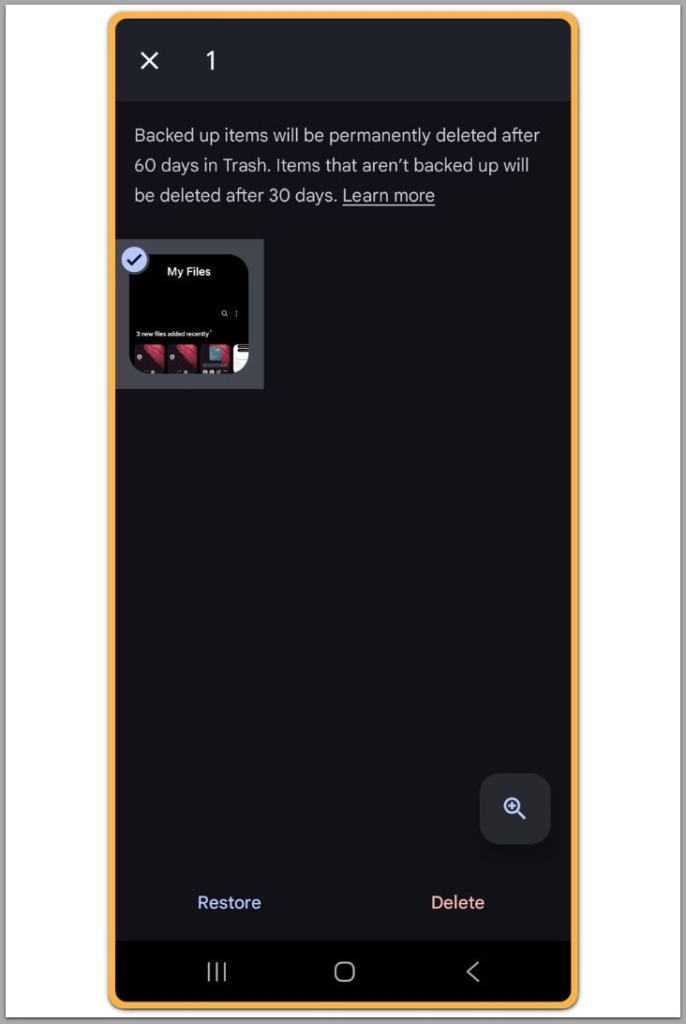
Press and hold the photos you want to recover.
Select multiple items if necessary.
Tap Restore at the bottom of the screen.
Google Photos places the files back on their original dates and albums.
If the Restore option does not appear, stop here.
The retention window has already closed.
Repeating the same steps will not change the result.
Standard recovery ends at this point.
Step 4: Confirm Sync and Storage Status
Wait briefly after restoring the photos.
They should reappear in the main photo feed.
Check backup and sync status immediately.
If backup was disabled at the time of deletion, the files may have existed only on the device.
Many users misread success at this stage.
A restore can look correct even when the file never reached the cloud.
Recover Deleted Photos Google Photos applies only to data that reached Google’s servers.
Files without a cloud backup cannot return later through this service.
Troubleshooting
If photos never appear in Trash, the retention period has most likely expired.
Google Photos removes deleted items automatically after that window closes.
The service is built to manage storage, not to preserve deleted data indefinitely.
Once removal is scheduled, the system prioritizes consistency and cost control over flexible recovery.
Because of this design, recovery options narrow quickly instead of remaining open-ended.
Another common issue starts in the device Gallery instead of Google Photos.
When cloud backup was inactive, Google Photos cannot recover those files.
I checked the account and sync status repeatedly, but once the trash was empty, nothing brought the photos back.
Factory resets also affect recovery.
After a reset, only photos already backed up to the cloud stay available.
In these situations, Recover Deleted Photos Google Photos no longer fits the problem.
Searching further inside the app usually wastes time.
Some third-party tools still advertise deep recovery options.
On modern Android devices with full encryption, those results remain rare and unreliable.
Additional Tips
Enable automatic backup in Google Photos before problems occur.
This single setting decides whether recovery will ever work.
Avoid emptying Trash manually unless storage pressure forces the decision.
Once Trash is cleared, Google Photos blocks recovery permanently.
Read storage cleanup prompts carefully.
Some options delete local files immediately after backup confirmation.
Recover Deleted Photos Google Photos remains reliable only when backups stay active.
Prevention remains the most reliable approach.
Final Notes
Android photo recovery follows strict limits by design.
It either works within that window or stops entirely.
Google Photos offers a temporary recovery function, not a guaranteed safety net.
Once the window closes, practical options disappear.
Checklist
- Confirm the correct Google account
- Check Trash before the retention period ends
- Restore photos before emptying Trash
- Verify that cloud backup was enabled
Recover Deleted Photos Google Photos works predictably only when all conditions match.
Extra Section 1
Many users assume photo deletion behaves the same on all Android devices.
That assumption causes most recovery failures.
Samsung Galaxy devices link Gallery and Google Photos through sync settings.
Deleting a photo in one app can affect the other.
This behavior explains why photos sometimes disappear faster than expected.
Deletion may begin at the device level instead of inside Google Photos.
Storage management prompts add another layer of risk.
When Android suggests removing backed-up photos, the system deletes local copies immediately.
In these cases, Recover Deleted Photos Google Photos applies only to cloud-synced files.
Photos that never reached the cloud cannot return later.
Extra Section 2
Every recovery attempt has a stopping point.
Google Photos works as a backup service, not a forensic tool.
Modern Android systems encrypt storage at the moment deletion completes.
After that point, removed files no longer exist in an accessible form.
This is why older recovery approaches no longer apply on current devices.
After photos leave Trash, Android treats the data as erased.
Encryption prevents meaningful recovery at that stage.
Some tools still claim full recovery capabilities.
On current Android systems, those claims remain outdated.
Knowing when to stop protects time and expectations.
If Trash is empty and no backup exists, further attempts usually fail.
Recover Deleted Photos Google Photos remains effective only within its intended limits.
Outside those limits, prevention remains the only realistic answer.