
Introduction
Change keyboard on Android is handled entirely through system settings.
Individual apps do not control keyboard changes.
Many users expect a separate app or a complex setup.
Android already includes a built-in keyboard switching system.
Once you know the exact menu path, you can change keyboard on Android quickly.
This guide shows where the setting is located and what to check when it does not appear.
Step-by-Step Guide
Step 1: Open Android Settings
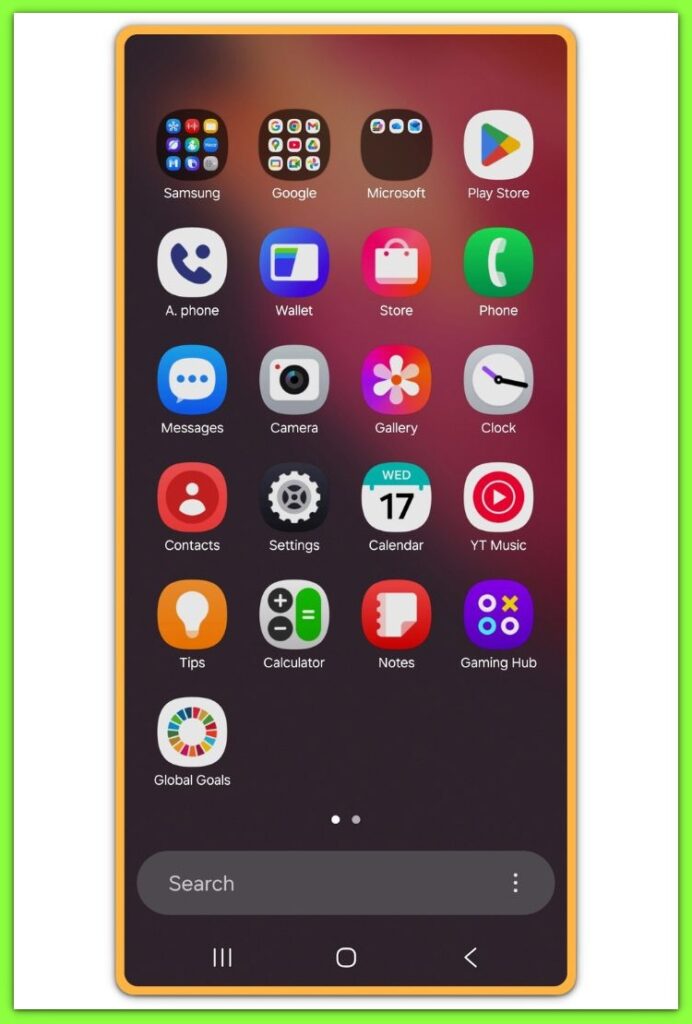
Open the Settings app on your Android phone.
Scroll down and tap System.
On Samsung devices, this menu often appears as General management.
This difference depends on the manufacturer, not the Android version.
All keyboard-related options start from this area.
Step 2: Go to Language and Input
Tap Languages & input.
This section controls keyboards, voice input, and typing behavior.
If the menu is hard to locate, use the Settings search bar.
Type keyboard and open the matching result.
This search method works reliably across most Android devices.
Step 3: Open On-Screen Keyboard
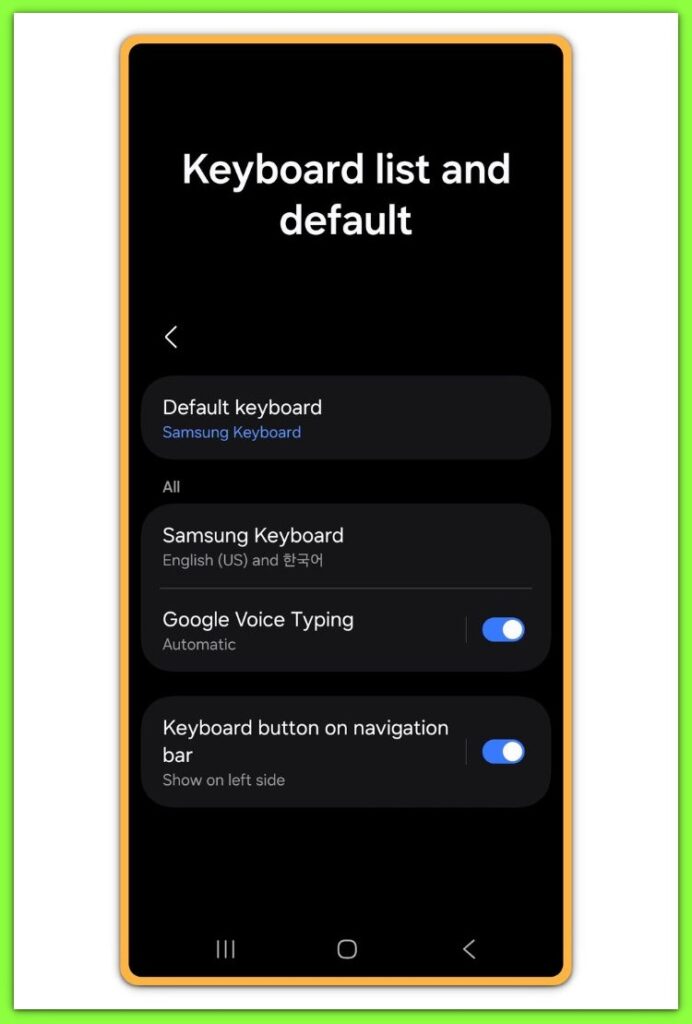
Tap On-screen keyboard.
You will see a list of all keyboards currently enabled.
Android allows multiple keyboards to remain active at the same time.
Only one keyboard is used as the default input method.
Keeping more than one keyboard enabled does not slow the device.
Step 4: Enable a New Keyboard
Select Manage keyboards.
Turn ON the keyboard you want to use.
Android will display a security warning.
This warning appears because keyboards can access typed text.
The message is standard and applies to all third-party keyboards.
Step 5: Set the Default Keyboard
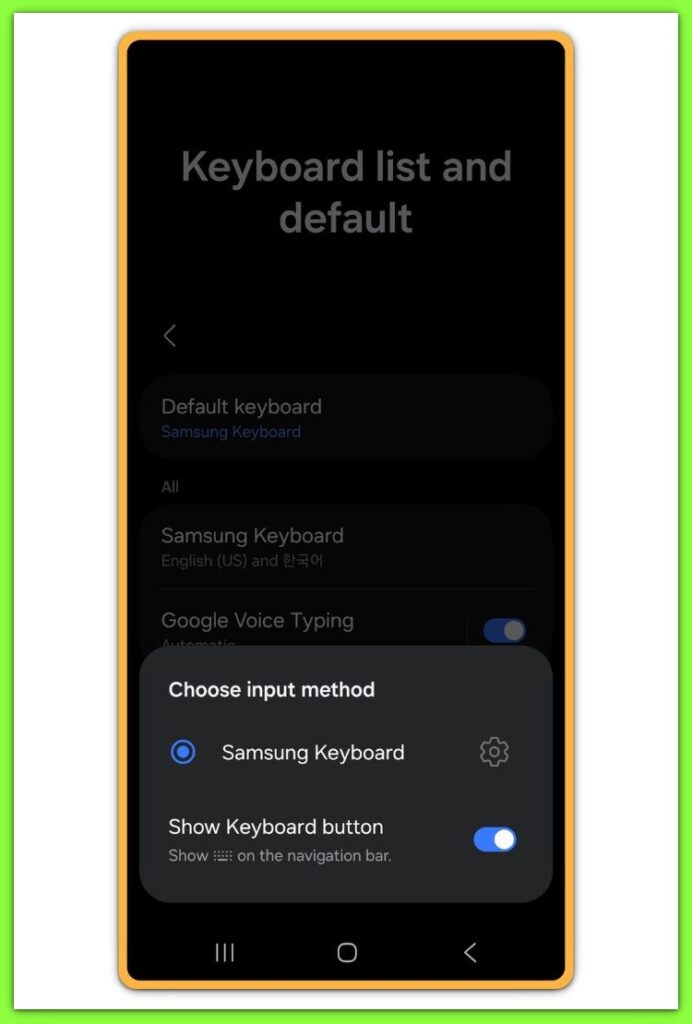
Return to On-screen keyboard.
Tap Default keyboard.
Select the keyboard you just enabled.
The input method switches immediately without restarting the phone.
From this point, the new keyboard is active in all apps.
Troubleshooting
If you cannot change keyboard on Android, the problem is rarely a system failure.
In most cases, the option exists but is not available yet.
The most common cause is an incomplete enablement.
Installing a keyboard does not make it selectable by default.
Android requires manual approval in Manage keyboards before the option appears.
Another issue comes from customized system menus.
Samsung, Xiaomi, and work-managed devices often move input settings to different paths.
When the layout feels unfamiliar, the Settings search bar is usually faster than manual navigation.
Work profiles and guest modes can also block keyboard changes.
On managed phones, input methods may be limited by policy.
In this situation, the keyboard may appear but cannot be selected.
Occasionally, settings do not refresh after updates or permission changes.
A restart is often enough to reload keyboard options correctly.
If the keyboard does not appear anywhere, test it inside one app first.
When it fails system-wide, reinstalling the keyboard usually resets permissions properly.
Additional Tips
You can switch keyboards temporarily without opening Settings.
This is useful when typing in multiple languages.
While typing, tap the keyboard icon in the navigation bar.
On some keyboards, long-pressing the spacebar opens the selector.
This method does not change the default keyboard.
It only switches input for the current session.
If the icon does not appear, check navigation settings.
Final Notes
Changing the keyboard on Android does not require advanced setup or rooting.
Once enabled, keyboards remain available across all apps.
Android remembers previously selected keyboards.
Switching back later does not require reinstallation.
Different apps do not override system keyboard choices.
Checklist
- Keyboard app installed
- Keyboard enabled in system settings
- Default keyboard selected
- Input works in multiple apps
A correct setup improves typing speed and consistency.
Extra Section 1
Change keyboard on Android varies slightly by device brand.
Samsung places input options under General management.
Pixel devices use System directly.
Some Android skins hide input menus deeper than expected.
In those cases, the Settings search bar is the fastest workaround.
Previously enabled keyboards remain stored after system updates.
Reinstallation is rarely required.
Keyboard preferences apply per user profile.
Guest mode may show limited keyboard options.
This behavior is normal and does not indicate a system issue.
Extra Section 2
Privacy concerns are common when users change keyboard on Android.
All keyboards can technically access typed data.
This is why Android displays a warning message during activation.
System keyboards are integrated more deeply with the operating system.
Third-party keyboards rely on permissions but still function normally.
They are restricted by Android’s security framework.
If privacy matters, review keyboard permissions after enabling.
Network access can be limited while keeping the keyboard active.
Choosing a keyboard depends on comfort, features, and trust.
Android gives full control through system settings.