
Introduction
The Android clipboard is one of the most basic system features, yet many users do not fully understand how it actually works.
On modern Android versions, copying and pasting goes beyond simple text transfer.
Instead, the clipboard includes history handling, temporary storage limits, and system-level privacy controls.
Many users assume that copied text stays saved permanently.
In practice, the Android clipboard behaves differently depending on the device, the keyboard app, and the Android version.
Because of these differences, understanding clipboard behavior is essential for reliable copy and paste use.
This guide explains how the Android clipboard works on the latest Android version, how to access clipboard history, and how to handle common clipboard-related problems.
Step-by-Step Guide
Step 1. How to Copy Text on Android
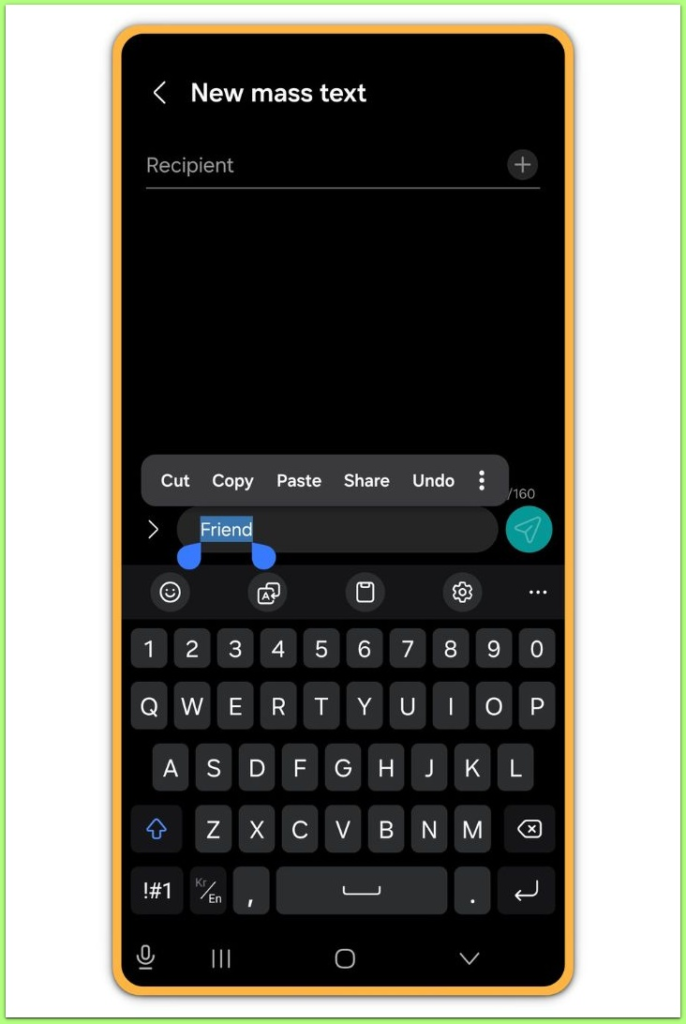
To copy text on Android, long-press the text you want to copy.
Next, adjust the selection handles to include the exact content, then tap Copy from the floating menu.
On the latest Android version, the system shows a brief confirmation at the bottom of the screen.
This message confirms that Android has sent the text to the clipboard.
At this stage, Android stores the content temporarily rather than permanently.
If the copy option does not appear, the app may restrict text selection.
For security reasons, some banking or secure apps intentionally block clipboard access.
Step 2. How to Paste Text from the Android Clipboard
To paste copied content, long-press inside a text input field.
Then, tap Paste from the context menu.
If multiple clipboard items exist, Android pastes only the most recent item by default.
However, the system does not offer a pop-up for older entries unless clipboard history is enabled through the keyboard.
If the Paste option does not appear, tap once inside the text field and try again.
In some apps, the cursor must be active before clipboard options appear.
Step 3. How to Access Clipboard History on Android
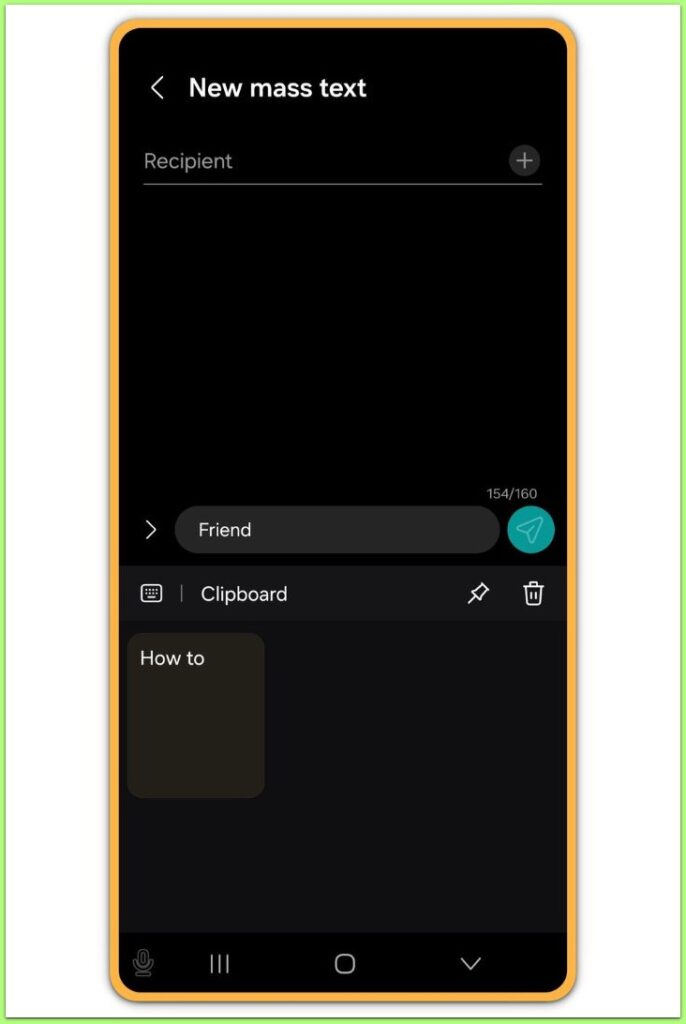
Android does not display clipboard history at the system level.
Instead, the keyboard app manages clipboard history.
On most devices:
- Open any app with a text input field
- Activate the keyboard
- Look for the Clipboard icon on the keyboard toolbar
On Google Pixel devices using Gboard, the Clipboard icon appears at the top of the keyboard.
On Samsung devices using Samsung Keyboard, the toolbar menu provides clipboard access.
If clipboard history is disabled, the keyboard usually prompts you to turn it on.
Once enabled, the keyboard displays recently copied items in a list.
Step 4. How to Pin, Edit, or Delete Clipboard Items
By default, Android treats clipboard history items as temporary.
To protect privacy, the system automatically clears them after a certain time.
To keep important text:
- Open the clipboard panel
- Long-press the item
- Tap Pin
Pinned items remain available until you remove them manually.
This feature helps when you reuse text such as addresses or reference notes.
You can also delete clipboard entries individually.
This step is recommended if you accidentally copied sensitive information.
Step 5. What to Do If Clipboard History Is Not Showing
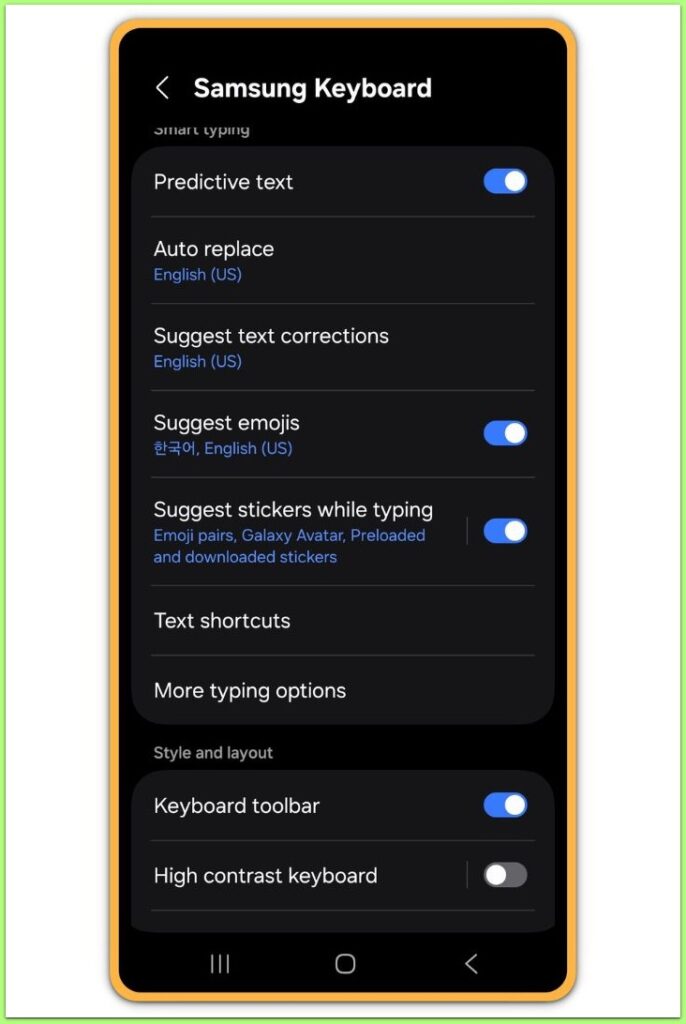
When clipboard history does not appear, the issue usually relates to the keyboard app.
First, confirm which keyboard is currently active.
Go to:
- Settings
- System
- Languages & input
- On-screen keyboard
If a third-party keyboard is installed, check its clipboard settings.
Some keyboards disable clipboard history by default.
If history still does not appear, force-close the keyboard app and reopen it.
In many cases, restarting the device restores clipboard functionality.
Troubleshooting
If the Android clipboard does not work as expected, consider the following cases.
On newer Android versions, copied text may disappear quickly.
This behavior is normal because Android automatically clears clipboard data to protect user privacy.
If copy and paste fails in a specific app, that app may intentionally block clipboard access.
Password managers and security-focused apps often behave this way.
If clipboard options never appear, check whether battery optimization restricts the keyboard app.
Background restrictions can interfere with clipboard services.
Additional Tips
Avoid copying sensitive information unless necessary.
Although clipboard data is temporary, some apps may request clipboard access under certain conditions.
Use pinning only for non-sensitive text.
Pinned items remain accessible until you remove them manually.
If clipboard history plays an important role in your workflow, keep the keyboard app updated.
System and keyboard updates often improve clipboard behavior.
Final Notes
At first glance, the Android clipboard looks simple.
Behind the scenes, however, the system carefully controls how clipboard data behaves.
Once you understand its limits and design, copy and paste becomes predictable and reliable.
Checklist
- Confirm clipboard access through the keyboard
- Enable clipboard history if needed
- Pin only essential items
- Clear sensitive data manually
- Restart the device if clipboard stops responding
Used correctly, the Android clipboard becomes a practical productivity tool rather than a hidden system feature.
Extra Section 1
Many clipboard issues occur because users expect desktop-style behavior.
On mobile devices, Android treats clipboard data as short-term memory rather than long-term storage.
This design choice is intentional.
As a result, the system prioritizes privacy and security over convenience.
Clipboard contents can expose passwords, messages, or private data if left accessible.
Because of this, newer Android versions aggressively limit clipboard persistence.
Even pinned items depend on keyboard implementation.
Different devices may behave differently despite running the same Android version.
Understanding this distinction helps avoid unnecessary troubleshooting.
Most clipboard issues reflect expected system behavior rather than bugs.
Extra Section 2
Another common mistake involves relying on clipboard history for important information.
Android does not guarantee long-term storage of clipboard content.
If text must remain available permanently, use notes or secure storage apps instead.
The clipboard should function strictly as a temporary transfer tool.
This mindset prevents data loss and reduces frustration.
Once expectations align with system design, the Android clipboard works exactly as intended.
For everyday use, mastering copy, paste, and clipboard history access is sufficient.
Anything beyond that belongs to dedicated productivity tools rather than the system clipboard.