
Introduction
Voice typing on Android is not a hidden accessibility feature.
Instead, it functions as a built-in input method designed to replace typing when speed or comfort matters more than perfect precision.
Many users assume voice typing feels unreliable or useful only for short messages.
However, Android voice typing works across most apps and supports punctuation, line breaks, and continuous dictation.
When accuracy drops, the microphone is rarely the problem.
In practice, setup issues or language mismatches cause most failures.
This guide shows how to use voice typing on Android correctly, step by step, without guessing or relying on third-party tools.
Step-by-Step Guide
Step 1 — Make Sure Gboard Is Your Default Keyboard
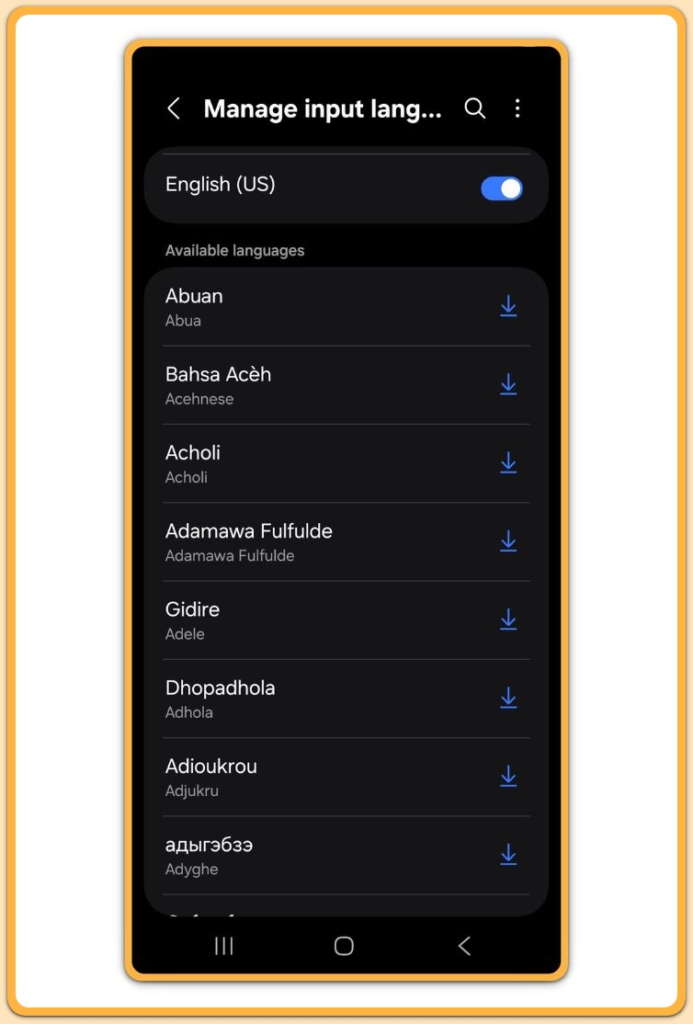
If Gboard is not installed, follow this guide on how to install apps safely on Android before continuing.
Voice typing on Android performs best with Gboard, Google’s official keyboard.
Open Settings.
Then move to System → Languages & input → On-screen keyboard.
Here, confirm that Gboard is enabled and set as the default option.
If another keyboard remains active, voice typing may feel limited or unavailable.
For example, some manufacturer keyboards hide voice input features entirely or place them behind extra menus.
Using Gboard ensures full compatibility with Android’s speech recognition system and reduces unexpected behavior.
Step 2 — Enable Voice Typing in Keyboard Settings
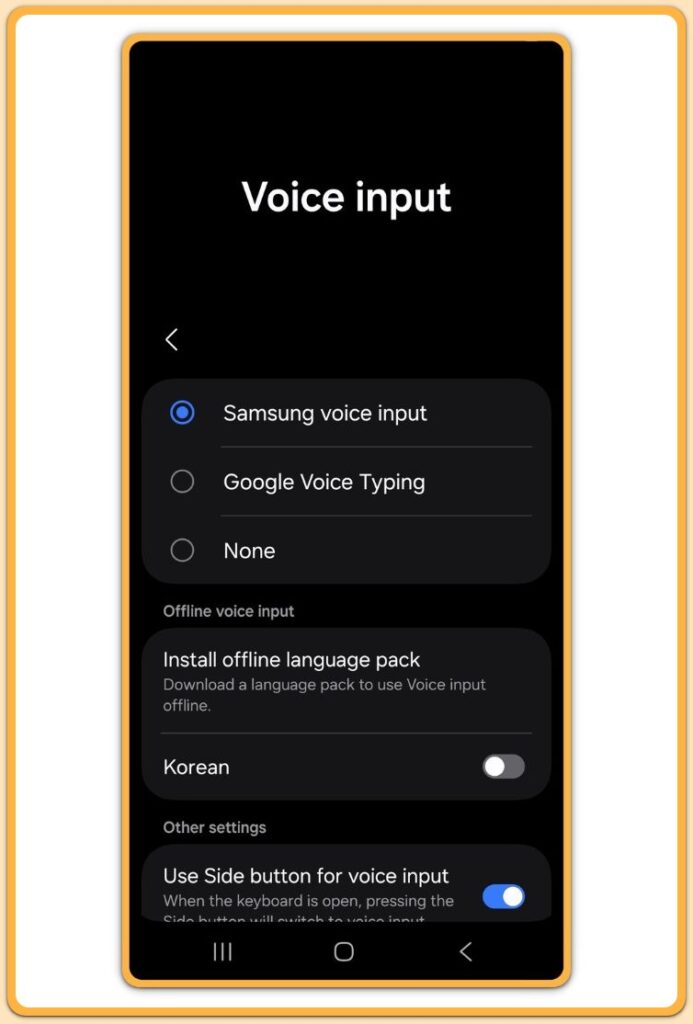
Next, open Settings → Languages & input → On-screen keyboard → Gboard.
Tap Voice typing.
Make sure Use voice typing is turned on.
Otherwise, the microphone icon will not appear even when Gboard is installed.
This toggle controls whether Android can convert speech into text at all.
After device resets, software updates, or phone changes, this option often switches off silently.
Step 3 — Open Any Text Field and Start Voice Typing
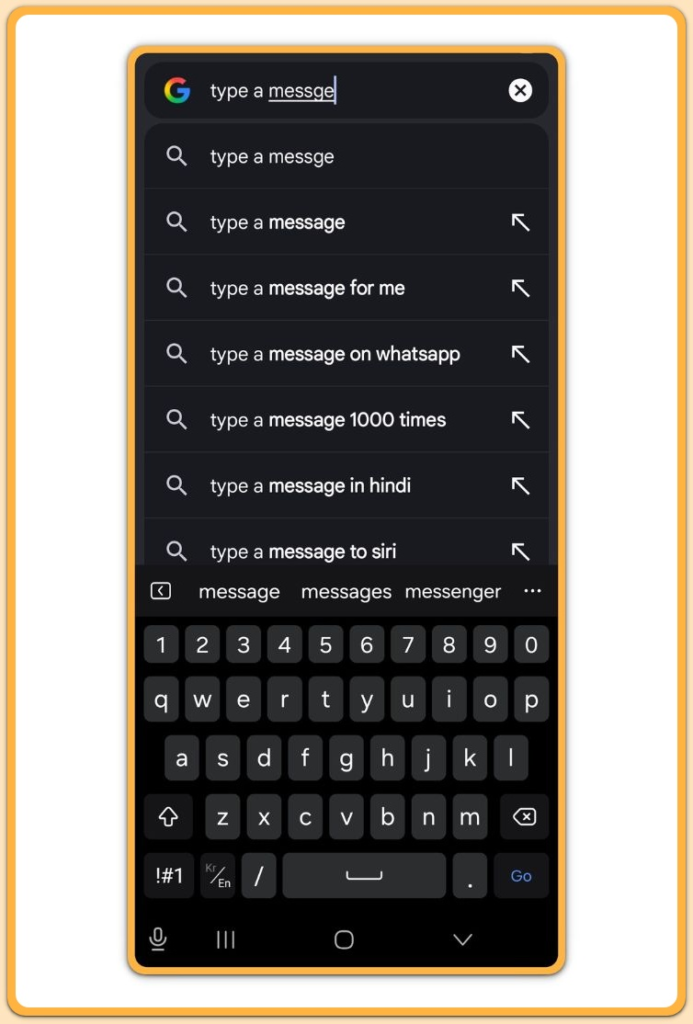
Open an app that accepts text, such as Messages, Notes, or a browser search bar.
Tap the text field to display the keyboard.
On the keyboard, locate the microphone icon and tap it once.
When the listening indicator appears, start speaking naturally.
Your words will appear as text in real time.
As a result, there is no need to speak slowly or unnaturally.
Step 4 — Use Spoken Commands for Punctuation and Formatting
Voice typing on Android supports spoken punctuation commands.
Say “period” to insert a full stop.
Say “comma” for a comma.
Say “new line” or “new paragraph” to control spacing.
Because of these commands, full sentences and structured text become possible without touching the keyboard.
Once users learn them, voice typing often becomes faster than manual typing, especially for longer messages.
Step 5 — Stop Dictation and Edit Normally
When finished, tap the microphone icon again to stop listening.
You can then edit the text using the keyboard as usual.
Voice typing does not lock the text or prevent manual corrections.
Most experienced users combine voice input for speed and typing for final cleanup.
Troubleshooting
If microphone access is blocked, check how to manage app permissions on Android and allow access for your keyboard.
If voice typing on Android does not work, check these common causes.
First, confirm microphone permission.
Go to Settings → Privacy → Permission manager → Microphone and allow access for the keyboard app.
Next, review language settings.
Voice typing accuracy depends on matching the spoken language with the selected input language.
Finally, ensure Google speech services remain enabled.
Disabling core Google components often breaks voice recognition without warning.
These issues relate to configuration, not hardware failure.
Real-World Troubleshooting Example
In real use, many failures happen after switching phones or restoring backups.
The keyboard appears normal, but the microphone icon either disappears or stops responding.
In most cases, Gboard is installed but no longer set as the default keyboard.
In others, the input language remains set to English while the user speaks another language.
Checking only these two settings solves the problem for most users within minutes.
Hardware replacement is almost never required.
Additional Tips
For broader input and system options, see Android Basic Settings for Beginners: Make Your Phone Easy and Safe to Use.
Voice typing performs best in quiet environments, but silence is not required.
Clear pronunciation matters more than background noise.
For longer dictation sessions, keep sentences short and structured.
Brief pauses between sentences usually improve accuracy and punctuation placement.
If you switch languages frequently, add multiple input languages in Gboard.
In many cases, Android can switch recognition languages automatically.
Although manufacturers place menus differently, the core behavior stays consistent across devices.
Final Notes
Voice typing on Android supports daily tasks beyond accessibility.
When configured correctly, it replaces typing for messages, notes, and searches with minimal friction.
Checklist
- Gboard set as the default keyboard
- Voice typing enabled in keyboard settings
- Microphone permission allowed
- Correct input language selected
- Spoken punctuation used for formatting
Once these conditions are met, voice typing becomes a reliable input method rather than a novelty.
Extra Section 1
Many users underestimate how deeply voice typing integrates into Android.
Rather than operating as a separate feature, it runs inside the system’s core input pipeline.
This structure allows voice typing to benefit from system updates without requiring manual changes.
As Android updates its speech recognition models, accuracy improves automatically.
Users often notice better results over time even when their settings remain unchanged.
This also explains why most third-party voice typing apps add little value.
They rely on the same speech engine while introducing extra permissions and complexity.
For long-term stability, the built-in solution remains the most predictable option.
Extra Section 2
Voice typing connects closely with accessibility and everyday productivity.
On large-screen phones, tablets, or foldable devices, voice input reduces hand movement and physical strain.
It allows text entry in situations where typing feels awkward or inefficient.
For users dealing with temporary injuries or repetitive strain, voice typing becomes a practical alternative rather than a special accessibility mode.
It lowers friction without changing how apps behave.
The key distinction is expectation.
Voice typing replaces raw text entry, not final editing.
When treated as an input accelerator, it consistently improves user experience.