
Introduction
Customize your Android home screen when apps, folders, widgets, and shortcuts spread across too many pages. Everything still opens, but simple tasks take longer when important items sit in the wrong place.
The background also changes how easy the screen is to read. A busy image makes names harder to see, while a cleaner picture helps icons and tools stand out.
Old widgets create another problem. Weather cards, clocks, calendar boxes, and saved shortcuts take space after you stop checking them. The page becomes crowded even when everything still opens normally.
The goal is a home screen that stays clear before you open items or move between pages.
Step-by-Step Guide: Customize Your Android Home Screen
Step 1: Clear The Current Screen
Check each page before changing the design. Remove shortcuts you no longer use, old widgets, duplicate folders, and empty pages. This gives you a cleaner base before you change colors, icons, or spacing.
Long-press a shortcut or widget, then drag it to Remove when the option appears. Removing a shortcut from the main page leaves the app installed. It only clears the visible item.
Keep daily apps on the first page or in the bottom dock. Move less important ones to another page or leave them inside the app drawer. A clean first page makes the phone easier to use.
Step 2: Change The Wallpaper And Icon Style
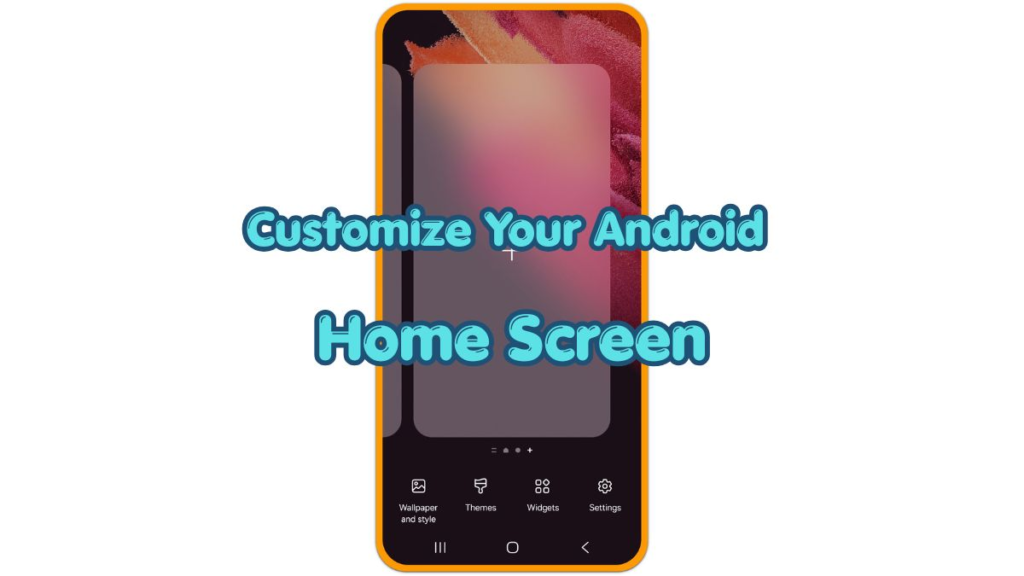
Long-press an empty area on the screen and open Wallpaper, Wallpaper and style, or Wallpapers and style. The exact name changes by Android version and phone brand. Many phones also keep the same controls inside Settings.
Choose a background that keeps labels easy to read. Simple images work better for daily use because icons, folders, and text stay visible. Bright or detailed photos work best when the busiest part sits away from important items.
Some Android phones include icon colors, themed icons, or a main color palette on the same page. Samsung phones often use Wallpaper and style or Galaxy Themes. Pixel phones usually group background, colors, and themed icons together.
Use one icon style across the main pages. Mixed shapes and colors make the design look unfinished, even when the background looks good.
Step 3: Arrange Widgets, Apps, And Folders
Add widgets only for information you check often. Long-press an empty area, tap Widgets, then choose a calendar, clock, weather, battery, notes, or music tool. Resize it when handles appear around the box.
Place larger items near the top or middle and keep daily apps near the bottom. This keeps useful information visible while leaving the easiest reach area for items you open often.
Create folders by dragging one shortcut onto another. Use short names such as Work, Tools, Media, Travel, or Social. Simple labels make the screen easier to scan.
Check the grid size if your launcher offers that setting. A tighter grid fits more icons, while wider spacing gives the page a cleaner look. Choose the arrangement that feels easier to use, not the one that holds the most items.
Troubleshooting
Troubleshooting 1: Icons Do Not Match After Changing The Theme
Some default launchers only give basic icon controls. If an icon pack fails to apply, open the phone’s theme store or launcher settings and check the icon section there. Samsung phones often use Galaxy Themes, while other Android phones support only built-in themed icons.
When only some icons change, the pack probably lacks designs for every app on the phone. Keep the most visible ones in one matching style, then move mismatched items into folders or later pages.
Troubleshooting 2: Widgets Disappear Or Stop Updating
Widgets depend on the app that provides them. If a weather, calendar, clock, or notes widget stops refreshing, open the related app once and check its permission, account, or background setting.
Remove the broken widget and add it again after checking the app. A fresh widget usually reloads the connection between the launcher and the app. If the same widget keeps failing, choose a simpler version from the same app.
Troubleshooting 3: Wallpaper Makes The Screen Hard To Read
A photo that looks good in the gallery often works poorly behind icons. Text labels become harder to read when bright areas, faces, patterns, or strong contrast sit behind names.
Choose a cleaner image, crop the busiest part away from the icon area, or use a darker version of the same picture. The best background supports the screen layout instead of competing with it.
Extra Section 1: When A Simple Setup Works Better
A simple setup helps when the phone has too many old shortcuts from months of use. You do not always notice the clutter at first because each shortcut arrived one at a time. After a while, the main page becomes harder to read and slower to use.
In that situation, changing the background alone will not fix the problem. Remove old shortcuts first, keep one useful widget, and place daily apps near the bottom. After that, the design looks cleaner because the screen has enough space to show each item properly.
Extra Section 2: When A Custom Launcher Makes Sense
A custom launcher helps when the default launcher feels too limited. Some people want a different grid size, icon shape, gesture shortcut, hidden app area, or stronger folder control. These options usually belong to launcher settings rather than the basic wallpaper page.
Use a custom launcher only when the default home screen lacks the layout options you want. Build the basic screen first, then test extra features slowly. Too many effects, gestures, and icon changes make the phone harder to manage, even when the design looks interesting at first.
Additional Tips
Keep the first page simple. It works better with daily apps, one useful widget, and a small number of folders instead of every important shortcut in one place.
Use the dock for items you open many times a day, such as Phone, Messages, Camera, Browser, or Maps. On many Android launchers, the dock stays visible across several pages, so it should hold the items that need the fastest access.
Review the arrangement again after a few days. Move hard-to-find items closer to the first page and push rarely used ones farther away.
Final Notes
Customize your Android home screen in a way that stays useful before it looks stylish. Wallpaper, icons, widgets, folders, and grid size should support the way you use the phone every day.
A clean screen keeps daily items easy to reach, removes old shortcuts, and uses a background that keeps important labels visible. Small changes often make the phone easier to use without rebuilding every setting at once.
Checklist
- Remove unused shortcuts, old widgets, duplicate folders, and empty pages.
- Keep daily apps on the first page or bottom dock.
- Choose a wallpaper that keeps app names easy to read.
- Use one icon style across the main pages.
- Place useful widgets where they stay easy to check.
- Review the layout after a few days and move hard-to-find apps closer.