
Introduction
Android screen cast to TV is no longer something people use only for presentations or initial device setup.
It has become part of everyday use in many households.
Watching videos together, sharing photos, or explaining how an app works feels more natural on a TV.
A phone screen becomes restrictive as soon as more than one person tries to view it.
This is usually when casting becomes the obvious choice.
Android includes built-in support for this feature, but the experience varies widely.
TV hardware, network conditions, and the chosen method all influence the outcome.
What works smoothly in one setup may behave differently in another.
This guide explains how Android screen cast to TV works in real usage today, why behavior differs across devices, and how to achieve consistent results based on practical conditions rather than assumptions.
Step-by-Step Guide
Step 1. Check if your phone supports Android screen cast to TV
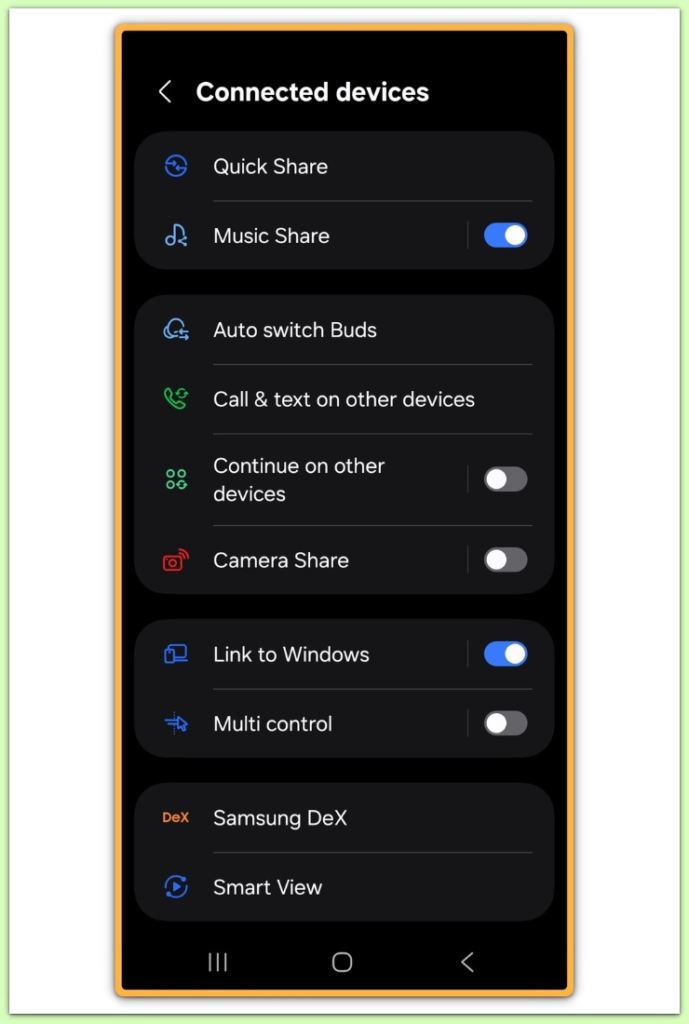
Before doing anything else, confirm that the phone supports Android screen cast to TV.
Open the Settings app.
Look under Connected devices or Display.
Depending on the manufacturer, the option may be labeled Cast, Screen Cast, or Screen Sharing.
The name changes, but the core function remains the same.
On some devices, this menu only appears after Wi-Fi or location services are enabled.
This often causes users to assume the feature is missing.
In most cases, it is simply hidden behind system conditions.
This is where many people stop too early.
Step 2. Connect using Chromecast
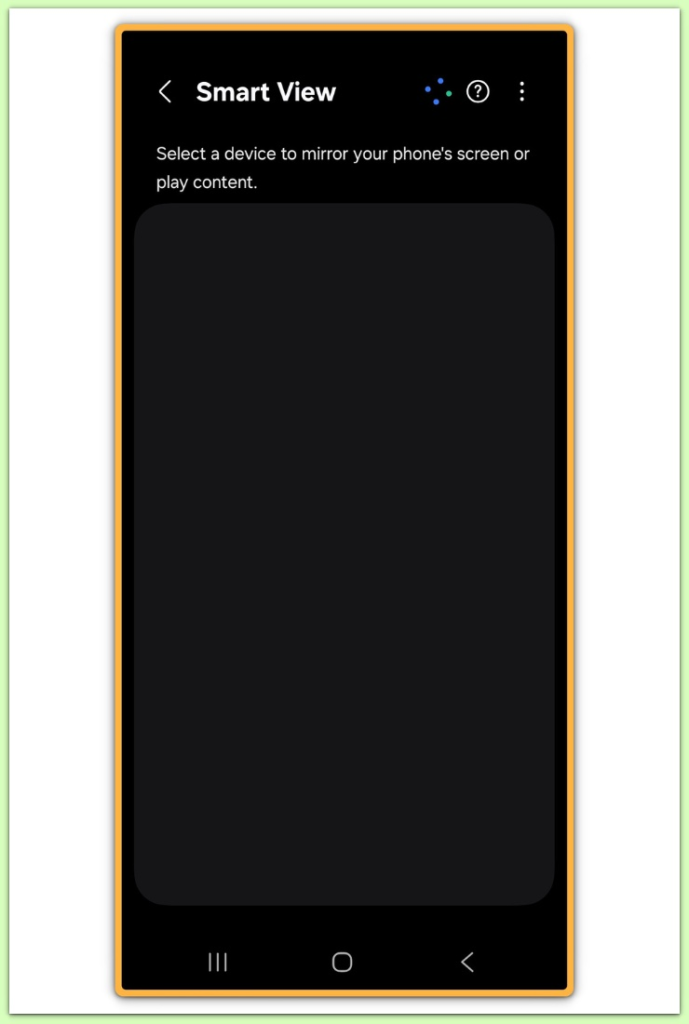
Chromecast provides one of the most consistent experiences for Android screen cast to TV in typical home environments.
Make sure both the phone and Chromecast are connected to the same Wi-Fi network.
If this condition is not met, other settings rarely matter.
Open the Cast menu from system settings or a supported app.
Wait briefly for the TV to appear in the device list.
On busy networks, discovery may take a few seconds.
Exiting too quickly often leads to unnecessary retries.
Once connected, playback is usually stable.
In real-world use, this method tends to produce fewer interruptions than TV-only solutions.
Step 3. Use casting on a Smart TV without extra hardware
Many Smart TVs support built-in wireless display sharing without requiring an external device.
First, enable Screen Mirroring or Cast mode from the TV settings menu.
If this option is disabled, the phone will not detect the TV.
Return to the phone and open the Cast menu again.
Some TVs require a manual refresh before appearing.
Performance depends heavily on the TV’s software version.
Older models may disconnect during screen rotation or resolution changes.
This behavior is often mistaken for a phone issue.
In most cases, it reflects limitations of the TV software.
Step 4. Choose between screen mirroring and cast mode
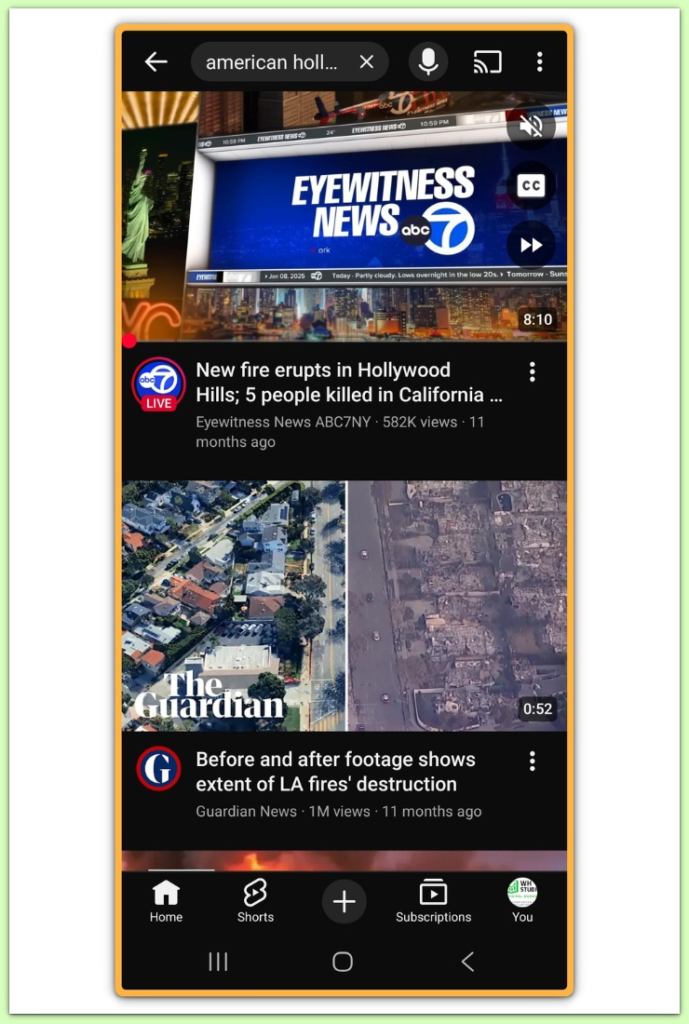
Screen mirroring and cast mode behave very differently in practice.
In cast mode, content is played directly on the TV.
The phone acts mainly as a controller.
Screen mirroring duplicates the phone display in real time.
This includes system menus and apps that do not support native casting.
Cast mode is better suited for long viewing sessions.
It consumes less battery and remains stable for longer periods.
Screen mirroring works best for short demonstrations or quick sharing.
Choosing the correct mode prevents most common issues.
In real use, screen mirroring causes issues during long sessions.
At first, playback looks fine.
However, video often falls behind after several minutes.
This behavior does not signal a broken feature.
Instead, it shows that mirroring exceeds its practical limits.
For longer viewing, switching to a direct casting method stabilizes the connection quickly.
Step 5. Fix common Android screen cast to TV connection issues
Connection problems are common when using Android screen cast to TV.
Confirm that both devices are connected to the same Wi-Fi band, not just the same network name.
Some routers automatically switch bands.
VPN or private DNS settings can interfere with device discovery.
Disabling them may restore detection.
If issues persist, check for TV firmware updates.
At this stage, network configuration usually matters more than hardware.
Troubleshooting
Repeated failures are often related to network behavior.
Weak Wi-Fi can cause lag, audio delay, or unexpected disconnections.
These symptoms are frequently misinterpreted as device faults.
Router replacements can also disrupt previously paired connections.
Removing and re-adding both devices often resolves the issue.
Factory resets should only be considered as a last resort.
In practice, network changes trigger most repeated failures.
For example, switching routers or adding a Wi-Fi extender often breaks existing connections.
As a result, devices stay visible but fail to connect or disconnect after a few seconds.
Because of this, restarting only the phone rarely solves the problem.
Instead, resetting the network connection on both devices fixes the issue more reliably.
Additional Tips
Chrome is commonly reliable for casting supported content.
System settings pages also tend to behave consistently.
Social apps and in-app browsers vary widely in behavior.
Results often change after app updates.
Be cautious when sharing sensitive information on a large screen.
Long sessions can reveal more content than intended.
Network quality becomes more critical as session length increases.
Final Notes
Android screen cast to TV works best when the method matches the situation.
Chromecast is suitable for extended viewing sessions.
Built-in TV mirroring is more appropriate for brief interactions.
Most frustration comes from using the wrong method for the task.
Understanding these limits prevents repeated troubleshooting.
If stability matters more than flexibility, choose a dedicated casting method first.
On the other hand, built-in mirroring works best when speed and simplicity matter most.
Problems usually begin when one approach tries to handle every situation.
Once these limits become clear, setup decisions feel easier and more predictable.
Checklist
- Confirm Cast or Screen Cast availability on the phone
- Connect both devices to the same Wi-Fi band
- Choose cast mode or mirroring intentionally
- Keep TV software up to date
- Network stability matters more than device brand
Extra Section 1
Android screen cast to TV is often compared with HDMI cable mirroring.
HDMI provides a direct signal with minimal delay.
This makes it suitable for gaming or professional presentations.
However, cables reduce flexibility.
They require physical access to the TV each time.
Wireless casting removes this friction.
The trade-off is full reliance on network stability.
In most households, convenience outweighs perfect reliability.
This is why wireless casting becomes the default over time.
Extra Section 2
Wireless display sharing continues to improve as Android and TV platforms evolve.
More apps now support native casting instead of full screen duplication.
This improves stability and reduces battery usage.
What matters most is consistency, not new features.
A stable connection makes the process feel invisible.
Understanding this prevents unnecessary setting changes.
It also makes switching devices or TVs easier in the long run.