
Introduction
Connect to Wi-Fi on Android becomes confusing when several names appear at the same time, the password fails, or the phone says connected but the internet still does not load. Beginners often tap a similar name, miss one letter in the password, or stay connected to an old saved connection without noticing it.
A Wi-Fi connection needs a few simple checks before you treat the phone as the problem. The name, password, signal strength, saved connection, and sign-in page all affect whether the connection works.
This guide explains how to connect to Wi-Fi on your smartphone in a clear order. Follow the steps below when you want to join a home, work, hotel, café, or public Wi-Fi without choosing the wrong one.
Step-by-Step Guide: Connect to Wi-Fi on Android
Step 1: Open Wi-Fi Settings and Pick the Right Name
Open the Settings app on your smartphone. On many phones, you also reach Settings by swiping down from the top of the screen and tapping the gear icon.
Find the Wi-Fi menu. Android phones often place it under Wi-Fi, Network & Internet, or Connections, depending on the brand.
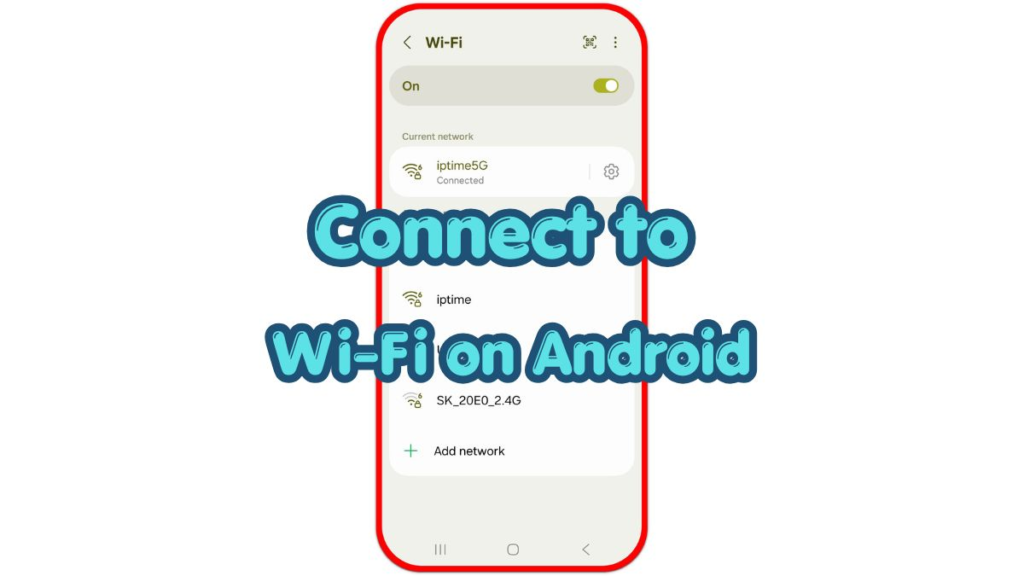
Turn Wi-Fi on and wait for the list to load. Check the name before tapping anything, especially in apartments, offices, cafés, hotels, and airports where many similar names appear together.
Choose the one you trust. At home, match the name with your router label or the name you set yourself. In a public place, use the name staff gives you instead of guessing from the list.
Step 2: Enter the Password and Check the Internet
Tap the name and enter the password carefully. Wi-Fi passwords treat uppercase letters, lowercase letters, numbers, and symbols as different characters, so one wrong character stops the connection.
Use the show password option when nobody nearby sees your screen. This helps you catch wrong letters, missing symbols, or accidental spaces before tapping Connect or Join.
After the phone connects, look for the word Connected near the name or the Wi-Fi icon at the top of the screen. Then open a browser or app to check whether the internet actually works.
A connected icon does not always mean the internet is ready. Some public places need a sign-in page, and some weak signals reach the router but fail to load pages properly.
Step 3: Manage Saved Connections and Auto-Connect
Open the details screen when the phone keeps joining the wrong Wi-Fi. Use Forget Network or Forget This Network for old, unsafe, or unused connections.
Keep auto-connect only for places you trust, such as your home or workplace. Turn it off for temporary public Wi-Fi, hotel Wi-Fi, café Wi-Fi, airport Wi-Fi, and places you used only once.
Check the signal when pages load slowly or calls drop. A weak signal often causes slow loading, failed downloads, dropped calls, or switching between Wi-Fi and mobile data.
Move closer to the router before changing many settings. If the same router keeps failing, check that router before changing phone settings.
Troubleshooting
Troubleshooting 1: Wi-Fi Password Does Not Work
Check the password again before changing other settings. Look for uppercase letters, lowercase letters, numbers, symbols, and extra spaces. If someone changed the router password recently, forget the old saved connection and reconnect with the current password.
Troubleshooting 2: Wi-Fi Connects but Pages Do Not Load
Open a browser and check whether a sign-in page appears. Hotels, cafés, airports, schools, and public buildings often connect first, then ask you to accept terms or enter access details before the internet starts working.
Troubleshooting 3: Wi-Fi Keeps Disconnecting
Move closer to the router and check whether the signal improves. Restart the router when every device in the house has the same problem. If the phone disconnects from every Wi-Fi connection, check the phone’s Wi-Fi settings and restart the phone.
Extra Section 1: Why Similar Names Cause Mistakes
Similar names create many beginner mistakes. A phone often shows your router, a neighbor’s router, guest access, and public access with almost the same name. Choosing the strongest-looking signal does not always lead to the right connection.
Match the name with a trusted source before connecting. Use the router label at home, workplace instructions at the office, or the name staff gives you in a public place. This prevents password errors and lowers the chance of joining the wrong connection.
Extra Section 2: When to Forget a Wi-Fi Network
Forgetting a saved connection helps when the phone keeps using an old password or reconnecting to something you no longer want. It also helps after a router name change, password change, hotel stay, airport visit, or temporary public Wi-Fi.
After you forget it, the phone treats it like a new connection. Choose the correct name again, enter the current password, and test the internet before leaving it saved for future use.
Additional Tips
Use a strong password for home Wi-Fi and change it when too many people already know it. A shared password spreads quickly, especially in apartments, offices, and homes with many visitors, so the connection becomes harder to control over time.
Public Wi-Fi needs a different habit. Ask for the official name before joining, keep auto-connect off for temporary places, and forget old public Wi-Fi after travel, hotel stays, or one-time use. When every device in the house has the same problem, restart the router before changing phone settings.
Final Notes: Connect to Wi-Fi on Android
A reliable connection starts with the correct name, the correct password, and a quick internet check after the phone connects. When it fails, check the password, signal, saved connection, and public sign-in page before changing unrelated phone settings.
Use auto-connect only for trusted Wi-Fi and remove old public Wi-Fi after temporary use. These checks keep your smartphone from joining the wrong place and make connection problems easier to fix.
Checklist
- Check the name before tapping it.
- Enter the password with the correct letters, numbers, and symbols.
- Open a browser after connecting to confirm the internet works.
- Forget old connections that keep reconnecting by mistake.
- Keep auto-connect only for trusted home or work Wi-Fi.
- Move closer to the router when the signal feels weak.