
Introduction
────────────────────────
Nearby Share Android is a built-in feature that lets users transfer photos and files between Android devices without cables or third-party apps.
The system combines Bluetooth, Wi-Fi, and local device discovery to complete the transfer.
At first glance, the feature appears simple.
However, in real use, many people feel confused when devices fail to appear or transfers stop without explanation.
In most cases, these failures do not happen randomly.
Instead, one required condition is usually missing at the exact moment of use.
For that reason, this guide focuses on real usage behavior rather than feature descriptions.
Each step explains the conditions required for reliable transfers.
────────────────────────
Step-by-Step Guide
────────────────────────
Step 1: Locate Nearby Share Settings on Android
Nearby Share Android works only when the feature is enabled in the correct settings location.
Many users search general sharing menus first and overlook the actual setting.
On recent Android versions, follow this path:
Settings
Google
Devices & sharing
Nearby Share
If this menu remains disabled, the device will never appear to others.
Therefore, turning it on is mandatory before any transfer attempt.
Device menus may vary slightly by manufacturer.
Even so, the Google → Devices & sharing path remains consistent on current Android builds.
Step 2: Choose the Correct Device Visibility Mode
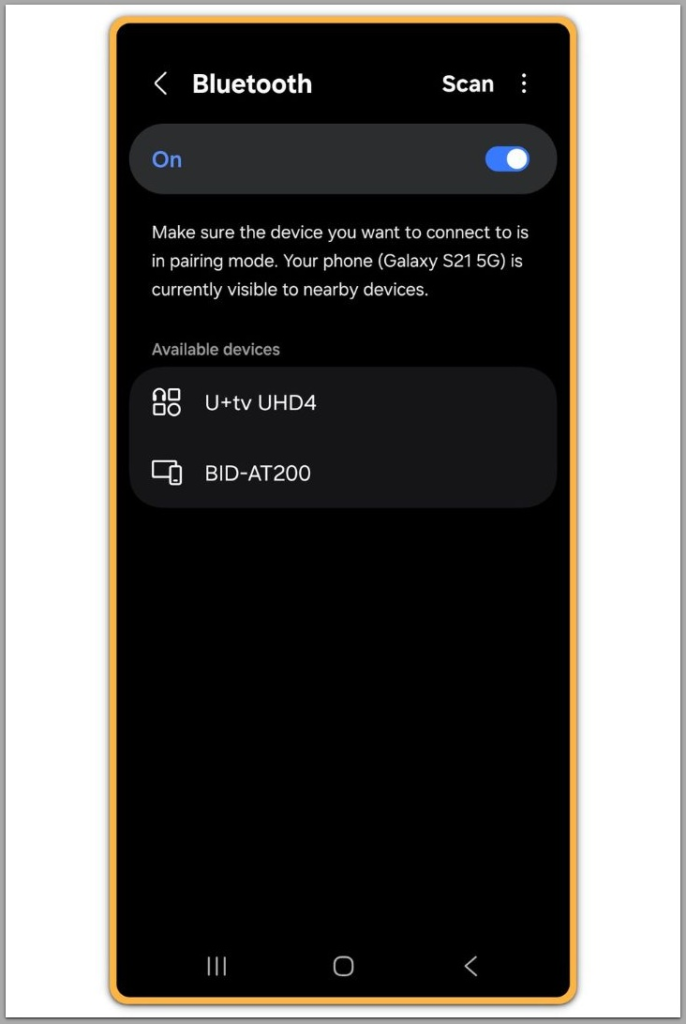
The feature uses visibility rules to control which devices can discover each other.
This setting directly determines whether the receiving device appears in search results.
Typically, three options are available:
Contacts only
Your devices
Everyone
When the device uses Contacts only, discovery often fails.
This usually happens because contacts are not fully synced or required permissions are missing.
For testing and troubleshooting, Everyone provides the most reliable results.
After transfers work consistently, visibility can be restricted again.
Step 3: Keep Both Devices Active and Unlocked
The transfer process does not function correctly when either device is locked or idle.
During discovery, both screens must remain on.
If one device locks itself, the connection attempt usually fails without warning.
Android treats this behavior as intentional rather than an error.
For that reason, keep both devices awake until the transfer begins.
Discovery does not support background operation.
Step 4: Check Bluetooth and Location Requirements
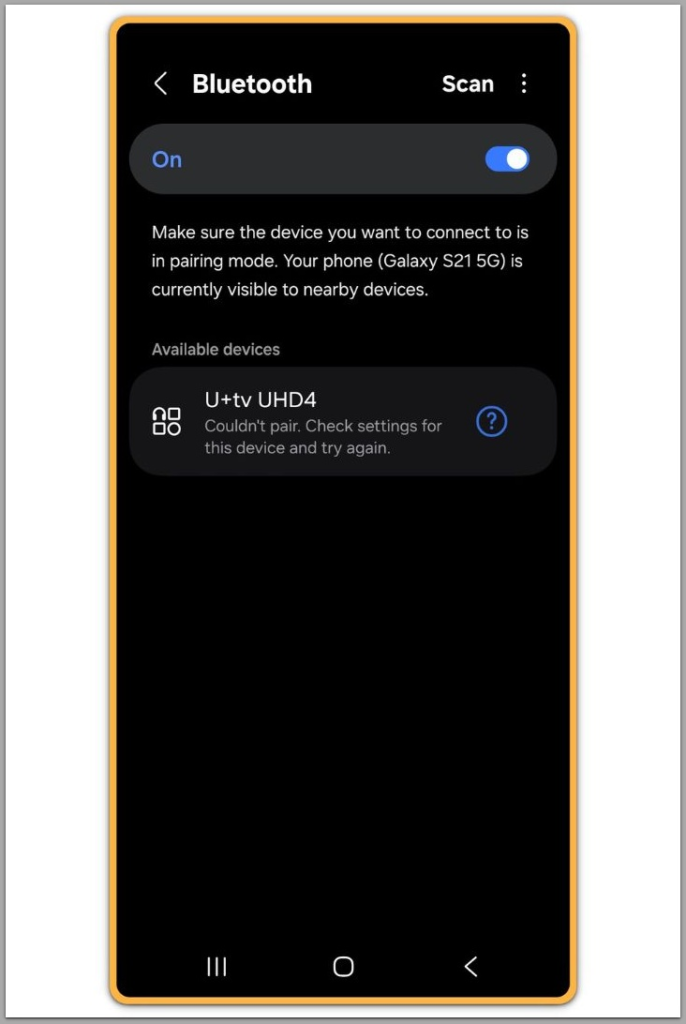
The system relies on Bluetooth for initial discovery.
When Bluetooth is off, device scanning does not work.
In addition, Location services must remain enabled.
Android requires location permission to scan nearby devices, even when GPS accuracy is unnecessary.
If either Bluetooth or Location is disabled, the device will not appear.
This requirement is strict and cannot be bypassed.
Step 5: Start the File or Photo Transfer
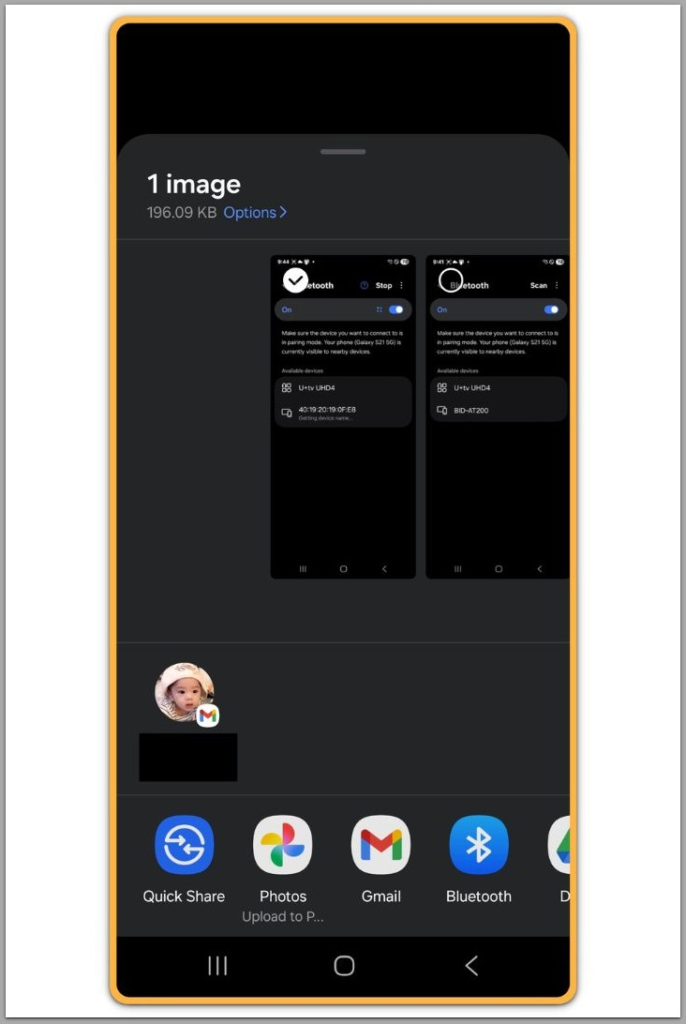
After both devices become visible, start the transfer from the sending device.
Select the photo or file
Tap Share
Choose Nearby Share Android
Next, the receiving device displays a confirmation prompt.
The transfer begins only after the recipient accepts the request.
For large files, the system automatically switches from Bluetooth to Wi-Fi.
This behavior is normal and improves transfer speed.
────────────────────────
Troubleshooting Nearby Share Android Issues
────────────────────────
Nearby Share Android issues usually follow predictable patterns.
If no devices appear, visibility mode should be checked first.
If discovery succeeds but the transfer fails, locked screens are often responsible.
Slow transfers usually point to weak Wi-Fi conditions.
In that case, moving both devices closer together improves stability.
When problems persist, toggling Nearby Share off and on often resets the connection state.
A full device reboot is rarely necessary.
────────────────────────
Additional Tips
────────────────────────
Nearby Share Android performs best when both devices run similar Android versions.
Large version gaps can introduce inconsistent behavior.
Keeping the feature enabled at all times is unnecessary.
Users can leave it off until needed without affecting system performance.
For frequent transfers between personal devices, the “Your devices” option reduces confirmation prompts.
This mode works only when both devices use the same Google account.
────────────────────────
Final Notes
────────────────────────
Transfers work reliably when the required conditions are met.
In most cases, problems appear because one critical setting is simply missed.
In everyday situations, most problems come from small oversights rather than system flaws.
People often expect the transfer to work automatically, even when basic conditions are not aligned.
What makes the difference is not speed or device age, but awareness.
Checking screen state, permissions, and visibility takes only a moment, yet prevents most failures.
Once this pattern becomes familiar, the process feels controlled instead of unpredictable.
Transfers stop feeling random and start behaving consistently.
Using it successfully is less about troubleshooting and more about preparation.
When the setup is respected, the result is usually smooth and repeatable.
Checklist
Nearby Share enabled in settings
Visibility set appropriately
Bluetooth and Location turned on
Screens unlocked on both devices
Devices within close range
When these conditions are satisfied, transfers usually succeed without delay.
────────────────────────
Extra Section 1
────────────────────────
Nearby Share Android does not aim to replace cloud storage.
Instead, it focuses on immediate, local file exchange.
Because it relies on proximity, it avoids internet upload delays.
As a result, it works well for quick photo sharing or document handoffs.
At the same time, the feature remains sensitive to device state.
Background restrictions, battery optimization, and power-saving modes can interfere.
Understanding these limitations prevents false assumptions.
Nearby Share Android works best when treated as a short-range tool rather than a background service.
────────────────────────
Extra Section 2
────────────────────────
Many users expect this feature to behave like AirDrop without adjustment.
This expectation often leads to frustration.
Android provides more system control, but it requires proper setup.
Once configured correctly, the feature behaves in a stable and predictable way.
Discovery depends on multiple signals working together.
If even one signal is blocked, the entire process stops.
Using Nearby Share Android successfully depends less on speed and more on conditions.
When the environment is right, the feature performs exactly as intended.