
Introduction
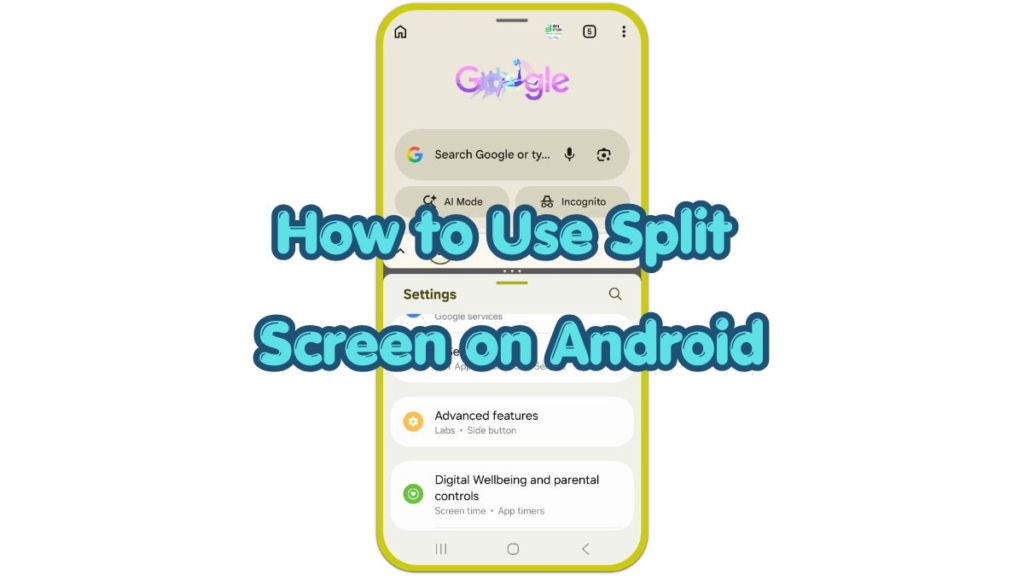
How to use split screen on Android is simple once you know where to find the option. It helps when you need two apps open at the same time, such as watching a video while taking notes, reading a message while checking a webpage, or comparing information without switching back and forth.
Android does not always show the button clearly. Most Android phones place it inside the Recent Apps screen, and some brands use slightly different names such as Split screen, Split screen view, or Open in split screen view.
The order is clear. Open the first app, choose the split screen option from Recent Apps, then select the second app and adjust the layout.
Step-by-Step Guide: How to Use Split Screen on Android
Step 1: Open Recent Apps And Pick The First App
Open the first app you want to use in split screen. Then open the Recent Apps screen by swiping up from the bottom and holding for a moment. On phones with navigation buttons, tap the Recent Apps button.
Find the app preview you want to place first. Tap the app icon at the top of the preview, not the middle of the app window. A small menu opens with options for that app.
Choose Split screen, Open in split screen view, or a similar option. Android places that app in the top part of the screen or on one side when the phone is in landscape mode.
Step 2: Choose The Second App
After the first app moves into split screen, Android shows recent apps or the home screen in the remaining space. Tap the second app you want to use.
If the second app is not in the recent list, go to the home screen or app drawer and open it from there. Android places the second app in the open part of the split screen layout.
Use both apps normally after they appear together. Tap inside the upper or lower app before typing, scrolling, or selecting something so Android knows which app you want to control.
Step 3: Adjust Or Close Split Screen
Drag the divider between the two apps to change the space each app gets. Move the divider up or down in portrait mode, or left or right in landscape mode.
Give more space to the app that needs reading, typing, or scrolling. A video app usually needs less room, while a browser, document, map, or notes app usually feels better with more space.
To close split screen, drag the divider all the way to the top, bottom, left, or right edge of the screen. The app on the larger side stays open, and the other app leaves the split screen view.
Troubleshooting
Troubleshooting 1: Split Screen Option Does Not Appear
Some apps do not support split screen. Games, banking apps, camera apps, payment apps, and some video or security apps often block multitasking for display or privacy reasons.
Try another app from the Recent Apps screen. When the option appears for one app but not another, the blocked app is the problem, not the phone setting.
Troubleshooting 2: The Second App Opens Full Screen
The first app sometimes leaves split screen when the second app does not support the layout. Open a simple app such as Messages, Notes, Chrome, Settings, or Gmail to test the feature again.
If the same problem keeps happening, close both apps from Recent Apps and open them again. Use one basic app first to help the layout stay in place.
Troubleshooting 3: The Divider Does Not Move Smoothly
The divider works only after both apps fully load. Wait a few seconds, then drag the bar again from the center of the line between the two apps.
Screen rotation also changes the layout. Lock rotation when the split screen keeps flipping between portrait and landscape, especially while watching videos or reading long pages.
Extra Section 1: Best App Combinations For Split Screen
Split screen works best when the two apps support the same task. A browser and notes app work well for research. A video app and messaging app help when you want to watch something while replying. A map and calendar app help when checking an address against a schedule.
Avoid using two heavy apps together when the phone already feels slow. Video calls, games, navigation, and large documents use more memory and battery, so the layout feels smoother with one heavy app and one simple app.
Extra Section 2: Why Split Screen Looks Different On Some Phones
Android brands use different menu names and gestures. Samsung phones often show Open in split screen view from the app icon menu. Other Android phones show Split screen or place the option inside a small menu on the app preview.
Tablet and foldable screens handle split screen differently because the display is wider. The divider has more room to move, and each app feels closer to a small desktop window than a narrow phone panel.
Additional Tips
Landscape mode gives split screen more room when both apps need wide content. It works well for videos, documents, maps, and web pages.
Keep the lighter app in the smaller window when possible. Notes, messages, calculators, and simple web pages usually work better in the smaller space than video calls, maps, or long documents.
Close split screen when you finish the task. Running two apps together uses more screen space, battery, and memory than using one app at a time.
Final Notes
Split screen is useful when one task needs two apps at once. The key is the app icon inside Recent Apps, because that menu usually holds the split screen option.
If split screen does not work, test a different app first. Many problems come from apps that do not support multitasking, not from a broken Android setting.
Checklist
- Open the first app before using Recent Apps.
- Tap the app icon at the top of the preview.
- Choose Split screen or Open in split screen view.
- Select the second app from Recent Apps, Home, or the app drawer.
- Drag the divider to resize the two app windows.
- Close split screen by dragging the divider to the edge of the screen.