
Introduction
Scrolling screenshot Android is a built-in feature that allows you to capture long pages as a single image.
It removes the need to take multiple screenshots and manually stitch them together later.
This becomes especially useful when dealing with web articles, long chat histories, or system settings that extend beyond one screen.
At first glance, the feature seems simple.
However, many users quickly notice that it does not appear everywhere.
On some screens, the option shows up instantly, while on others it never appears at all.
This difference is not random.
Android version, app structure, and manufacturer customization all affect how scrolling screenshot Android behaves.
Missing one small step, such as timing the preview tap, is often enough to make the option disappear.
This guide explains how scrolling screenshot Android works on the latest Android versions, why it sometimes fails, and how to get consistent results based on real device behavior.
Step-by-Step Guide
Step 1: Open the Content You Want to Capture
Open the screen that contains long, scrollable content.
This may be a Chrome web page, a messaging conversation, or a system settings page.
Always scroll to the very top of the section you want to capture.
Scrolling screenshot Android captures content downward from the current position.
Starting in the middle often results in missing context at the top.
If the page loads content dynamically, wait until everything is visible.
Partially loaded pages frequently stop the capture early, even on supported apps.
Step 2: Take a Standard Screenshot
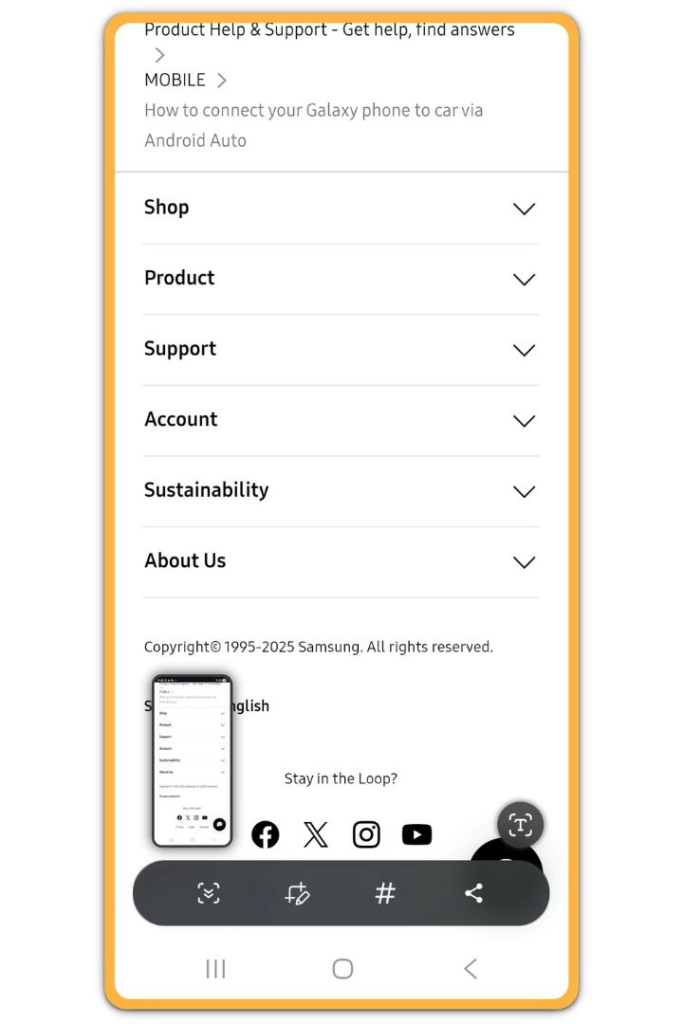
Press Power + Volume Down at the same time.
Release both buttons quickly.
A screenshot preview appears near the bottom of the screen.
This preview is critical.
Scrolling screenshot Android cannot be activated without it.
If the preview does not appear, the timing was off.
Take the screenshot again before continuing.
Step 3: Tap “Capture More” or the Expand Icon
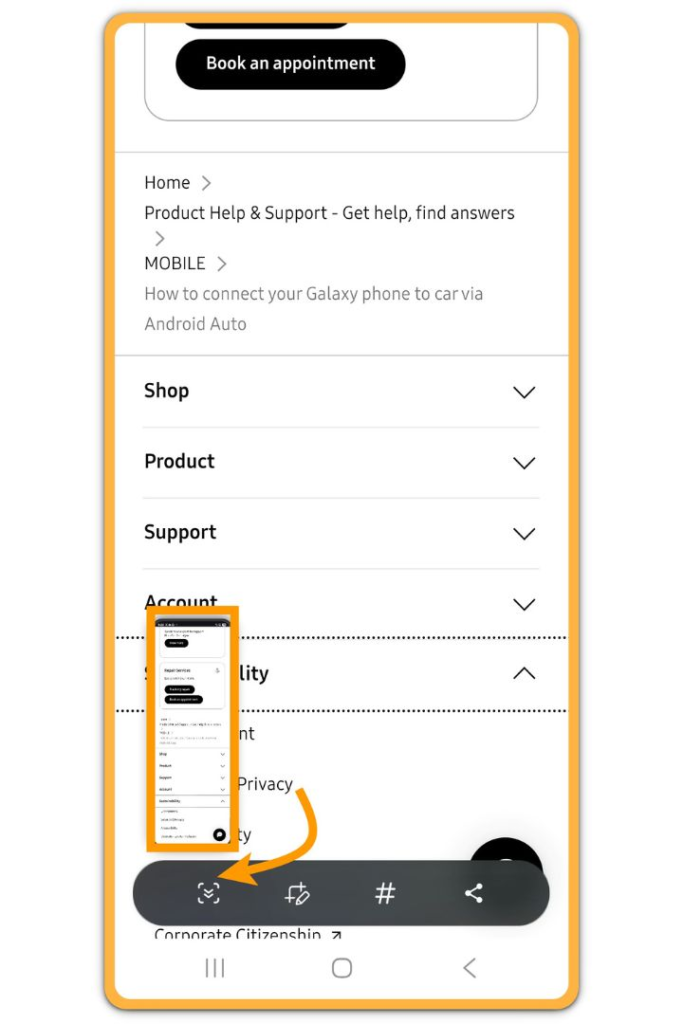
Immediately tap “Capture more” or the expand icon shown on the preview.
The exact label varies by device and Android skin, but the icon behavior is consistent.
This option appears only on supported screens.
If the preview fades away before you tap it, the scrolling option disappears.
In that case, take the screenshot again and tap faster.
Once activated, the screen switches into extended capture mode.
Step 4: Adjust the Capture Area
Drag the bottom handle to extend the capture area.
Preview the full page carefully before saving.
Some apps limit how far you can extend the capture.
This is not a system error.
It is an app-level restriction enforced by Android.
In practice, Chrome usually allows long captures, while social apps often stop early.
Step 5: Save or Edit the Screenshot
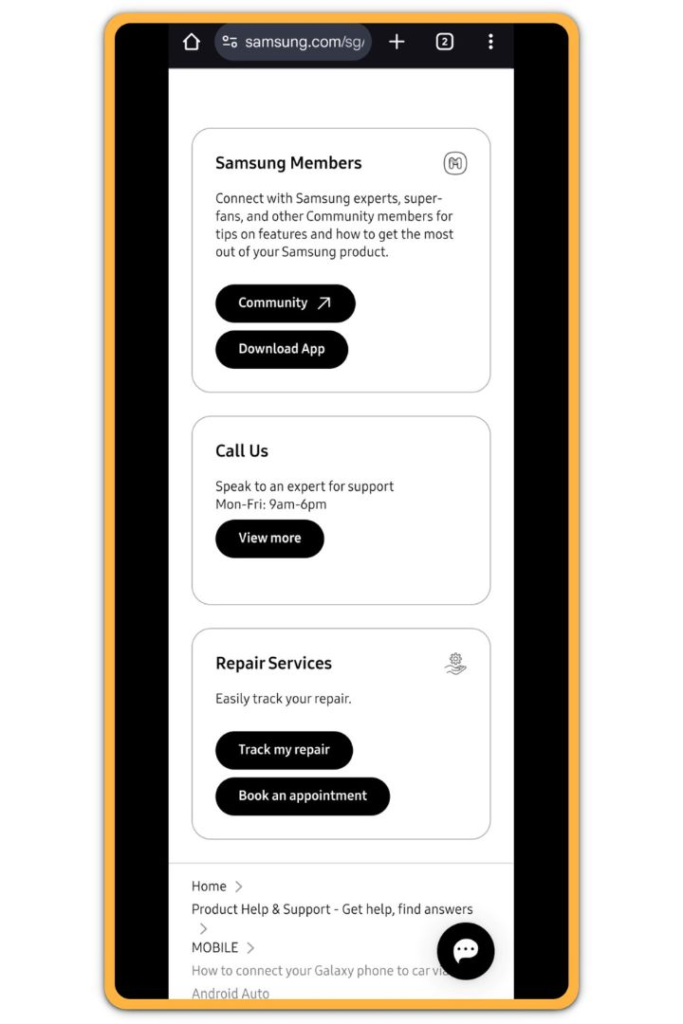
Tap Save to finish the capture.
You can annotate or crop before saving if needed.
Scrolling screenshot Android saves the result as one tall image file.
It appears in your gallery like a normal screenshot.
Sharing works the same way, although large files may take longer to upload.
Troubleshooting
If the scrolling option never appears, the app may block extended capture entirely.
This commonly happens inside in-app browsers.
Opening the same page in Chrome often restores scrolling screenshot Android immediately.
System updates also matter.
Older Android versions may lack full support or behave inconsistently.
If the feature previously worked but suddenly stopped, restarting the device can refresh screenshot services.
This simple step resolves more issues than most users expect.
Additional Tips
Chrome remains the most reliable app for scrolling screenshot Android.
System settings pages also tend to work consistently.
Messaging apps and social platforms vary widely.
Some allow partial extension, while others block it completely.
Be careful when capturing sensitive information.
Long screenshots may include content you did not intend to share.
File sizes can also grow quickly when capturing very long pages.
Final Notes
Scrolling screenshot Android works best when you understand its limitations.
It is reliable on supported screens, but it is not universal.
Checklist
- Start from the top of the content
- Use system screenshot buttons
- Tap “Capture more” immediately
- Adjust capture length carefully
- Review the image before sharing
One clean capture is always better than many fragmented screenshots.
Extra Section 1
Extended screenshots are stored as tall images rather than stitched segments.
This design allows smoother scrolling and zooming, but it also introduces compatibility issues.
Some apps fail to preview tall images correctly.
They may appear broken or truncated, even though the file itself is intact.
Opening the image in the default gallery usually confirms that the capture is fine.
Cloud services may compress long screenshots aggressively.
This can blur text or cut off the bottom portion.
Saving locally, editing if needed, and then uploading helps preserve quality.
For documentation and guides, scrolling screenshot Android provides clearer context than multiple separate images.
Extra Section 2
Manufacturers often rename the scrolling capture option.
Samsung devices may display different wording compared to Pixel phones.
Despite this, the underlying function remains the same.
The key is to focus on the expand or capture-more icon, not the label.
Once you recognize the icon, scrolling screenshot Android becomes predictable across devices.
This understanding prevents confusion when switching phones or Android skins and helps maintain consistent results.