
────────────────────
Introduction
────────────────────
Organize photos on android becomes a real concern sooner than most people expect.
Screenshots, downloads, shared images, and camera photos pile up quickly.
As a result, scrolling through everything stops working.
Android already includes enough tools to manage this situation.
However, people usually run into problems because they misunderstand how albums behave, not because features are missing.
This article focuses on organizing photos with Google Photos albums based on how the system works in real use rather than ideal assumptions.
────────────────────
Step-by-Step Guide to Organize Photos on Android
────────────────────
Step 1: How Albums Actually Work
Google Photos albums do not create separate storage locations.
Instead, they point to photos that already exist in the main library.
When someone removes a photo from an album, the system leaves the original file untouched unless the user deletes it manually.
Because of this behavior, many mistakes happen.
People often assume albums act like folders and panic when images seem to disappear.
In reality, the photo still exists.
Only the album reference is gone.
Step 2: Create Albums by Purpose, Not by Date
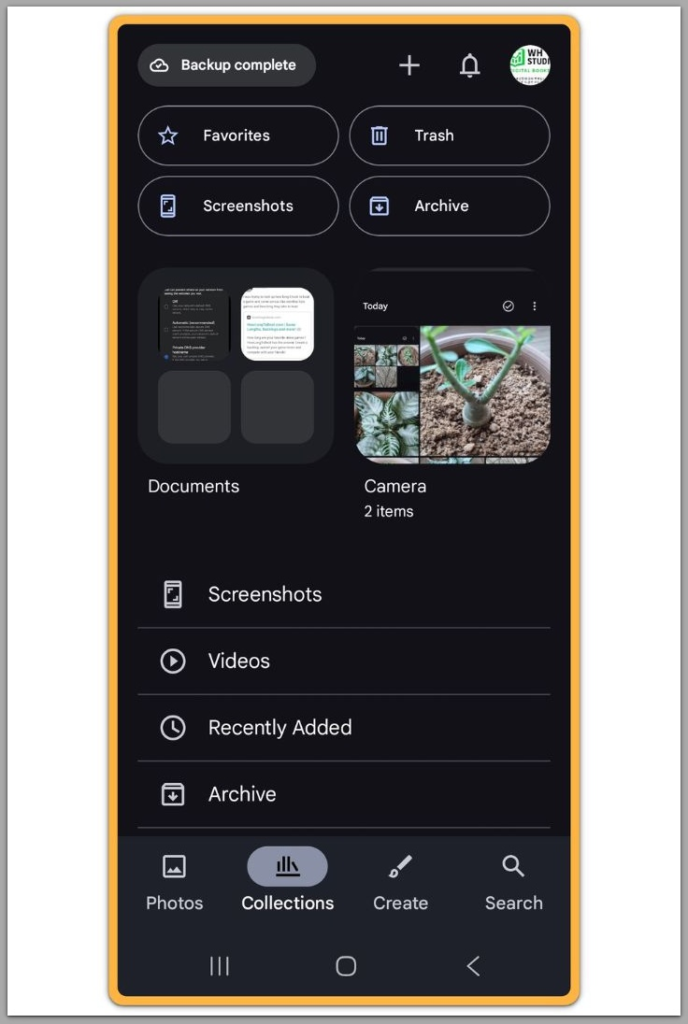
First, open Google Photos and move to the Albums tab.
Next, create albums based on why the photo exists rather than when it was taken.
Documents, Receipts, Family, Work, and Travel remain useful over time.
Meanwhile, date-based albums break down because new photos keep arriving.
For long-term use, purpose-based albums stay manageable when you organize photos on android over months or years.
Step 3: Add Photos in Large Batches
Use a long press to select multiple photos at once.
Then add them to an album in a single action.
Avoid moving photos one by one whenever possible.
On recent Samsung Galaxy devices, batch selection stays stable even with large libraries.
If selection becomes unreliable, background sync usually runs at the same time.
Waiting for sync to finish prevents unnecessary errors.
Step 4: Use Search Before Manual Sorting
Search works faster than scrolling.
For example, search for screenshots, downloads, receipts, or location names.
After that, select the results and assign them to albums.
People who skip this step often fail to organize photos on android efficiently.
Manual scrolling increases missed files and wastes time.
Step 5: Separate Screenshots and Downloads Immediately
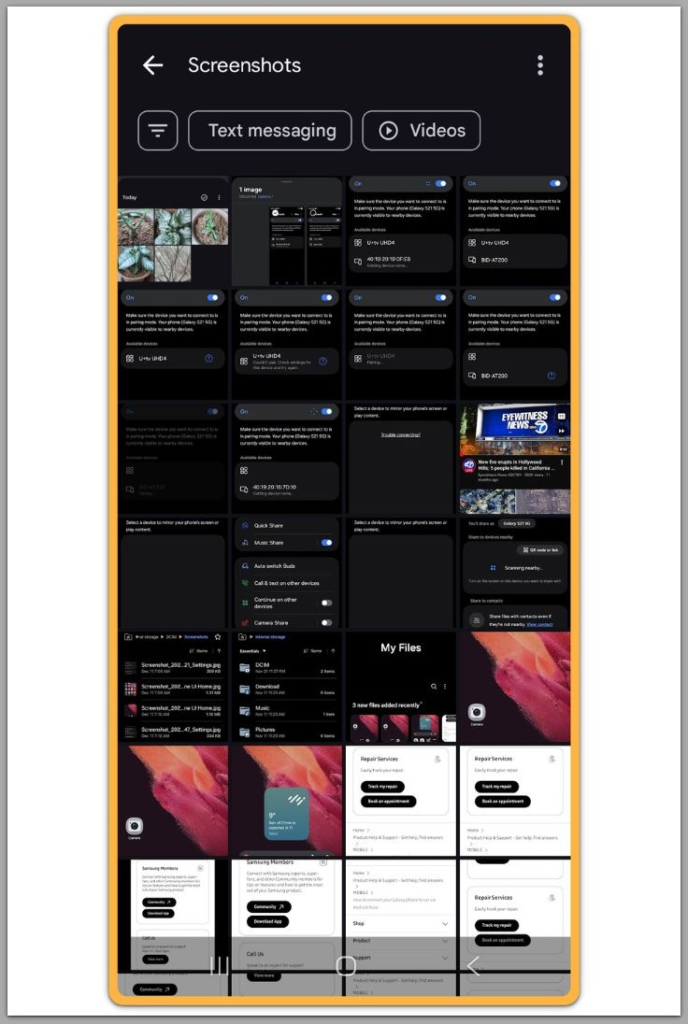
Screenshots and downloaded images increase faster than camera photos.
For this reason, they should never stay mixed with personal images.
Create two dedicated albums and move new files regularly.
Otherwise, clutter returns within weeks, no matter how clean the library looked at first.
Step 6: Keep the Album Structure Flat
Avoid creating albums inside other albums.
Although nested structures look organized at first, they collapse later.
One album should represent one clear idea.
Flat structures reduce mistakes and make it easier to organize photos on android on a small screen.
────────────────────
Troubleshooting
────────────────────
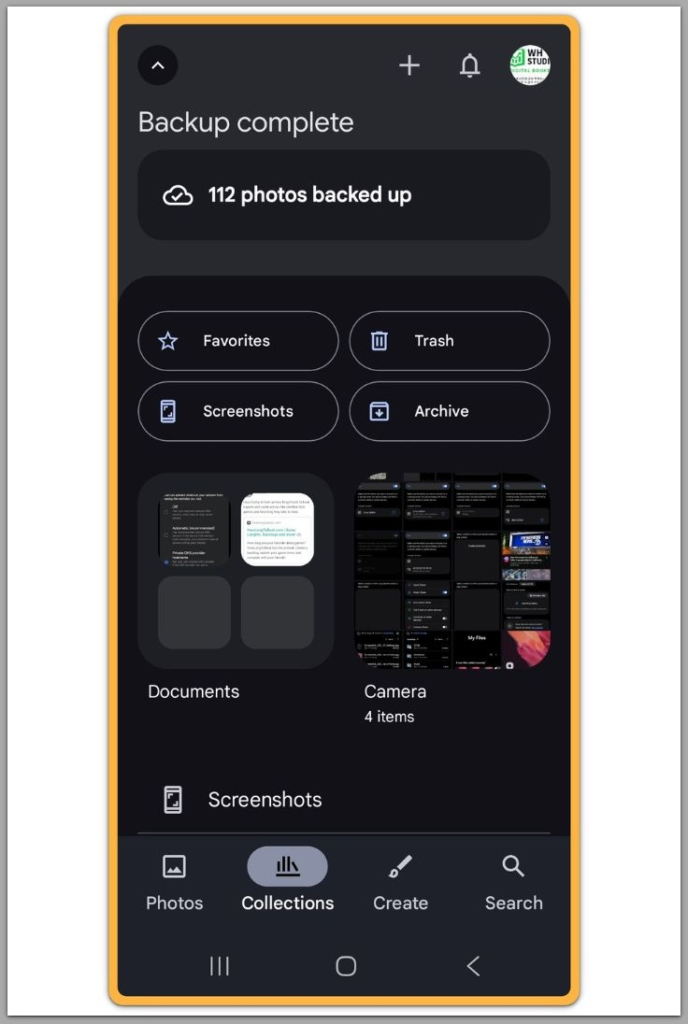
In most cases, if albums appear empty, syncing is incomplete.
Google Photos cannot assign photos that have not finished backing up.
When sync never completes, the cause rarely comes from the app itself.
Instead, storage limits, background data restrictions, or battery optimization usually block completion.
In this situation, albums will not update no matter how often the app is reopened.
This issue must be resolved at the system level before album management works properly when you organize photos on android.
────────────────────
Additional Tips
────────────────────
Favorites work best as temporary markers rather than permanent categories.
Regular monthly reviews prevent slow buildup of unused images.
Additionally, albums with overlapping purposes should be merged to reduce hesitation.
Without routine maintenance, no setup can reliably organize photos on android long term.
Consistency matters more than clever structures.
────────────────────
Final Notes
────────────────────
Albums work best when people treat them as labels rather than storage locations.
This single distinction changes how users interact with their photo library.
Once users understand this rule, photo management becomes predictable instead of stressful.
They stop worrying about losing files and start focusing on consistent organization.
The goal is not to create a perfect structure once.
It is to maintain a simple system that keeps working as new photos arrive.
Checklist
- Albums are based on purpose, not dates
- Photos are added in batches
- Screenshots and downloads are separated early
- Search is used before manual scrolling
Simple systems maintained regularly outperform complex setups every time.
────────────────────
Extra Section 1
────────────────────
Most photo organization fails because people treat it as a one-time cleanup.
Android photo libraries grow continuously through messaging apps, browsers, and system captures.
A full cleanup feels productive at first but does not last.
The library begins to drift again the very next day.
What actually works is short, repeated maintenance that matches how photos enter the system.
Spending five minutes every few days prevents the need for hour-long cleanups later.
People who succeed at organize photos on android focus on habits rather than perfect structures.
The tools already exist.
The routine determines the outcome.
────────────────────
Extra Section 2
────────────────────
Device differences affect performance and layout, not album logic.
For example, Samsung Galaxy models may place menus differently from Pixel devices.
Even so, album behavior remains consistent across devices.
For this reason, when photos appear missing, sync status must be checked first.
Large libraries and limited networks often cause delayed uploads.
Deleting photos before sync finishes leads to permanent data loss.
Understanding these limits prevents unnecessary mistakes while trying to organize photos on android across different devices and conditions.