
Introduction
How to free up storage on Android starts with finding the files that grow quietly over time, such as photos, videos, downloads, app cache, and offline files.
Deleting a few visible files does not always lower the storage number right away. Some space sits inside app data, downloads, trash folders, cached files, and media saved by messaging or streaming apps.
A safer cleanup starts with the storage screen, then moves to files and apps that take the most space.
Step-by-Step Guide: How to Free Up Storage on Android
Step 1: Check Storage Categories First
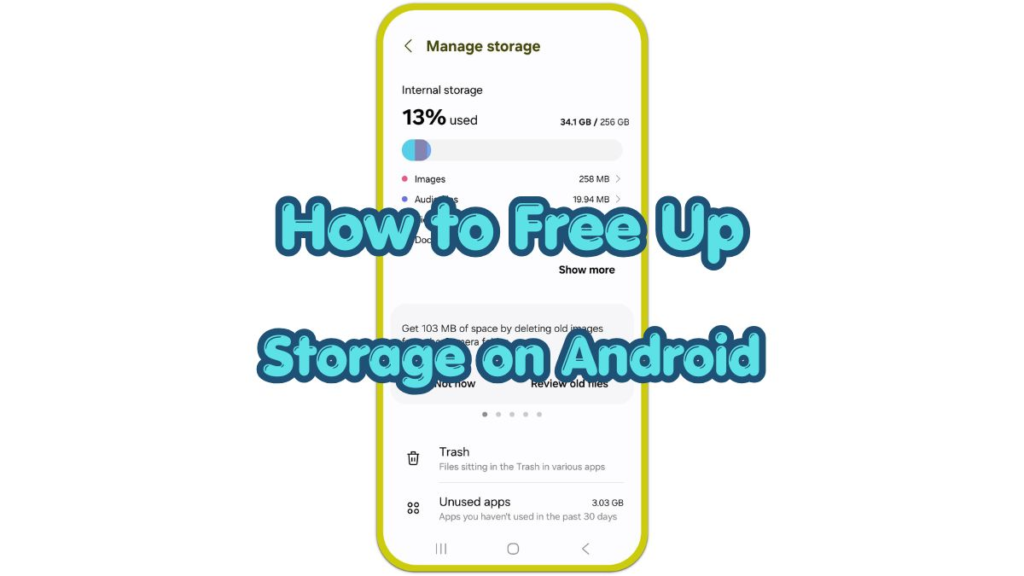
Open Settings, then tap Storage. Check the storage bar and category list before deleting anything. Android usually separates used space into apps, images, videos, audio, documents, downloads, and system data.
Look at the largest category first. Videos, photos, offline downloads, and large apps often explain most of the used space. This keeps you from wasting time on tiny files.
Open the biggest category and review the files inside. Old screen recordings, saved videos, duplicate photos, and downloaded documents usually make the biggest difference.
Step 2: Delete Downloads, Large Files, And Trash Items
Open Files or My Files, then check the Downloads folder. Remove old PDFs, installation files, saved images, documents, and videos you no longer need. Sort by size when the folder has too many items to review one by one.
Check Trash or Recently Deleted inside Files, Gallery, Photos, or any file manager app. Deleted files often stay there before Android removes them permanently. Emptying that folder helps the storage number update sooner.
Review large videos and long screen recordings before removing photos one by one. A few large videos often take more space than hundreds of small images.
Step 3: Clear App Cache And Offline App Files
Open Settings, tap Apps, then choose a large app from the list. Tap Storage and check how much space the app uses. Tap Clear cache when the cache takes up a lot of space.
Clear cache removes temporary files, not your photos, documents, account, or app settings. Browsers, social media apps, shopping apps, maps, and streaming apps often build large caches over time.
Open the app itself when the size stays large after clearing cache. Look for downloads, offline videos, saved music, saved maps, voice messages, or media storage inside the app settings. This data often stays inside the app instead of appearing in the main file manager.
Troubleshooting
Troubleshooting 1: Storage Number Does Not Change
Restart the phone after deleting many files. A restart helps the storage screen update the number.
Troubleshooting 2: App Storage Keeps Growing
Open the app and remove saved content from its own settings. Streaming, map, messaging, and social apps often keep downloads outside the Clear cache option.
Troubleshooting 3: Deleted Photos Come Back
Check cloud sync before deleting the same photos again. When sync stays on, Google Photos or another backup app often shows the same backed-up photos again.
Extra Section 1: Why Android Storage Fills Up Again
Android storage fills up again after cleanup because normal phone use creates new data every day. Browsers keep site data, social apps load previews, messaging apps store media, and streaming apps rebuild offline content.
When one app keeps growing, saved media, offline downloads, or cache usually cause the problem. That pattern matters more than one cleanup result.
Extra Section 2: What To Check Before Deleting More Files
Check backup and sync settings before deleting important photos or documents. Deleting a synced file on one device also removes it from other connected devices when the same account links the phone, cloud, and computer.
Keep personal photos, work documents, passwords, and saved records backed up before deep cleanup. Delete old downloads, duplicate media, cache, and offline files first because those areas are safer to review than unknown system folders.
Additional Tips
Keep size sorting for folders with too many items to check manually. Move rarely used videos or documents to cloud storage or a computer when you still want to keep them.
Messaging apps also need a separate check because old photos, videos, and voice messages often stay inside conversations. Remove duplicate photos only after you confirm which copy you want to keep.
Avoid deleting system folders when you do not recognize the file name. Unknown folders are harder to judge than downloads, duplicate media, app cache, and offline files.
Final Notes
The best way to free up storage on Android is to start with large media files, downloads, app cache, trash folders, and offline files before deleting small items across the phone.
After a major cleanup, restart the phone and check Storage again. If the number still looks high, open the largest apps and check their cache, downloads, saved media, and offline content.
Checklist
- Check storage categories before deleting files.
- Review downloads, large videos, and screen recordings first.
- Empty Trash and Recently Deleted folders after file removal.
- Check large apps for cache, offline downloads, and saved media.
- Check cloud sync before deleting important photos or documents.
- Restart the phone after cleanup so Storage updates the number.