
Introduction
After recent system updates, many Android alarms appear enabled but fail to ring without warning.
In most cases, alarms fail silently because system-level rules change after an update, not because users configured something wrong.
The alarm may appear enabled, schedules remain intact, and no visible errors are shown.
This creates the false impression that the alarm system is working normally.
After a system update, Android often changes how it enforces background execution, exact alarms, and battery optimization.
When these rules shift, alarms can stop triggering even though every visible setting looks correct.
This guide explains why android alarm not ringing after update occurs, how to identify the exact failure point, and where user-accessible settings stop being effective.
Menus may vary slightly by device model and region.
All behavior described here is based on recent Android versions running on Samsung Galaxy devices.
Step-by-Step Guide
Step 1: Verify the Alarm Is Using the System Clock App (android alarm not ringing after update)
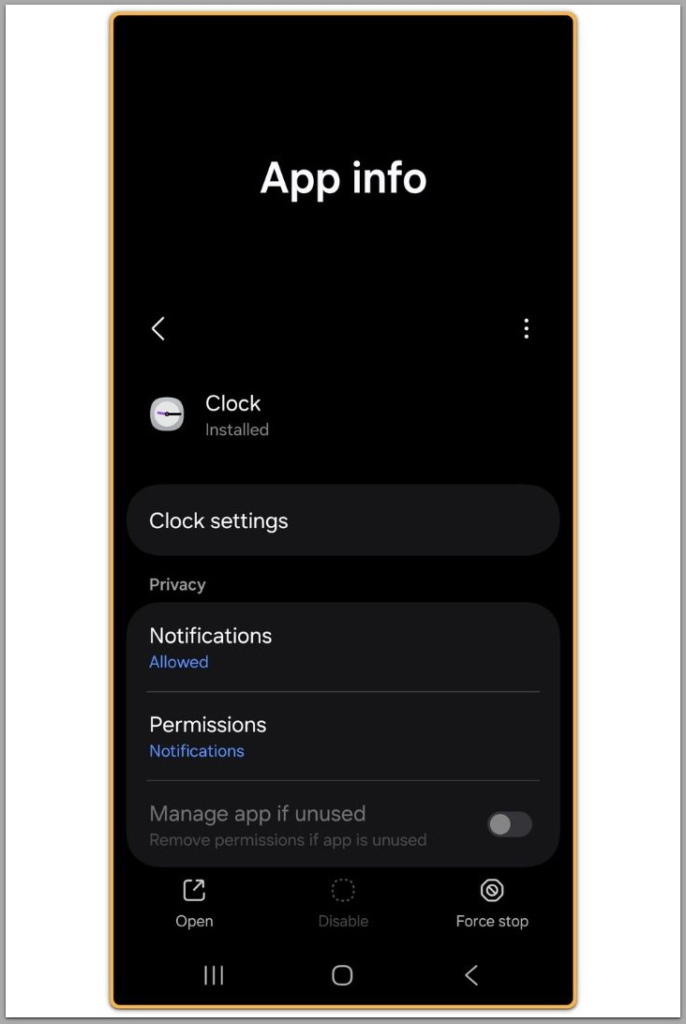
Open the built-in Clock app that comes with the device.
Avoid using third-party alarm apps during troubleshooting.
After an update, Android can restrict background execution for apps that are not system-signed.
Even when permissions look granted, the system may delay or block alarm delivery.
If multiple clock apps exist, uninstall or disable non-system versions temporarily.
This forces the alarm to rely on the system-level alarm service.
If android alarm not ringing after update persists at this stage, app selection is not the cause.
Step 2: Check Exact Alarm Permission Status
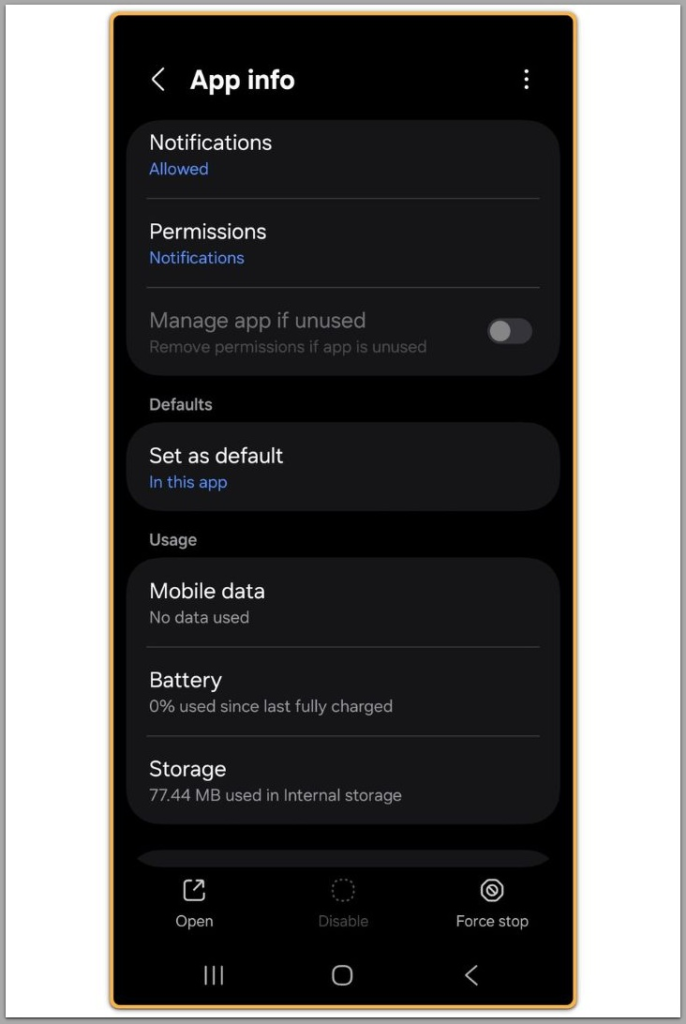
Go to Settings → Apps → Clock → Permissions or Special app access.
Locate the exact alarm or schedule exact alarms option.
Recent Android versions treat exact alarms as a privileged capability.
System updates can revoke or downgrade this permission without notice.
If the option is missing or disabled, alarms may fire late or fail entirely.
Re-enabling it restores timing accuracy but does not guarantee delivery.
If the permission is active, continue to the next step.
Step 3: Inspect Battery Optimization After the Update
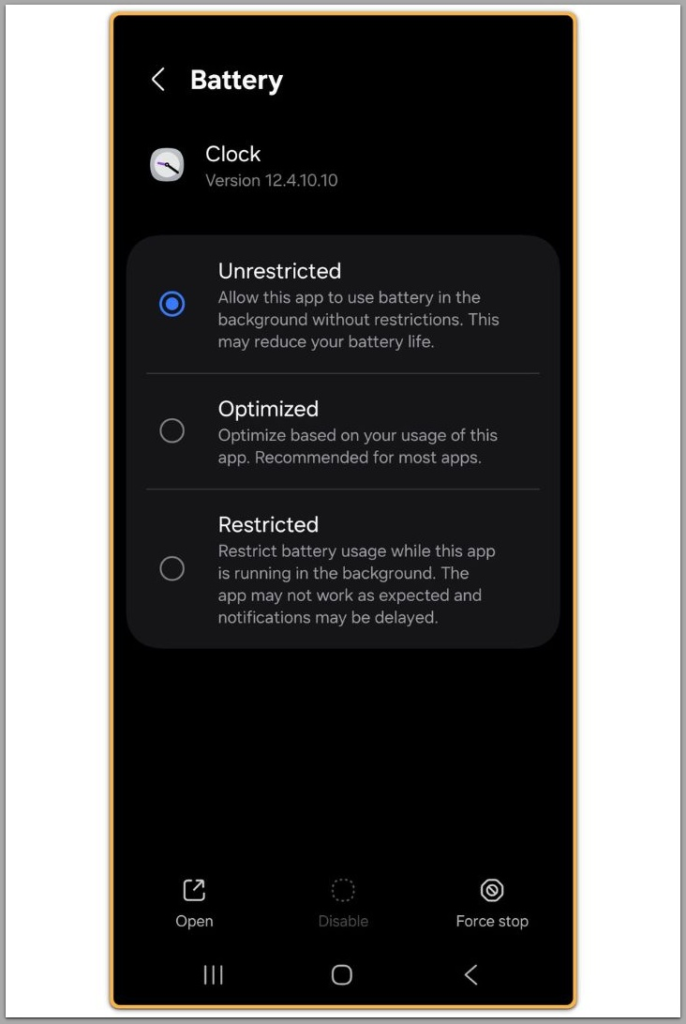
Navigate to Settings → Battery → Background usage limits.
Locate the Clock app and review its optimization status.
System updates often reset battery policies globally.
Apps that were previously exempt can become restricted again.
Set the Clock app to unrestricted or allow background usage.
Also confirm that the app does not appear in sleep or deep sleep lists.
If android alarm not ringing after update continues with unrestricted access, battery policy is not the root cause.
Step 4: Confirm Do Not Disturb and System Sound Routing
Open Sound and vibration settings.
Review Do Not Disturb schedules and exceptions.
Updates can change how alarms bypass silent modes.
In some cases, the system no longer treats alarms as priority sounds.
Confirm that alarms can override Do Not Disturb.
Also check that the alarm volume is not routed to a Bluetooth device.
If sound routing is correct and alarms still fail, audio configuration is not responsible.
Step 5: Test With a New Alarm After Restart (android alarm not ringing after update)
Restart the device to clear cached system states.
Create a new alarm instead of editing an existing one.
Alarms created before an update may rely on outdated scheduling tokens.
New alarms force Android to register fresh triggers.
If a newly created alarm rings while older ones fail, delete and recreate all critical alarms.
If new alarms also fail, the system-level issue is confirmed.
External Support Reference
This issue cannot be resolved through basic settings alone.
In most cases, system-level changes introduced by an update cause the failure and require direct verification beyond user-accessible options.
Below is a resource that explains what technicians typically check and how this type of issue is handled in practice.
Troubleshooting
If android alarm not ringing after update persists after all steps above, basic configuration is no longer the cause.
At this stage, the failure usually relates to:
☐ Background execution restrictions enforced by the OS
☐ Vendor-specific firmware bugs
☐ Corrupted system scheduling services
A factory reset can sometimes resolve the issue, but success remains inconsistent.
Restoring full data backups can also reintroduce the same failure state.
When alarms fail across restarts, new schedules, and unrestricted settings, user control ends here.
Additional Tips
Avoid restoring full system backups immediately after major updates.
Test alarms on a clean system state first.
Keep the system Clock app updated through the Play Store when applicable.
Some fixes arrive independently of firmware updates.
If reliability is critical, use multiple alarms or a secondary device temporarily.
This does not fix the issue, but it reduces risk.
Final Notes
android alarm not ringing after update is rarely a simple mistake.
When all visible settings appear correct, system-level changes introduced by the update usually cause the failure.
Checklist
☐ Verified system Clock app usage
☐ Exact alarm permission checked
☐ Battery optimization unrestricted
☐ Do Not Disturb and audio routing confirmed
☐ New alarms tested after restart
If all checks pass and the alarm still fails, this is not a settings issue.
Extra Section 1
Many users assume consistency equals correctness.
If an alarm worked before the update, they expect identical behavior afterward.
Android updates do not guarantee behavioral continuity.
Power management rules, scheduling accuracy, and background execution policies change regularly.
This explains why android alarm not ringing after update feels random.
The alarm itself is not broken.
The execution conditions have changed.
Understanding this prevents endless setting toggles that never solve the problem.
Extra Section 2
Alarm reliability depends on system trust.
After an update, Android reassesses which processes can run precisely in the background.
When that trust decreases, alarms shift from guaranteed to best-effort behavior.
No user-facing setting fully restores that guarantee.
If alarm reliability is mission-critical, long-term solutions require device-specific investigation or professional inspection.
This is not user failure.
It is a structural limitation introduced by the system.